

Imports only add rows. They never delete or overwrite what’s already in the run of show, and everything you add autosaves like any other edit, with Undo available.
Pasting or uploading a schedule
1
Open the dialog
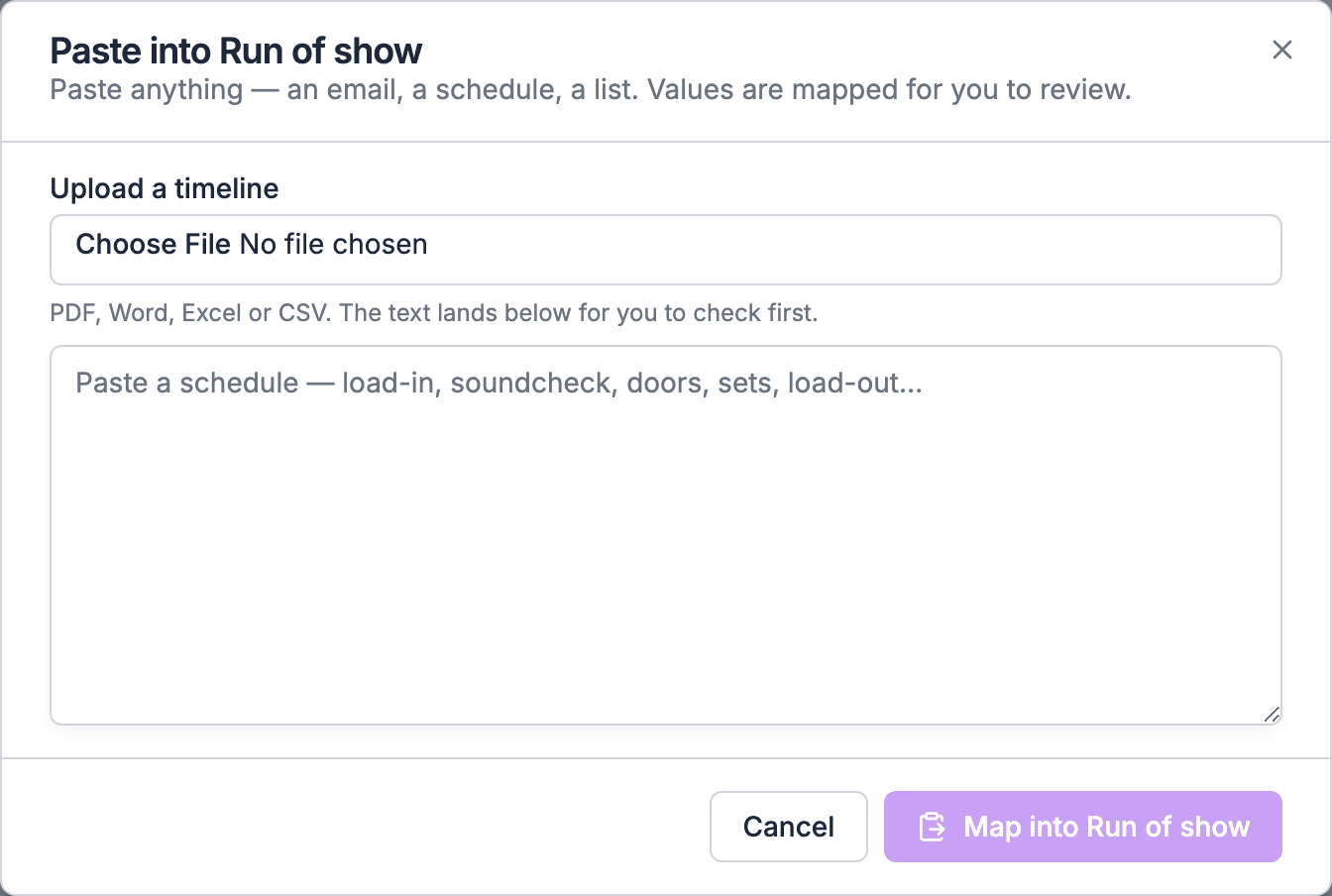
Open the gig’s Run of Show tab, switch to the List view, and choose Paste data above the grid. The Paste into Run of show dialog opens.
2
Add the text
Paste the schedule into the box. Or, under Upload a timeline, choose a file. Soundcheck reads the file and puts its text in the box, so you can check and fix it before going on.
3
Map it
Choose Map into Run of show. An AI model reads the text and turns it into rows with times and names. Nothing is saved yet.
4
Pick the rows
Tick the rows you want to keep. Untick anything you don’t want, such as a header line or a row from someone else’s part of the day.
5
Fill
Choose Fill, which counts what you ticked, such as Fill 12 values. Only ticked rows are added. They autosave like any other edit.
The AI only proposes rows. It never writes to the run of show on its own: you tick what to keep, and nothing is added until you choose Fill.
Files you can upload
Files can be up to 8 MB. Older Word (.doc) and Excel (.xls) files and images aren’t accepted: save them as .docx, .xlsx or PDF, or copy the text and paste it. A scanned PDF with no text in it has nothing to read.
What to check in the review
- Times. Make sure each row’s time came across the way the source meant it, especially around midnight.
- Duplicates. If part of the schedule is already in the run of show, untick those rows so you don’t add them twice.
- Row names. Each ticked row becomes an item with that name. You can rename items later in the grid.
A schedule dated for another day
A row whose date falls outside the gig’s dates is left out, and the dialog names it after Fill. This happens when you paste a schedule from another gig or from a copy of this one that moved to a new date. When none of the dated rows fall on the gig, and moving them all by the same number of days fits every row onto it, nothing is added yet. The dialog says Nothing added yet, shows the schedule’s date next to the gig’s date, and offers Move them to the gig’s date, such as Move them to Jun 14. Choose it to add the rows on the gig’s dates, with their times kept. If only some rows are outside the gig, the rows on the gig are added and the stray rows are listed as left out. They’re never moved. After Fill, the rows are ordinary items. Move them into sections, link them, add people, and set key times as you would for anything you typed. See Building and editing.Pasting key times
A call sheet usually lists the handful of times everyone needs: crew call, load in, soundcheck, doors, show, curfew, load out. Paste key times sets those on the gig in one step.1
Open it
In the List view, choose Paste key times next to Paste data.
2
Paste the call sheet
Paste the lines with times and names.
3
Review
Each name on your organization’s key time list (Settings → Labels → Gigs → Key times) becomes that key time on the gig. Any other name is marked New.
4
Apply
Confirm. Matched names set the key time. Rows marked New are added as plain items, so nothing you ticked is lost.
- A key time already set on that day is not overwritten. The row is added as a plain item instead, and the dialog says so.
- New names don’t create key times. To make a new name a key time for every gig, add it to your key time list first, or open the new item and pick a key time for it. See Key times.
Organizations still on the older timeline
If your organization hasn’t switched to Run of Show, Paste data sits on the gig’s Key times card instead. There, a new name is marked New key time:- An owner or admin who saves it adds it to the organization’s key times and sets it on the gig.
- For anyone else, the dialog lists it as not applied.
Pasting a set list
In the Setlist view, Paste data adds a pasted set list as sets, in the order you pasted them.- A title that matches a song in your library is added as that song.
- A title that isn’t in your library is marked New. Saving adds the song to the library and to the set.
Timelines from clients
Clients can send you their timeline from the client portal, with Share your timeline on the Schedule card of the event’s Overview. When they do:- Soundcheck emails you a link to the gig’s run of show.
- The List view shows a notice naming who sent it.
- The Run of Show card on the gig’s Overview tab shows the same notice, listing each file, who sent it, and when.
- Review opens the Paste into Run of show dialog with the client’s text filled in. From the Overview card, Review first opens the Run of Show tab. Map, tick and Fill as above.
- Dismiss sets the timeline aside without adding anything. From the Overview card you can dismiss without leaving Overview. When several timelines are waiting, each file has its own Dismiss.
Other ways in
- Bulk imports. A Universal Event Format import can carry run of show templates and each gig’s key times.
- Flex. Flex quotes set load in, show and load out. See Times that fill in on their own.
- AI assistants. An MCP client can write a run of show. See AI assistants and MCP.
- Other rundown tools. Soundcheck doesn’t import from or export to Shoflo, Rundown Studio, Stagetimer or show-control software today. Export a PDF or spreadsheet from that tool and use Paste data. See Switching from another tool.
Related
Building and editing
Work with the rows you imported.
Key times
How key times and rows relate.
Setlists
Sets, saved setlists and the Setlist view.
Troubleshooting
When an import doesn’t look right.