

The template library
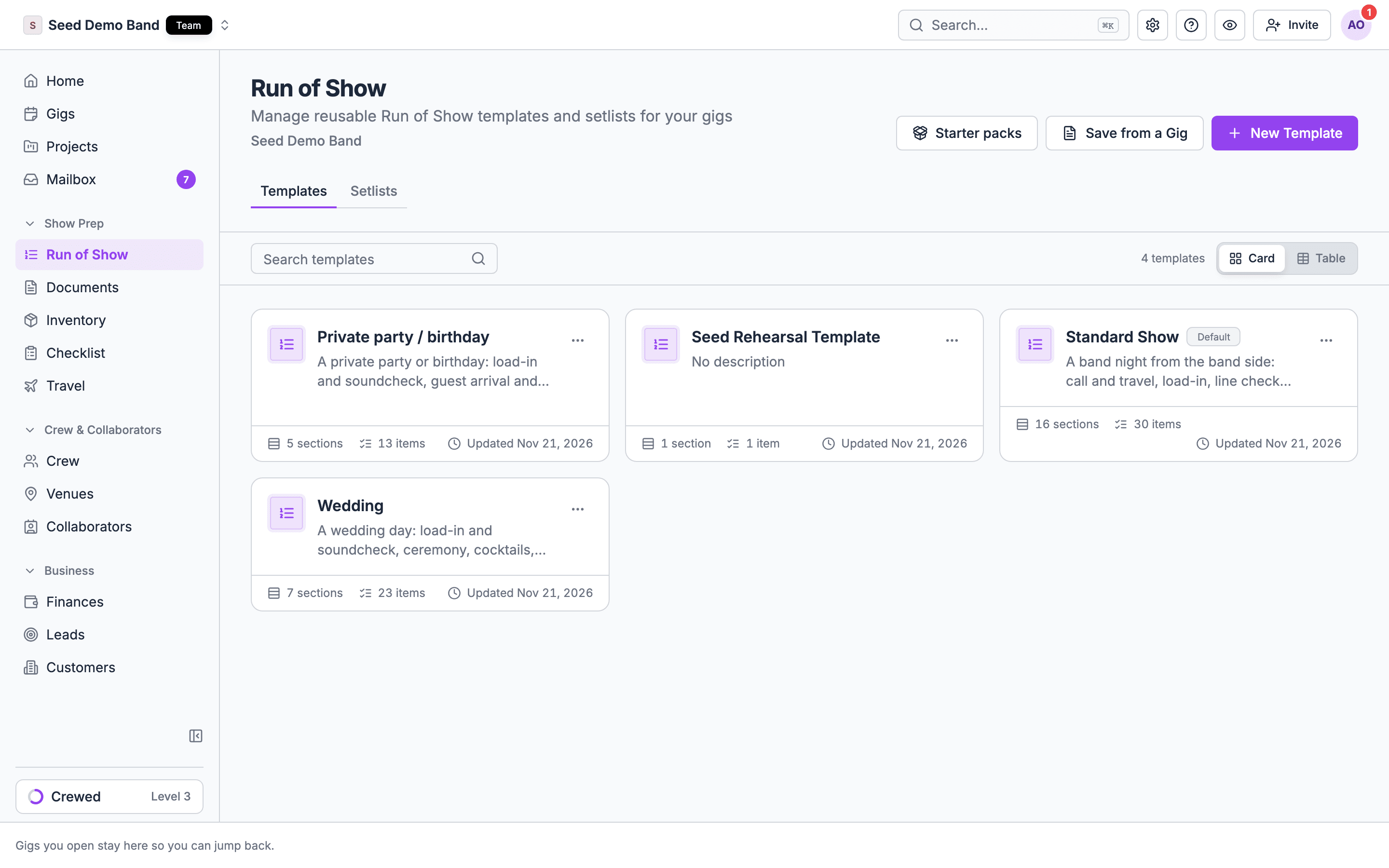
Templates live at Show prep → Run of Show in the sidebar. They belong to your organization, and everyone who can manage gigs sees the same library.- Template names are unique per organization, ignoring case, so you can’t have two Wedding Receptions.
- The library shows templates as a table or as cards, with section and item counts.
- Your organization’s default template has a Default badge.
The Standard Show starter and the default template
Every organization starts with a Standard Show template: the full starter for your business type (Production show day, Band night, or Venue show night), with doors at 7 PM.- New empty gigs created on the web apply your organization’s default template automatically.
- A gig created in the mobile app without a gig template (Create from scratch) starts with an empty run of show.
- The starter is your own editable copy. Rename it, change it, or delete it. Soundcheck never overwrites it, and a deleted starter isn’t restored automatically.
Starter packs
Choose Starter packs on the templates page to add a ready-made rundown.1
Browse
The dialog lists starters by business and by event. The ones that match your business type sit under Recommended for you.
2
Preview
Pick a starter to preview its sections and times.
3
Add it
Choose Add to templates. The new template is yours to edit. A starter you already added shows Open template instead.
What the newer starters fill in for you
- Key times. They name their key moments with your key times (crew call, load in, soundcheck, doors, ceremony, show, set time, curfew, load out). Applying one fills the gig’s key times, and those rows take the key times’ colors. See Key times.
- Ensembles. They put each ensemble in its own sections.
- Note prompts. A note line that ends in a colon is a prompt, such as Parking:. Fill it in. A prompt you leave empty stays off the music schedule you send from the gig’s Documents tab.
- Links. Back-to-back items are linked as segues, and on-cue items are grouped with the item before them. See Linking and timing.
- Stages. Stage sections go on Main. On a venue with no stage of that name, a section keeps its name, such as Side stage, as its location.
What a starter doesn’t do
- It doesn’t set which view the run of show opens in. That follows your organization’s setting.
- It can’t mark a cue as a surprise or attach songs. Do both on the gig after you apply the template.
Creating a template
There are two ways in.Start empty
Choose New Template on the templates page. Soundcheck creates an empty template and opens it in the editor.Save from a gig
Use this when you just ran a night that went well.1
Open the gig
Open the gig whose run of show you want to keep.
2
Save it
In the Run of Show section’s ⋯ menu, choose Save as Template, and give it a name.
Saving from a gig saves any pending edits first, so the template always holds what you see, not a half-saved draft.
Editing a template
Opening a template gives you the same editor as a gig’s run of show: sections, items, item types, songs, attachments, drag to reorder, autosave and undo. See Building and editing. A few differences:- A template has the List and Schedule views.
- The template’s name is the page title, with its description under it. Edit both in place.
- A template has no gig date, so the horizontal Schedule shows Template instead of a date.
- Run of show templates aren’t tagged with gig types.
Applying a template to a gig
1
Open the gig's Run of Show
Open the gig’s Run of Show tab.
2
Pick a template
Choose Apply Template from the section’s ⋯ menu, or Use Template on an empty run of show. Pick a template.
3
Check and confirm
The dialog shows the template’s first time. If the gig already has a run of show, you’re asked to confirm that it will be replaced.
How times land
Times come across exactly as saved in the template, placed on the gig’s date.- The gig’s start time doesn’t move them. A template with Show start at 10 PM lands with Show start at 10 PM.
- Past midnight goes to the next day. Anything after midnight lands on the following day.
- Extra days fold onto the last day. If the template has sections on more days than the gig has, those sections move to the gig’s last day at their saved times.
- No gig date, no times. If the gig has no date at all, items come across without times. Set the gig’s date before applying if you need the timings.
- The gig’s own date never changes.
Worked example
A Wedding template has Ceremony at 4 PM and Last dance at 11:45 PM, with Load out at 12:30 AM. You apply it to a gig on June 14. Ceremony lands at 4 PM on June 14, Last dance at 11:45 PM on June 14, and Load out at 12:30 AM on June 15.What else comes across
- Links, timing and key times come across with the items.
- Stages. A section whose location matches the name of a stage the gig is booked on, ignoring case, goes on that stage. A section placed on Main goes on the gig’s own stage. Any other location stays as typed text.
Deleting a template
Delete on the templates page removes the template only. Applying a template copies its content rather than linking to it, so gigs that already used it keep their run of show.Recipes
Make your house rundown the default
- Build or save the template you want.
- On the templates page, open its ⋯ menu and choose Make default for new gigs. It now shows the Default badge.
- New empty gigs created on the web start from it.
Turn a starter into your own
- Add the closest starter from Starter packs.
- Open it, rename sections to your wording, delete what you don’t do, and set your usual times.
- Rename the template so the team recognizes it, such as Our wedding night.
Reuse last weekend’s show
- Open last weekend’s gig and choose Save as Template.
- Open the template and remove one-off details.
- On the new gig, choose Apply Template.
Related
Building and editing
The editor templates share with gigs.
Multi-day gigs
Templates that span days.