

Where to send from
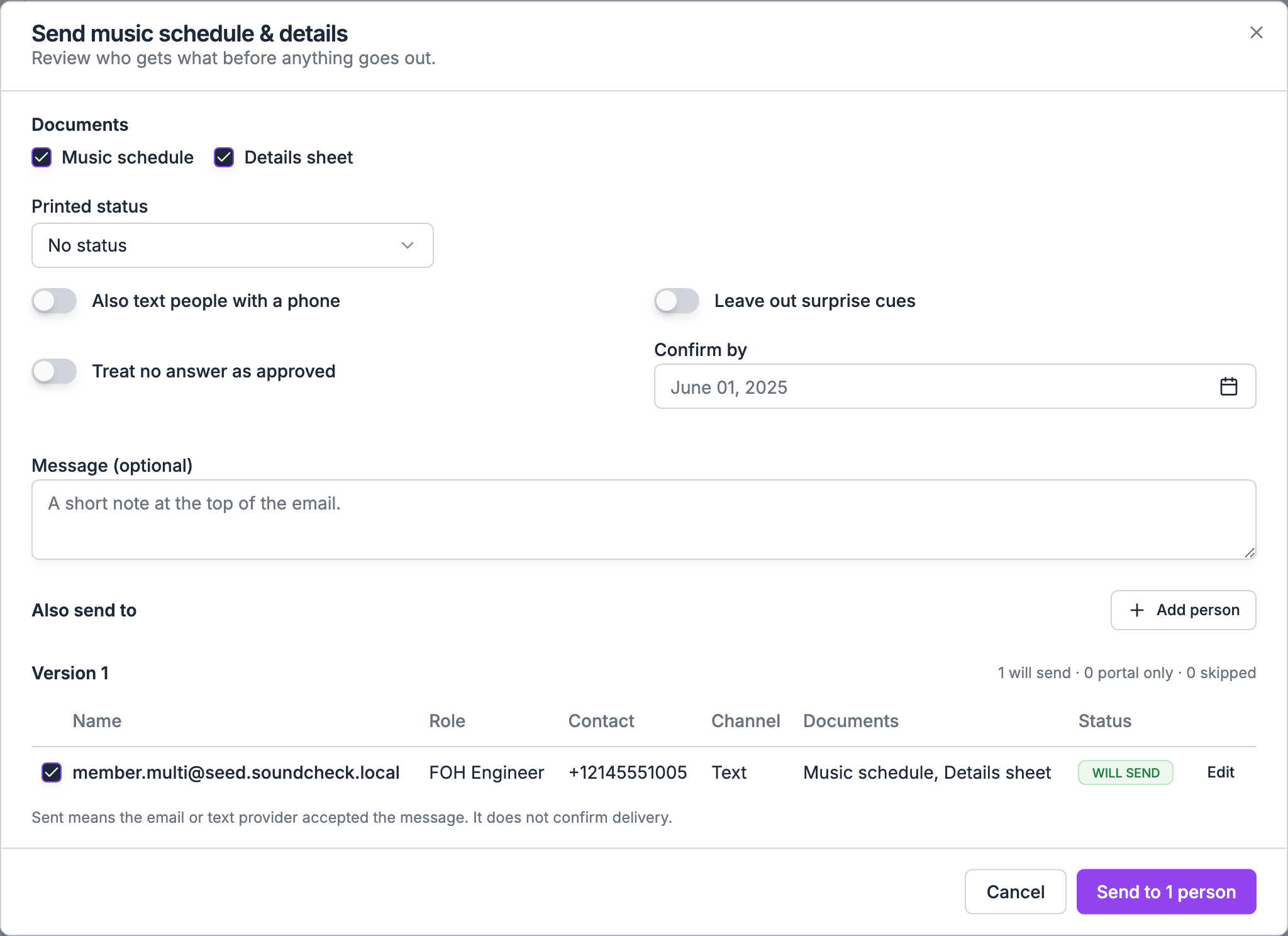
On the web, any of these opens the same Send music schedule & details dialog:- The gig’s Documents tab: pick Music schedule & details, then choose Send.
- The Sent row in the setlist panel of the gig’s Run of Show tab, with its Send button.
- Actions → Send music schedule & details, on gigs without a run of show section.
Sending needs permission to manage the organization’s gigs and edit this gig. Send doesn’t show on a draft, a template, or a past or archived gig. Publish the gig before you send. The dialog says Publish the gig before sending documents. otherwise.
Send a version
1
Pick the documents
Under Documents, tick Music schedule, Details sheet, or both. Both start ticked. You must keep at least one.
2
Set the printed status
Under Printed status, choose No status (the default), Prelim or Final. It prints on the documents.
3
Choose the options
4
Add anyone else
Under Also send to, choose Add person and enter their Email, Name and an optional Note. You can add up to 50 people. Check each email: a send with a badly formed address is refused as a whole, so fix or remove that row.When you send to someone you add, or to a gig contact, who isn’t in your organization yet, Soundcheck adds them to your people list as a contact who hasn’t signed up yet.
5
Review who gets what
The table lists each person with their Role, Contact, Channel (Email, Text, Email + Text, Client portal or None), the documents and charts they get, and a Status: Will send, Portal only, or Skipped with the reason. A line above it totals how many will send, how many are portal only, and how many are skipped. The table updates as you change anything above it.Choose Edit on a row to change that person’s documents, turn Confirmation required on or off, or add a Note for this person. Choose Done to close it.
6
Send
The button reads Send to N people, or Share in client portal when only portal rows are left. You see Music schedule & details sent and the version number when it’s done.
Who gets what
Gig contacts and people you add get the documents by email with their own confirm link. They are saved as contacts, not added to your organization. A person you add whose email belongs to a signed-up member of your organization gets them as that member.
Someone listed twice with the same email gets it once. The second row reads Skipped: Already listed.
Other skip reasons you may see: No email or phone, Excluded by you, No documents picked and Client portal is off.
Portal only rows aren’t emailed. Client contacts see these documents in the client portal. To give a planner access, invite their contact to the client portal from the client page. See What clients see.
What the details sheet includes
Crew and signed-up members of your organization get the full details sheet. Clients, gig contacts and other people you add get the client copy.
The list of changes on the client copy and on the music schedule leaves out changes to the crew list and the gig notes.
Charts
Each performer can get the charts assigned to them with the music schedule. In the Charts panel, pick a Chart, then a Performer, then choose Assign. To send a chart to someone who isn’t on the gig, pick Someone else, by email and enter their Email and Name. Charts come from the chart files on the songs in the gig’s setlist. Upload a chart to a song first if the panel says there are none.What people receive
Crew, gig contacts and people you add get an email from your organization’s sending domain, with your branding. Its subject reads “{title} · {documents} (vN)”. It carries the PDFs, your message, any note for that person, and a list headed What changed since the last version. Assigned charts are attached when each is 8 MB or less and the email stays under 18 MB; larger charts are listed as too large to attach, for download in the Soundcheck app. The button reads Review and confirm when a confirmation is needed, or View the documents when it isn’t. The footer asks them not to forward the links. A text carries the gig, the date, the documents and the version, with links, in up to 320 characters. People with a Soundcheck account also get a push notification, “New {documents} (vN)”. Clients get a different, shorter email titled Music schedule approval or Details sheet approval, with the PDF and a link to their portal. It doesn’t include your message, the person’s note, the list of changes, or the Confirm by date. If you need to tell the client something, email them yourself.What’s in each document
Each version prints one PDF per document, and everyone who gets that document gets the same PDF. Pick per person which documents they get with Edit on their row. Pages are A4 and carry your organization’s name, colors and logo (a PNG or JPEG logo prints; other formats are left off).
The details sheet leaves out the venue’s access code. To check either document before you send, open the export hub and download the Music schedule or Details sheet preview, marked “Preview (not sent)”.
How people answer:
- Crew, contacts and people you add open the link and choose Approve or Request changes. On the gig’s Documents tab on the web, and on the mobile card, crew can only Confirm; to ask for changes they use the email link or tell you. Links stop working 31 days after the gig.
- Clients review the version in the portal and choose Approve or Request changes. A note is required to request changes: “Tell the team what should change”. They can change their answer until the version is locked.
Versions and statuses
Every send is a new version. When you send again, older answers for the same document are marked Superseded, and the email lists what changed. On the Documents tab, Music schedule & details has one row per person for their latest version, with a badge:
A confirmed row also says how they answered: Confirmed by link, Confirmed in app, or Approved in the client portal. In the portal, clients see Waiting for your review, Approved, Treated as approved, Changes requested or Replaced by a newer version.
Treating no answer as approved applies to client approvals in the portal. Crew answers are never deemed approved.
Remind people
Choose Remind on a row that’s still waiting. Each crew member can be reminded once per version. A client can be reminded while they’re waiting, and gets at most one reminder email a day. Until the PDFs are ready, Remind is refused with “The documents are not ready yet”. Try again once the version shows Ready. Soundcheck doesn’t remind anyone on a schedule for the music schedule and details. Every reminder is one you send. An AI assistant connected through MCP can also send these reminders (send_reminder) and send a version (send_gig_documents). Its hide_surprises option works like Leave out surprise cues and has the same default when left out.
Send history
The Music schedule & details card lists every version you sent, who confirmed, and who still needs a nudge. Each version shows its number, whether its PDFs are Preparing PDFs, Ready or PDFs failed, when it was sent, how many people confirmed, and, when a client was in the send, the Confirm by date (“Confirm by {date}; no answer counts as approved.” when you turned that on). Show recipients opens a table with each person’s status, email and text status (Not sent, Sending, Sent or Failed), and their last activity. Remind N unconfirmed reminds everyone who can still be reminded.Related
Run of Show
Where the music schedule’s content comes from.
Gig details acknowledgment
Ask crew to confirm the gig details in the app.