

Who sees the tab
Owners, admins and gig coordinators see the Inventory tab. Crew don’t, and neither do you while you preview the gig as a member. On a plan without inventory, the tab shows the plan it needs and can’t be opened. On the sample gig without the plan, the tab opens with an alert that reads Sample gear preview so you can see how it works. The list has no per-line assignee, no grouping by case or truck, and no manual sort order. Put who loads what in line Notes or the run of show. Editing needs permission to manage the organization’s gigs. The sample gig and archived gigs are read only.What’s on the tab
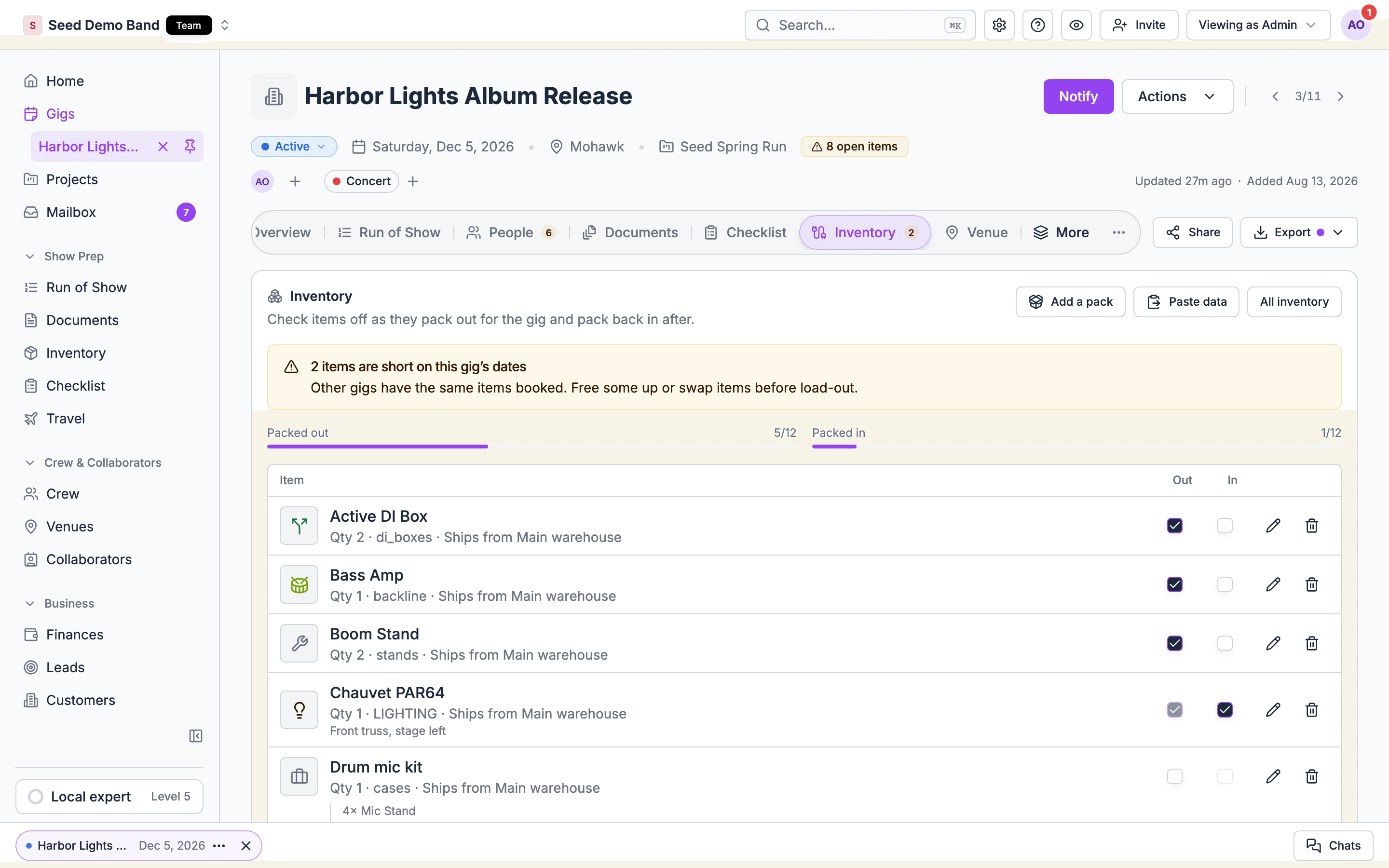
From top to bottom:- Inventory: “Check items off as they pack out for the gig and pack back in after.” Beside the heading are Add a pack, Paste data and All inventory, which opens Show prep → Inventory.
- Notices, when they apply: a draft or template, a cancelled gig, availability that didn’t load, or a shortage banner.
- Packed out and Packed in progress bars.
- The list, with Item, Out and In columns.
- The add form.
- Outside gear. See Outside gear.
Add gear from your inventory
1
Pick an item
Under Item, pick from your inventory. The picker shows what’s free on this gig’s dates, not today.
2
Set the quantity
Type a Quantity. If you ask for more than is free, the form says, for example, “Only 3 of SM58 available.”
3
Choose where it ships from
If your organization has stock locations, choose Ships from. The default location is preselected.
4
Tick accessories
For a kit or an item with accessories, tick the ones you want under Add accessories.
5
Add it
Choose Add to gig. The line appears in the list.
Read a line
Each line shows:- The item’s photo, or an icon for its category.
- “Qty”, the category, and “Ships from” with the location.
- Any notes.
- Out and In checkboxes.
- A Short badge when it’s short on the gig’s dates, with a line such as “Short 2 on Nov 22 — booked on Hartley Wedding”.
Edit or remove a line
- Edit: choose the pencil (Edit and the item name). Change Quantity, Ships from or Notes (for example, “Case number, where it goes”), then Save. A line that’s packed out says “Packed out. Untick it to change the quantity.” The editor warns “No more are free on these dates.” or “Only N more free on these dates.” The pencil only shows on active gigs, so lines on a cancelled gig can’t be edited; you can still tick In or remove them.
- You can’t raise the quantity past what is free over the gig’s dates. Save stays disabled until the quantity fits.
- Lowering the quantity, or changing only the location or notes, always saves, even when the item is short on these dates.
- For items counted by quantity, the ship-from list shows how many each location holds. Picking a location that holds fewer than the line asks for shows a warning, but you can still save.
- Adding an item that is already on the gig raises the quantity of that line instead of adding a second one. It gets its own line when the existing line has already packed out or come back, or when the two have different kit accessories, ship-from locations or notes.
- Remove: choose the trash icon and confirm with Remove. It takes the line off this gig. The inventory record stays.
Add a pack
Add a pack opens Add a starter pack to this gig: “Adds any items you do not have yet, then books the pack onto this gig.” Pick a pack. Items that are short are reported instead of failing the whole pack.Add a pack adds starter gear to your inventory as it books it. To put your own standard set on every gig, build a Bundle kit and add that one line. See Kits, cases, and accessories.
Paste a gear list
Got the gear list in an email or a spreadsheet? Choose Paste data and paste it in. Soundcheck maps what it finds into items and quantities. A name that doesn’t match anything in your inventory can be added as a new item. Review the values, tick what to keep, and save. Nothing is saved until you confirm. The same rules apply as when you add by hand: a draft, template or cancelled gig refuses the lines.Notices you might see
The tab’s badge counts open items: gear that’s short on the gig’s dates, and gear not back in after the gig. See Availability and shortages.
Worked example: a corporate dinner
You’re sending a small PA and a lectern mic to a hotel ballroom.- On the gig’s Inventory tab, add 2 × Powered speaker, 1 × Mixer, 1 × Gooseneck mic, all shipping from Main warehouse.
- A banner reads “1 item is short on this gig’s dates”. The mixer line says “Short 1 on Nov 22 — booked on Hartley Wedding”.
- You remove the mixer line with the trash icon, then add your Backup mixer instead. The banner clears.
- The hotel provides the screen and projector. Under Outside gear, add Projector and screen, Provided by Venue.
- On load-out day, the crew ticks Out on each line. See Packing out and back in.
Related
Availability and shortages
Why a line is short and how to fix it.
Packing out and back in
Out and In ticks and pack sheets.