

- Autosave captures every edit without a Save button.
- Conflict handling merges your edits when someone else changed the run of show at the same time.
- Publishing keeps your edits a draft until you choose to send them to crew.
Autosave
You never press Save. As you edit, Run of Show saves in the background, and the header shows where things stand:
If a save can’t complete, Soundcheck warns you before you leave the page, so you don’t lose the edit by closing the tab.
Undo and Redo sit next to the save status. You can also press Cmd/Ctrl+Z and Cmd/Ctrl+Shift+Z. A bulk change counts as one step.
A save only changes what you edited
When you save, only the fields you changed are written. Details that came from somewhere else, such as an import, a template, or an AI assistant, stay as they were until you change them yourself. You can safely edit one row’s time without disturbing details on other rows you never touched.When two people edit at once
Around show time, a coordinator, a music director and a production manager might all have the run of show open. If it changed somewhere else while you were editing, Soundcheck notices on your next save. Instead of silently overwriting the other person’s work, it merges your edits on top of the newer version. When it merges, you see a heads-up:Updated elsewhere. Your edits merged in; give the show flow a quick scan.Do what it says. Scan the order and times, because two people can each make a sensible change that reads oddly together, such as both moving the same set. A merge keeps the other person’s work. Their version is the base, and your edits are applied on top.
When a save fails while you switch views
When you switch views with unsaved edits, Soundcheck saves them first. If that save fails, the header shows Couldn’t save your changes with Retry and Discard changes. If you choose Retry and the run of show changed elsewhere in the meantime, the This run of show changed elsewhere dialog opens:- Replace with mine saves your version over theirs. Their changes are lost.
- To keep their version instead, close the dialog and choose Discard changes. Your unsaved edits are dropped.
Edits don’t appear live
Soundcheck doesn’t sync edits live between people today. There are no live cursors and no row locks. Your browser picks up other people’s saved changes when you come back to the tab or reconnect. On show day, agree who edits the run of show, and reload before a big change. See the Run of Show FAQ. Soundcheck doesn’t keep a version history either. It stores the current draft and the last published version, with no way to compare or restore older versions.Publishing to crew
Edits you make to a run of show are a draft. Crew see the last version someone published, on the web and in the mobile app. A half-finished change, like a set you’ve dragged out but not yet placed, never reaches them mid-edit. People who can edit the run of show always see the latest draft.What the header tells you
Publish
1
Wait for your edits to save
Publish is available once there’s something new to publish and your edits have saved.
2
Choose Publish
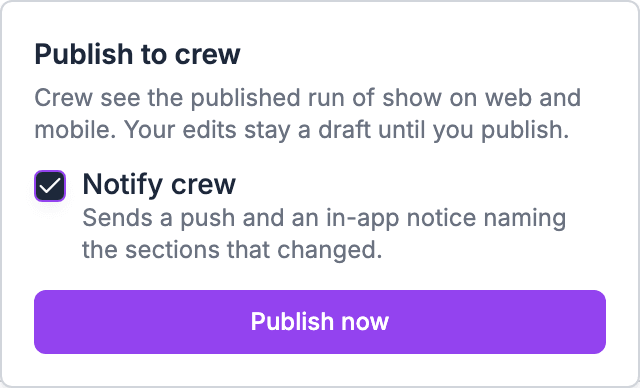
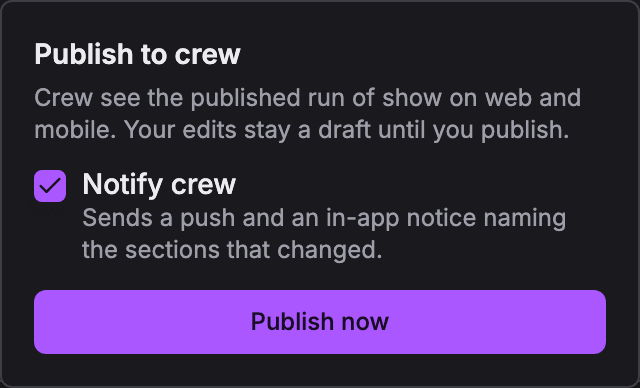
The Publish to crew panel opens under the button: Crew see the published run of show on web and mobile. Your edits stay a draft until you publish.
3
Decide whether to notify
Leave Notify crew ticked to send crew a push and an in-app notice naming the sections that changed. Untick it to publish quietly, for example when you only fixed a typo.
4
Choose Publish now
Crew see the new version on the web and in the mobile app.
Who sees what
Publishing controls everyone outside the editing team, not only crew:- Crew see the published version, and their checklist tasks from the run of show follow the published times. Follow live on the iPhone lock screen shows the published version too.
- Call sheets, day sheets and advance packets print the published version, even when an editor downloads them. Publish to update them.
- Clients in the client portal and guests on their guest page see the items they’re on from the same version crew see.
- Editors see the draft.
Changes from an AI assistant
Changes made through an AI assistant, such as CheckAI or an MCP client, also stay a draft until someone publishes them in Soundcheck. You can always look over what the assistant did before crew see it.Publishing is on the web
You publish on the web only. The mobile app has no Publish button, so a time you shift on a phone stays a draft until someone publishes on the web. See Run of Show on show day.When to publish
- After a planning session. Make all your changes, scan the grid, then publish once with Notify crew on, so crew get one notice instead of ten.
- On show day. Publish as soon as a change matters to crew, such as a set moving 15 minutes. Leave Notify crew on.
- For a typo. Publish with Notify crew off.
Turning publishing off
Publishing is on by default. Owners and admins can turn it off under Settings → Organization → Gig workflow → Run of show publishing, by switching off Publish before crew see changes. With publishing off:- Crew see every saved change right away.
- The Publish button goes away.
- Checklist tasks and client and guest views follow the live schedule.
Related
People and assignments
Who sees which items.
Troubleshooting
Crew don’t see a change, or a save missed.