

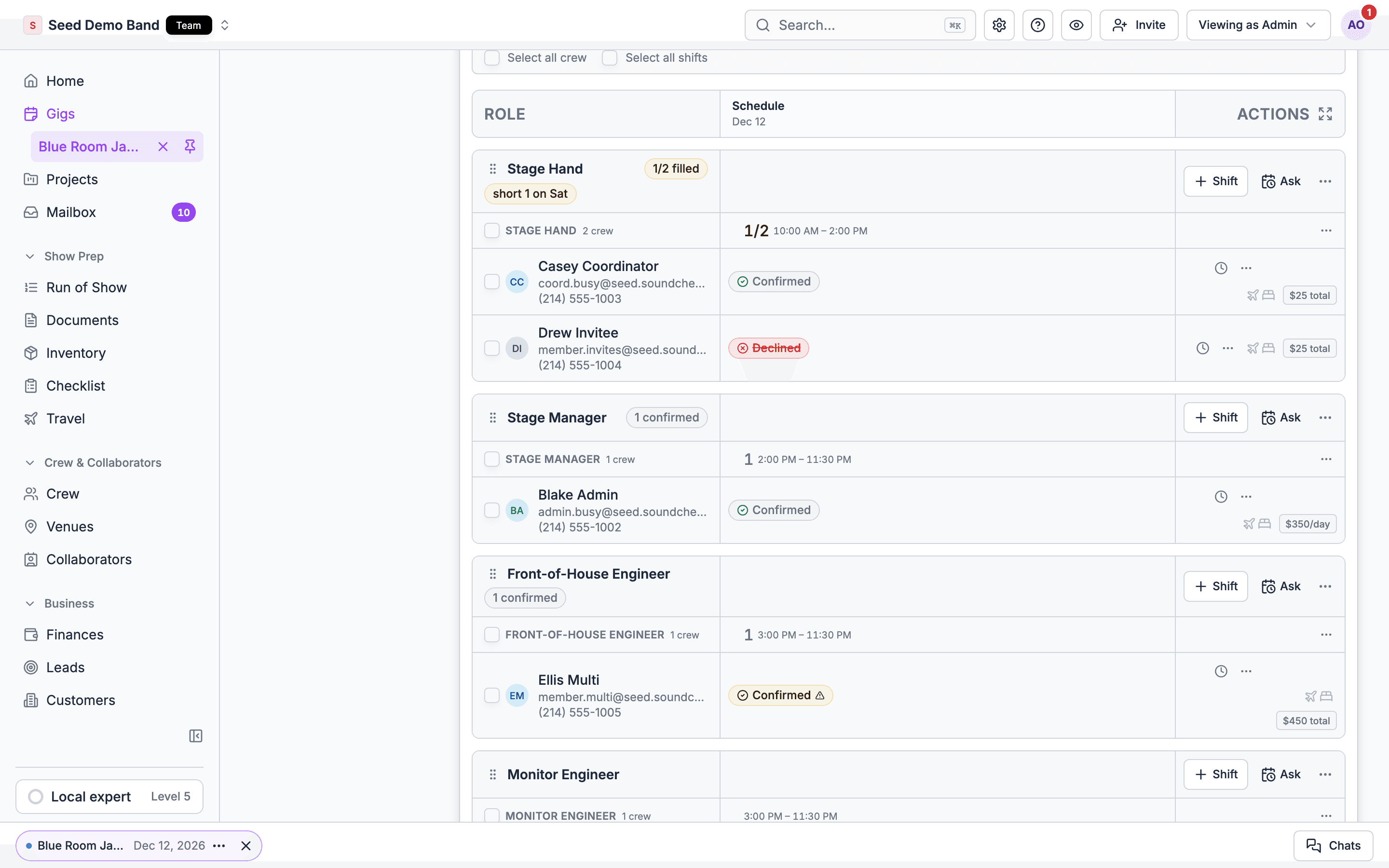
This page assumes your organization staffs gigs with crew shifts. For how shifts are built (positions, days, call times, pay, Need and Spots), see Planning crew needs and How shifts work. For every control on the web board, see The Crew board.
Why it works this way
Two rules shape everything below.- Nobody hears anything until you send. A draft shift is yours alone. You can park crew on it, change the days, and throw it away, and no one gets a message.
- What someone accepted doesn’t move under them. Once a shift is sent, its pay locks. A call-time change reaches everyone and lets anyone who already accepted hand the day back. See Call times and messages.
The life of an offer
Draft, then send
1
Build the shift
Open the gig, choose the People tab, then Crew. Add a shift for a position and fill in Days covered, call times and pay. The sheet is headed Create shift: “Choose crew, days, rate, and call times before sending.”
2
Pick the people
Choose from your members, or use Add someone without an account for a freelancer who isn’t on Soundcheck. See Finding crew.
3
Save as draft, or review
Save as draft parks the crew on the board. The sheet says so: “A draft notifies nobody — it parks the crew on the board until you send it.” Otherwise continue to the review step, which shows each person’s fee and any Double-booking warning.
4
Send
Choose Save & Send. The shift becomes Open and every person on it is notified.
Crew offers don’t wait for the gig to be published. If you send a shift on a draft gig, the crew are notified straight away. Only the Google Calendar invite waits for the gig to be published. Keep shifts as drafts until you’re ready.
Job offer or open shift
To make an open shift, tick Open shift — first to accept in the shift sheet. A draft can change type with Switch to open shift or Switch to job offer. Open shifts can only be created on the web.
Early access: Open shifts are rolling out gradually. Contact info@soundchecklive.io to have them turned on. An open shift goes only to the people you put on it. Soundcheck doesn’t have a public shift board that anyone can claim from.
Shift statuses
Each person’s status
The board also shows delivery and availability badges beside people: Not delivered, SMS ready or SMS unavailable, No account yet, and the availability chips Available, Asked, Unavailable, Hold, Paid hold and Booked.
Multi-day answers
On a shift with several days, crew answer day by day. Someone can take Friday and Saturday and pass on Sunday. In the app they choose Choose days (“Unchecked days will be declined.”), or open the sheet “Respond to this offer” and pick Accept all days, Decline all days, or Confirm N of M days. Pay follows the days they accept. See Pay and rates.Seeing who opened it
In the organization Mailbox (/org-engagements), each person on a thread shows Opened with the time they opened the offer email, or Email bounced. Treat a missing Opened as “unknown”, not “unseen”: Apple Mail’s automatic opens are left out and some mail apps block tracking. See Mailbox.
Deadlines
A shift can carry an optional response deadline. When it passes, Soundcheck closes the shift within about five minutes. Soundcheck doesn’t send an expiry notice today to the people who were still pending or on standby. Crew see Reply by with the time on the offer, and Reply window closed after.The web and mobile shift sheets don’t have a deadline field. Set or extend a deadline through the Soundcheck connector (
save_crew_offer with expires_at) or the API. Sending a shift whose deadline has already passed is refused: “The response deadline has passed. Extend it before sending.”Reminders
Reminders are manual only. Soundcheck doesn’t send automatic reminders for crew offers, so a shift nobody answers stays quiet until you nudge it.
A reminder only goes to people who haven’t answered, and only on an Open shift. Reminders and new asks are held back on gigs that are closed, archived, cancelled, completed or settled.
When someone declines
A decline frees the seat, notifies you, and does nothing else. Soundcheck doesn’t move to the next person on a crew offer automatically. There’s no first call, second call queue that advances by itself on shifts. You pick the next person. Fast ways to refill:- Add the next person to the live shift in Edit shift (web) or Add crew (mobile) and send. Only the new person is notified.
- Send the shift to several people at once as an open shift, so the first to say yes takes it.
- On an open shift, people on Standby are offered the spot automatically when it opens: “A spot opened back up on this shift — first to accept wins.”
Organizations still on the older invitation flow do get automatic backups: when the primary declines, the next backup in the call list moves from standby to pending and is notified. That only happens with invitations, not crew offers.
Offering it again
If someone declined and changes their mind, open their cell on the web board and choose Shift again (or Shift again for this day, or Shift again for all N declined days on a multi-day shift). On mobile, tap them and choose Shift again or Shift again for every declined day. For someone on standby, the cell menu offers Send invite. Someone you removed shows as Removed in the shift sheet with Re-invite. Saving re-sends the offer to them.When someone accepts, then can’t make it
Crew can’t quietly un-accept. In the app they choose Can’t make it on the offer, pick the days on a multi-day booking, enter a Reason (required), and choose Withdraw (or Keep my spot to back out). You’re notified straight away, the seat opens, a filled shift reopens, and their unpaid payout for those days is voided.Recording an answer for someone
When a crew member says yes on the phone, you can record it. On the web, use “Accept for this day” or “Confirm all” on their cell. On mobile, tap them and choose Accept, Decline or Accept every day. Owners, Admins and Gig Coordinators can do this.Cancelling and removing
What happens when you cancel or remove:
- The person gets a cancellation by their usual channels.
- Their unpaid payout is voided. A payout that’s already paid or has a payment started is left for you to settle by hand.
- Anyone who had accepted comes off the gig’s calendar for the days they accepted, and that shift’s automatic availability block is removed. A day stays on their calendar when another shift on the same gig still books them for it.
- Removing someone from a live shift re-notifies the crew who remain, because the shift is rebuilt.
- On a gig that’s completed and settled, nobody can come off until you Reopen it: “This gig is completed and settled. Reopen it to change who was on it.”
Replacing someone
Use Swap for… on the person’s row on the web. Pick a member, or someone without an account. Soundcheck adds the replacement first, gives them the outgoing person’s days, and then removes the outgoing person, so the seat is never empty. The toast reads “Swapped. The new person has the same days.”- The replacement gets a new offer. They still have to accept it.
- The outgoing person gets a cancellation.
- Swapping out someone who already accepted takes them off a sent shift, so it needs an Owner, Admin or Gig Coordinator. Someone still pending or on standby can be swapped by anyone who staffs the gig.
- The mobile app has no swap. Add the replacement with Add crew, then remove the other person.
What crew receive
Each person hears through the channels they’ve chosen for crew offers: email, SMS and push. Their own setting wins, then your organization’s default, then on. See Call times and messages.
Email is titled with the shift name, and also shows the gig title when it differs. It links to the offer and carries one-tap answer links. Accept and Available links answer straight away. Decline and Unavailable ask to confirm first.
SMS reads like: “[org]: [title]. [details]. Tap to respond: [link] Reply YES [CODE] or NO [CODE].” Crew can answer by replying
YES or NO with the code. A code works for 30 days.
Push shows a short label (Offer, Reminder, Updated, Cancelled, Filled, Spot open or Confirmed) and opens the offer in the app’s Inbox.
In the app’s Inbox, the offer card shows When, Where and Pay, “Notes from [org]” and “Venue details” before they answer.
Answering without an account
Freelancers don’t need a Soundcheck account to take a shift.1
Add them by name and email
In the picker, choose Add someone without an account. Enter First name, Last name and Email. Add Phone (optional) and tick Text them at this number only if they agreed to texts.
2
Send the shift
When your organization can email people without an account, they get an email with a link: “Added. They have an email with a link.” Otherwise Soundcheck refuses to add them to a sent shift, and on a draft they show Not sent. A text goes out only when you ticked the box: “Confirm your shift. No account needed: [link]”.
3
They answer in the browser
The link opens a page headed “You’re on [shift]” with the gig, venue, their sound check and special instructions. They choose Accept or Decline for each day, then Send my answers.
Conditional answers and counter-offers
Soundcheck doesn’t support conditional accepts (“yes if I can leave by 11”) or rate counter-offers today. Crew can add a note when they answer (“Add a note (optional)”), and a declined invitation can carry a reason. To agree a different rate, talk to them, then remove and re-add them at the new fee while the shift is still unsent for them, or cancel and re-issue the shift.No-shows
Soundcheck doesn’t have a no-show status or a no-show workflow. Nothing marks a person as a no-show, and there’s no penalty or automatic backfill. Here’s the best way to handle one:1
Fill the seat
Swap for… the person who didn’t arrive, or add a replacement. See Day of show.
2
Make sure they aren't paid
Removing them voids their unpaid payout. If you use the time clock, they have no hours to approve, and the Not in yet count on Crew hours shows who never arrived.
3
Keep a record
Leave a low score and a note in the gig’s Closeout Team review, and lower their Rating for that position on their profile. Or add a crew record field such as “No-shows” and update it. See Reporting.
Worked example: an AV company’s corporate general session
A two-day corporate meeting needs an A1, a V1 and four stagehands.- On Monday you build three shifts as drafts: A1 · GS and V1 · GS as job offers to your regulars, and Stagehands · Load-in as an open shift with 4 Spots, sent to eight people.
- The client signs Wednesday. You choose Send all.
- Five stagehands accept within an hour. The first four are Confirmed; the fifth goes to Standby and gets the “filled” text.
- Thursday, a stagehand chooses Can’t make it: “family emergency”. The shift reopens and the standby stagehand is offered the spot automatically.
- Your V1 hasn’t answered. You choose Send reminder on their cell. They reply
YESwith the code from the text. - Friday, the A1 declines day two. You add a second A1 for that day only and send. Only the new person is notified.
Questions this page answers
- Can I send one offer to five people and take the first who accepts?
- Can I keep offers unsent while a gig is a draft?
- Can crew accept or decline from a text, without an account?
- Can crew accept some days of a multi-day gig?
- Does the offer show the rate, call time and location before they accept?
- Can I see who opened, accepted or ignored an offer?
- Can I set a deadline? Are reminders automatic?
- Does the next person get the offer automatically when someone declines?
- Can I cancel an offer, and is the person told?
- Can crew counter with a different rate?
- How do I handle a no-show?
Related
Finding crew
Members, freelancers, availability checks and standby.
How shifts work
Pay locks, Need, per-day answers, and editing a sent shift.
Call times and messages
Changing a call and who hears about it.
Crew experience
The offer from the freelancer’s side.