

Why record hotels
- Crew know where they sleep. Each guest sees their own hotel, nights and room in the mobile app.
- Your terms stay in one place. Negotiated rates, room block codes and corporate accounts live on the saved hotel, not in someone’s inbox.
- Reuse across a tour. Save a hotel once and pick it on every gig that stays there.
Saved hotels
Open Travel in the sidebar, choose the Hotels tab, and switch to Saved hotels. This is your organization’s hotel list. Older links to the Hotels page open here.Find or add a hotel
- Search the shared directory. Search by name, brand or city to find hotels Soundcheck already knows, then save one to your list.
- Create a new hotel. If it isn’t there, create it. Pick a search result to fill in the address, phone and website for you, then choose Create and save.
- Filter your list. Narrow by Scope (All hotels, Saved only or Directory only), Stars, Rate (Has negotiated rate or No rate on file) and amenities. The Brand and Status filters appear once any hotel in the list has a brand or a status.
- Start from a city. Starter packs saves a set of known hotels in a city to your list in one go.
What a saved hotel holds
Open a hotel to see its page. Fields you can keep include:
Your terms are visible only to your organization. Inside your organization, Nightly rate, Currency, Corporate account and Billing method show only to people who can see money. Room block code, Loyalty account and Internal notes show to everyone who manages business records.
Status is your own word for the hotel, such as Preferred, and you can filter by it. Set it when you create or edit the hotel; it isn’t on the hotel page itself.
A hotel’s page also shows Nightly rate, Past gigs, Upcoming and Block code at the top, lists Recent gigs staying here, holds files you attach, and keeps an Activity log of changes, including rate and room block changes, for people who can see money.
Hotel files
Attach rate agreements, contracts and confirmations to a saved hotel: up to 15 files, 100 MB each. Files stay private to your organization. Owners and admins can mark a file as admins-only.Plans
Saved hotels, flights, rides and vehicles are on every plan. See Plans.The negotiated rate never reaches crew. The gig’s Lodging card leaves it out. It only shows on the saved hotel pages, for people who manage business records and can see money.
Add a stay to a gig
1
Open the Lodging card
Open the gig and choose People → Travel. If there’s no Travel group, open the Venue tab (see When travel is on the Venue tab). Find the Lodging card.
2
Choose Add hotel
Pick a hotel from Choose a saved hotel. If the list says No saved hotels available, save a hotel to your directory first, or use Hotels near the venue below.
3
Set the dates
Set Check-in and Check-out, then choose Add.
4
Add a confirmation number
Type the hotel’s confirmation into Confirmation number on the stay. It saves when you click away and shows Saved.
5
Add guests
Open Add crew on the stay and pick each person staying there. The list only offers people on the gig who aren’t on the stay already.
The Lodging card has no rooming list export and no warning for people without a hotel. To send the hotel a rooming list, copy each stay’s guests and rooms into your email. The Travel FAQ has more on rooming lists.
Guests keep their own nights
A stay has check-in and check-out dates, but each guest can have their own. A guest’s own nights come from the booking they add themselves (see Crew add their own bookings). Someone who arrives a night late or leaves early keeps their own nights. When that guest opens the gig, the Lodging card and the mobile app show their own nights instead of the stay’s dates. People who edit travel see the stay’s dates on the card. A guest with no nights of their own follows the stay. Each guest can also have their own Room and Confirmation. Set them from the person’s bed icon on the Crew board. See People and crew travel.Hotels near the venue
When the gig has a venue, a Hotels near card follows the Lodging card for people who can edit travel. It lists hotels close to the venue with their brand and how close they are, such as Adjacent, Connected, Walking distance or Short drive, and the distance in miles when known. Choose Add on a hotel to save it to your organization’s list. It then shows up in Choose a saved hotel on the Lodging card. A hotel you already saved is marked Saved.Crew add their own bookings
Anyone on a gig can tell the team where they are staying. This is handy when crew book their own rooms.1
Open My travel on the gig
Open the gig’s Venue tab, find the My travel card and choose Add travel → Hotel.
2
Pick the hotel
Under Which hotel?, join a stay already on the gig, or choose A different hotel and Search for your hotel.
3
Add your details
When you join a stay, set Your nights. For a different hotel, set Check-in and check-out. Add a Room and Confirmation number if you have them. Choose Add booking.
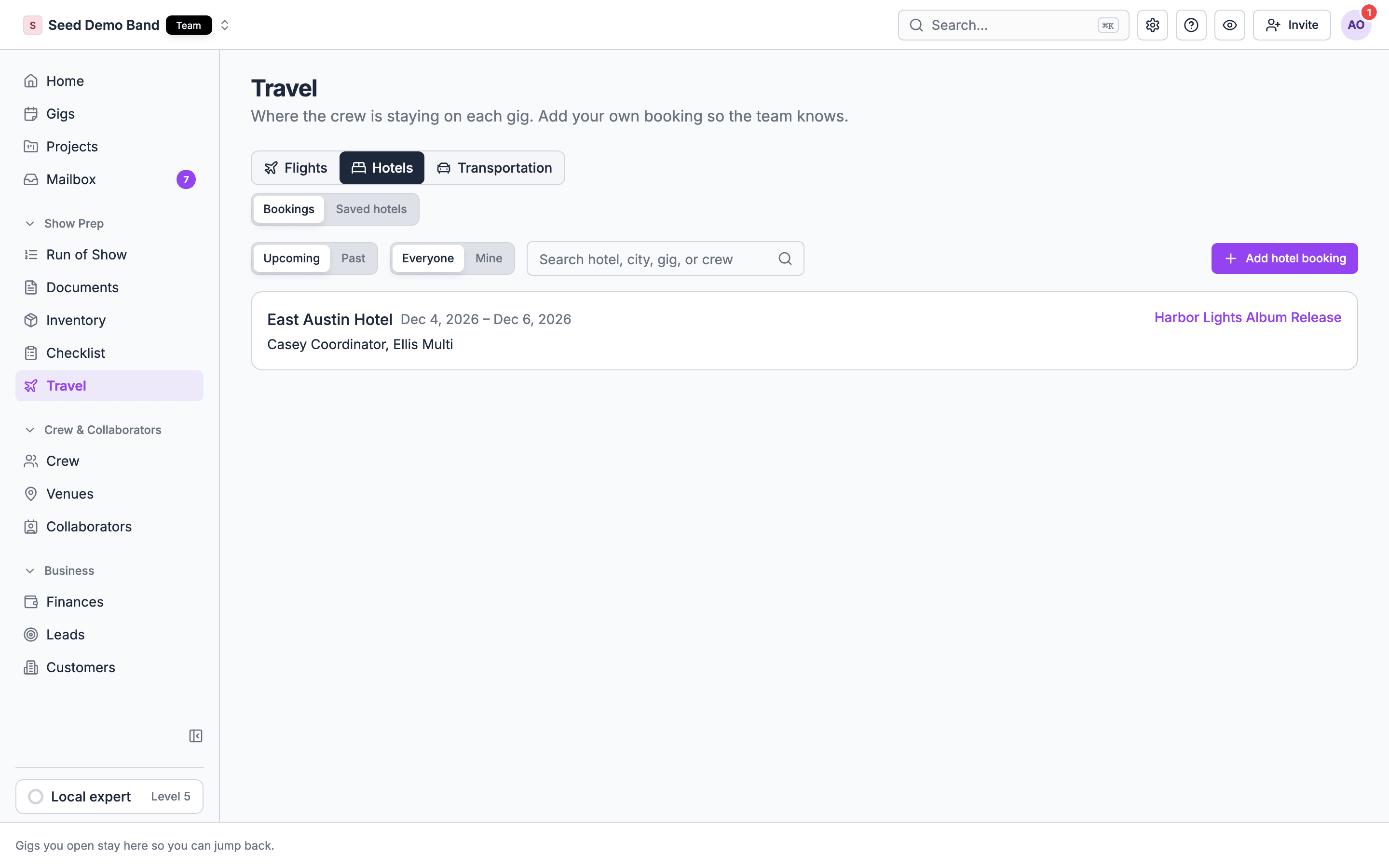
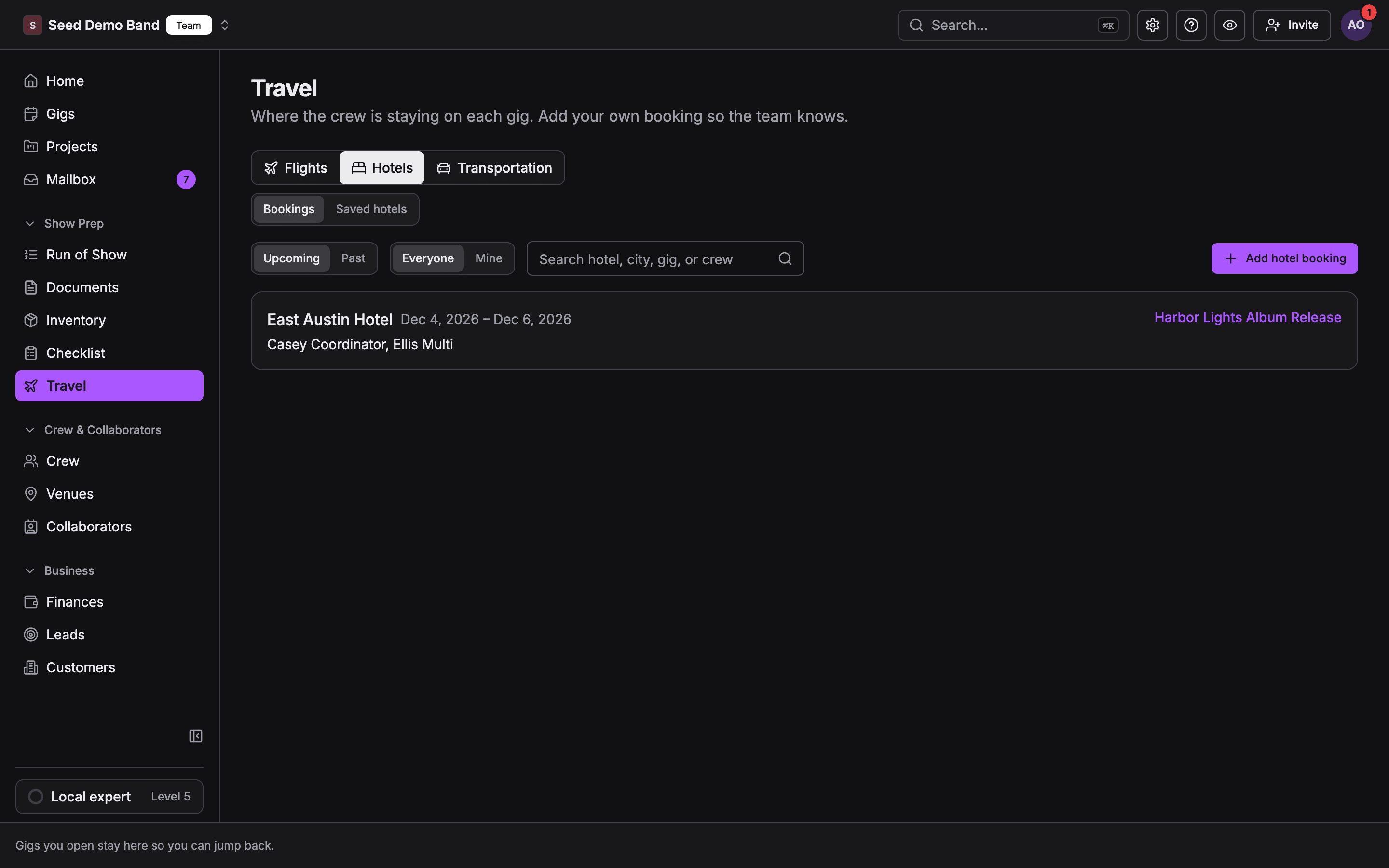
Every booking on the Travel page
Open Travel and choose the Hotels tab, then Bookings.- Switch between Upcoming and Past.
- Show Everyone’s bookings or just Mine.
- Search by hotel, city, gig or crew name.
Worked example: a three-night run
A crew of six plays Thursday to Saturday in Denver.- On Travel → Hotels → Saved hotels, the hotel is already saved with a negotiated rate and room block code.
- On Thursday’s gig, add a stay at that hotel, check-in Wednesday, check-out Sunday, and add all six people.
- One engineer books her own room for Friday and Saturday. She chooses My travel → Add travel → Hotel on the gig, joins the same stay, and picks her two nights. She stays on the one stay with her own nights.
- Paste the hotel’s confirmation into the stay. Add room numbers per person from each person’s bed icon on the Crew board as the hotel sends them.
- Each person sees the hotel, their own nights and their room in the mobile app.
Related
Travel overview
The building blocks and how Travel fits together.
Venues
The venue record that Hotels near reads from.
Confirmations and imports
Forward a hotel confirmation instead of typing it.
Travel FAQ
Rooming lists, room blocks, incidentals and more.
Travel glossary
Room block, cutoff, attrition and other hotel terms.