

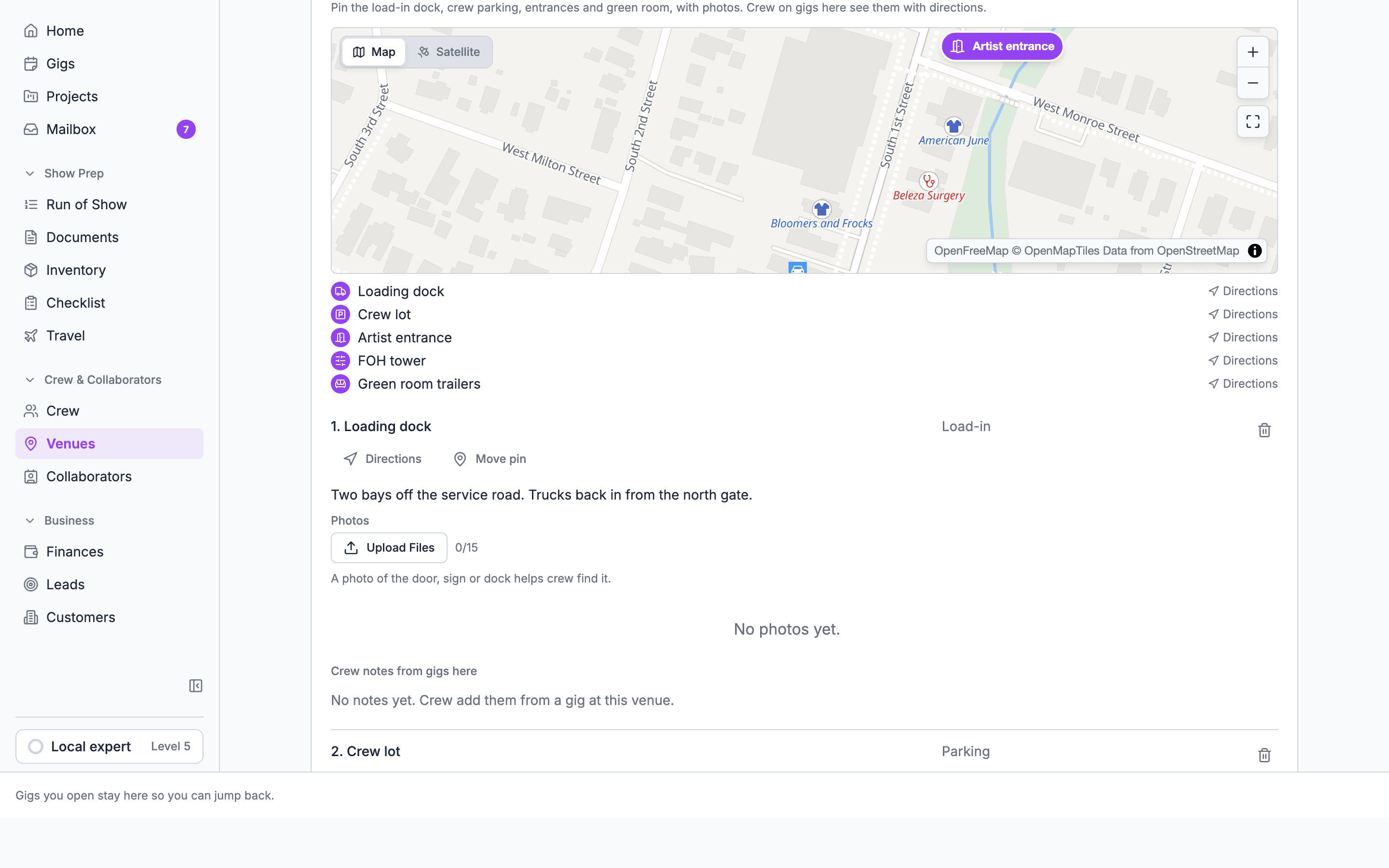
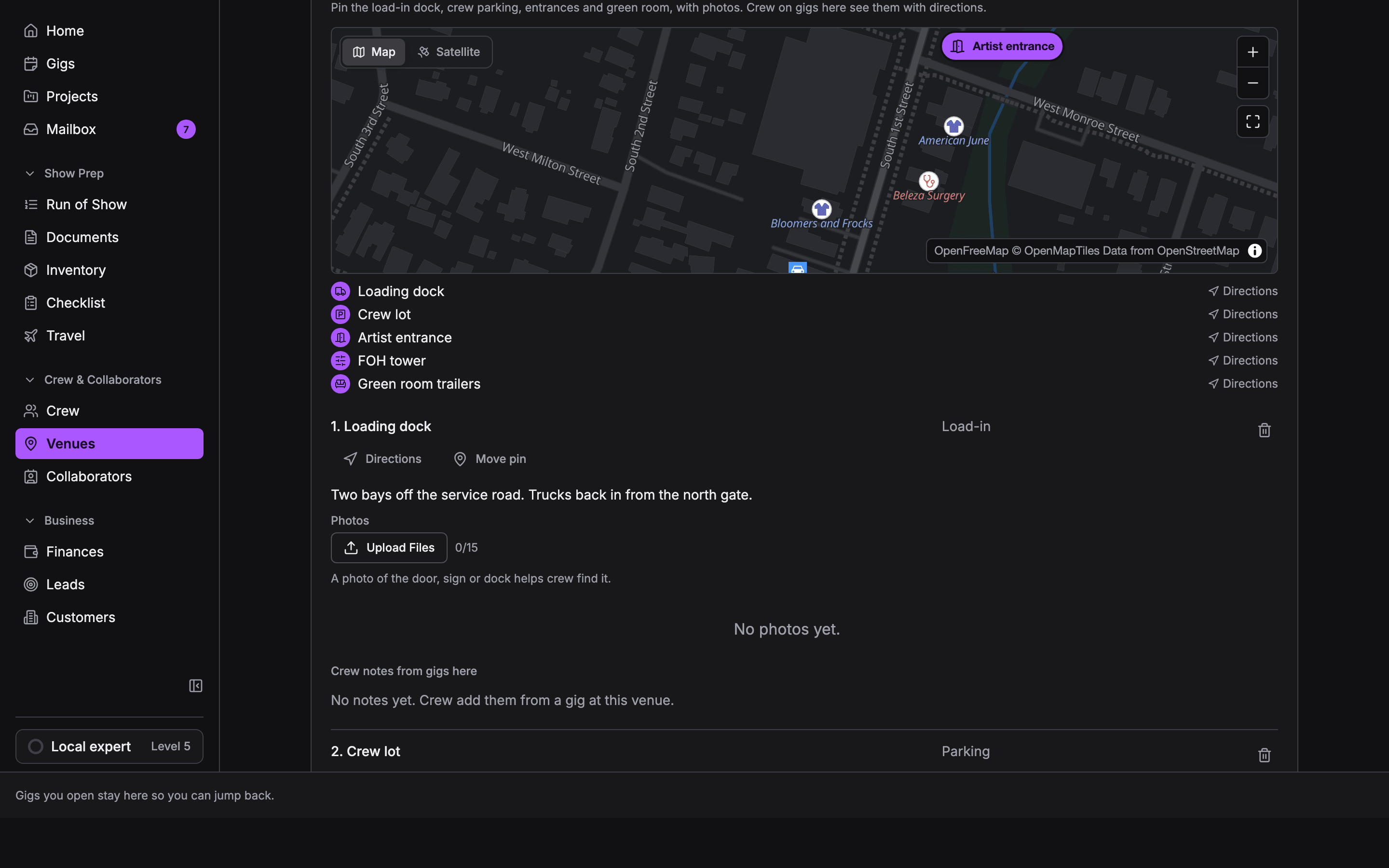
Pin spots on the venue record
- Open the venue record and choose Key spots.
- Type the spot’s name and pick its kind: Load-in, Parking, Crew entrance, Guest entrance, Green room, Production office, Front of house, Power, Restroom, or Other.
- Choose Drop pin, then click the map where the spot is.
- Add notes and photos. A photo of the door, sign, or dock helps crew find it.
Pin spots from a gig
People who manage your venues (owners, admins, gig coordinators, Finance, and members given Customers, venues and leads) can also mark spots from a gig’s Venue tab, on the All locations map:- Type a name in Mark a key spot: loading dock, crew lot, stage door… and pick its kind.
- Choose Drop pin, then click the map. The button reads Click the map… (cancel) until you do.
- Drag a pin to move it, or delete the spot from the list.
Crew notes on spots
Crew know things the office doesn’t: the dock buzzer is broken, the lot fills by 5. Crew notes keep that knowledge on the spot, so the next crew sees it. A note belongs to the venue’s spot, not to one gig. A note added on one gig shows on every gig at that venue, marked with the gig it came from.Add a note on the web
- On the gig’s Venue tab, pick a spot on the All locations map or in its list.
- Crew notes · and the spot’s name opens under the map. With none yet it reads “No crew notes yet. Add what the next crew here should know.”
- Type the note, attach photos or PDFs with Photo or PDF, and choose Add note.
Limits
- Up to 2,000 characters per note.
- Up to 10 photos or PDFs per note, each up to 25 MB.
- Videos can’t be attached.
- Notes can’t be added on the sample gig or an archived gig.
Who can edit and delete notes
- Anyone working the gig can add notes, and edit or delete their own.
- People who manage the gig or the organization’s business records can edit or delete any note.
- On the venue record, each spot lists Crew notes from gigs here, where people who manage your venues can edit or delete any of them.
On the map
Key spots show on:- The gig’s All locations map on the web, with the venue, its stages and the crew hotels. Choose a place in the list to show it on the map, or open it in your maps app.
- The mobile app’s Key spots card and full-screen Venue map. See Venue on mobile.
Worked example: first show at a convention center
- Before the show, open the convention center’s record and choose Key spots.
- Add Dock 4 (Load-in), Lot C (Parking) and Hall B service door (Crew entrance). Pin each one.
- Use Find photos to save a photo of the dock doors to Dock 4.
- On show day, a stagehand adds a crew note to Dock 4: “Security desk needs the gig name, not the client name.” with a photo of the sign.
- At your next show there, every crew member sees that note on Dock 4 before they arrive.
Related
The gig Venue tab
The All locations map and load-in details.
Venue on mobile
The venue map and crew notes on a phone.