

Why record flights
- One place to look. Crew stop asking when they fly. Each passenger sees their own flight in the mobile app.
- Gaps are obvious. The Flights card tells you who on the gig has no flight yet.
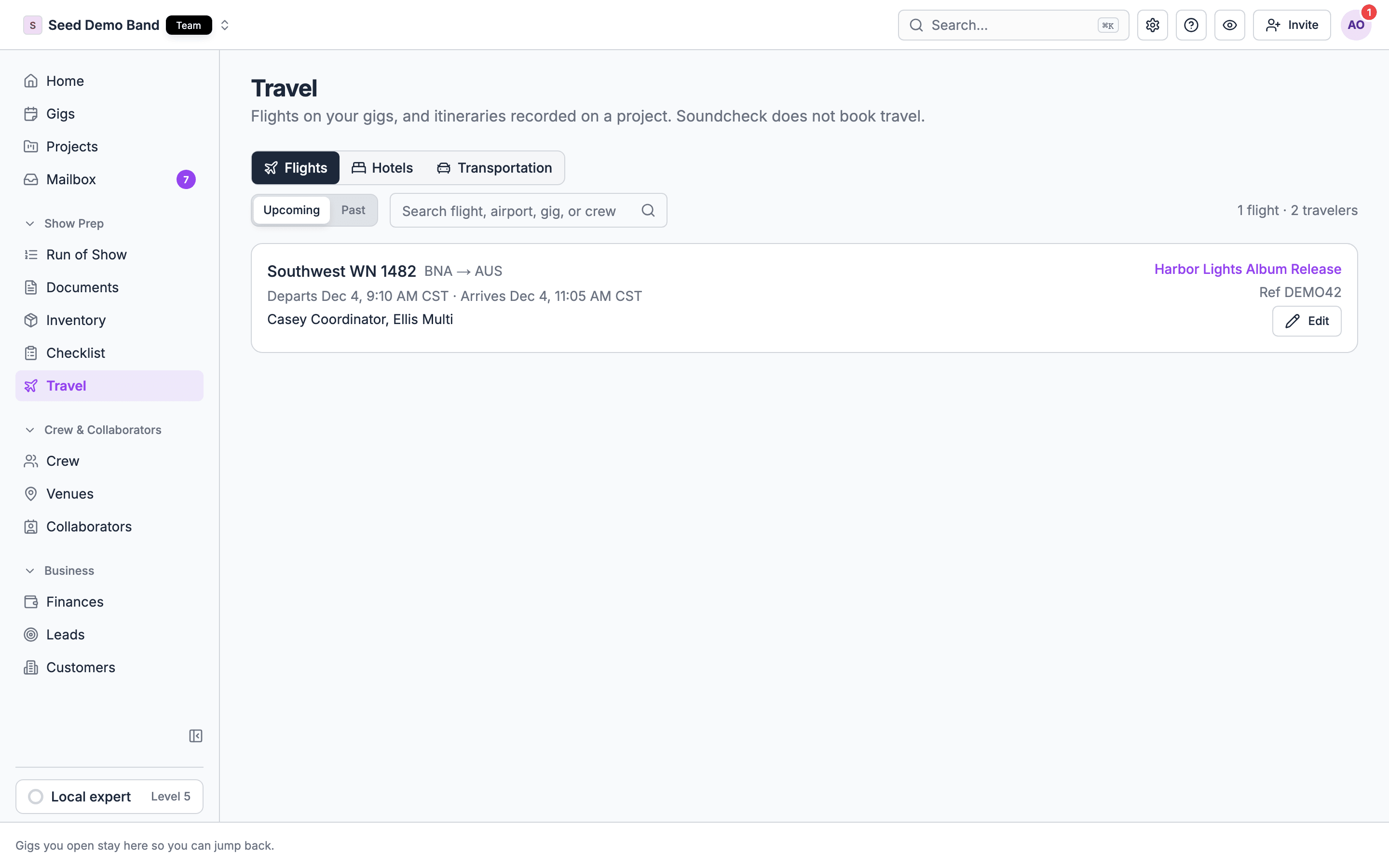
- Across gigs. The Travel page lists every flight on every gig, so you can see who is in the air this week.
Add a flight to a gig
1
Open the Flights card
Open the gig, choose the People tab, and pick Travel. If there’s no Travel group, open the Venue tab (see When travel is on the Venue tab). Find the Flights card.
2
Choose Add flight
The Add a flight form opens. Fill in Airline (for example American), Flight number (for example AA1234), From and To (airport codes such as AUS and ORD), Departs, and optionally Arrives and a Booking reference, the PNR or record locator. The flight number and the departure date and time are required.
3
Check each time zone
Departs and Arrives each have a date, a time and a Time zone. Both start in the gig’s time zone. Typing a From or To airport Soundcheck knows sets that end’s zone to the airport’s. For an airport it doesn’t know, Soundcheck asks you to pick that end’s Time zone before the flight saves.
4
Save it
Choose Add flight. The flight appears on the card with no passengers yet.
5
Add passengers
Under the flight, open Add crew to this flight and pick a person. Repeat for everyone on the flight. The list only offers people on the gig who aren’t on that flight already.
What each flight shows
Edit and remove
- Edit a flight. Choose the pencil on the flight. The Edit flight form has the same fields as Add a flight, with each time in the zone it was saved in. Change what you need and choose Save. Passengers stay on the flight.
- Change the booking reference. Click into the reference on the flight and type. It saves when you leave the field.
- Remove a passenger. Choose the remove button on their row and confirm. The flight stays.
- Remove a flight. Choose the remove button on the flight and confirm. This removes the flight and every passenger on it, with their confirmation codes, seats, tickets, bags and notes.
Who still needs a flight
Once a gig has at least one flight, the Flights card checks the gig’s people against the passenger lists. When someone is on no flight, a warning lists them: 2 people have no flight: Zoe, Sam. The warning counts the people confirmed on the gig, the same people the passenger picker offers. See Who can be on travel. It waits until the gig’s crew offers have loaded, so it never names a partial list. Only people who can edit travel see it.Every flight on the Travel page
Open Travel in the sidebar and choose the Flights tab. It lists every flight on your gigs.- Switch between Upcoming and Past.
- Search by flight, airport, gig or crew name.
- Choose Load more flights at the bottom of a long list.
- Choose Edit on a flight to change it in the same Edit flight form as on the gig. Edit shows for people who can manage your organization’s gigs.
Import flights from Brex Travel
If your team books on Brex Travel, pull those flights into a gig instead of typing them.1
Connect Brex
An owner or admin goes to Settings → Apps & data → Integrations, opens the Brex card under Finance and pastes a Brex user token. A Brex account admin creates the token in Brex. Choose Connect Brex. Soundcheck checks the token before saving it.
2
Open the gig's Flights card
On a gig, open People → Travel and choose Import from Brex on the Flights card. The button only shows once Brex is connected.
3
Pick flights
Soundcheck lists the Brex flights booked for your team that depart from two days before the gig to two days after it ends. Select the flights you want and choose Import (the button counts them, for example Import 2 flights).
- Travelers are matched by email, using the email on the trip or on the traveler’s Brex account. Names are not used. Anyone Soundcheck can’t match to a member is listed and not imported.
- Shared flights become one flight. Crew on the same flight become one flight with several passengers.
- No duplicates. Importing again adds nothing twice. A flight already on the gig gains the new passengers instead of being copied.
- Dead trips are skipped. Cancelled, refunded, voided and draft trips are left out.
Worked example: a weekend fly-in
A four-piece band plays Chicago on Saturday. Two fly from Austin, two from New York.- Add AA 1234, AUS → ORD with booking reference QX7P2L. Add Zoe and Sam as passengers.
- Add UA 455, LGA → ORD with booking reference M2K8RT. Add Lee as a passenger.
- The card warns 1 person has no flight: Kit. Kit is driving, so you leave it.
- Add the two return flights the same way.
- On the Travel page’s Flights tab, search ORD to see everyone landing in Chicago.
Related
Travel overview
The building blocks and how Travel fits together.
People and crew travel
Passengers, traveler details and the travel button.
Confirmations and imports
Forward a flight confirmation instead of typing it.
Travel FAQ
Flight status, boarding passes, baggage and more.
Travel glossary
PNR, manifest, leg and other flight terms.