

Offline
Nothing in Documents is saved for offline use. Gig files, agreements, music requests and the music schedule load fresh each time, and signing, confirming and acknowledging need a connection. Files aren’t downloaded ahead of time, so open the ones you need on show day while you have signal, or keep your own copy with the share sheet.Gig files
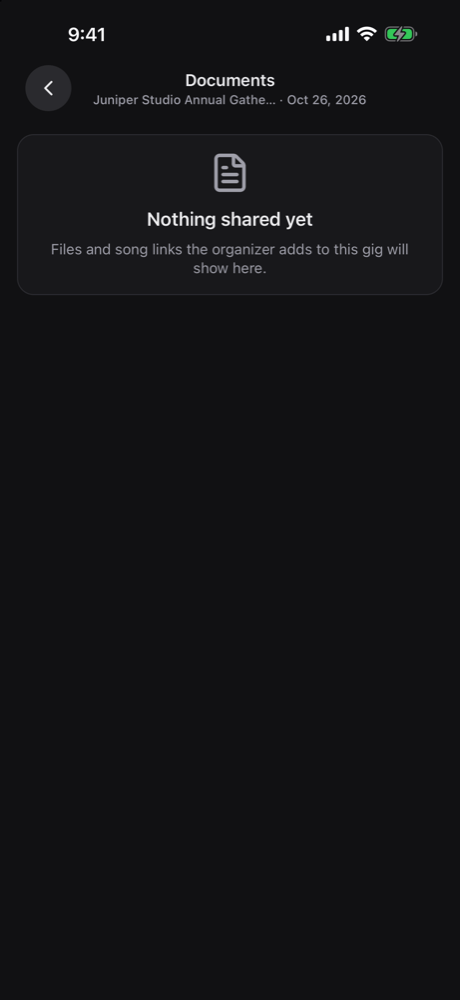
On a gig’s Details section, the Documents card shows up to three files, with Show all to open the full list. The full list is also under Assets in the gig’s More menu, after your charts and the set lists. The list groups Photos, Files and Song links. Use All, Photos, Files or Links to narrow it. Photos switch between Grid and List. Tap a file to open it. Images, audio and video play in the app, and PDFs show inline. If a PDF can’t show, choose Open PDF. Other file types read Cannot preview this file type; send them to another app with the share sheet. When a gig has no files, crew see Nothing shared yet. Managers who can upload see No files yet with Upload files, or an Add documents row on the Details section. Managers who can’t edit this gig see No files yet with Open on web. Uploading on the web also needs editing rights on the gig.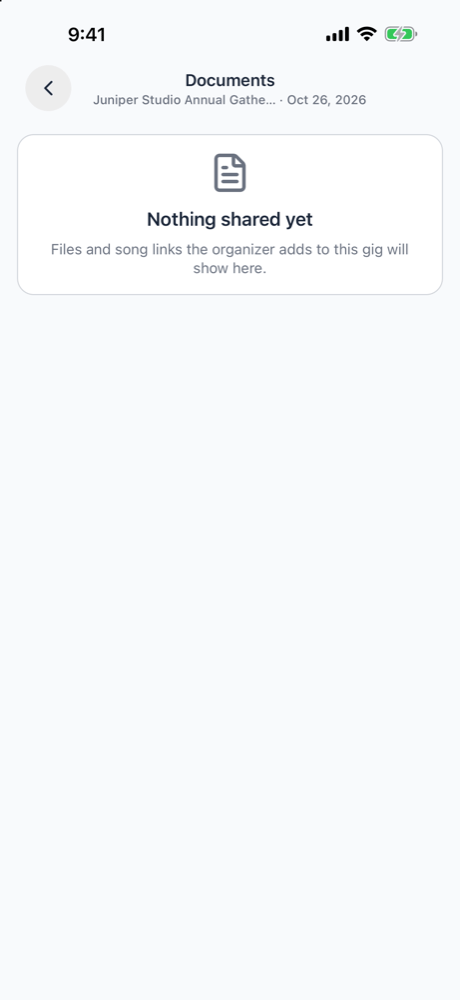
Upload from your phone
People who can edit the gig and manage the organization’s gigs can add and remove gig files in the app. Choose Upload (or Add), then pick:- Take photo or video: use the camera. Videos can be up to one minute.
- Photos and videos: pick from your library.
- Choose file: a PDF, Word, Excel, audio or video file.
.mov videos in the app. To remove a file, confirm Remove. It’s removed from the gig for everyone.
Files on run of show items
A run of show item’s sheet lists its Attachments, or No files attached. Editors can Add a file there, by uploading a new one or attaching one from the organization’s documents, and remove files. Items with files show a paperclip in the day sheet. Song files show under Attachments on a song’s card in the set list, to open only.Sign an agreement
An agreement waiting for you shows in the Inbox with Review & sign, or Complete & sign when it was sent with a form. The gig’s Details section also shows a card, such as Sign Crew agreement, or a count when several are waiting.1
Review
The Review agreement sheet shows the terms. When the PDF has placed fields, tap Review the PDF first. Continue to sign waits until you’ve opened it.
2
Sign
Enter Your full name, fill in any required fields, draw your signature, tick the consent box and tap Sign agreement.
- A form with extra steps: “This agreement is a form with extra steps. Open it on the web to finish signing.”
- A PDF to review without placed fields: “This agreement includes a PDF to review. Open it on the web to read the PDF and sign.”
- An agreement that isn’t ready to sign yet.
Acknowledge gig details
A Gig details item in the Inbox has Review details. The gig’s Details section shows Confirm you’ve reviewed your gig details, or a note that your details changed since you last acknowledged. Tap it to open Review your gig details, then tap I have reviewed these. You need a connection. If the connection drops, the app shows Details changed and asks you to review the latest version; reopen the sheet and try again once you’re back online. See Gig details acknowledgment.Confirm the music schedule
The Music schedule & details card under Assets shows your latest version with a status: Awaiting your confirmation, Confirmed, Treated as approved, Changes requested, View only, Replaced by a newer version or Delivery failed. Use Open music schedule or Open details sheet to read it, and Confirm when it’s right.- The card shows only on gigs whose organization uses Run of Show (early access).
- The music schedule isn’t in the Inbox. Open it from the gig, or from the email or text link.
- The app can only confirm. To ask for changes, use Request changes in the email link, or tell the person who sent it.
Fill out a form
Forms can’t be filled in the app. Open the form from its email link in your phone’s browser, or from the gig’s Documents tab on the web.Related
Documents
Start here.
Mobile app overview
Everything else in the app.