

In the gig details
Open a gig. Its details show up to three open tasks, soonest due first, with a checkbox on each.- Tick a task to mark it done.
- The footer shows progress, such as 4 of 10 done. Choose View all to open the full checklist.
- When every task is done, the preview reads All tasks done.
- On a gig with no tasks, the preview reads No tasks yet, with Add tasks to open the checklist.
What you see
This differs from the web, where members of your organization see the whole checklist once it has a section.
The full checklist
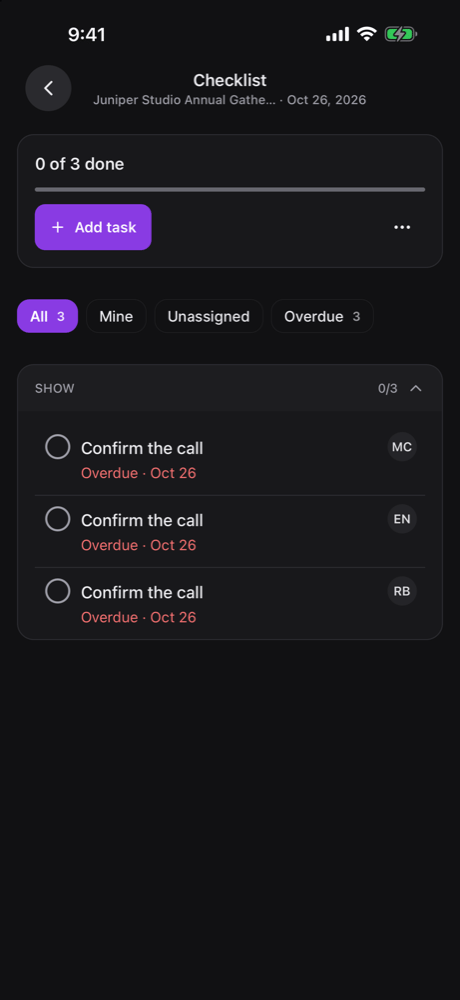
View all opens the gig’s Checklist screen. Tasks are grouped by section, and each section can be collapsed.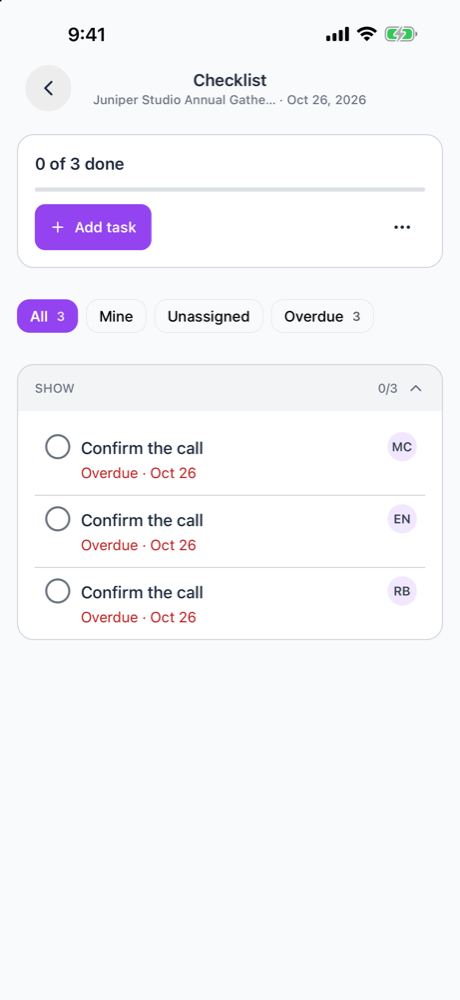
Filters
People who see the whole checklist get filter pills, each with a count:
If a filter has nothing in it, the list says so, for example Every task has an owner. or Nothing is overdue. Choose Show all to go back.
Work a task
- Tick the checkbox to mark a task done, or untick it to reopen it.
- Open a task’s options to see its notes and change its status: Mark done, Mark in progress, Mark not started or Reopen, depending on where it is now.
- Assign a task from its options or by tapping its assignee, if you can edit the checklist.
Offline
The checklist needs a connection.- While you’re offline, ticking, status changes and editing are turned off. Changes aren’t queued to send later.
- The checklist isn’t saved on your phone for offline use, unlike the gig’s schedule and run of show. After the app restarts with no signal, the gig checklist and My checklist don’t load until you reconnect.
Edit a checklist
If you can edit the gig’s tasks, open Task actions at the top of the checklist and choose Edit tasks. You can also choose Edit tasks from a task’s options. In edit mode you can:- Add a section with Add a section to group tasks together and Add Section.
- Add a task under a section with Add a task and Add.
- Rename sections and tasks, and add Notes (optional).
- Set due date, change it with Due date, or Clear due date.
- Change a task’s status, or assign it with Assign Task.
- Move a task to another section, with Move to section.
- Delete a task or a section.
Moving a task between sections is only possible here, in the mobile app’s edit mode. The web checklist doesn’t move tasks between sections.
Start a checklist
On a gig with no checklist, choose Add tasks to build one from scratch, or Use a template to pick one of your organization’s checklist templates. If your organization has no templates, the button is off and the screen says so.Task actions
Task actions at the top of the checklist offers:- Edit tasks
- Save as template: name it and choose Save Template. The new template captures the sections, task titles and notes. Owners, admins and Gig Coordinators can save.
- Delete checklist: remove the whole checklist from the gig.
Templates on mobile
You can apply a template with Use a template and save a gig’s tasks with Save as template. Build and edit templates, with their due dates, owners and gig types, on the web Checklist page. The app has no menu entry for the template library.What’s on the web only
These parts of the Checklist are on the web, not in the app:
Neither the web nor the app reorders tasks or sections.
My checklist
My checklist lists every task assigned to you, across gigs, grouped by gig. Finished tasks sit in a Completed group.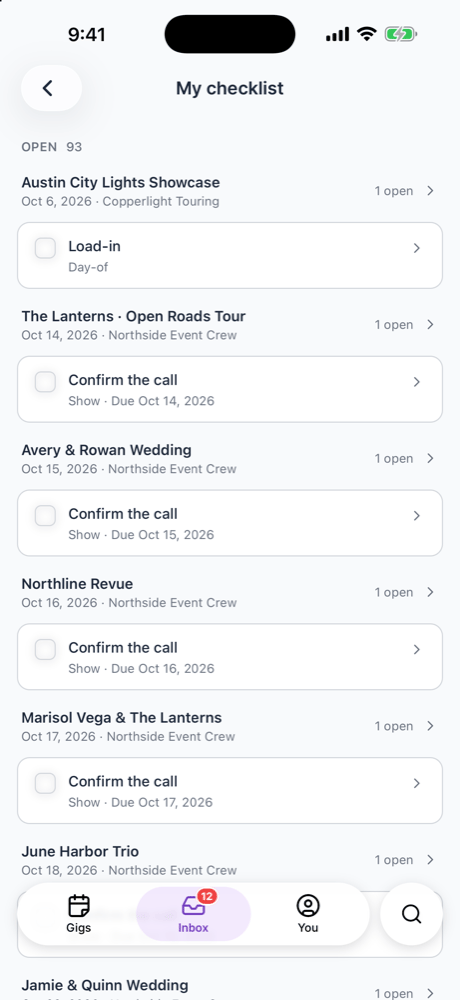
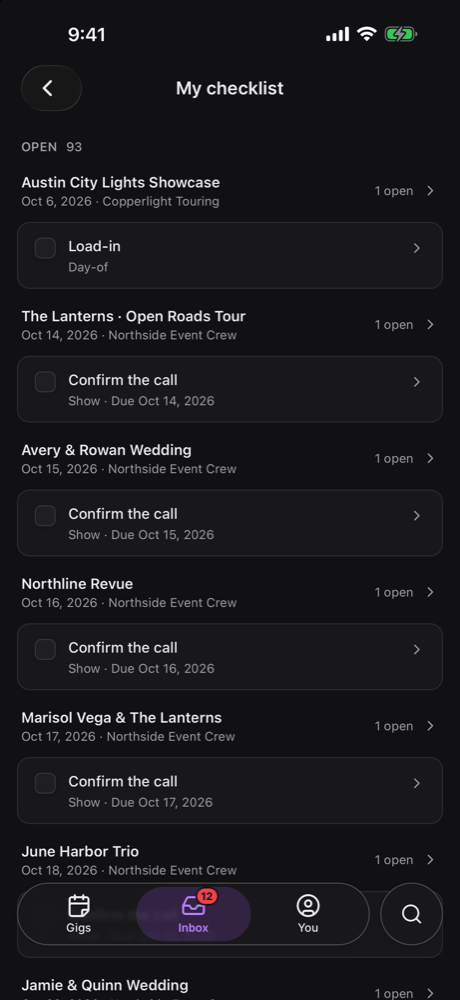
- in the Inbox, as a row under Messages that shows how many tasks are still open
- on the Gigs tab, as a row for crew
Notifications
When someone assigns you a task, you get a push notification. Opening it takes you to that gig’s checklist. It’s the only task notification: there are no due-date reminders. See Notifications.Related
Your tasks
Your task list on the web.
Working a gig's checklist
The full Checklist tab on the web.
Mobile app overview
Everything else in the app.