

resources tab open the Venue tab.
What’s on the tab
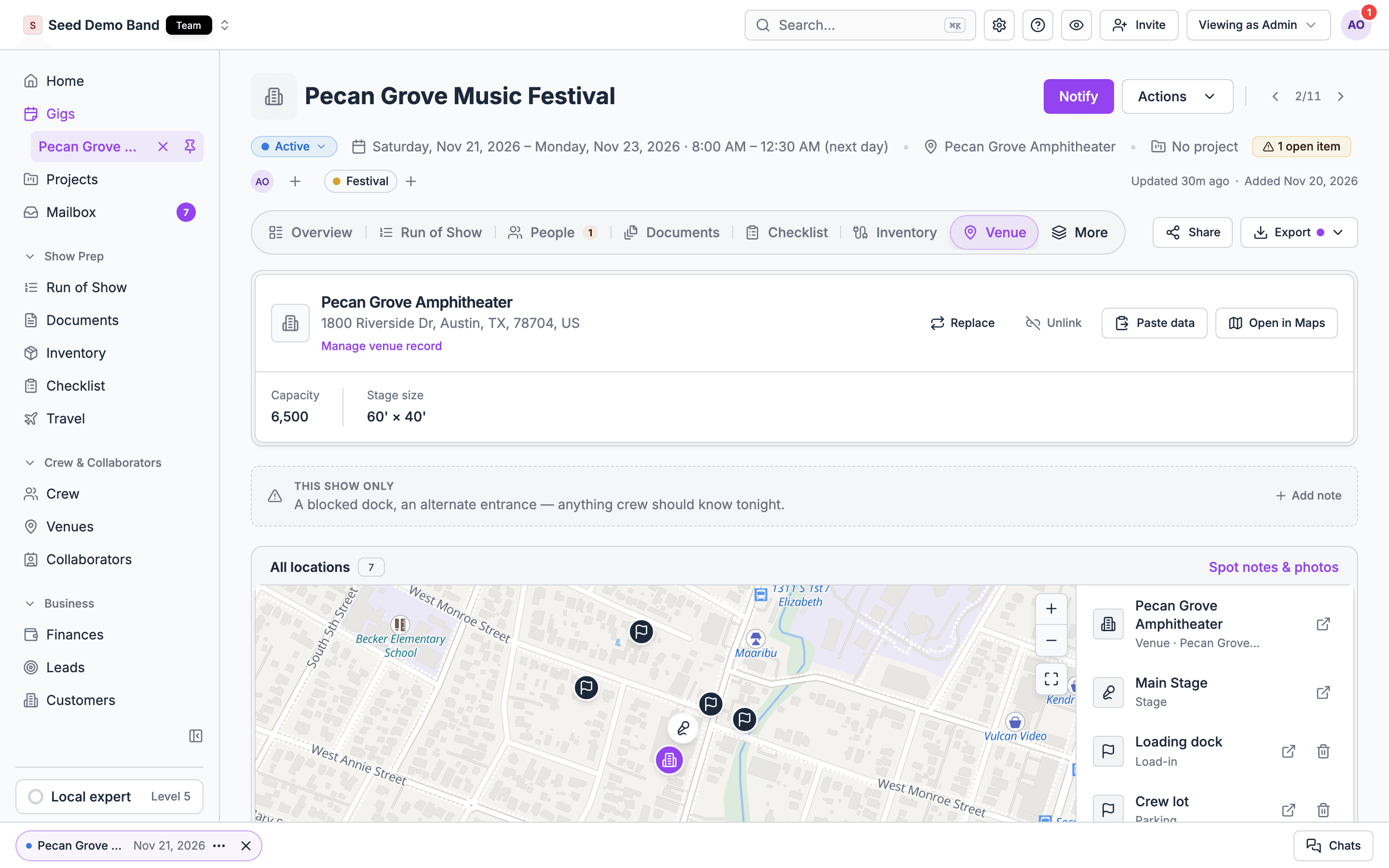
From top to bottom:- The venue card: the linked venue, its address, and a facts strip.
- This show only: notes for this gig.
- All locations: a map of the venue, its stages, key spots and crew hotels.
- Load-in & access: the seven arrival fields, with per-show changes.
- Stages: the stages the gig is booked on.
- Site plans: plans from the booked stages.
- Beside them, for managers: Venue contact, Venue details and Restrictions.
- Below, for managers: Venue intelligence.
Link a venue
1
Open the gig's Venue tab
A gig without a venue shows No venue linked, with the gig’s location underneath if it has one.
2
Pick a venue
Open Choose a venue… and pick one of your organization’s venues.
3
Link it
Choose Link venue. The load-in fields, stages and contacts fill in from the record.
- On the Overview tab, choose Link a venue. It opens this tab with the picker ready.
- In the gig header, click the venue to link one of your venues or create one. If you can’t change venue records, you search for a place instead.
- On a venue record, choose New gig here. The new gig is linked from the start.
What linking changes
- The gig’s location, address and map point follow the venue.
- Call times and calendar invites use the venue’s time zone. Until a venue is linked, the gig header hints “Link a venue on the Venue tab so call times and calendar invites use its timezone.”
- On a published gig, crew get a push: Venue changed to the venue’s name. See Who gets told.
- Booked stages from the old venue are dropped. Book the new venue’s stages.
Past gigs
Once a gig’s date has passed, Link venue, Replace and Unlink no longer show on the web. A past gig keeps the venue it played. To correct a mistake on a past gig, contact support.Gigs created with a place
When you create a gig by picking a place from Google, Soundcheck links a venue for you: your saved venue for that place if you have one, else a copy of a venue another organization saved for it, else a new venue built from the gig’s location. Gigs synced from HubSpot or Flex with a location but no venue get the same treatment within the hour. If you unlink the venue, Soundcheck doesn’t link it again for the same location.Replace or unlink
On a linked venue, editors see:- Replace: opens the picker. Pick the new venue and choose Replace venue, or Cancel replace.
- Unlink: removes the link. The gig keeps its own date and location.
The facts strip
Under the address: Capacity, Stage size, Dressing rooms, Green room (Available or None) and Wi-Fi, from the venue record.If the gig is linked to a venue that isn’t in your organization’s directory, managers see “This venue isn’t in your organization’s directory, so its record details aren’t shown here.” Add the venue to your venues to see its details.
Paste venue details
Editors have Paste data on the venue card. Paste a venue’s details from an email or tech pack, review the values Soundcheck maps, tick what to keep, and save. Nothing is saved until you confirm.Load-in & access
Load-in & access shows the seven fields every gig at the venue starts with, in arrival order:
Each field shows the venue default unless this gig has its own value.
Per-show changes
A per-show change replaces one field for one gig. Changing Friday’s Dock leaves Saturday’s gig and the venue default as they are.- Under Load-in & access, click the field. An empty field reads Set for this show.
- Type this show’s instructions and choose Save. Press Escape or Cancel to back out.
- The field shows a This show badge, with Venue default: and the old value struck through beneath it, and Set by with who changed it.
Restore the default
Click the changed field, clear its text, and save. Saving the same text as the venue default also clears it. If the venue has no default for the field, clearing leaves it empty.This show only notes
Use a note for context that doesn’t fit a field, such as a temporary backstage closure or a house-equipment substitution. Notes stay with the gig.- Under This show only, choose Add note. With no notes, the box reads “A blocked dock, an alternate entrance — anything crew should know tonight.”
- Type the note, such as e.g. Dock door broken tonight — use the front entrance.
- Choose Add note.
Worked example: Friday at Harbor Hall
Harbor Hall normally uses its rear dock and the west crew lot. Friday’s conference is different.Stages and site plans
The Stages card books the gig on one or more of the venue’s stages, with a note per stage for this gig. It shows overlaps with other gigs on the same stage. See Book a gig on stages. Site plans lists the plans uploaded to the booked stages, each with its stage name. Everyone on the gig sees them. Files marked admin-only stay hidden from crew.The All locations map
All locations puts the venue, its stages, its key spots and the gig’s crew hotels on one map. Everyone on the gig sees it.- Choose a place in the list to show it on the map, or Open in Maps.
- Pick a key spot to read and add Crew notes for it. See Crew notes on spots.
- People who manage business records can mark key spots here. See Pin spots from a gig.
Venue contact and details
People who can see the venue record also see, beside the tab:- Venue contact or Venue contacts, with Manage venue contacts (or Add venue contacts). With none: “No contact on file for this venue.”
- Venue details: House tech, Amenities and notes. With none: “No details on the venue record yet.” and Add venue details.
- Restrictions.
Venue intelligence
Managers see a Venue intelligence panel: “Research the venue’s official website. Confirm useful findings after checking the source; confirmed knowledge carries forward within your organization.” Choose Research venue. Findings arrive marked Needs review. Confirm the ones you checked against the source. Confirmed findings show again on later gigs at the venue. The panel needs:- Permission to manage gigs.
- A linked venue. Without one, the panel says “Link a venue to research it.”
- An official website on the venue record that starts with
https://. Without one, it says “Add the venue’s official HTTPS website first”.
Who gets told
Who sees what
Previewing the gig as a member shows what crew see.
Related
Venue logistics workflow
Prepare the venue and brief the crew, step by step.
Venue on mobile
What crew see on their phones.