

What crew see
Crew see the version of the run of show that was last published. Editors see the latest draft.Day and Timeline views
The switcher above the run of show picks the view:
The app remembers the view you picked, for you, in each organization.
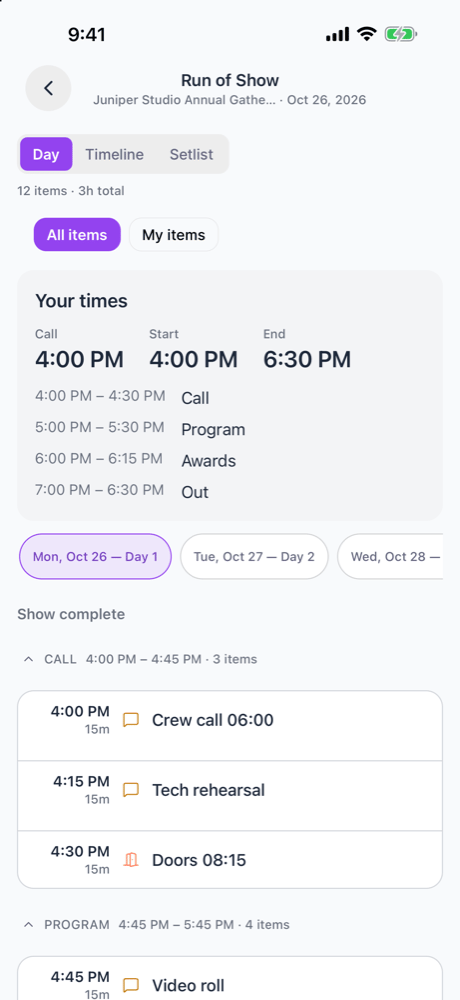
Now and next, and Follow live
While you’re not editing, a card above the run of show shows the item running NOW and the one UP NEXT, worked out from the run of show’s times and your phone’s clock. When the last item ends it says Show complete. Choose Follow live on that card to keep following the schedule. On an iPhone that supports it, the schedule also shows on your lock screen. Follow live opens 8 hours before call. Choose Stop to stop following. Each phone follows the clock on its own: nobody advances the schedule for everyone, and there’s no GO button. See Run of Show on show day.My items
Choose My items above the schedule to see only the items you’re on. That includes:- items you’re on yourself
- items in sections where you’re on the track crew
An item’s sheet
Tap an item to open its sheet. People lists everyone on the item, each with their department and the note your team left for them. People on the section’s track crew show on a separate line, such as Production track: Zoe.Your times
Crew booked on a gig see a Your times card at the top of its run of show:- Call: the start of the first section they work.
- Start and End: the span of the performance sections they work, or every section they work when there’s no performance section.
- The sections they work, each with its time window, location, and ensemble.
- For you: notes on cues addressed to their position.
Multi-day gigs
On a multi-day gig, day chips at the top pick the day. See Multi-day gigs.Editing on mobile
If you can edit the run of show:1
Start editing
Open the run of show and tap Edit at the top right. The ⋯ menu next to it holds templates and PDF exports.
2
Make your changes
Change items, and tap crew in an item’s sheet to add or remove them.
3
Finish
Choose Done.
Surprise cues
To keep a cue from the client, turn on Surprise in the item’s sheet. Crew still see it. See Exporting for leaving surprises off paper.Audio on a song
In edit mode, a song item’s sheet has Upload mp3 or wav. Pick an mp3 or wav file up to 50 MB, and it’s attached to that song in your library.Editing needs a connection
Editing is unavailable offline. The app keeps a read-only copy of the run of show for the gigs you’re booked on, today through seven days ahead and for 48 hours after they end, so you can still read it in a venue with no signal. Reconnect to make changes. Soundcheck doesn’t queue edits made offline today.When the show runs late
Anyone who can edit the run of show can shift times from the phone, which is usually where you are when the show runs late. You need a connection.1
Open the shift
Tap Running late? on the current item in the Day sheet. Or open any item and choose Shift times….
2
Pick how much
Pick +5, +10, +15 or +30 minutes, use the minus and plus buttons to step by one minute, or enter a whole number of minutes. Negative minutes move times earlier.
3
Pick what moves
Choose This and everything after to move this item and everything later, including later sections. Choose Only this item to move just this one.
4
Check and confirm
Check the preview and any timing warnings, then confirm.
- Items without a start time are skipped.
- After saving, Undo stays available for about five seconds and restores the previous times.
- Crew aren’t notified automatically.
Worked example
The ceremony started 10 minutes late. At 4:12 PM you tap Running late? on Ceremony, pick +10, and choose This and everything after. Cocktails, dinner and dancing all move 10 minutes later. Load out moves too, so check the preview against the venue’s curfew before you confirm.The Live page card
Gig managers see a Live page card on the gig’s details in the app once the live page is published, or before that when publishing live pages is on for your organization. It runs the gig’s public live page, which guests, vendors and clients open with a code:- Publish live page publishes it. Publishing a new live page is in early access and rolling out; contact info@soundchecklive.io to turn it on.
- Share sends the code and link.
- Schedule status sets On time, or 15, 30, 45 or 60 min late. The page’s “now” and “next” follow the delay. The run of show’s own times don’t change.
- Status note and Post note put a short message, such as “Doors moved to the east gate”, at the top of the page.
Sharing a PDF
Gig managers can export the run of show as a PDF and share it from the run of show’s header menu while not editing. The web has the full PDF builder.What needs the web
Some things are only done on the web:- publishing the run of show to crew
- people on an item who aren’t crew
- departments and task notes on people
- track crew
- links between cues (links aren’t shown in the app)
Related
People and assignments
Who’s on each item, and Your times.
Publishing
Why crew might see an older version.
Show day
Running the show live, from call to load out.
Live page
Keep guests and vendors up to date.