

Billing terms
Add or edit the terms
1
Open Billing terms
On the gig’s Finances tab, find Billing terms in the Billing card. Choose Add terms on a gig without any, or Edit to change them.
2
Fill in what you know
Every field is optional. Start with Contract price and Balance due days before the show. The form shows the resulting Balance due date as you type.
3
Save
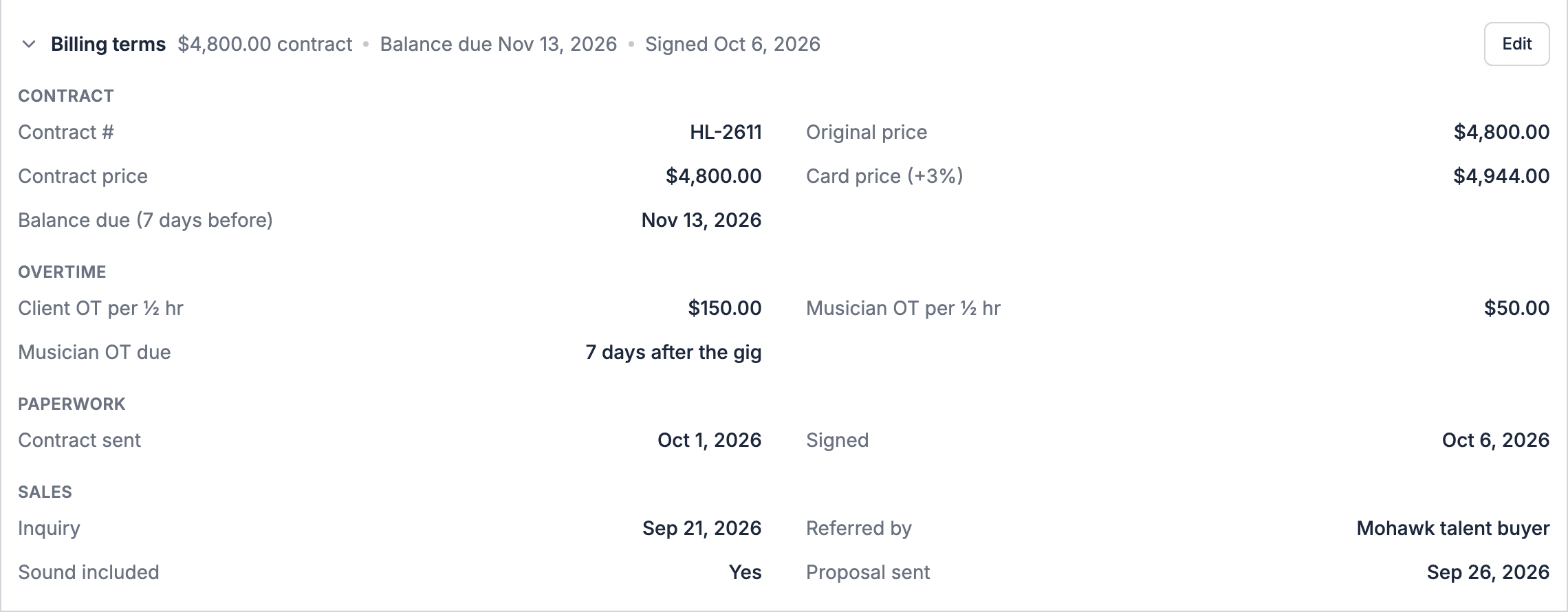
Choose Save. Soundcheck confirms Billing terms saved. The card then shows the terms in four groups: Contract, Overtime, Paperwork and Sales.
The fields
Overtime rates here are the defaults for the Overtime card.
The surcharge sets the card price shown in the billing schedule’s totals and in agreements that print the card price. It isn’t added to invoices. Clients pay you outside Soundcheck, so if a client pays by card and you charge the surcharge, add it as an invoice line.
Dates that fill themselves
- Signed. The first client agreement or PDF quote signed by every party fills Signed, unless you typed a date yourself. A later signing doesn’t move it. See Agreements and e-sign.
- Contract sent. Sending a contract from Soundcheck fills in Contract sent. You can also set it by hand.
- Contract price from a signed quote. When a client signs an uploaded PDF quote with a labelled total, that amount becomes the Contract price.
Addenda
An addendum tracks a change to the agreed price without editing the original terms, such as an added ceremony set.1
Edit the terms
Choose Edit in Billing terms, and scroll to Addenda.
2
Add a line
Choose Add line. Enter a Description and an Amount, and optionally the Revised and Sent dates.
3
Save
Choose Save. The addendum shows under Addenda on the card.
The deal
The Deal card sits below Billing terms. It shows the deal type, the Guarantee, who the deal is With, and its Installments.Flat guarantee
Every gig starts with a Flat guarantee: a fixed fee. The guarantee is the gig’s Contract price. Set or change it in Billing terms.Installments and deposits
Installments say how the guarantee is paid before the show. The first one is named Deposit, the next Deposit 2, and so on. Rename them as you like.1
Edit the deal
Choose Edit deal on the Deal card.
2
Add an installment
Choose Add installment. Give it a Name.
3
Set the amount
Under Amount as, pick Fixed amount and enter it, or Percent of guarantee and enter a percent. A percent shows the amount it works out to.
4
Set when it's due
Under Due, pick On a date and choose the Due date, Days after signing, or Days before the gig, and enter the number of days.
5
Save
Use the arrows to reorder installments, then choose Save. Soundcheck confirms Deal saved.
How the terms become charges
The billing schedule builds its charges from the terms and the deal:
An installment due Days after signing waits for the signature. Until then, the schedule reads Due after signing · waiting for signature.
The schedule can’t plan invoices until the terms have a price. Without one, it says Add the contract price before preparing invoices. If the installments add up to more than the contract price, it says The deposit is larger than the contract price.
Changing a deal that’s already billed
You can’t change or remove an installment that is on a sent invoice. Void that invoice first. When you switch an installment between a fixed amount and a percent, the editor shows what it will save as, such as Saves as $2,000, was $2,500.Default deal for a project
A project can hold a default deal, so every new gig in it starts with the same terms.- Open the project and find its default deal card.
- Choose Set default deal, and enter the Guarantee, Currency and Deposits.
- Save. New gigs in the project copy these terms.
Other deal types and buy-side deals
Soundcheck doesn’t offer deal types beyond a Flat guarantee today, and it doesn’t offer buy-side deals. Every deal is a flat guarantee that the client pays you.
Soundcheck doesn’t offer show settlement today either. See Show settlement for how to settle a show around it.
Related
Invoices and the billing schedule
Invoice the charges the terms create.
Overtime
Bill and pay time past the contracted end.
Finances
Start here for the whole tab.