

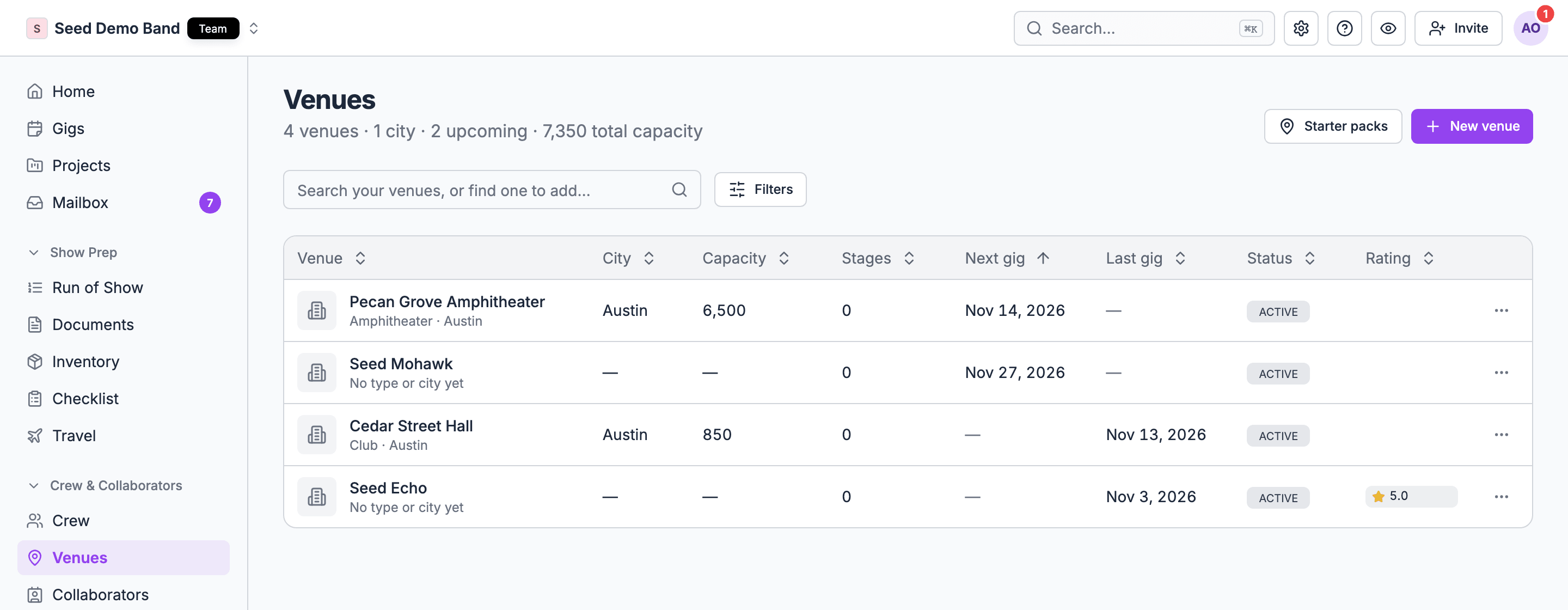
Venues are available on every plan. Owners, admins, gig coordinators, the Finance role, and members given Customers, venues and leads manage the venue directory. Linking a venue to a gig is separate: it needs permission to manage gigs (owners, admins and gig coordinators). Everyone on a gig can open its Venue tab and read its load-in details. Crew don’t get the full venue record just by joining a gig. See Who can do what.
Where to find it
- Your venues: in the sidebar, open Crew & collaborators → Venues. See Your venues.
- One venue: select a venue to open its record, with Overview, Stages, Key spots, Gigs, and Files tabs. See The venue record.
- On a gig: open the gig and choose the Venue tab. See The gig Venue tab.
- In the mobile app: managers open a gig’s Venue section. Crew find Venue & load-in in the gig’s Details. See Venue on mobile.
The building blocks
Learn these ideas first. Everything else builds on them.How it fits together
Your first venue, step by step
This walkthrough saves a venue and links it to a gig. It takes about ten minutes.1
Add the venue
Open Crew & collaborators → Venues and choose New venue. Start typing the venue’s name and pick the Google result. The name, address, phone number, website and photo fill in. See Create a venue.
2
Fill in the crew advance
On the venue’s Overview, fill in the Crew advance details: load-in, load-out, dock, elevator, parking, access code, Wi-Fi, dressing rooms and green room. Details you haven’t filled in sit behind “N details missing — add them”. See The venue record.
3
Set up its stages
Open the Stages tab. Rename Main if it needs a better name, add any other rooms you book on their own, and set each one’s Capacity, Stage size and House tech. See Stages.
4
Pin the key spots
Open Key spots. Name the loading dock, pick the Load-in kind, choose Drop pin, and click the map. Add the crew lot and stage door the same way. See Key spots.
5
Link it to a gig
Open a gig and choose the Venue tab. Pick the venue in Choose a venue… and choose Link venue. The load-in details fill in from the venue. See The gig Venue tab.
6
Book the stage
Under Stages on the gig’s Venue tab, pick the stage the show is on. Its site plans now show on the tab for everyone on the gig.
7
Note what's different this time
Under Load-in & access, click a field to set this show’s value. To add context that isn’t a field, choose Add note under This show only. See Per-show changes.
Pick the right page
Your venues
The venues list, searching the shared directory, city packs, creating and removing venues.
The venue record
The header, crew advance, amenities, collaborators, private notes, gigs, files and web research.
Stages
Rooms and stages, house tech, site plans, map pins, booking gigs on stages, and overlaps.
Key spots
Pin the dock, parking and entrances, with photos and crew notes.
The gig Venue tab
Link a venue, per-show changes, show notes, stages and the All locations map.
Venue FAQ
Straight answers to the questions buyers and operators ask about venues.
Venue glossary
Tech pack, advance, dock, holds and other terms, mapped to Soundcheck.
Venue on mobile
Directions, load-in, key spots, the venue map, notes and sharing.
Troubleshooting
Answers when something doesn’t look right.
Who can do what
Gig managers can remove any show note. Other people can remove their own. A gig assignment, even Lead, doesn’t let someone link a venue or set per-show values: that needs permission to manage gigs. Venue records are web only. The mobile app shows a gig’s venue but has no venues list. See Venue on mobile.
Put what crew need to know in the gig’s Load-in & access fields and show notes. Don’t assume crew can open the venue record to look up a contact or technical spec.
Works with
Venue is one app in the Soundcheck ecosystem. Here is how it connects to the others.Related
Venue logistics workflow
Prepare the venue and brief the crew.
Venue operations
Running a venue on Soundcheck.
Gig overview
The tabbed gig detail the Venue tab lives in.