

Before you start
- Have a gig and a saved venue to link to it. The venue directory is available on every plan.
- Use an owner, admin, or gig coordinator account with permission to manage the gig and venue.
- Gather the venue’s production information and confirm the date-specific arrangements with the venue contact. A saved record is a starting point for that conversation.
1. Prepare the venue record
Open Crew & collaborators → Venues and select the venue. Record information you expect to reuse: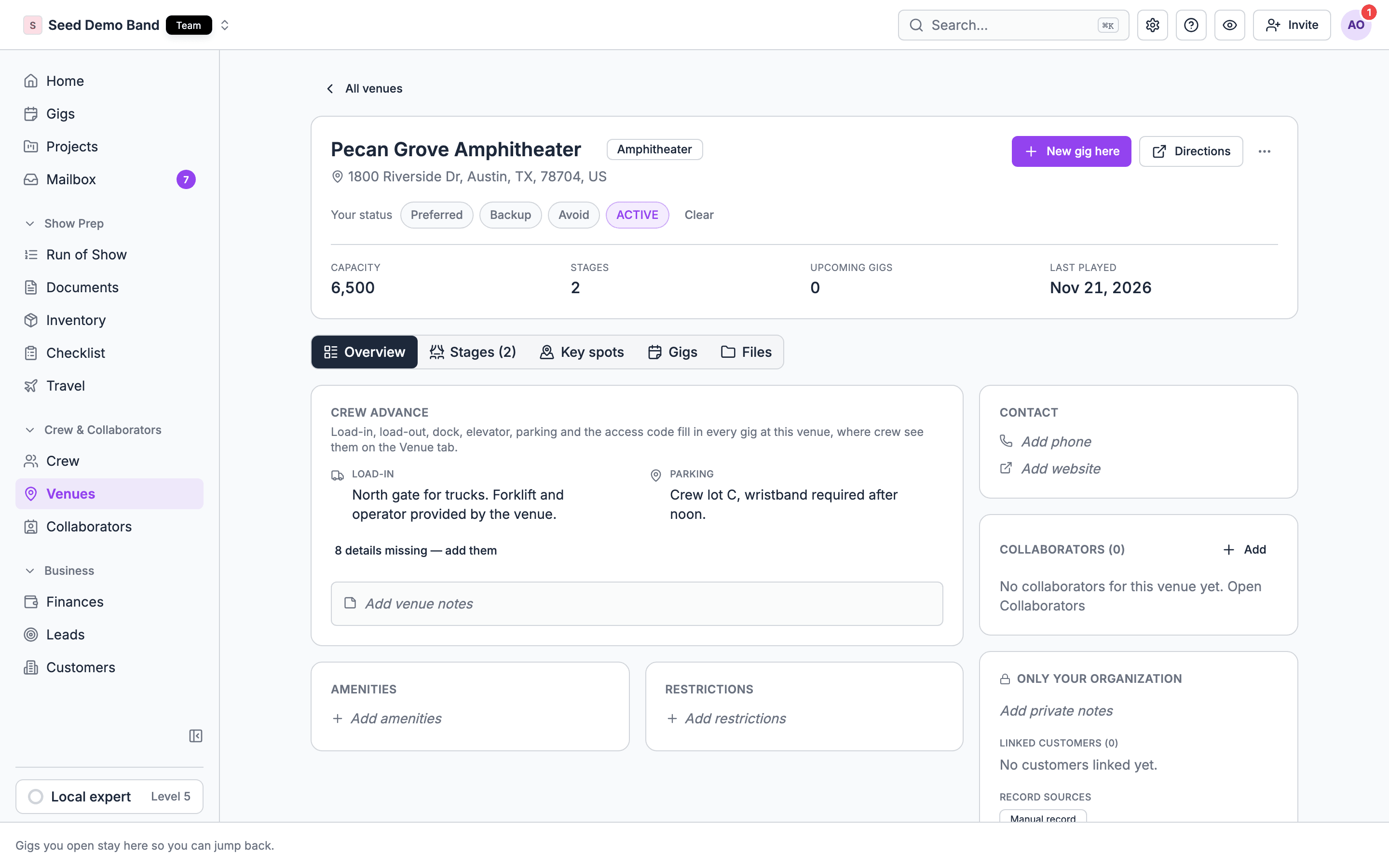
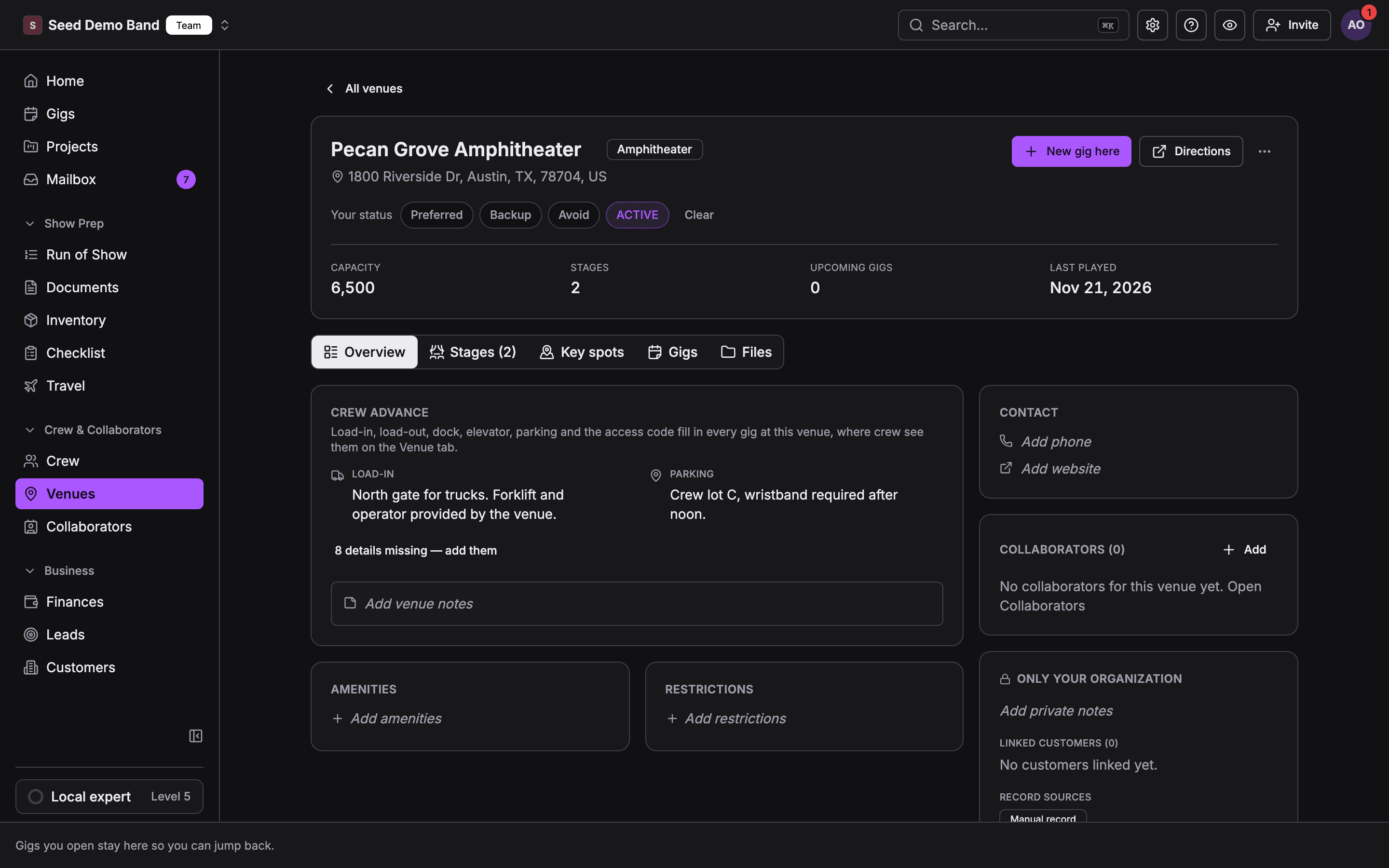
Stage size and house tech are recorded per stage. Load-in, load-out, dock, elevator, parking, access code and green room are the seven fields a show can change. See the Venues reference for the complete field guide.
2. Link the venue and review its defaults
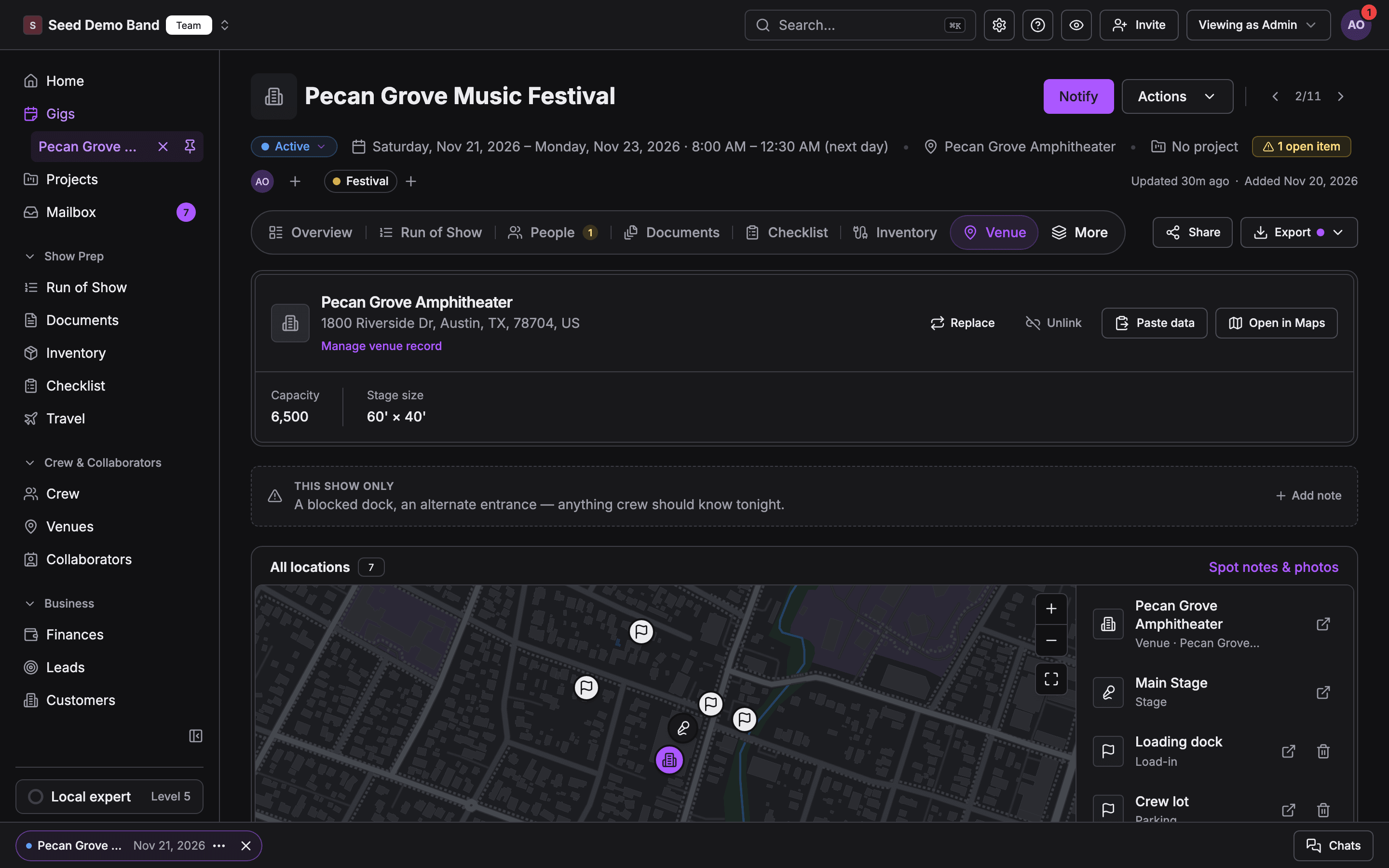
Open the gig, choose Venue, and link the saved venue. Review Load-in & access against the arrangements for this date.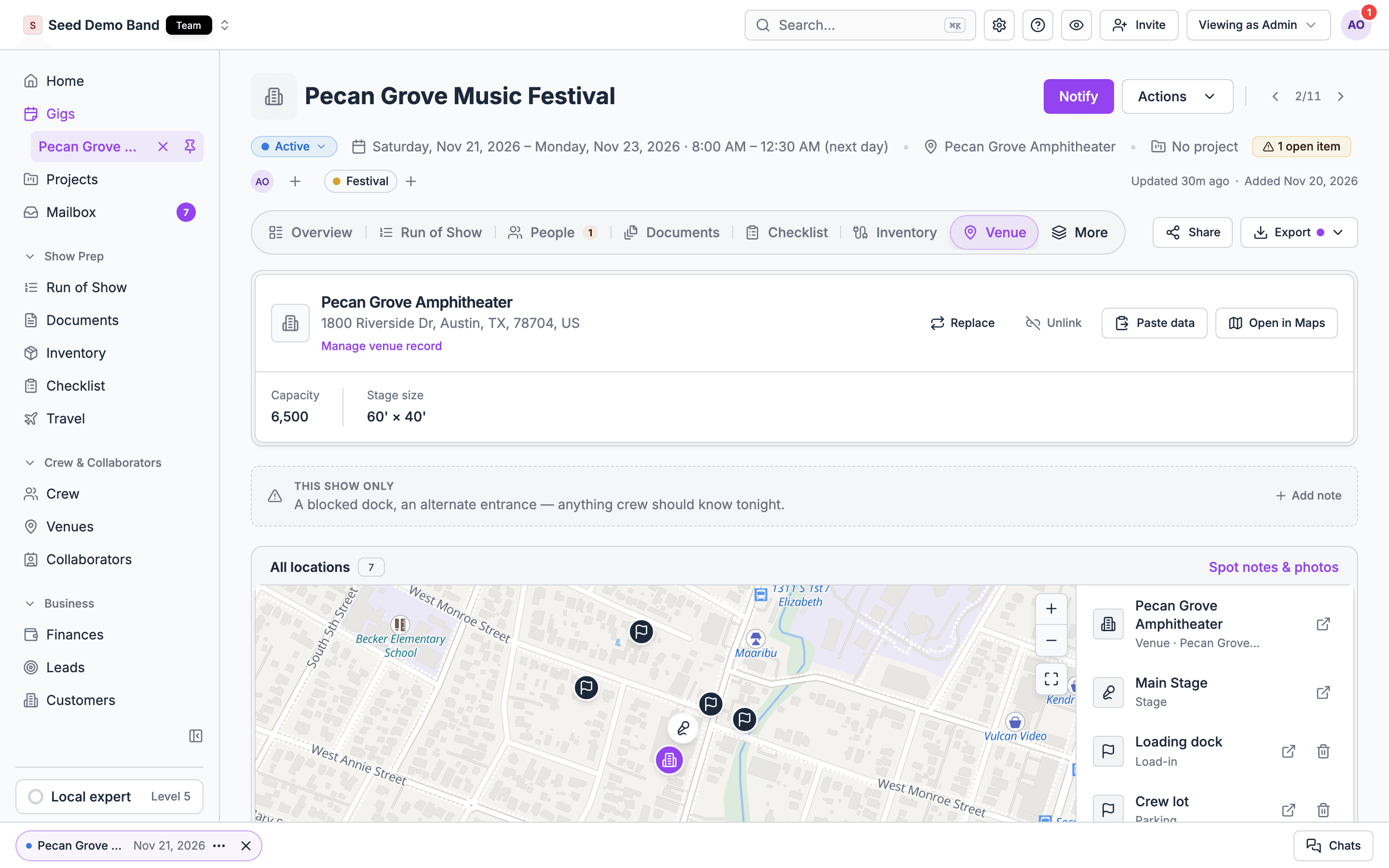
3. Set exceptions for this show
Select a field under Load-in & access, enter this show’s instructions, and choose Save. The field receives an Override badge and shows the replaced venue default beneath it.
Each override belongs to this gig and this field. Friday’s parking exception does not change the venue default or another gig at the same venue.
Restore the default
Edit the overridden field, clear its text, and save. The gig uses the venue default again. Saving text that matches the current default also clears the value override. If there is no venue default, the field becomes empty. A separate show note may still mark a field as overridden. Remove an outdated note too; clearing a field value does not delete notes. Managers can remove show notes, and other members can remove their own.4. Match the crew and equipment to the arrival plan
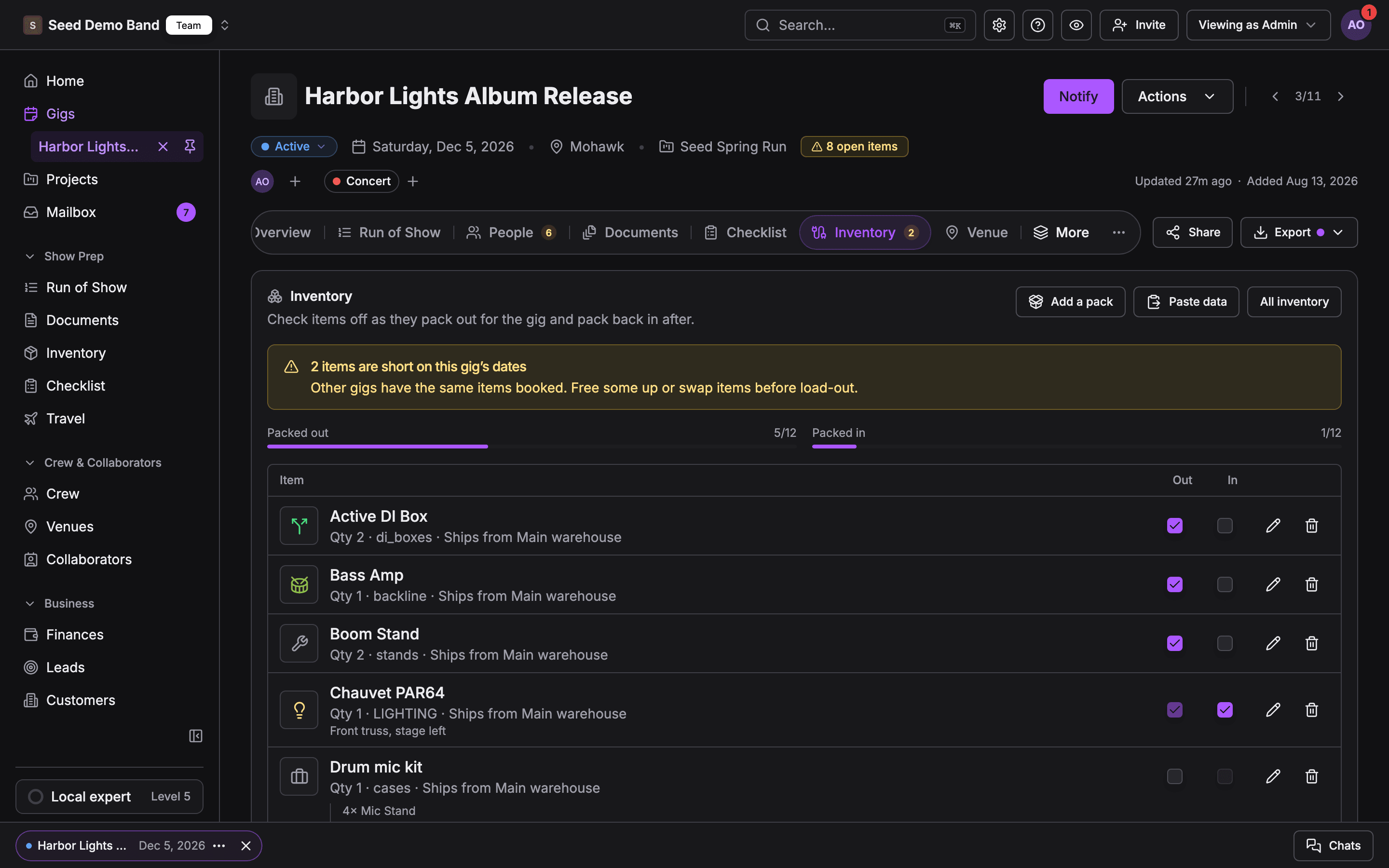
Use Manage Team to staff the positions required for setup, show operation, and strike. Review availability and accepted commitments before sending invitations, then track responses in Mailbox.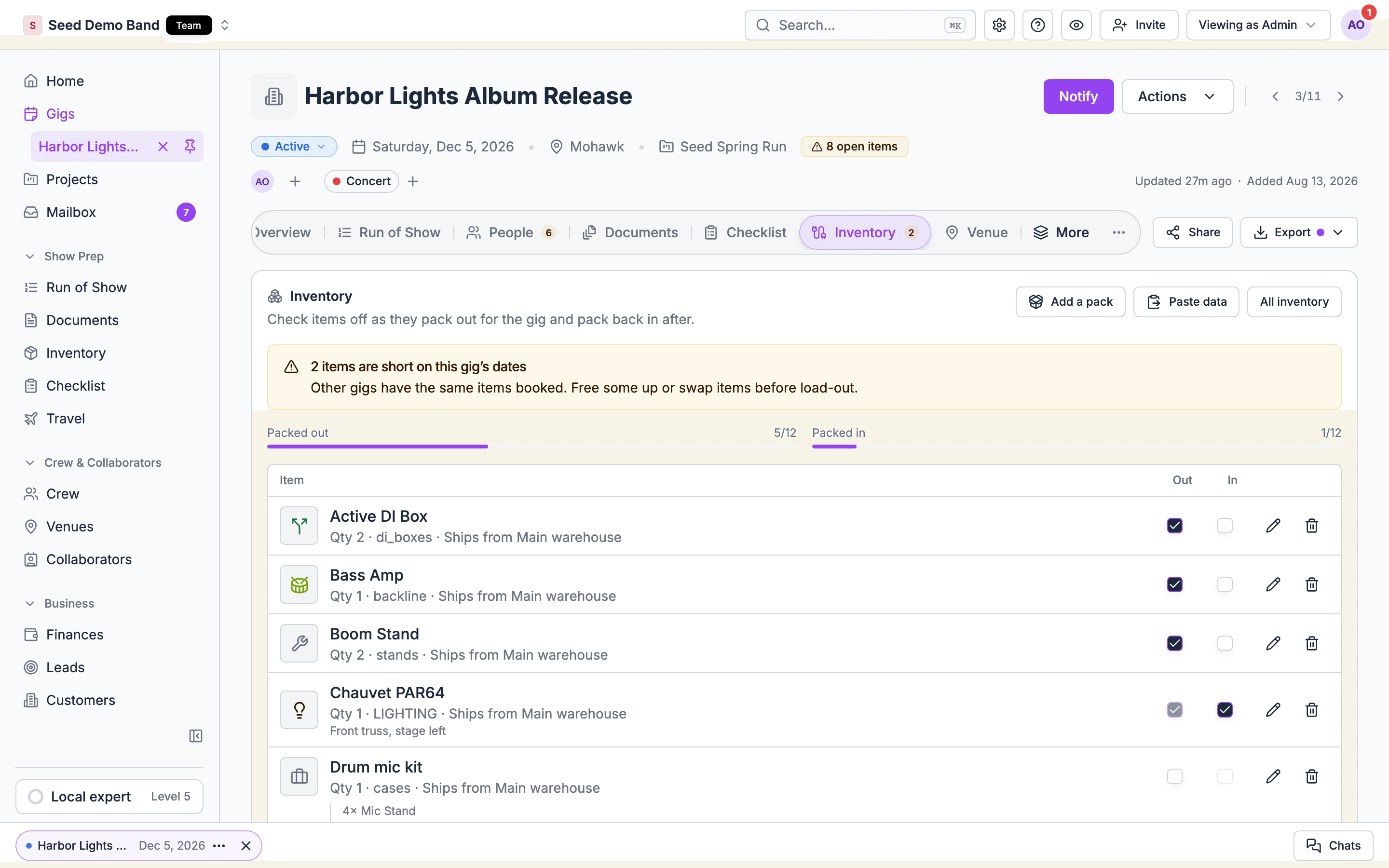
5. Put times and working documents on the gig
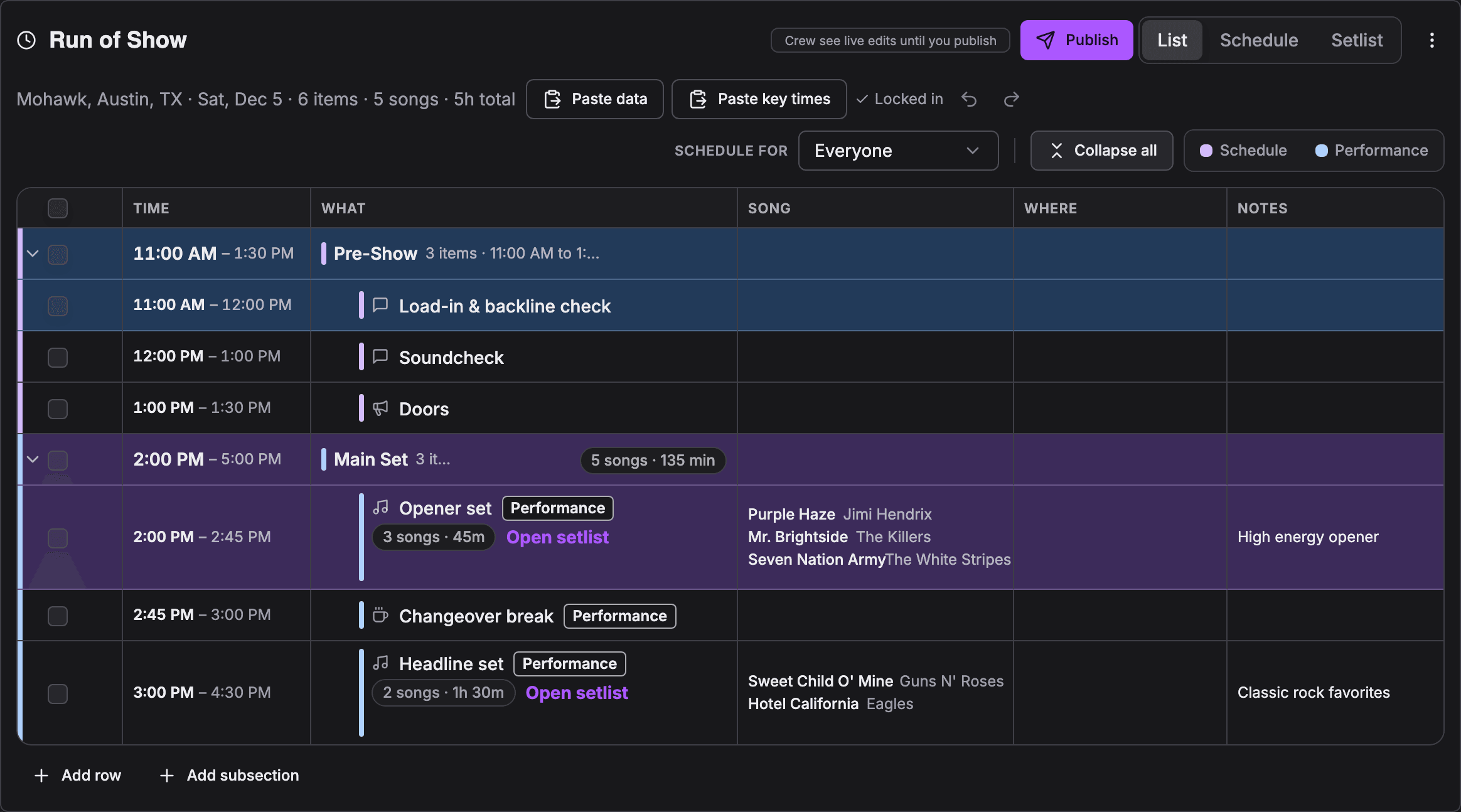
On Overview, use the timeline or Run of Show for crew call, load-in, soundcheck, doors, show, strike, and departure. The timeline covers key times; Run of Show adds ordered sections and cues when enabled.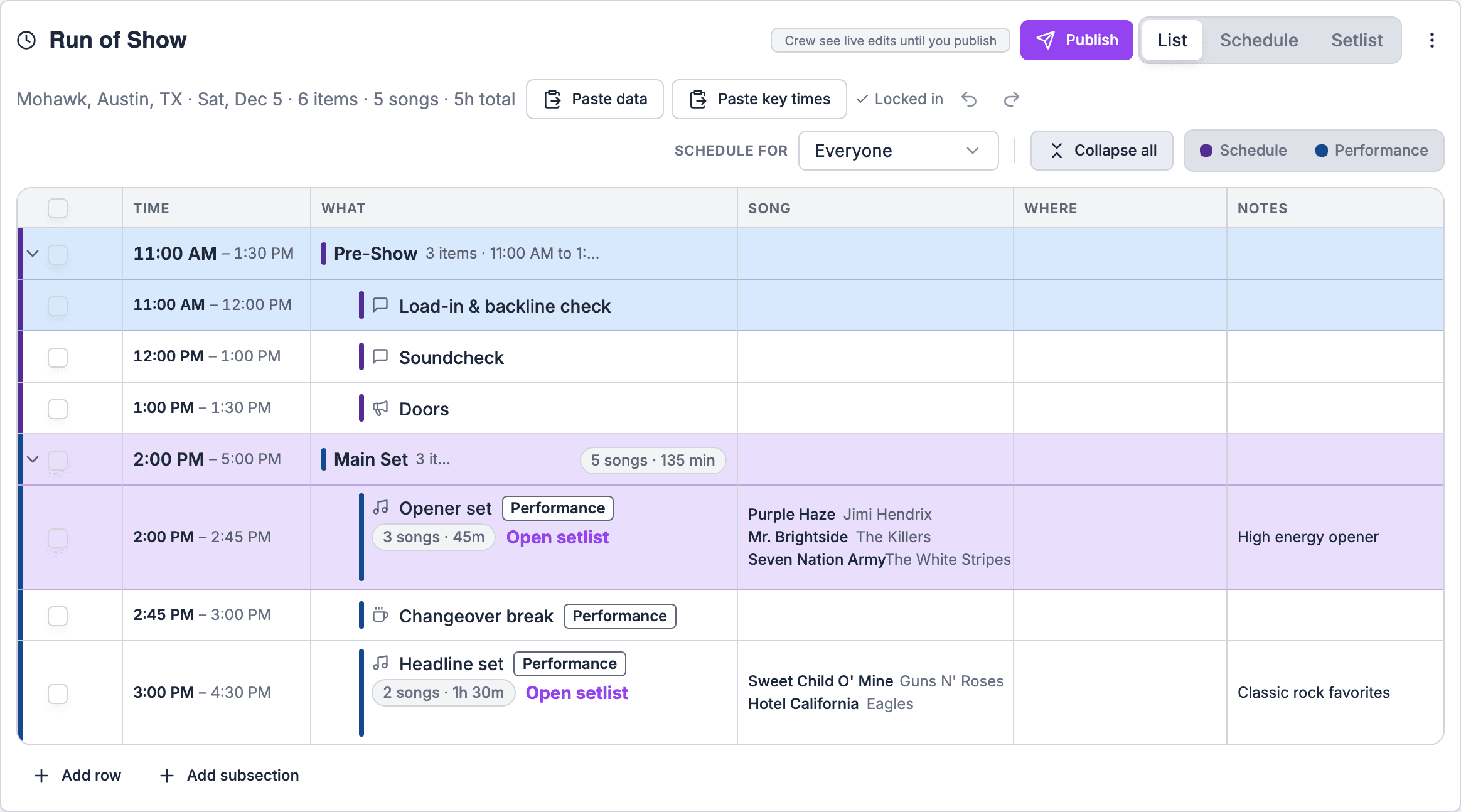
Upload the load-in map and stage plot to the venue’s Files and pick them as the venue’s load-in map and stage plot. The call sheet and day sheet print the load-in map (as a picture when it’s a PNG, JPEG or WEBP of 5 MB or less); the stage plot stays on the venue record. You can also attach a gig-specific file on the gig’s Documents tab under Attachments or to the run of show item it belongs to. See Files and attachments. Put essential arrival instructions in the logistics fields and show notes as well, so crew can read them without access to the full venue directory.
If crew travel to the show, record their flights, hotel stays and rides on the gig under People → Travel. See Travel.
Attaching a file is separate from sending it for signature. CheckAI and Chat are Private Preview, available only to the existing beta tester group. Signup, paid plans, upgrades, contacting support, and public demos do not provide preview access. This workflow does not require those previews.
6. Close the loop after load-out
- Record equipment returns in Inventory so available quantities reflect what came back.
- Keep temporary incidents on the gig. Correct venue defaults when a change should apply to future shows.
- After the gig’s effective end (the later of its event date and end date), have an Owner, Admin, or Gig Coordinator explicitly mark it Completed. Passing the date alone does not complete the gig; follow How a gig completes.
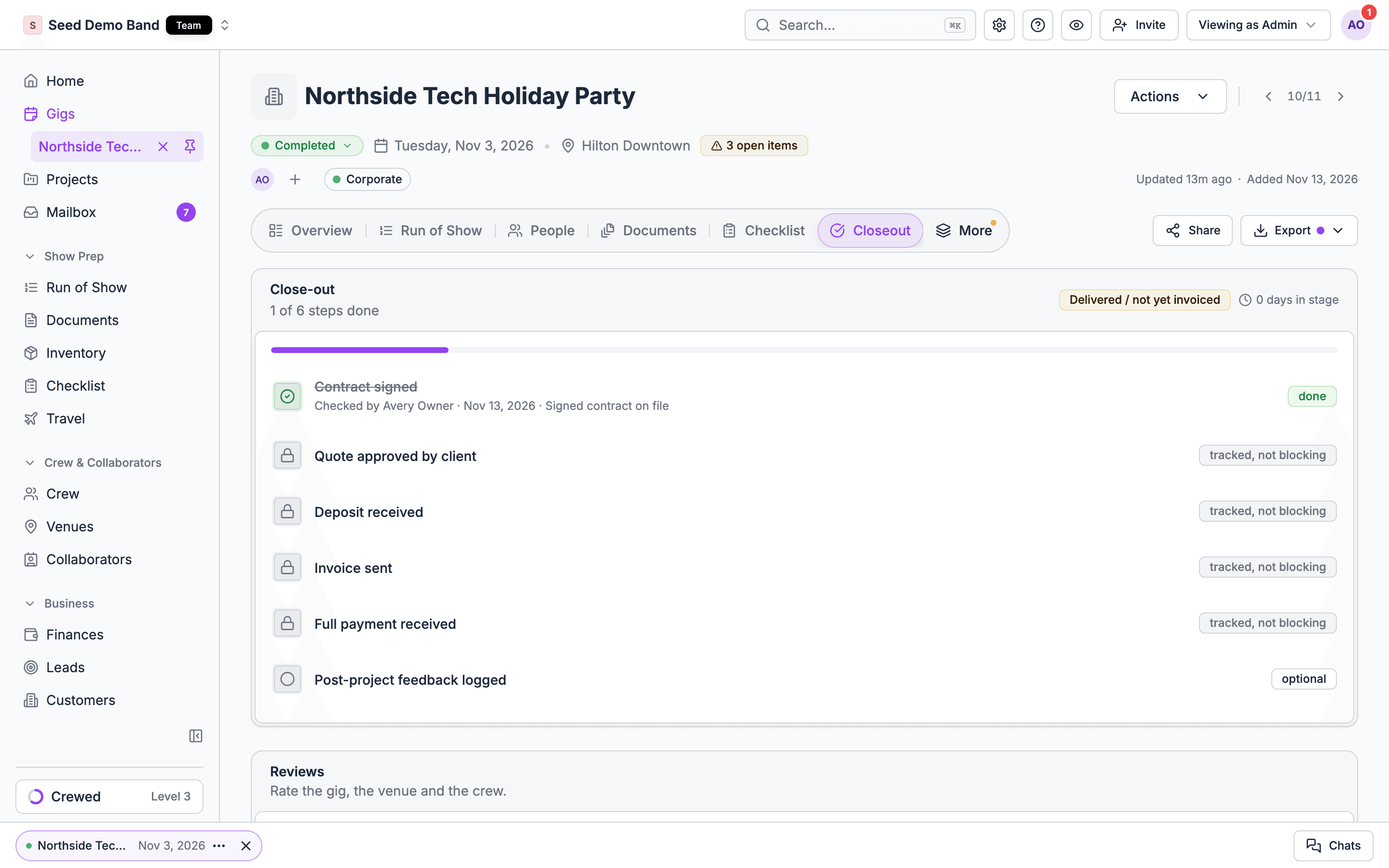
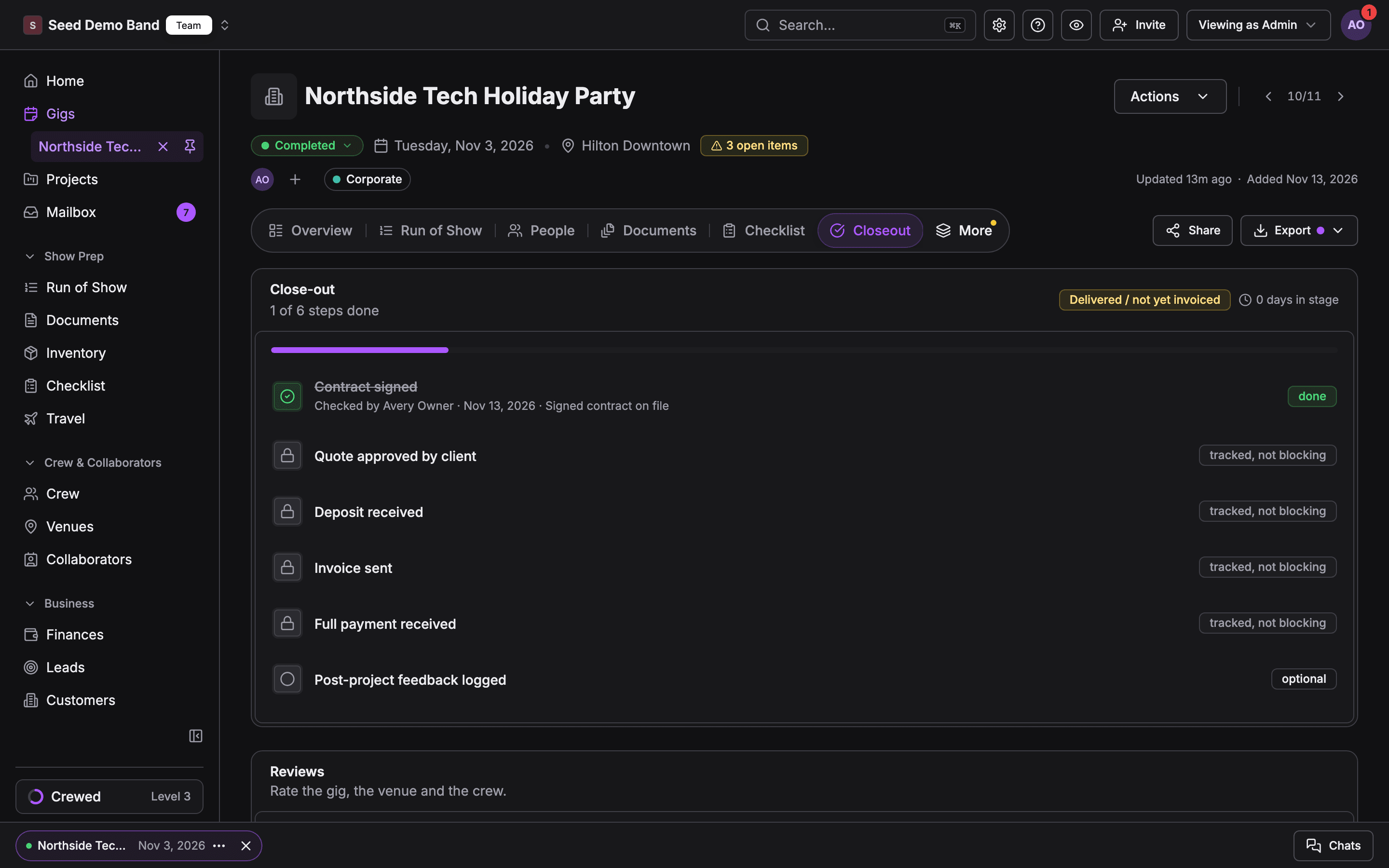
- Complete the relevant closeout steps and capture a venue review where useful. Have the authorized finance manager review crew payouts. The gig can be Settled once completion is saved, payouts have cleared, and any enforced closeout requirements are satisfied.
Related guides
Venues reference
Directory fields, linking, overrides, and visibility.
Production companies
Connect venue preparation to staffing and settlement.
Venue operations
Reuse venue details across a changing event calendar.
Run of Show
Build the schedule the production crew follows.