

Once, at the start of the tour
1
Create the group
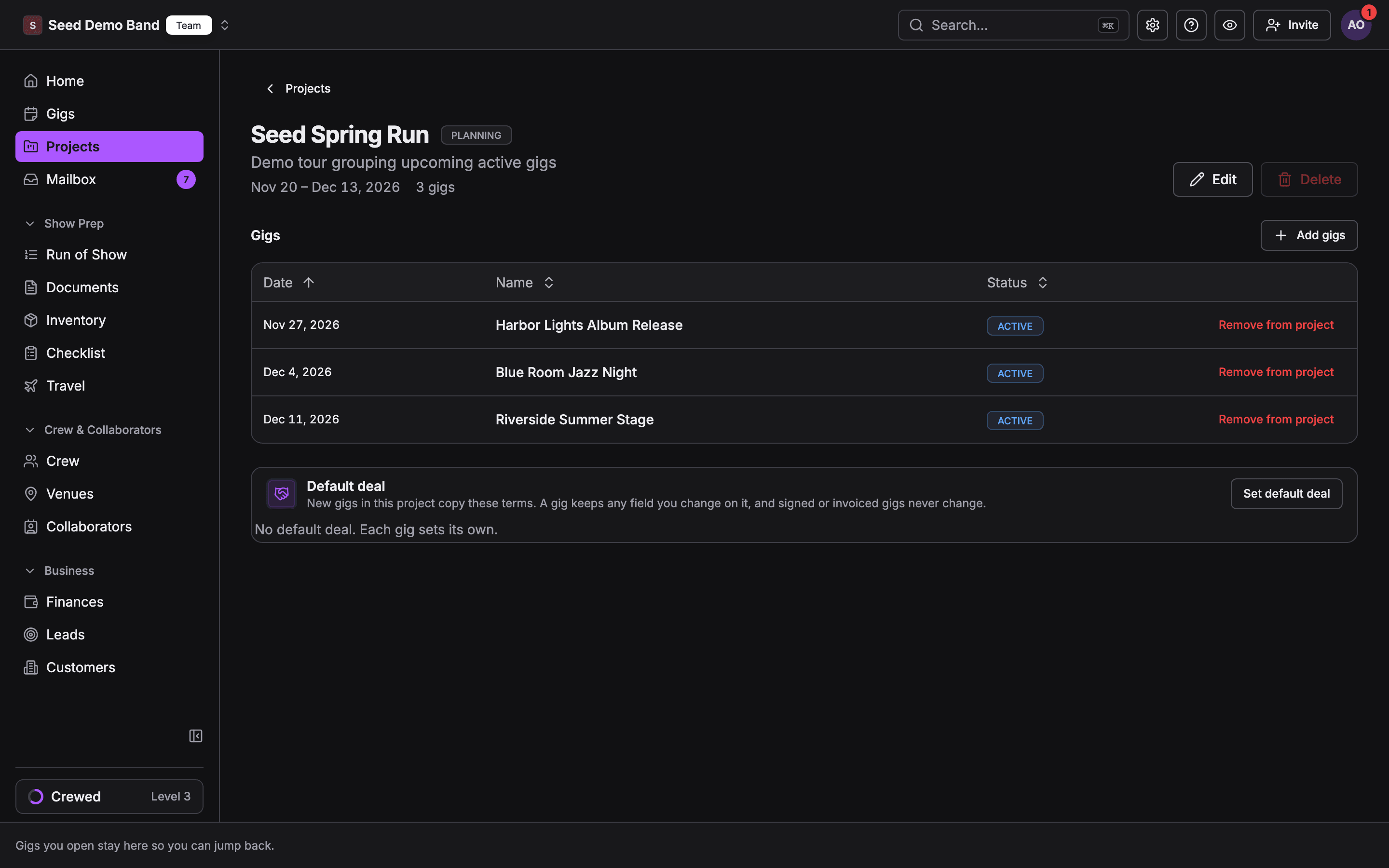
On the Gigs page, click New tour and name the run (Spring Run 2026). Bands see the word Tour; your organization can rename it. Every show you add rolls up into one view with tour-wide Revenue, Payouts, and Net. See Projects.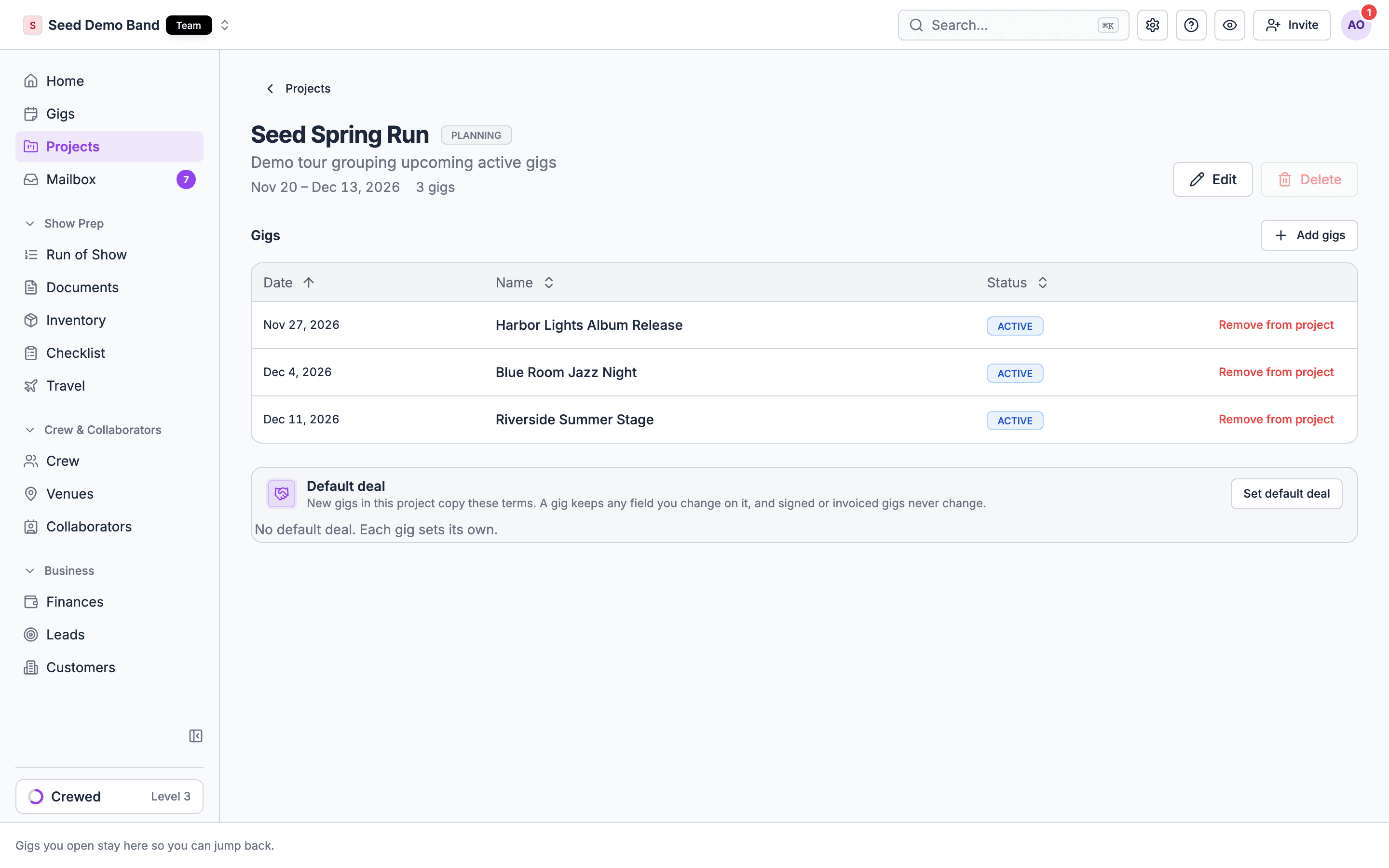
2
Build a tour template
Create one gig with the canonical positions. Save as template. Don’t bake in the venue or time. Those vary per show.
3
Stamp out the show dates into the tour
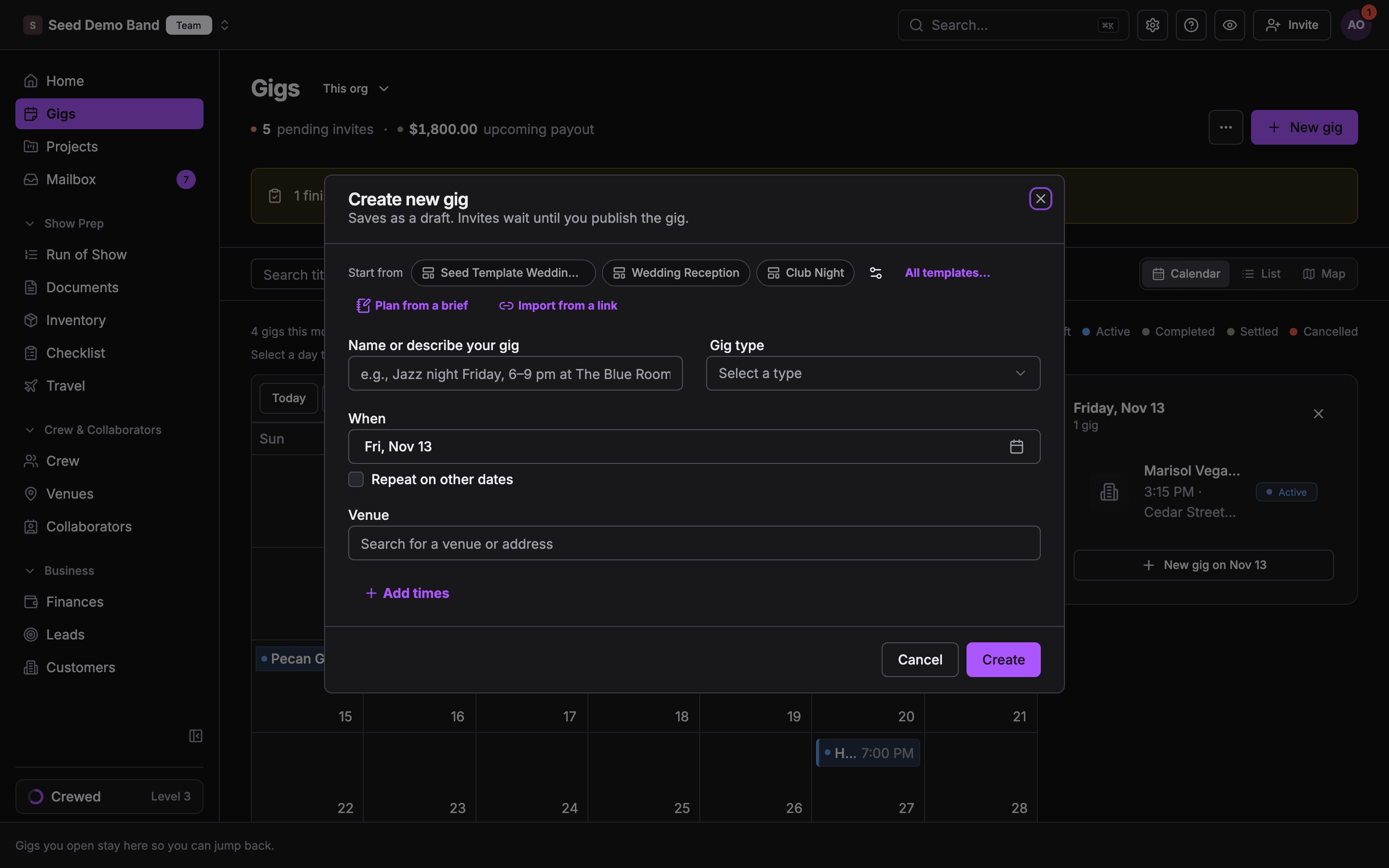
Use New gig in tour for each date (or duplicate from the template and Add existing gigs to pull them into the folder). Location is optional, so unconfirmed venues don’t block you. Add them as the routing firms up. Each one saves as a draft, so nobody is invited until you publish it.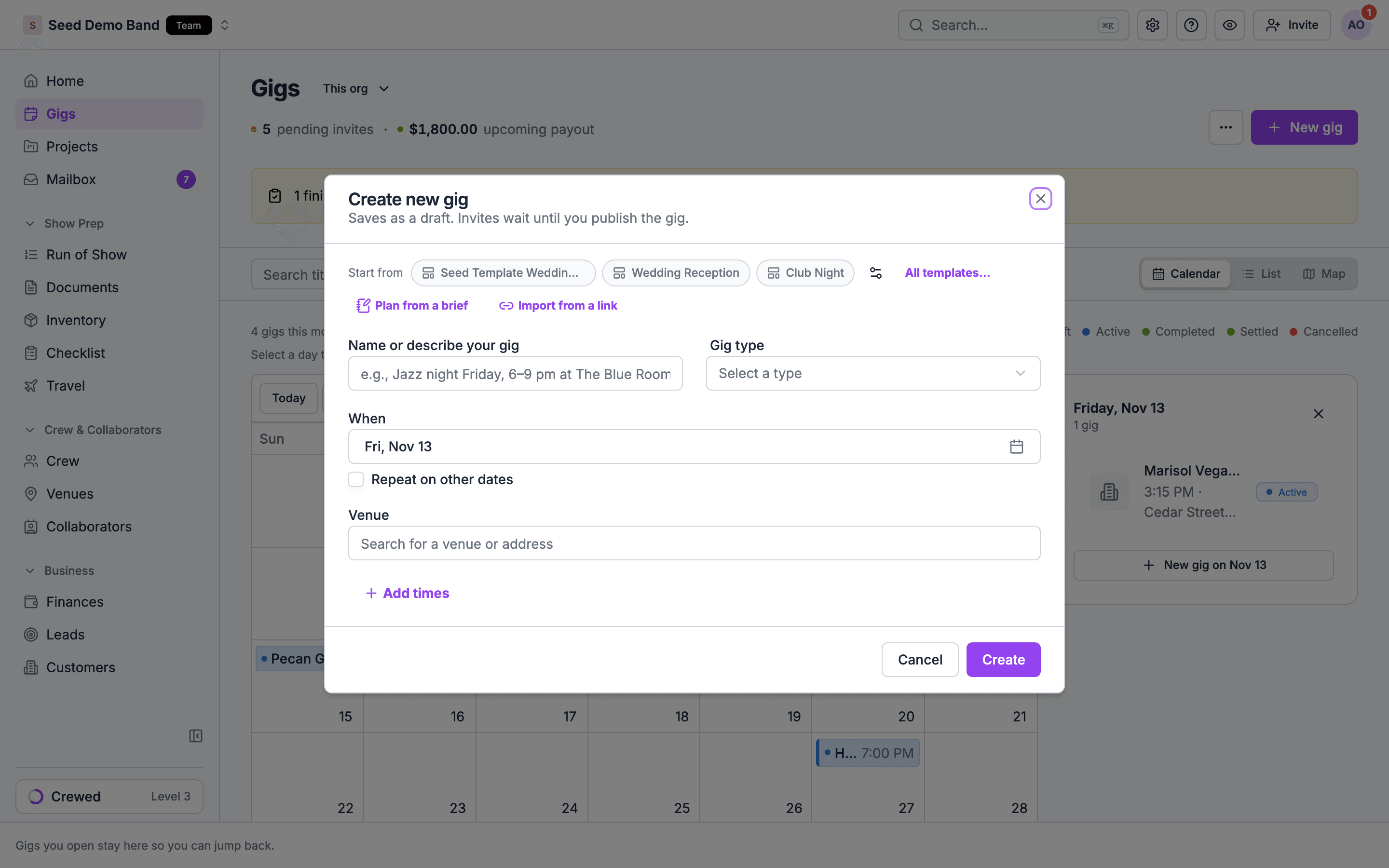
4
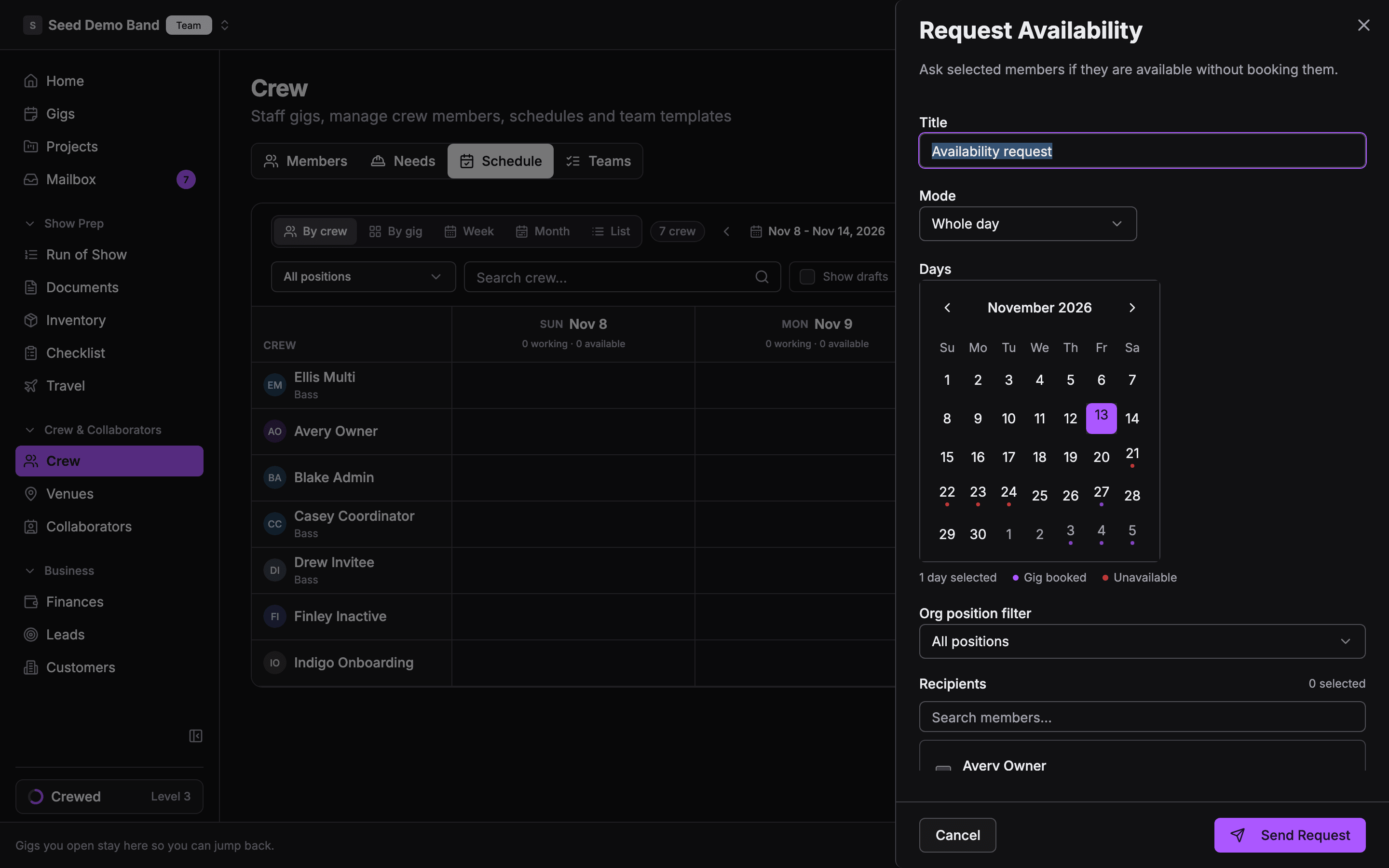
Check availability before you route
Before committing a leg, send an availability request for the working days to the people you’d call. Select each day; all days must fall within 92 days of each other. Responses reconcile into the crew calendar, so you see who’s actually free before a single invitation goes out.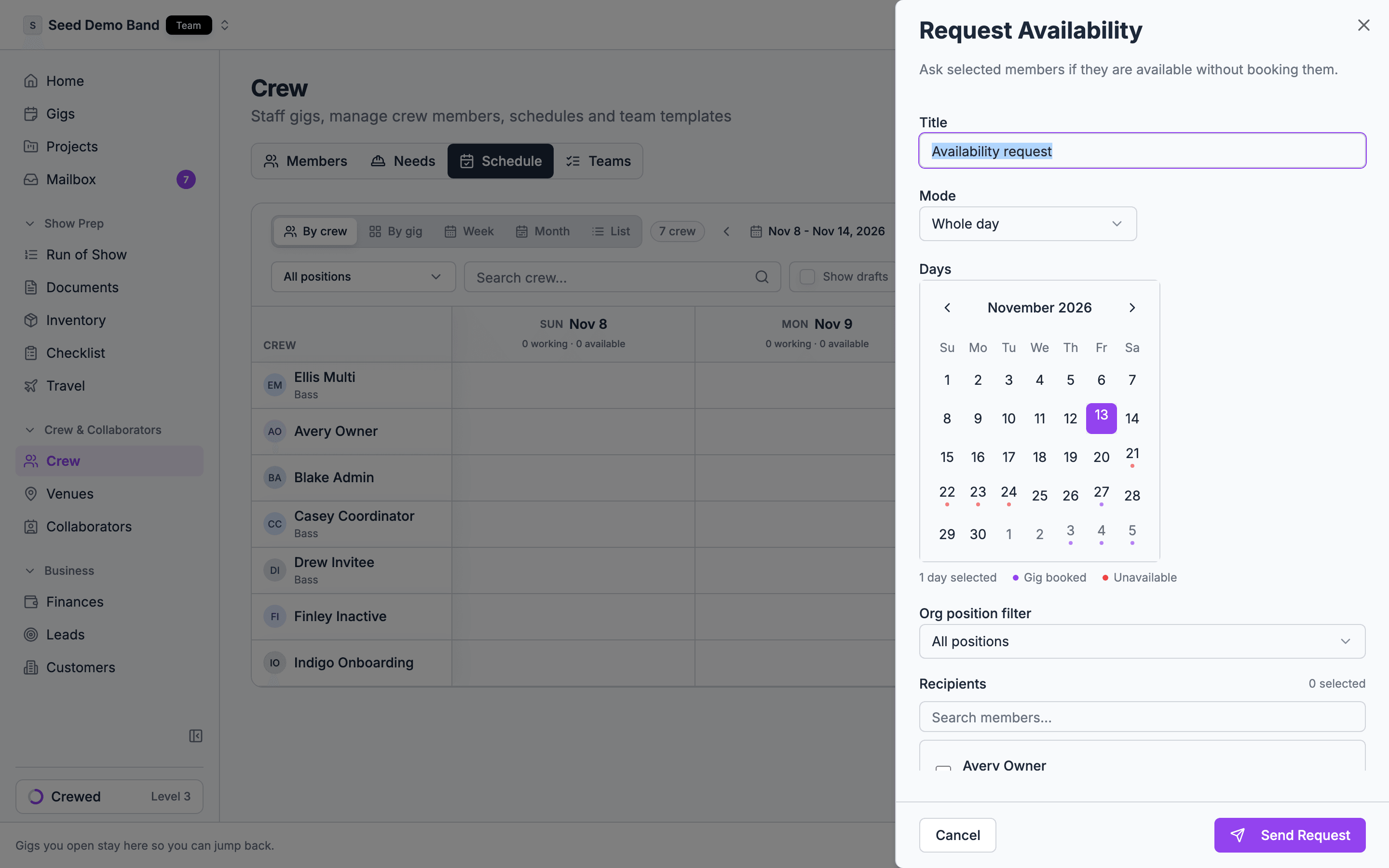
5
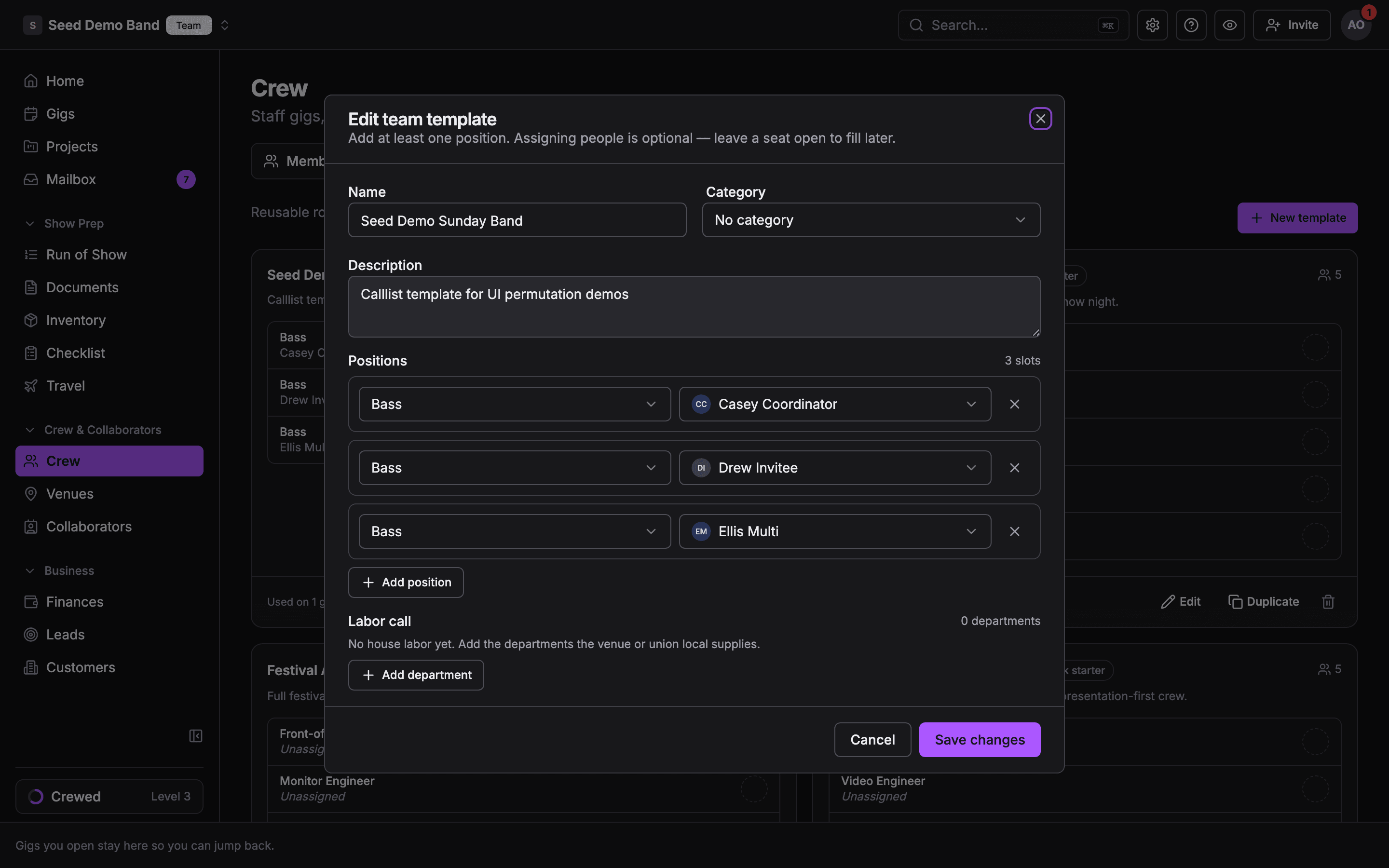
Build per-leg call lists
If the lineup differs by leg, create Tour A-Team, Leg 1 and Tour A-Team, Leg 2. Include the priority order. First-call up top. Apply the right list to each leg’s gigs. See call lists.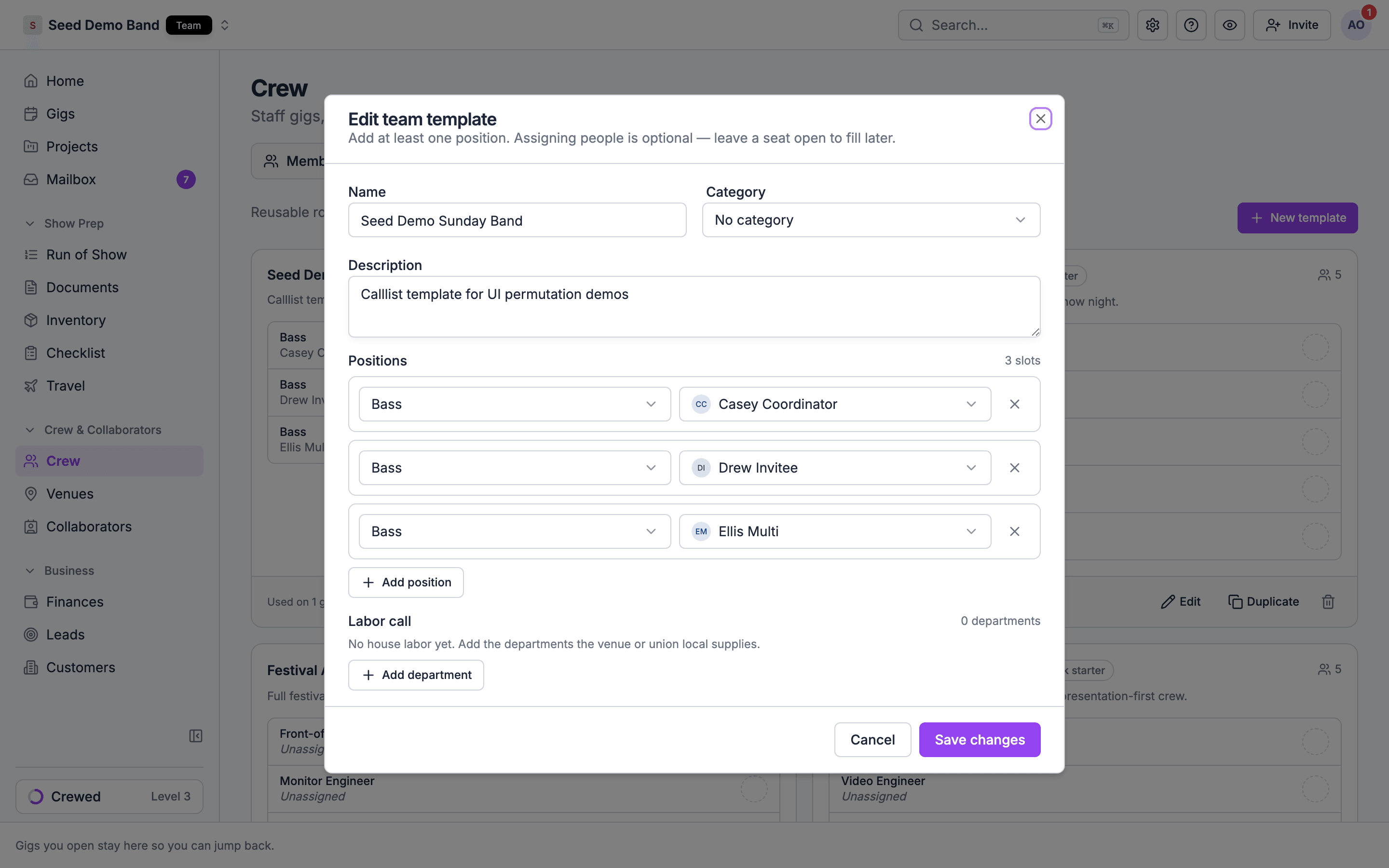
Per show, as things shift
Regular can't make one show
Regular can't make one show
Open the gig and review the declined assignment. If a standby backup was configured, check whether their invitation has already advanced. Otherwise select a sub, review the fee and call times, and send a new invitation. Confirm acceptance and share the current gig notes.
You don't know yet who can sub
You don't know yet who can sub
Two tools, depending on how targeted you want to be: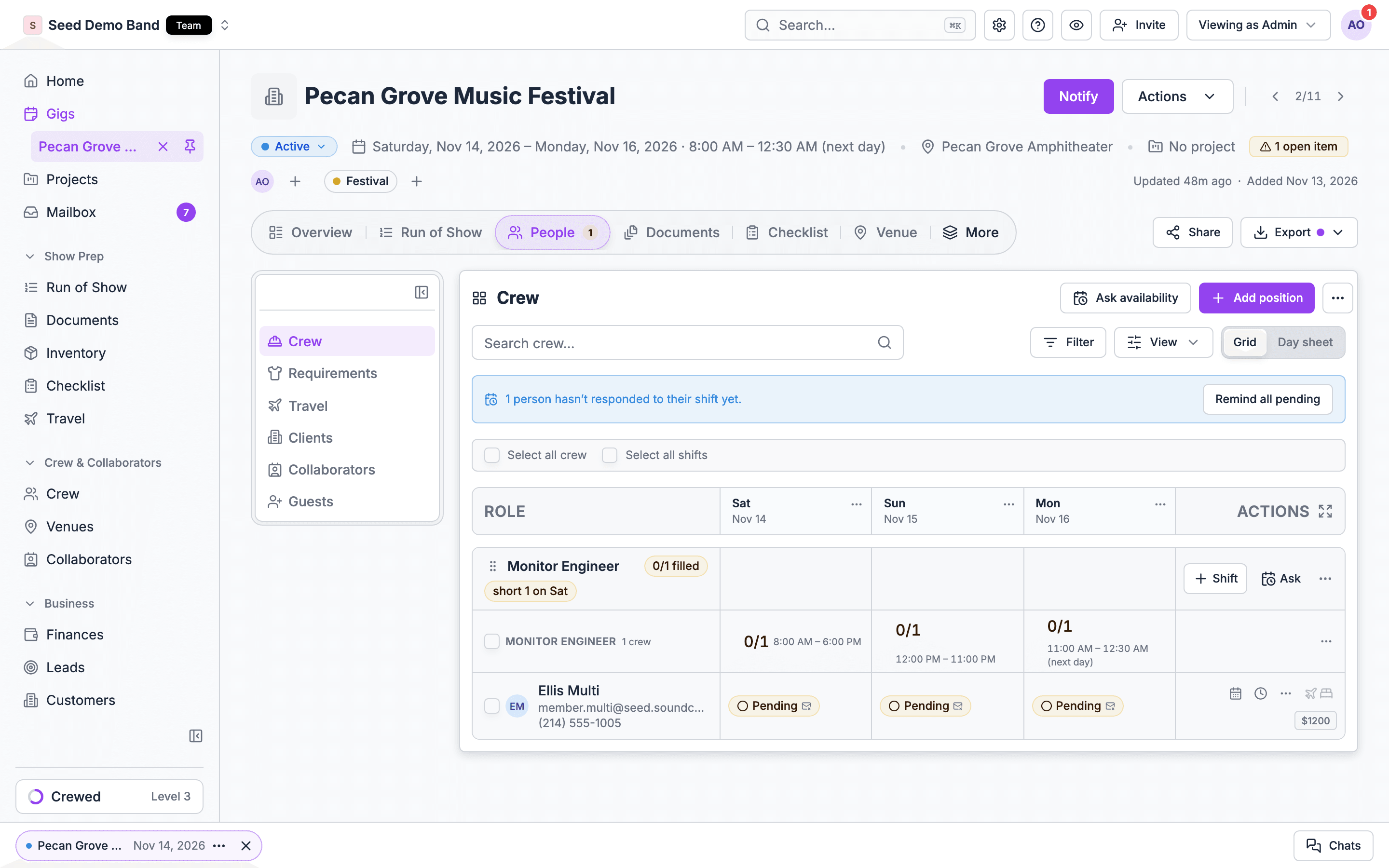
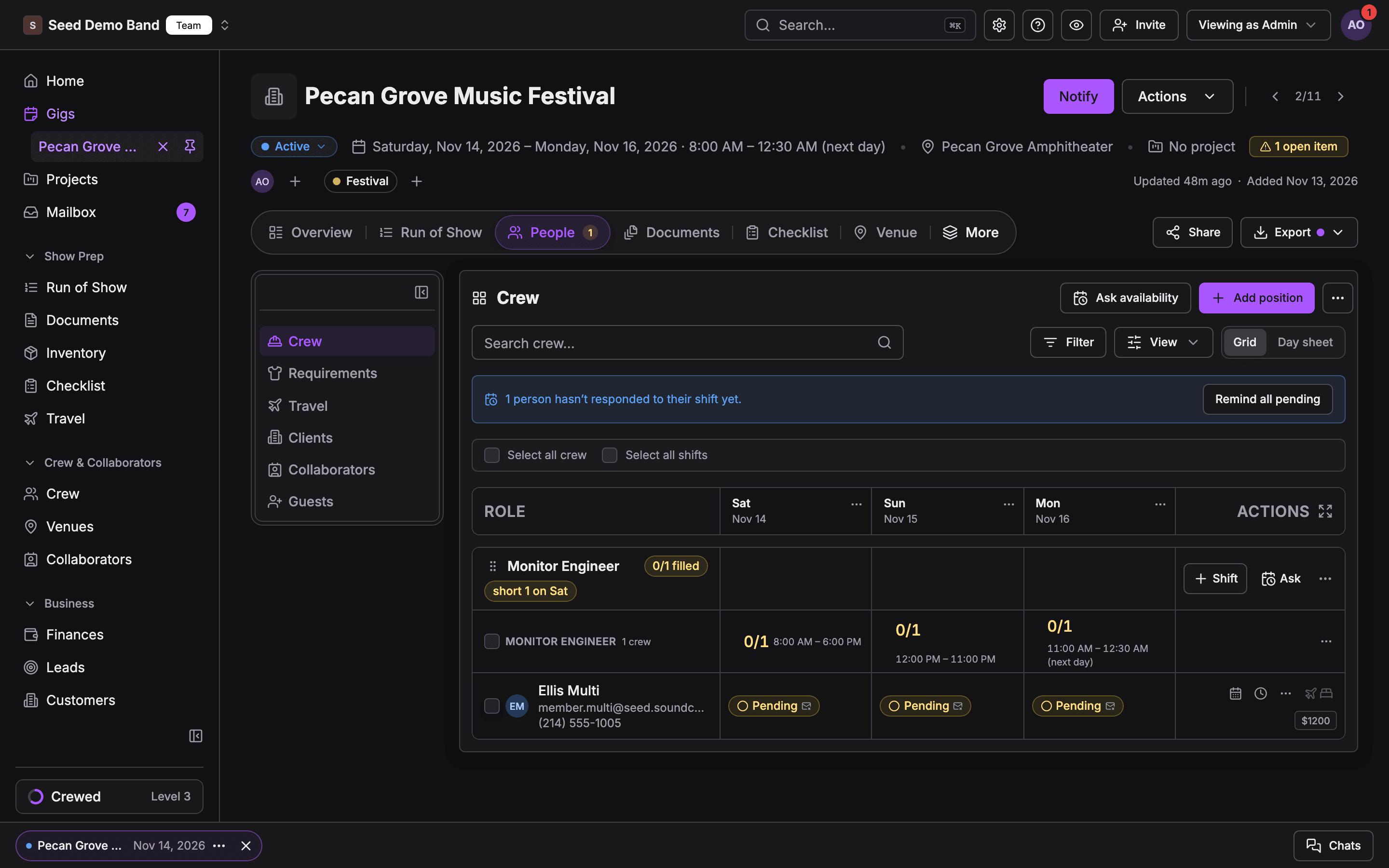
- Availability request: ask a filtered list (for example, members in the Drums position) whether they’re free, then book from the responses. See crew calendar workflows.
- Crew offer: post the open seat itself and let eligible people claim it. An open shift fills up to its configured capacity; a job offer lets each recipient accept. Positive accepted fees flow into the gig’s payables. See team building.
A whole leg's drummer changes
A whole leg's drummer changes
Update the Tour A-Team, Leg 2 saved Team for reuse, then review each leg 2 gig and update the affected assignment. Verify the recipients, call times, fees, and invitation status on every show.
Time / venue change for one show
Time / venue change for one show
Review the change with the affected crew and update the venue details or call times. On a sent shift, pay, the days it covers, and call times on an hourly shift are locked. Moving a one-day gig to a new date is allowed and its shifts follow it. A multi-day gig cannot move to different dates while it has a sent invitation, an open or filled shift, or a sent availability request; you can only add or remove days at either end. To move the whole run, cancel every one of those first, including invitations crew already declined. See Editing a shift after you’ve sent it before changing a staffed event.
A show falls through
A show falls through
Use Cancel gig on that date. Members are notified, uninitiated payouts stop, and the show stays in the group for your records without counting as delivered. Cancelling can’t be undone, so confirm the date is truly dead first.
Money across the run
Set the performance fee on each gig, not on the template, so different legs can pay different rates. Then let the group do the accounting:- Tour roll-up: expand the folder to see Revenue, Payouts, and Net across the whole run, updating as shows settle.
- Per-show payouts: an invitation fee becomes a payable as soon as the invitation is saved (a decline voids it), and a shift fee when someone accepts. Send them as gig payouts from each gig’s Finances tab.
- Close each show out: after each gig’s effective end (the later of its event date and end date), an Owner, Admin, or Gig Coordinator must explicitly mark that gig Completed. Passing the date alone does not complete it. Review payouts and any enforced checklist requirements before settling each show. See the closeout workflow.
Keep show information current
Keep each show’s call times, venue access, setlist, charts, and notes on its gig. When logistics change, update that record and confirm the change reaches the affected people through your established communication channel. Chat is Private Preview, available only to the existing beta tester group. Its current web experience supports named text group chats within a gig, selected participants, and authorized manager oversight. Signup, paid plans, upgrades, support contact, and public demos do not grant access.On the road
The mobile app carries the run: crew answer offers and invitations from their Mailbox, read tonight’s details, and receive enabled gig notifications. Give everyone a private calendar feed so the tour shows up in their personal calendar too.Related
Tours
Folders, roll-ups, and managing the run as a whole.
Touring lineup (full guide)
More patterns for rotating subs and per-leg lineups.
Call lists
Build the per-leg rosters.
Payments
Per-gig fees and payout runs.
Related reading
Segment spotlight: Tour managers
Why tour managers need ops built for the job, and how the patterns above fit.