

How a booking holds gear
- A booking holds gear only over its gig’s dates. A mic booked for Saturday is free on Friday and Sunday.
- A booking holds gear only on a gig that’s out of draft: active, completed, settled or archived. See Which gigs hold gear.
- Gear ticked Out counts as out until you tick In, whatever the gig’s status. Gear packed out before its gig’s dates holds stock from the day it was packed out, so it counts as out today.
- An item’s Available count on the items list is what’s free today. Gear booked only for a future gig still counts as available today.
Which gigs hold gear
Inventory doesn’t travel with a copy made in the web app. A gig you duplicate, a gig you make from a template, and a gig you repeat onto more dates all start as drafts with no inventory. Its Outside gear lines do copy. Build your standard set once as a Bundle and add that one line to each active gig. See Kits, cases, and accessories.
A copy made through the API or the AI assistant is active unless you ask for a draft, so it does carry the source gig’s inventory. The lines move to the new dates, cancelled lines are dropped, and each quantity is capped at what’s free on those dates.
Check one item’s availability
Open the item from Show prep → Inventory. Its Availability section opens on the next 30 days. It takes a date range, and optionally a location. It shows:- Capacity.
- The peak booked on any day in the range.
- What’s free.
- Every other booking that overlaps.
The Availability board
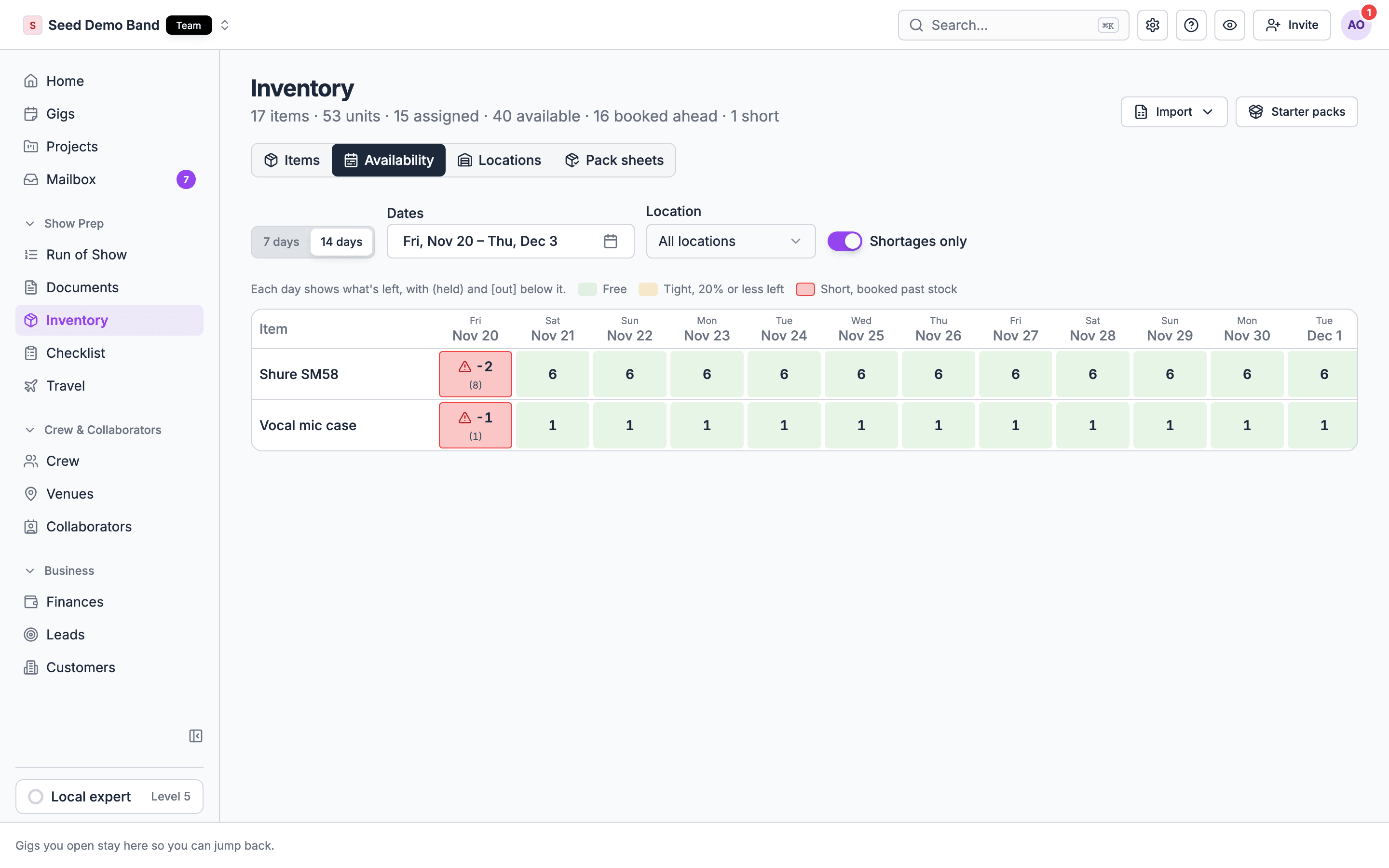
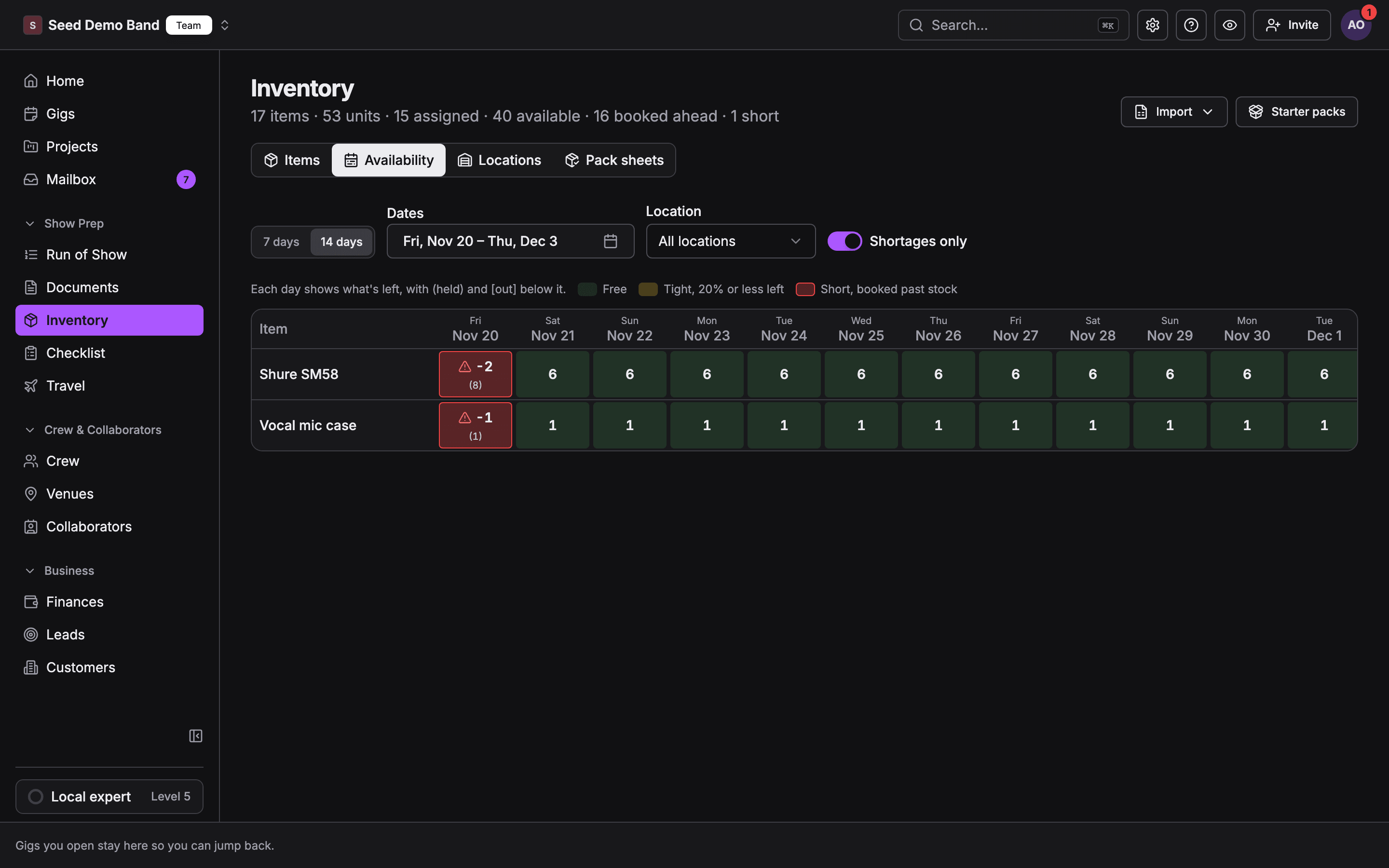
To check every item day by day, open the Availability tab next to Items. Items run down the side and days across the top, so a one-day shortage stands out even when the rest of the week looks fine.
Each day shows how many are left, with the number held in parentheses and the number out in brackets below it. The color tells you how the day looks:
- Free: enough stock left.
- Tight: 20% or less of the item’s stock is left.
- Short: bookings go past what you have. The day also shows a warning icon.
- No stock: a muted day. The item has nothing to offer and nothing is booked, such as an item whose whole quantity is out of service. It isn’t in the legend.
Shortages
A line is Short when, on at least one of the gig’s days, more is booked than you own. The gig’s Inventory tab shows:- A Short badge on the line, with a reason such as “Short 2 on Nov 22 — booked on Hartley Wedding”. When the other booking isn’t a gig you can name, it reads “another gig”, “a team member” or “another booking”.
- A banner: “N items are short on this gig’s dates. Other gigs have the same items booked. Free some up or swap items before load-out.”
- An open item on the tab: “N items short on these dates”.
Fix a shortage
Pick one:- Lower the quantity on this gig’s line, or on the other gig’s.
- Swap the item for one you have free, such as a backup model.
- Move the other booking: open the other gig and change or remove its line.
- Rent it: remove the line and list the rental under Outside gear.
- Return gear that’s back: if the other gig is over and the gear is home, tick In on that gig. Gear left ticked Out keeps looking unavailable.
Related
Packing out and back in
Out and In ticks, and pack sheets.
Troubleshooting
When availability doesn’t look right.