

The map
What feeds the Checklist
Run of Show
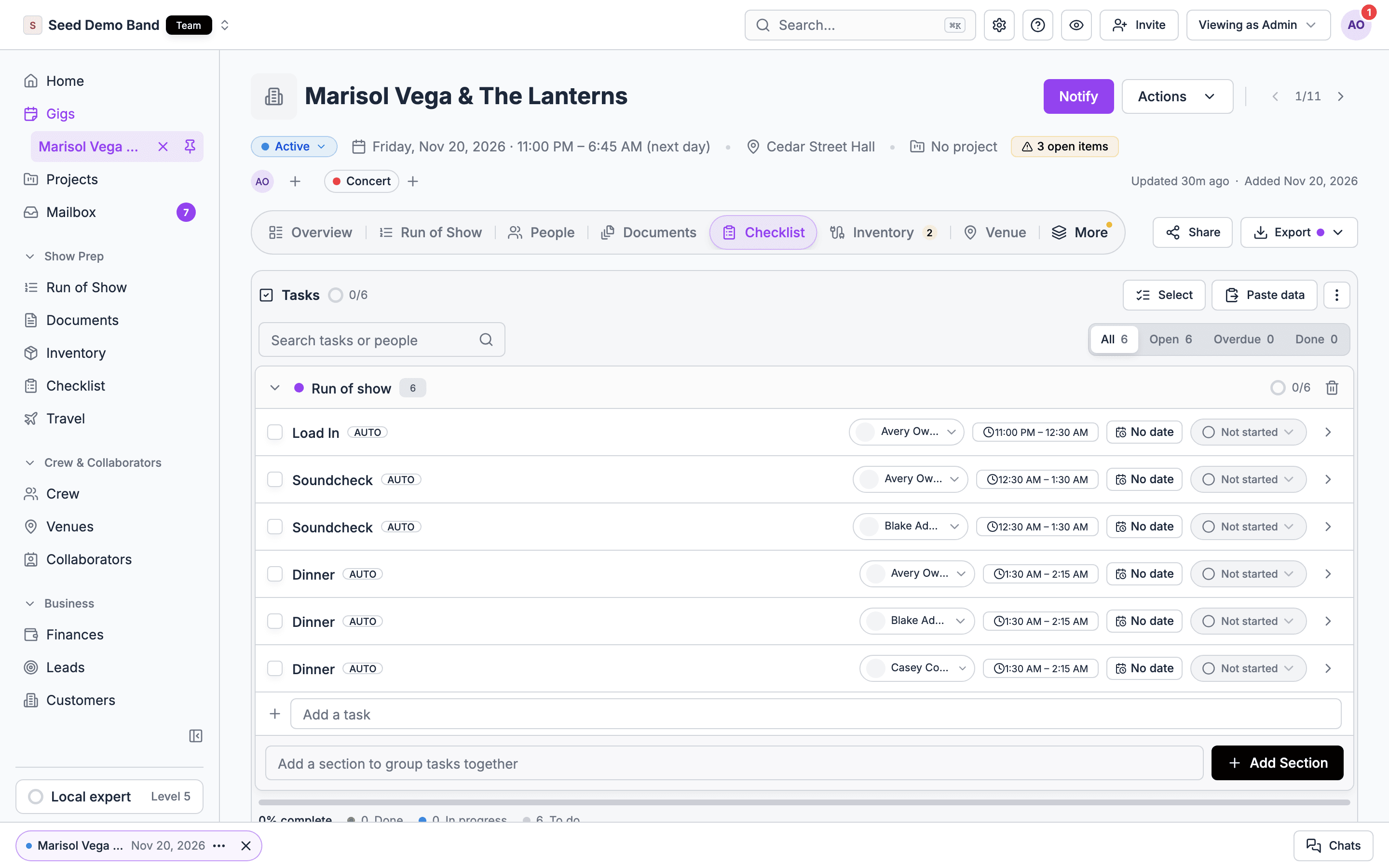
When you put crew or staff on a run of show item, each of them gets a timed task in a Run of show section of the gig’s checklist. The task carries the item’s name and time and follows the version crew can see. Taking someone off the item removes their task if they haven’t started it. This is the busiest connection. It means the people running cues see them in the same list as the rest of their prep. See Tasks from the Run of Show.Acts
When an act plays on a gig, Soundcheck adds one task per seat in the act’s team to an Acts section, timed to its sets and assigned to whoever accepted each position. An empty seat shows as an unassigned task. See Act seat tasks.People and staffing
Tasks are assigned to members of your organization. The people on the gig decide who a task goes to in two ways:- Template owners. A template task can name a position, such as Production manager. When the template is applied, the task goes to whoever accepted that position on the gig earliest, from the roster, accepted crew offers or accepted invitations. See Due dates and owners.
- Run of show people. Crew and staff on an item get its task. When someone declines, or their offer expires or is cancelled, their run of show tasks are removed.
- Act seats. Whoever accepted a position in an act’s team gets that seat’s task.
Closeout
When your organization enforces close-out and steps are still missing a week after a show, Soundcheck creates Close-out: … tasks for the gig’s close-out owner. Ticking the step on the Closeout tab completes its task. See Close-out tasks.Collaborators
When you share a role with an outside collaborator, Soundcheck adds that role’s request tasks, such as Send your setlist or Confirm load-in, specs and curfew, and shares them with the collaborator. See Collaborator request tasks.Gig files
Soundcheck doesn’t read tasks out of gig files, such as an advance packet, today. Copy the to-do list from the file and use Paste data instead.Gig templates and duplication
A gig template carries the gig’s task sections and tasks, without the people assigned last time and without due dates. Starting a gig from it gives the new gig the same list, undated. Duplicating a gig copies its checklist too:
After you duplicate a gig to a new date, select the dated tasks and shift them with bulk edit.
The create-gig form also picks a checklist template for the gig’s type.
Rescheduling
Moving a gig to a new date doesn’t move its task due dates. Shift them yourself with bulk edit.Imports and plans
A workspace export includes your checklist templates and every gig’s checklist, and an import can bring them in. A gig created from a brief or plan gets the plan’s checklist.Paste data
Paste data on the Checklist tab turns a list from a spreadsheet, an email or a doc into tasks. See Paste a list of tasks.What reads the Checklist
Your tasks
Every task assigned to you shows on the Tasks tab of your mailbox and in My checklist on mobile, across every gig and organization. Status changes there and on the gig are the same data. See Your tasks.Open items
An overdue task, one past its due date and not complete, is an open item. It adds to the count badge on the gig’s Checklist tab and to the gig’s open items chip. It clears itself when you complete the task or move its date. This count rolls over at midnight UTC, while the Overdue filter on the tab uses the gig’s time zone, so the two can differ for a few hours around midnight. Open collaborator requests are counted separately, not as overdue tasks.Home
- Rounds: owners and admins see Overdue tasks as one of the groups under To-dos on Home, across every gig. See Rounds.
- Your tasks: crew and members see how many open tasks are assigned to them, with a link to their task list. See Home.
Open items and To-dos are rolling out gradually and may not be visible in your workspace yet.
Exports
A gig’s Export menu offers Export Checklist…, as a PDF or a CSV. It appears only when you can see the Checklist tab. See The export hub.Sharing with collaborators
When you share a gig with a collaborator outside your organization, you can tick tasks to share. The collaborator sees each shared task’s title, notes, status and due date on their shared page, and can set it to Not started, In progress or Complete. They can’t change anything else, and they can’t change tasks on an archived gig. Tasks have no public link of their own, so a public share link doesn’t show them.The client portal
The client portal doesn’t show gig tasks. The to-dos a client sees there are their agreements, forms and payments. Soundcheck doesn’t have client-facing tasks today. To ask a client for something, send a form or agreement from the gig’s Documents tab, and keep your own task on the checklist to chase it.The mobile app
The gig details in the app show your next few open tasks, with the full checklist one tap away. See Checklist on mobile.Calendars
Task due dates don’t appear on calendar feeds or in Google Calendar. Your Tasks tab, with its Overdue and Due this week filters, is where deadlines live.AI assistants (MCP)
Through the Soundcheck MCP server, an AI assistant such as Claude or ChatGPT can work with checklists:
An assistant can’t add tasks or sections, apply a template to a gig, change many tasks at once, read your own task list across gigs, or edit or delete templates. Do those in the app. A gig an assistant drafts from a plan carries the plan’s checklist. See the MCP catalog.
Documents and files
Gig-wide files, such as contracts, stage plots and riders, live on the gig’s Documents tab under Attachments, not on tasks. A task holds text notes and labels, not files. To point a task at a file, name the file in the task’s notes. Forms, agreements and other paperwork you send are tracked on the Documents tab, not as checklist tasks. A contract still waiting for a signature shows up as an open item on the Venue tab. If you want a reminder to chase one, add a task for it.Related
Checklist overview
Start here.
Automatic tasks
The four connections that write tasks for you.
Gig overview
Every tab on a gig.