

When to use it
- Your crew are freelancers who invoice you. They submit an invoice from the gig in a few taps, and the PDF is ready for your books.
- You pay contractors directly. Send direct deposit or card payouts from the gig, and the status updates as they settle.
- You pay through payroll or another tool. Record each payment with Mark as paid…, so the gig still shows who’s been paid.
How the money flows
1
Pay becomes a payable
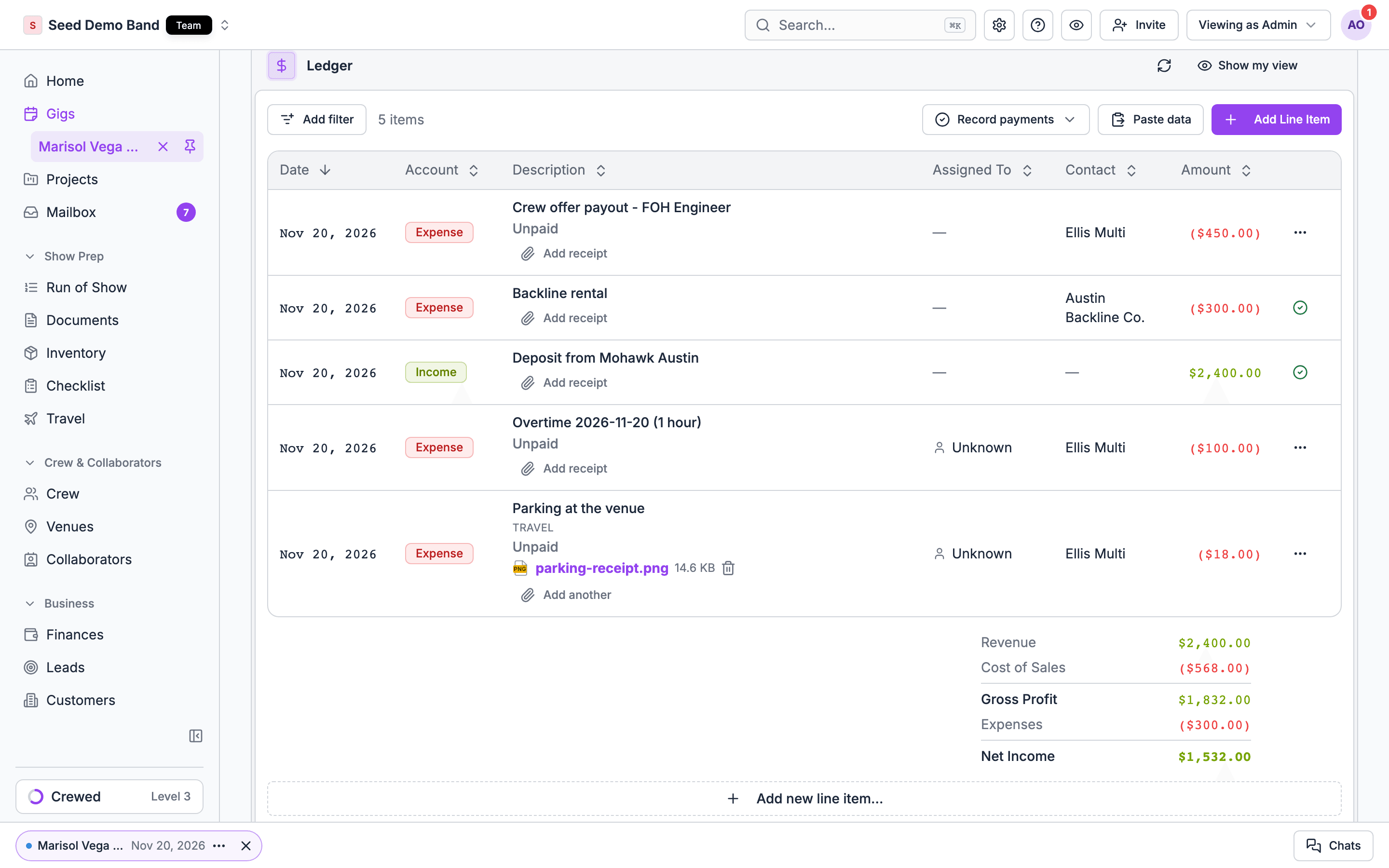
When someone accepts a shift with a fee, Soundcheck adds a payable to the gig’s ledger. Expenses crew submit, overtime and lines you add yourself are payables too. See Pay and rates.
2
Crew invoice you, if you ask them to
A crew member can bundle their unpaid payables on the gig into one invoice, with a PDF. Shift pay joins an invoice once it’s final.
3
You pay or record the payment
From the gig’s Finances tab, send a payout or mark the line as paid.
4
Track it to Paid
Each payable moves through Unpaid, Processing and Paid. Crew see the same status on their side.
Crew invoices
Crew who work for several companies keep their own books. A crew invoice lets them bill you for a gig without leaving Soundcheck.What a crew member can invoice
- Their own payables on the gig that are Unpaid or Failed, above zero, with no payment started.
- Shift pay once it’s final. See Only final pay goes on an invoice.
- Shift pay, reimbursements and other lines, shown as Shift pay, Reimbursement and Other.
- Hourly shift pay with its hours spelled out, such as 8 h regular, 2 h overtime ×1.5 at $40.00/h.
- Day-rate shift pay with its days, such as 1 day at $400.00/day. When the pay is capped and doesn’t equal the day rate times the days, the line shows the days without a rate.
Only final pay goes on an invoice
Shift pay can go on an invoice only once it’s final:- Day-rate and per-day shifts are final once the person’s last accepted work day has passed, in the gig’s time zone.
- Hourly shifts are final once the last accepted work day has passed. With the time clock on, every accepted day also needs approved hours.
- Flat pay for the whole shift, from a fee you typed or a Flat total, can be invoiced as soon as it’s accepted. So can pay from an invitation.
Invoices and changes
- Pay that goes up after an invoice is sent adds a separate line for the difference. That line can go on the next invoice, and the sent invoice stays as it is.
- Pay that goes down lowers an invoiced payable with no payment started to the new amount, for example when approved hours drop or a per-day shift loses a day. The invoice turns Needs update. Flat pay for the whole shift doesn’t change when one day is dropped.
- A cancelled shift voids its payable when no payment has started, even when it’s on an invoice. The invoice turns Needs update.
- Once a payment has started on a line, including a partial payment recorded with Mark as paid…, Soundcheck leaves it and its invoice as they are. Check those lines by hand.
- When an invoice needs an update, Soundcheck sends a push notification to the crew member and to everyone who manages the organization’s finances, if they allow gig changes. The invoice lists each changed line as was $650.00, now $400.00. Void it, and the crew member can submit a new invoice at the new amounts.
- Expenses on the web. On the web, crew booked through a shift or an invitation get the gig’s My Expenses tab, where they add expenses and submit invoices.
Submit an invoice (crew)
1
Open the gig
On the web, open the gig’s My Expenses tab (Finances if you can see the gig’s finances) and find the Invoice card. It reads Bill {your organization} for your pay and expenses on this gig. In the mobile app, it’s the Invoice section of your pay breakdown on the gig’s Details panel.
2
Add your details
Optionally enter a Business name (optional) if you invoice as a company. On the web, add Notes (optional), such as payment terms or a reference. Your address prints from your profile’s home base. Without one, the card says No address will print. Add a home base location to your profile to include one.
3
Check the lines
Review each line and the Total.
4
Submit
Choose Submit invoice. With several currencies, the button reads Submit USD invoice, and so on. Soundcheck confirms Invoice INV-0001 submitted and lists it under Your invoices. Invoice numbers count up from INV-0001 for each crew member and organization.Submitting again is safe. In the mobile app, if a submit times out, loses the connection or hits a server error, the app reloads and shows either Invoice INV-0001 submitted or We couldn’t confirm the invoice went through. Check your invoices below before trying again. Submitting exactly the same lines again returns the invoice you already sent, not a duplicate.
Invoice statuses
There’s no draft or approval step. A submitted invoice is final until it’s paid or voided.
Void an invoice
The crew member who submitted an invoice can void it. So can the Owner, Admins, Finance members and members with Organization finances. Either way, it works only while no payment has started. On the web, choose Void on the invoice. In the app, choose Void, then Void invoice in the confirmation: The items on it go back to not invoiced, and you can invoice them again. An invoice that’s paid or being paid can’t be voided: This invoice has been paid or a payment is in progress, so it cannot be voided.What managers see
People with financial access see a Crew invoices card on the gig’s Finances tab: Invoices crew sent you for their pay and expenses on this gig. The payables they bill show as invoiced in the ledger. Each row has the invoice number, who sent it, its status and PDF. An invoice that needs an update shows a Needs update badge and its changed lines. If you manage the organization’s finances, the row also has Void. In the ledger, each payable on a live invoice shows an Invoiced · INV-0003 style badge. To pay an invoice, pay its payables as below. If an invoice is wrong, void it or ask the crew member to, then ask them to submit a new one. The ledger won’t let you change a payable’s amount, currency or payee while it’s on an invoice.Payouts
Ways to pay
Sending direct deposit and card payouts through Soundcheck needs the Enterprise plan. Pro and Team organizations that already paid crew this way keep it. Every plan with Finances (Pro and above) can track payables and record payments with Mark as paid…. See Plans and pricing.
Before your first payout
- Your organization connects a bank account. The Owner or a Finance member adds it in Settings → Billing → Payments, under Payout funding, and verifies it with two micro-deposits. A card can be added there too.
- Each crew member adds their bank account. They add it in Profile → Payments, as Checking or Savings. It’s stored encrypted, and a Ready badge means it can receive direct deposit. Until then, their row reads Member must add a bank account.
Send a payout
1
Open the gig's Finances tab
Each payable shows the person, the amount still owed and its status.
2
Choose who to pay
Use Pay now on one row, or Pay all now for everyone who’s ready.
3
Pick the method
Choose Direct Deposit or a card. Check the summary, then confirm.
Payment statuses
Payroll, accounting and taxes
The crew member’s side
- Before accepting: the offer shows When, Where and Pay.
- After the gig: their pay shows on the gig and under Earnings, as Upcoming, Unpaid and Paid.
- Invoicing: Submit invoice, then Open PDF to keep a copy.
- Getting paid: with a Ready bank account, direct deposit lands in their account. They can mark payments made outside Soundcheck as received.
Worked example: a tour’s crew settles up
Redline Productions runs a six-city tour. The crew are freelancers paid a day rate per show, plus parking they submit as expenses.- Each show’s accepted shift becomes a payable for each crew member, dated on the show.
- After the last show, the monitor engineer opens the gig, enters her LLC as the Business name (optional), and submits one invoice for her shift pay and two parking receipts. She downloads the PDF for her own books.
- The tour accountant, who has the Finance role, sees the invoice in Crew invoices and pays its payables by Direct Deposit. Her payables show Processing, then Paid, and the invoice turns Paid.
- The lighting tech wants a check. The accountant mails it and records it with Mark as paid…, method Check.
- With QuickBooks connected, every payout lands as a bill and bill payment. At year end, the accountant prepares 1099s from QuickBooks.
Questions this page answers
- Can crew send me an invoice from the tool?
- Can I pay crew directly through Soundcheck, and what does it cost?
- Can I track what I’ve paid and what I still owe each person?
- Can it export to my payroll or accounting?
- Does Soundcheck issue 1099s?
- Is there an approval step for crew invoices?
- Do I pay a fee per payment?
Related
Pay and rates
How pay is set and becomes payables.
Payouts
Bank accounts, methods and statuses in full.
Time clock
Export approved hours for payroll.
Expenses and receipts
Crew reimbursements.
QuickBooks
Sync payouts to your books.
Paperwork and compliance
W-9s, classification and records.