

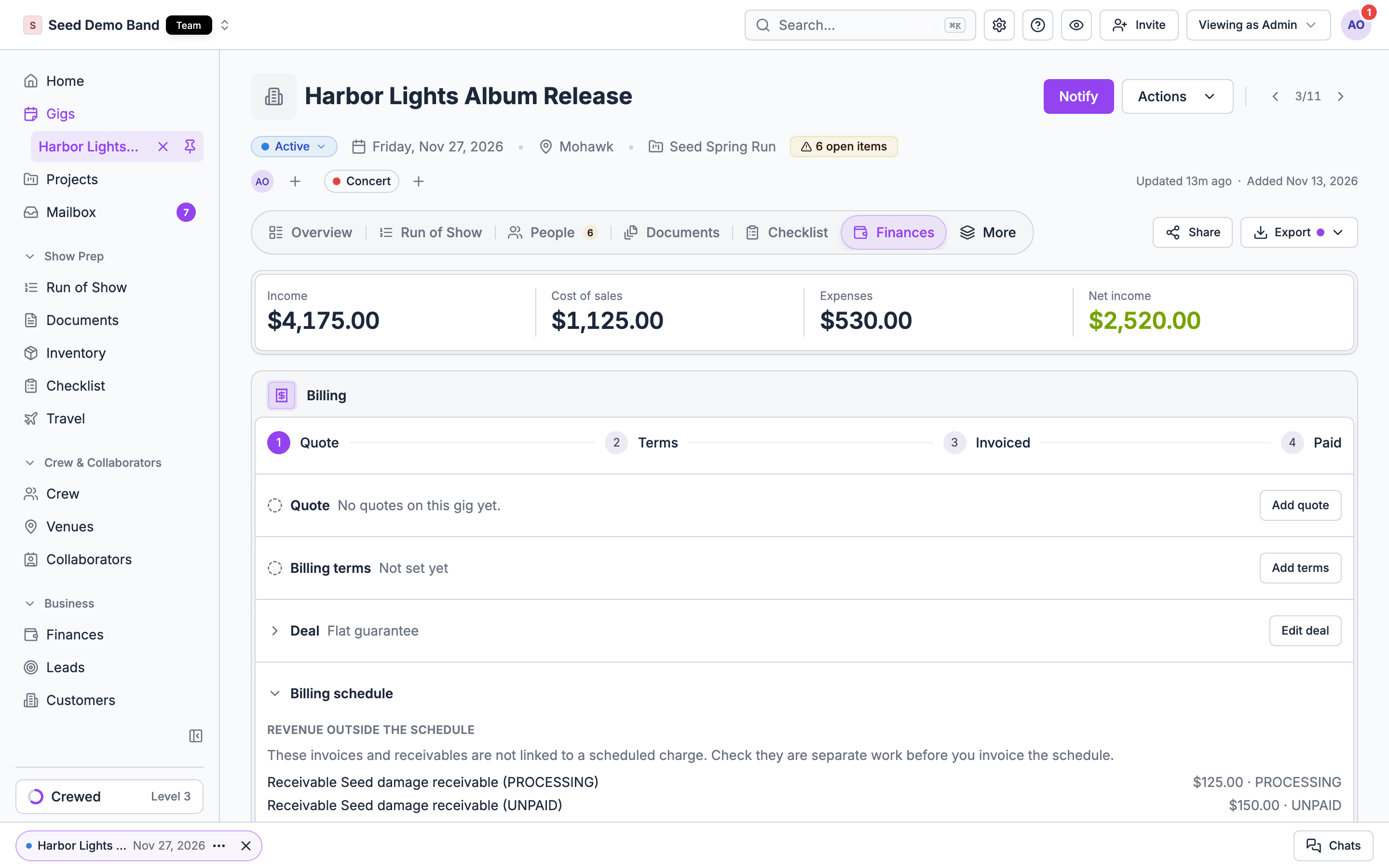
The Finances tab is part of the Pro plan and above. On Starter, the tab shows Finances are available on Pro or Team plans with an Upgrade Plan button. Every plan with Finances tracks what you owe and records payments you make outside Soundcheck. Sending payouts by direct deposit or card through Soundcheck is priced as part of Enterprise; if you’re on Pro or Team and want to pay crew this way, talk to us at info@soundchecklive.io. See Plans.
Where to find it
On the web, open a gig and choose the Finances tab. A crew member without financial access sees the same tab labeled My Expenses, limited to their own pay and expenses. In the mobile app, managers open the gig, tap More, then Finances. Crew see their pay on the gig itself. See Finances on mobile. Money across every gig lives in the sidebar under Business → Finances: the Overview, Reports, Gig billing, Invoices, Payouts and Payments tabs. See The Finances page and Reports.The building blocks
Learn these ideas first. Everything else on the tab builds on them.How it fits together
- In from the client. Quote → billing terms and deal → billing schedule → invoices → payments received.
- Out to people. Crew fees and expenses → payables in the ledger → payouts → payments recorded.
Your first pass, step by step
This walkthrough takes one booked gig from price to paid. It assumes you’re an Owner, Admin or Finance member.1
Open the Finances tab
Open the gig and choose Finances. The summary strip at the top shows Income, Cost of sales, Expenses and Net income for the gig.
2
Add a quote
In the Billing card, choose Add quote. Add lines with Add line, or Add from inventory if you track gear, then choose Save quote. See Quotes.
3
Set the billing terms
Choose Add terms in Billing terms. Enter the Contract price and how many days before the show the balance is due, then choose Save. See Billing terms and deals.
4
Plan the deposit
In Deal, choose Edit deal and Add installment. The first one is named Deposit. Give it an amount or a percent of the guarantee and a due date, then choose Save.
5
Invoice the schedule
The Billing schedule now lists the deposit and the balance. Choose Create invoice on the deposit, check the lines, and choose Send invoice. See Invoices and the billing schedule.
6
Staff the gig with fees
When crew accept an invitation or a crew offer with a fee, a payable appears in the ledger. See Building teams.
7
Record what the client paid
When the deposit arrives outside Soundcheck, choose Mark received… on the invoice row in the ledger, enter the method, amount and date, and save.
8
Pay the crew
After the show, choose Pay now on a payout, or Mark as paid… if you paid outside Soundcheck. See Payouts.
9
Settle
Mark the gig Completed, then choose Settled in the status pill once every payout has cleared. See Post-event closeout.
Pick the right page
Quotes
Price a gig line by line, quote from inventory, and how quotes from leads, the public booking form and signed PDFs fit in.
Billing terms and deals
Contract price, addenda, paperwork dates, the deal, installments and deposits, and project default deals.
Invoices and the billing schedule
Charges and their states, creating, sending, voiding and writing off invoices, and recording what the client paid.
The ledger
Line items, accounts, the profit and loss and tax summaries, CSV export, and the member view.
Payouts
Crew pay from fees and hourly shifts, sending payouts by direct deposit or card, manual payments, and statuses.
Expenses and receipts
Crew reimbursements, adding receipts on web and mobile, and who can change them.
Overtime
Bill the client and pay musicians for time past the contracted end.
Crew hours
Review, fix and approve clocked hours, and how approved hours change hourly pay.
Show settlement
Not available today. How to settle a show with billing terms, invoices and the ledger.
Post-event closeout
The close-out checklist, settling a gig, overrides and reviews.
Mobile
Gig finances, crew pay, expenses and payouts in the mobile app.
Troubleshooting
Answers when something doesn’t look right.
FAQ
What buyers and finance teams ask: online payment, tax, deposits, QuickBooks, settlement and more.
Glossary
Industry money terms and what each one is in Soundcheck.
Works with
Each part of Soundcheck works like its own app: People staffs the gig, Run of Show plans the night, Documents handles the paper, and Finances tracks the money. Soundcheck is the place where those apps share one gig. This section shows where Finances takes information from, and where it sends it.People: rates, fees and payables
- Fees become payables. A performance fee on an invitation, as soon as it is saved and even before it is sent (a backup’s once promoted), or on an accepted crew offer becomes a payable in the gig’s ledger. Soundcheck counts an offer-backed payable and a matching invitation once, never twice.
- Hourly shifts. On an hourly shift, the payable is the rate times the scheduled hours of each day the person accepted. See Hourly shifts.
- Approved hours. Where your organization uses the time clock, approved hours replace scheduled hours on hourly pay, with daily overtime and double time if you set them. See Crew hours.
- Crew invoices. Crew can invoice you for their unpaid pay and expenses on a gig. Their invoices show in the Crew invoices card on this tab. See Crew invoices and payouts.
- Who sees pay. Crew see their own pay, not other people’s. People who can staff the gig or see its money see everyone’s. See Who sees crew pay.
- Payout accounts. Each person adds the bank account they’re paid into from their own profile. Admins never edit it.
- Gig assignments. A member assigned Finances on one gig can see and edit that gig’s money. See Gig assignees.
Offerings and inventory: what you sell
- Offerings is your catalog of what you sell, with rates and costs. Its invoice templates and booking form packages price new business. See Offerings.
- The public booking form shows your catalog to buyers. A request with priced items creates a lead with a draft quote. See Lead intake.
- Inventory feeds the gig quote. Add from inventory puts a gear item on a quote line. See Quotes.
Documents, contracts and the client portal
- A signed PDF quote sets the price. When the client signs an uploaded PDF quote with a labelled total, that amount becomes the gig’s Contract price, and deposit and balance invoices are drafted from the terms. See Agreements and e-sign.
- The Signed date. The first client agreement or PDF quote signed by every party fills the Signed date in billing terms, unless you typed one yourself.
- The client portal shows a client their own invoices, each marked due, paid or overdue, with what was billed and what is still owed. Only the client billed on an invoice sees it there. The portal doesn’t take payment: there’s no card or bank checkout and no pay button, so you record what the client paid yourself. See Contracts, invoices and forms.
Closeout
- Steps that tick themselves. Deposit received, Invoice sent and Payment received on the close-out checklist follow the billing schedule and invoices. Quote approved ticks when the client signs an uploaded PDF quote or a Flex quote is approved. A quote added on the gig stays a draft, so it doesn’t tick the step. See Steps that tick themselves.
- The settle gate. A gig can’t settle while a payout is unpaid or still processing. The status pill reads Settle all payouts in Finances first.
Reports and the Finances page
- Business → Finances rolls up every gig: what you owe crew and vendors, what clients owe you, and every payment recorded. See The Finances page.
- Reports counts Billed, Collected and Margin from gig invoices and costs, and Gig billing lists each gig’s deposit, final payment and contract. Contracts sent and booking pace read the dates in billing terms. See Reports.
Stripe, direct deposit and QuickBooks
- Stripe. Card-funded payouts run through Stripe from your organization’s payout funding, and members can connect a Stripe account to be paid. See Payments.
- Direct deposit (ACH). Payouts from a verified organization bank account into each member’s ready bank account, in US dollars, through Soundcheck’s ACH partner, Cleo Pay. Soundcheck absorbs the ACH fee.
- QuickBooks. Payouts sync as bills, invoices as invoices, and payments against them. Expenses and income sync too. See QuickBooks.
- Your subscription is separate. The card that pays for Soundcheck never funds payouts. See Plans & billing.
Who can do what
Archived gigs are read-only. See Roles and permissions.
The past-gig lock
A gig’s money locks once the gig is over. From the day after its last day (its end date, or its date for a one-day gig), Finance members and people assigned Finances on the gig can still see its money, but they can’t add, change, void or delete its ledger lines, invoices or overtime. Owners and Admins can still edit it, so late corrections go through them. The lock applies to every organization. It isn’t a setting, and it keeps the books for finished shows stable once you’ve reconciled them.What Soundcheck tells you, and what it doesn’t
- Crew get a You got paid push notification when a payment to them is recorded.
- The client gets an email when you send an invoice or choose Email again. The Gig billing report can email chosen people a weekly summary every Monday morning. See Reports.
- Nothing notifies managers when crew submit an expense or a crew invoice, or when a payout fails. Check the gig’s Finances tab and the Payouts tab under Business → Finances on a routine, such as the morning after each show.
- Soundcheck doesn’t send overdue reminders to clients. Watch Overdue invoices on the Finances page and follow up yourself.
Worked example: a wedding band books a Saturday
A six-piece wedding band agrees an $8,000 fee for a June wedding. The band leader, who is an Admin, adds the gig and a quote for the band and the ceremony set. The bookkeeper, who has the Finance role, sets **Contract price** to $8,000, adds a Deposit of 25% due 7 days after signing, and leaves the balance due 14 days before the show. When the couple sign the agreement, the Signed date fills in and the deposit gets its due date. The bookkeeper sends the deposit invoice, then chooses Mark received… when the check arrives. Two weeks out, the bookkeeper sends the balance invoice. On the night, the band plays 30 minutes past the contracted end. By the next morning the gig is past and its money is locked, so the band leader records one half hour of overtime, picks the four musicians who stayed, and invoices it. Each side player’s fee and overtime sit as payables in the ledger. The band leader pays them by Zelle and chooses Mark as paid… on each row, and the gig settles once every payout has cleared.Questions this page answers
- What’s the difference between a quote, billing terms, a deal and an invoice?
- How does money move from quote to settled?
- Who can edit a gig’s money, and who can only see it?
- Why can’t I edit the money on a gig that’s over?
- Does Soundcheck tell me when crew submit an expense or a payout fails?
- Can clients pay an invoice online?
- What do payable, receivable and settlement mean in Soundcheck?
Related
Payments
Bank accounts, payout onboarding and the Finances page.
Reports
How the business is doing, compared with last year.
Event lifecycle
Every state a gig moves through, up to Settled.