

This page used to live at Contracts & electronic signing. Agreements are one part of the gig’s Documents tab.
Create a Soundcheck agreement
Agreements are in early access and rolling out to organizations now. To get them, email info@soundchecklive.io.
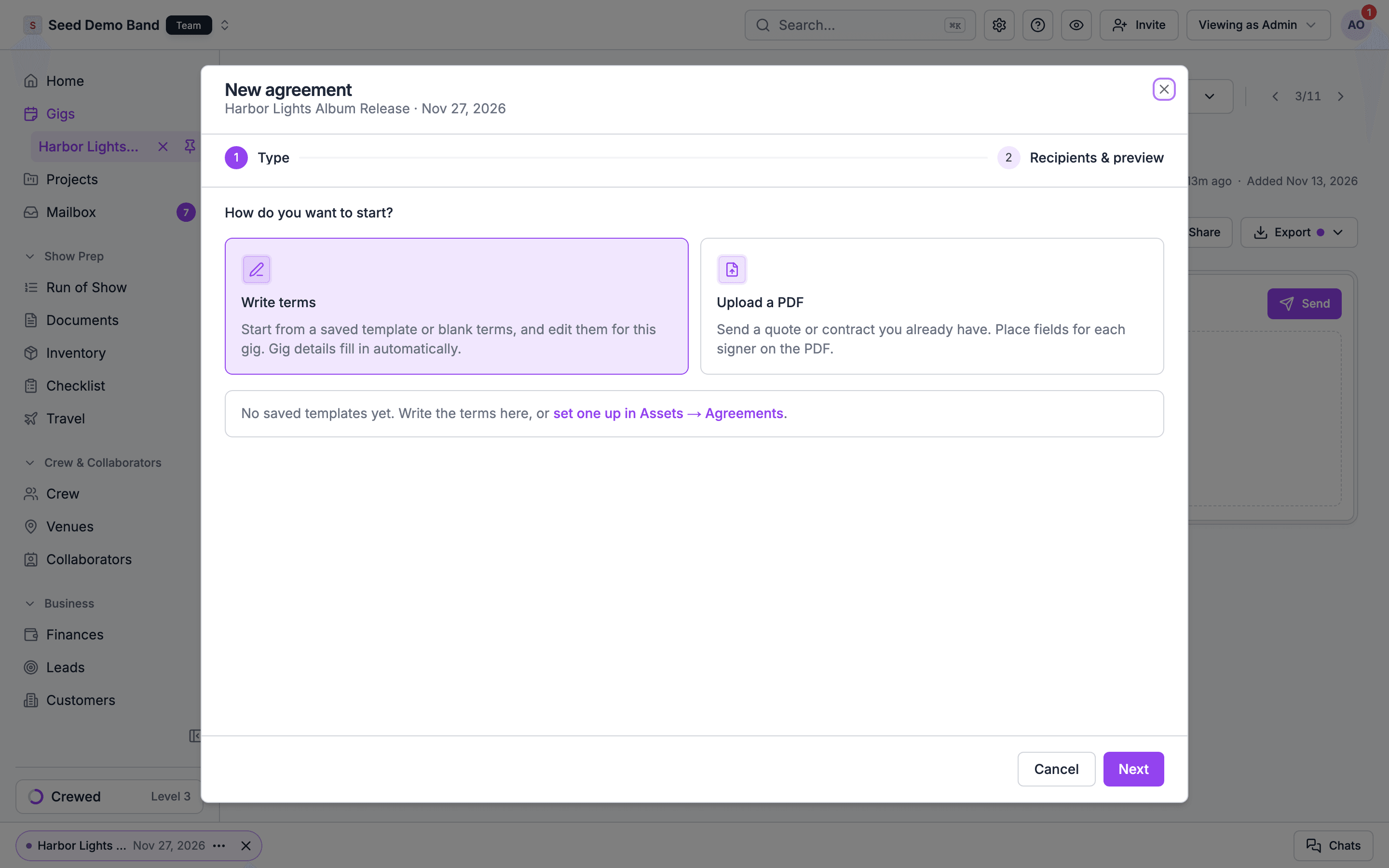
- From the Documents tab: choose Send under Agreements. The first client contact starts picked.
- From the Crew group: choose Send agreement on a crew row, or for several crew at once. Those crew start picked. Each crew row shows the agreement’s status, and a summary line counts how many are signed.
{{organization_name}}: type it, or pick it from Insert field. The Preview tab fills each detail with a sample value. While a saved template is open, Save as new template saves the title and terms on screen as a separate template. The template you opened stays as it was last saved. If another template already uses that name, Soundcheck adds copy to the end, then copy 2, and so on. Saving or deleting a template does not change agreements that were already sent.
When you write terms, Start from copies a saved template’s title and terms into the agreement with the gig’s details already filled in, such as the gig title, date, venue and price. The agreement keeps the template’s title, shown as Title: with a Rename link instead of a title box. Rename opens the box with that title filled in, so you can give this agreement its own. You edit the terms in the same editor as templates, with headings, bold, and lists. Fields that belong to each person, Client ({{client_name}}), Signer ({{signer_name}}) and Agreement revision, stay in double braces and fill in for each recipient when it is sent. The Preview tab shows the copy the first recipient gets, with those fields filled in.
These are the fields an agreement can fill in:
A gig field in an agreement sent without a gig is refused with “needs a gig. Send this for a gig, or remove the field.” A name Soundcheck doesn’t know is refused as “not a known merge field.”
A new agreement first asks How do you want to start?
Send for signature reads Send to N people with two or more recipients, and waits until Soundcheck has checked the current terms for all of them. If a template field has no value on the gig, such as Contract price, it stays in double braces and the dialog names it above the terms, so you can add it to the gig or edit it out. If a field can’t be filled in for a ticked crew member, such as Client name on a gig without exactly one client, the dialog names that person so you can untick them or take the field out. Choosing Blank terms after editing a template keeps your edits.
Every client agreement sends as a plain agreement, whether you write terms or upload a PDF. Soundcheck no longer offers a separate gig contract option. A signed client agreement still completes the gig’s Contract signed closeout step.
When you upload a PDF, Soundcheck looks for a labelled total, such as Grand total or Total, and ignores subtotals. If it finds one, the agreement row reads Quote · amount. When the client signs, that amount becomes the gig’s contract price in its billing terms, and deposit and balance invoices are drafted from those terms. If the gig already has a signed contract at a different price, or its billing terms use another currency, Soundcheck refuses the signature as out of date. A signed contract with no price doesn’t block the quote: signing the quote sets the price, and the gig keeps the Signed date of the first signing. A PDF with no readable total sends as a plain agreement.
PDFs must be static, unencrypted, unsigned documents of up to 5 MB and 100 pages. Export forms as a static PDF first. The uploaded original is retained; the downloaded agreement appends the additional terms and signing evidence on separate pages. To put signatures and other values inside the PDF’s own boxes, place fields on the PDF.
Your plan sets how many agreements your organization can create each calendar month: 5 on Starter, 25 on Pro, 100 on Team, and no limit on Enterprise. At the limit, Soundcheck shows “Your plan includes N e-sign documents a month. Upgrade your plan to send more this month.”
- Every recipient’s copy counts as one agreement. A send to four crew uses four.
- Voided agreements still count toward the month they were created in.
- The month runs on UTC, so it turns over at midnight UTC on the 1st, not at your local midnight.
- Agreements on the sample gig don’t count.
- One send goes to between 1 and 50 people. If anyone in it can’t receive the agreement, Soundcheck sends nothing and says “Some parties cannot receive this agreement. Nothing was sent.”
Agreement rows on the Documents tab
Each agreement the gig sent is one row under Agreements on the gig’s Documents tab. The row shows the title, the recipient, whether they’re a client or crew, the client’s name for a client agreement, how long ago something last happened, and a status badge. Rows that still wait on someone sit first, then the most recent.
A row you can sign shows Sign. The row’s menu holds:
- View: open the agreement with its terms and who signed when.
- Copy signing link: copy the link the recipient signs from, while it can still be signed.
- Resend: email a client contact a reminder to sign. It shows only on some agreements, and only to people who can send agreements. Reminders go to client contacts only. A crew recipient isn’t emailed, so copy the signing link and send it to them yourself, or message them in Soundcheck.
- Void: stop further signing. Confirm with Void agreement. A voided signed copy stays on record and can still be downloaded. Soundcheck doesn’t email the recipient when you void, so tell them yourself.
- Download PDF, or Download signed PDF once every party has signed.
Due dates and scheduled reminders
The New agreement dialog on the web doesn’t set a due date or scheduled reminders. Agreements sent through the Soundcheck API or an AI assistant connected through MCP can carry both:- A due date. Once it passes without a signature, the row reads Overdue.
- Reminders a set number of days before the due date (1 to 30), and repeat reminders after it (every 1 to 30 days, up to 10 times).
Review, sign, and keep a copy
The signer reviews the complete text, any uploaded PDF, and an electronic records disclosure, then enters their name, draws a signature with a finger, pen, or mouse, and checks the consent box. The consent states that they intend the signature to be legally binding. Sign agreement records the authenticated signer, server timestamp, IP address, device, consent wording, and signature against the exact agreement version and original PDF fingerprint. Use Download signed PDF to retain a copy. Unsigned agreements can also be downloaded for review. The signed PDF is rendered by Soundcheck, uses Soundcheck branding, and ends with a signing receipt that lists the signer, their account, when they first opened it, the signing timestamp, their IP address and device, the SHA-256 of the terms and of any original PDF, and the disclosure. The PDF contains an electronic signature and evidence page; it is not a certificate-based digital signature. The recipient and staff with financial viewing access can read the terms and download the document. Coordinators without financial access see the recipient and signing status only. A client contact can access only agreements assigned to that exact contact in their portal organization. Terms cannot be edited after creation. Staff with financial editing access can void it (Void in the agreement’s menu, then Void agreement) and create a replacement. Voiding prevents further signing and retains the original terms and any existing signature. The gig’s Contract signed closeout step completes automatically when a client agreement, sent as written terms or as an uploaded PDF, is signed by every party it asks. Crew agreements and older freeform agreements (including Flex quotes) don’t complete the step. The first client agreement or PDF quote signed by every party fills the Signed date in billing terms, unless you typed one yourself. A later signing doesn’t move it. Musicians sign on the web or in the app, and clients sign in the portal. When email is off, Copy signing link gives you a link to the same signed-in page. SignWell is not the live path. There’s no way to edit or correct an agreement after it’s sent, and no decline button: a recipient who won’t sign tells you, and you void it. Voiding a signed client agreement also takes the gig’s Contract signed closeout step back off.Ask your company to sign
Every agreement asks its recipient to sign, and it can also ask your company. Soundcheck refuses to save, send or publish an agreement template with no recipient signature. Each party signs once, in either order. Until everyone asked has signed, the agreement on the gig shows Waiting on the company or Waiting on the recipient, and the client portal shows Waiting for you or Waiting on the company. To sign for your company, open the agreement from the gig, enter your name, draw your signature, consent, and choose Sign for your company. Once the client has signed, the button reads Countersign agreement. The agreement counts as signed only after every asked party has signed. The signing receipt lists each signer with their timestamp, IP address, device and consent. When you send an agreement, you can sign for your company as you send it. Turn on Sign for your company now, enter your name, draw your signature and consent. Your signature is recorded on every agreement in that send before any recipient is emailed, so each recipient sees it when they open the agreement, and their signature completes it. Leave it off when only the recipients sign.Place fields on a PDF
When you attach a PDF to an agreement, Soundcheck looks for tags such as{{sig_client}}, {{text_venue}} or {{date_company}} and turns each one into a field. It also reads the {eSignSignHere1}, {eSignDate2} and {eSignTitle1} tags that quote and rental tools export, where 1 is your client and 2 is your company. You can drag, resize, delete or add fields, and choose whether the recipient or your company fills each one, before you send. Each signer fills their own fields. The signed PDF shows every value inside its box, with the tag text covered, and still ends with the signing certificate. A PDF with no fields signs as before, and its signatures appear on the certificate.
Signature, initials, date, name and email fields are required. A PDF can hold up to 200 fields, a text answer up to 2,000 characters, and a field label up to 120. In the field editor, use Field type to place, Required, Fields the recipient fills and Fields the company fills.
Signing rules and evidence
- Drawn signatures only. Signers draw with a finger, pen or mouse. Typed signatures aren’t available.
- The consent text reads: “I have read this agreement and agree to its terms. I consent to signing electronically and intend my signature to be legally binding. I can retain a copy of this agreement.”
- The disclosure is titled Electronic records disclosure. It covers asking for a paper copy, how to withdraw consent, what hardware and software they need, and that a copy is emailed after signing.
- Two signers at most. Each agreement has one recipient and, optionally, your company. There’s no signing order to enforce, no second client signer, and no way to hand signing to someone else.
- No identity checks beyond the signed-in account or the emailed link. Soundcheck doesn’t use ID checks, knowledge questions or text-message codes.
- No payment at signing. A signed quote drafts deposit and balance invoices in Finances; the client pays them from the invoice.
Flex quotes and PDFs with fill-in fields
Soundcheck no longer creates Flex quote agreements. To send a quote or contract you already have, use Upload a PDF. Flex quotes and PDFs with fill-in fields that were sent earlier stay on the gig and can still be signed. The client’s signature, signing date and name go on the PDF’s client lines. A recipient who has fields to fill in sees them highlighted. Staff with financial editing access can open such a quote from the gig’s Contacts tab and sign for the company at any time before it is voided.Gig details acknowledgment
Asking crew to confirm their gig details is its own kind on the Documents tab. See Gig details acknowledgment.With an AI assistant (MCP)
An AI assistant connected through MCP can list a gig’s agreements (list_event_agreements), send one (send_agreement, with a due date, scheduled reminders and an uploaded PDF), and void one (void_agreement). It asks you to confirm before it sends or voids. A dry run previews each recipient’s copy without sending. It can’t sign, countersign, remind, edit templates or download the PDF.
Where the record lives
Staff manage agreements within the sending organization, on the gig’s Documents tab under Agreements. A client contact sees only agreements assigned to them in the portal. The signed agreement stays on the gig beside its attachments, its forms and its payments. See How Documents works with the rest of Soundcheck.Related
Documents
Start here: every kind on the gig’s Documents tab.
What clients see
How a client signs in the portal.
Payments
Track the amounts the agreement covers.
Troubleshooting
Answers when an agreement won’t send or sign.