

When to use it
- You’re setting up pay for the first time and want the whole path before you change any setting.
- A number looks wrong and you want to find the step that produced it.
- You’re checking what Soundcheck covers before you promise a customer something.
The path at a glance
The example we’ll use
A sound company books one person, Ellis, on a three-day gig. Ellis works two positions:- A2 at $400 a day, on a three-day flat shift.
- A3 at $50 an hour, on an hourly shift.
1. Member rates per role
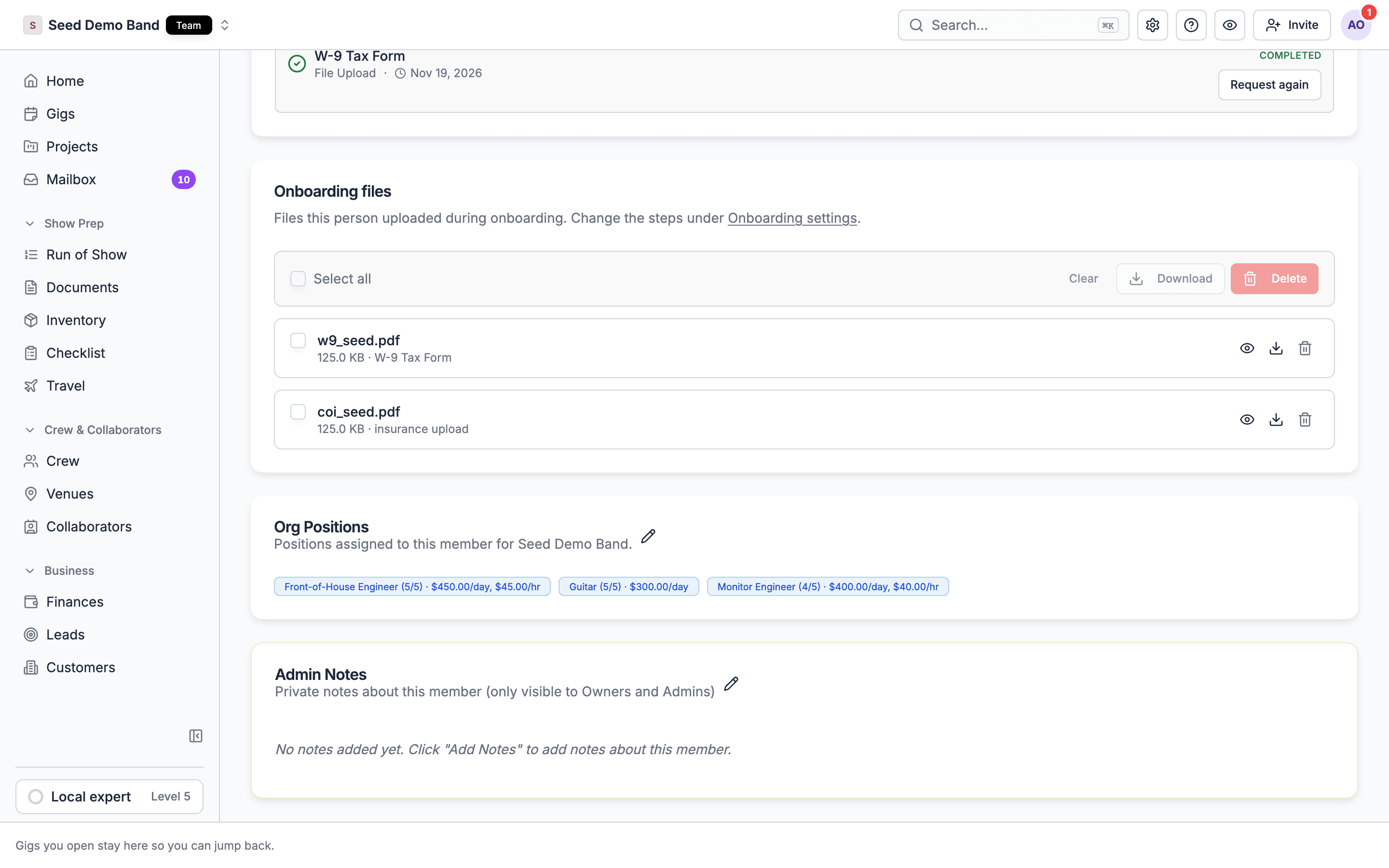
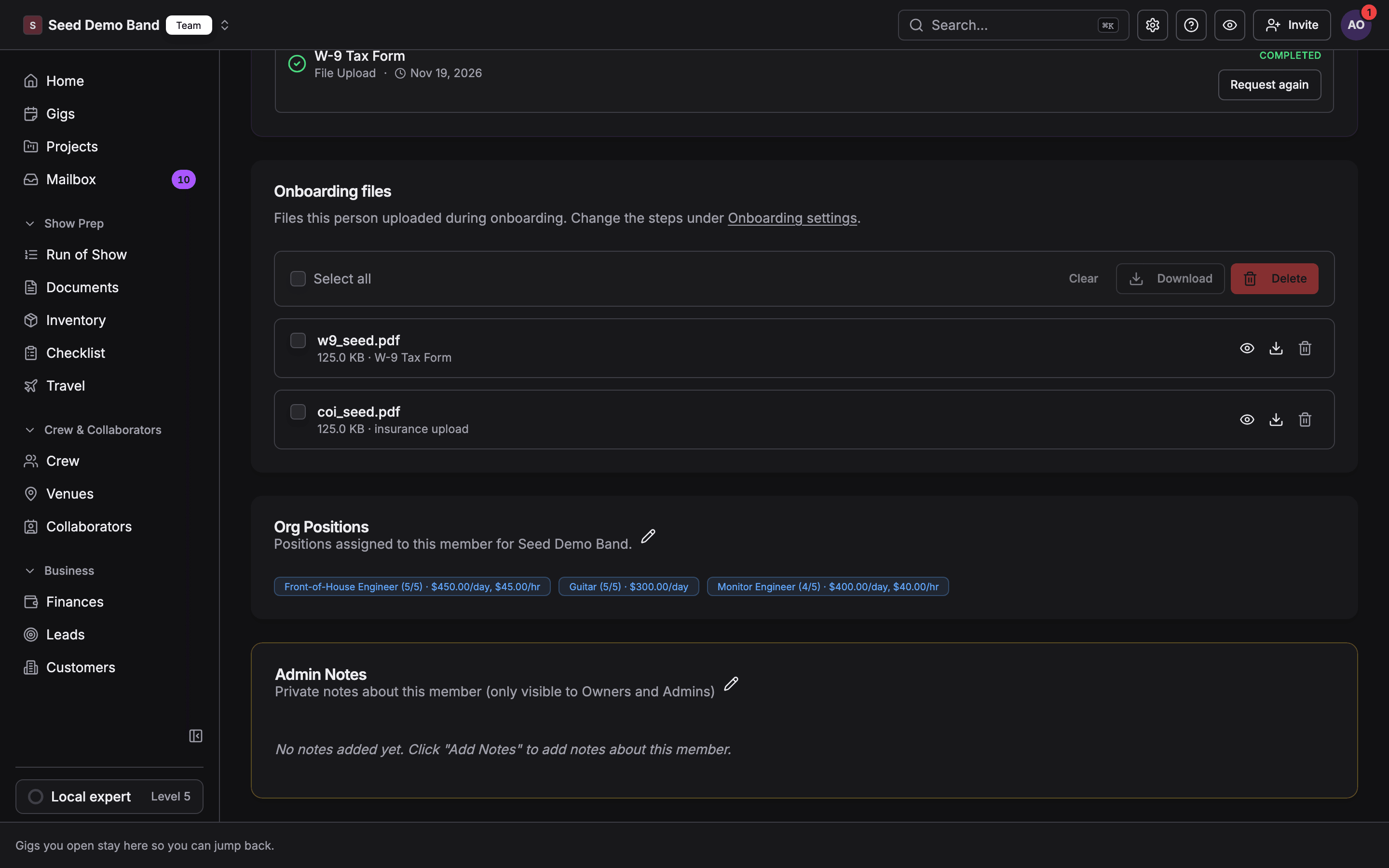
An owner or admin opens the member’s profile, finds the Org Positions card and enters a Day rate, an Hourly rate, or both for each position. Ellis gets A2 · $400.00/day** and **A3 · $50.00/hr.- Crew can’t set their own rates.
- A position’s default day rate is a reference only. It never sets anyone’s pay.
- A person with no rate for a position gets no fee from the position.
2. Booking and the fee
You build a shift for a position and add the person. Soundcheck stamps their fee when you add them, in this order:- A fee you typed for that person.
- The shift’s own pay, when you choose it for them.
- The person’s rate for the shift’s position: their hourly rate on an hourly shift, or their day rate times the shift’s days on a flat shift.
3. Crew accepts days
Crew accept a shift on their phone, and on the web for gigs they were invited to. On a multi-day shift they can accept some days and not others. A person paid from their day rate is paid that rate for each accepted day, up to the stamped fee. Ellis accepts one of three days, so Ellis’s A2 payable is **$400**, not $1,200. A typed fee or a Flat total shift pays the whole shift once the person accepts any day. A Per day shift rate adds up only the accepted days. Adding a day to the shift later doesn’t raise day-rate pay. Details: Multi-day pay and Tours and multi-day gigs.4. Time clock
The time clock is in early access, and an owner or admin turns it on under Settings → Organization → Gig workflow.- Crew clock in and out on mobile. There’s no clock-in on the web. Crew log a meal break in 15-minute steps.
- Managers review and approve on the gig’s Finances tab, under Crew hours, or on the Timesheets tab, on the web or in the mobile app. Nobody approves their own hours.
- Approved hours reprice hourly shifts only. Overtime and double time apply per person, per shift day.
- Day-rate crew only get a clock when Fixed-rate crew clock in too is on, and their hours never change their pay.
Details: Time clock and timesheets and Overtime and union rules.
5. Payables and the ledger
When someone accepts a shift with a fee above zero, Soundcheck adds a payable to the gig’s ledger, dated on the gig. The amount follows the pay while it’s unpaid, has no payment started and isn’t on a crew invoice: accepted days for the A2 shift, and approved hours for the A3 shift. Once it’s paid or invoiced, a later increase adds a separate line for the difference. A withdrawal or cancellation voids an unpaid payable with no payment started, even one that’s on a crew invoice. Ellis now has two payables: $400.00** for A2 and **$587.50 for A3. Details: Ledger and From pay to payables.6. Expenses and reimbursements
Crew submit an expense with a receipt. It becomes a payable assigned to them, which you pay like any other. Ellis submits $45.20 for parking.- In the mobile app, any crew member on the gig can submit one.
- On the web, crew booked through a shift or an invitation submit one from the gig’s My Expenses tab.
7. Crew invoice and PDF
Once day-rate and hourly pay is final (the work day has passed and, on hourly shifts with the time clock on, the hours are approved), a crew member bundles their unpaid payables on the gig into one numbered invoice, such as INV-0001, with a PDF. Lines show as Shift pay, Reimbursement or Other, hourly lines spell out the hours, and day-rate lines show the days and the rate per day, such as 1 day at $400.00/day. A typed fee or a Flat total can go on an invoice as soon as it’s accepted. Ellis’s invoice:
If pay on an invoiced line with no payment started later goes down, or its shift is cancelled, the payable takes the new amount and the invoice turns Needs update. The crew member, or anyone who manages the organization’s finances, can void the invoice before any payment starts.
Details: Crew invoices.
8. Payouts
From the gig’s Finances tab, you pay each payable by Direct Deposit or Card, or record a payment made elsewhere with Mark as paid…. Each payable moves from Unpaid to Processing to Paid. Crew can tap Mark as received in the app for money you sent outside Soundcheck. The invoice turns Paid once every line on it is paid. Direct deposit and card payouts need the Enterprise plan. Only the Owner and Finance members send them. Details: Crew invoices and payouts and Payouts.9. Exports
Details: Export hours for payroll, Ledger and Workspace export.
10. Who sees what
Details: Permissions and privacy.
Not available yet
Soundcheck doesn’t do these today. Where a change is planned, it’s noted.- Clocked hours don’t change day-rate pay, and day-rate crew only clock in when Fixed-rate crew clock in too is on. That stays the rule: day-rate crew clock in for attendance, and pay stays fixed.
- Expenses have no approval step, and nobody is notified when crew submit one.
- Timesheets don’t link to expenses, so mileage and per diem are separate entries.
- There’s no client invoice PDF.
Related
Pay and rates
Rates, flat and hourly pay, and multi-day totals.
Time clock
Clock in, approve, export.
Crew invoices and payouts
Invoices, payment methods and statuses.
Expenses and receipts
Crew reimbursements.
Positions
Member rates per role.
Permissions and privacy
Who sees rates and pay.