

Two meanings of collaborator
Soundcheck uses the word in two places. They are related, but they are not the same thing.
This page covers the first. For the second, see Sharing a gig.
The Collaborators group
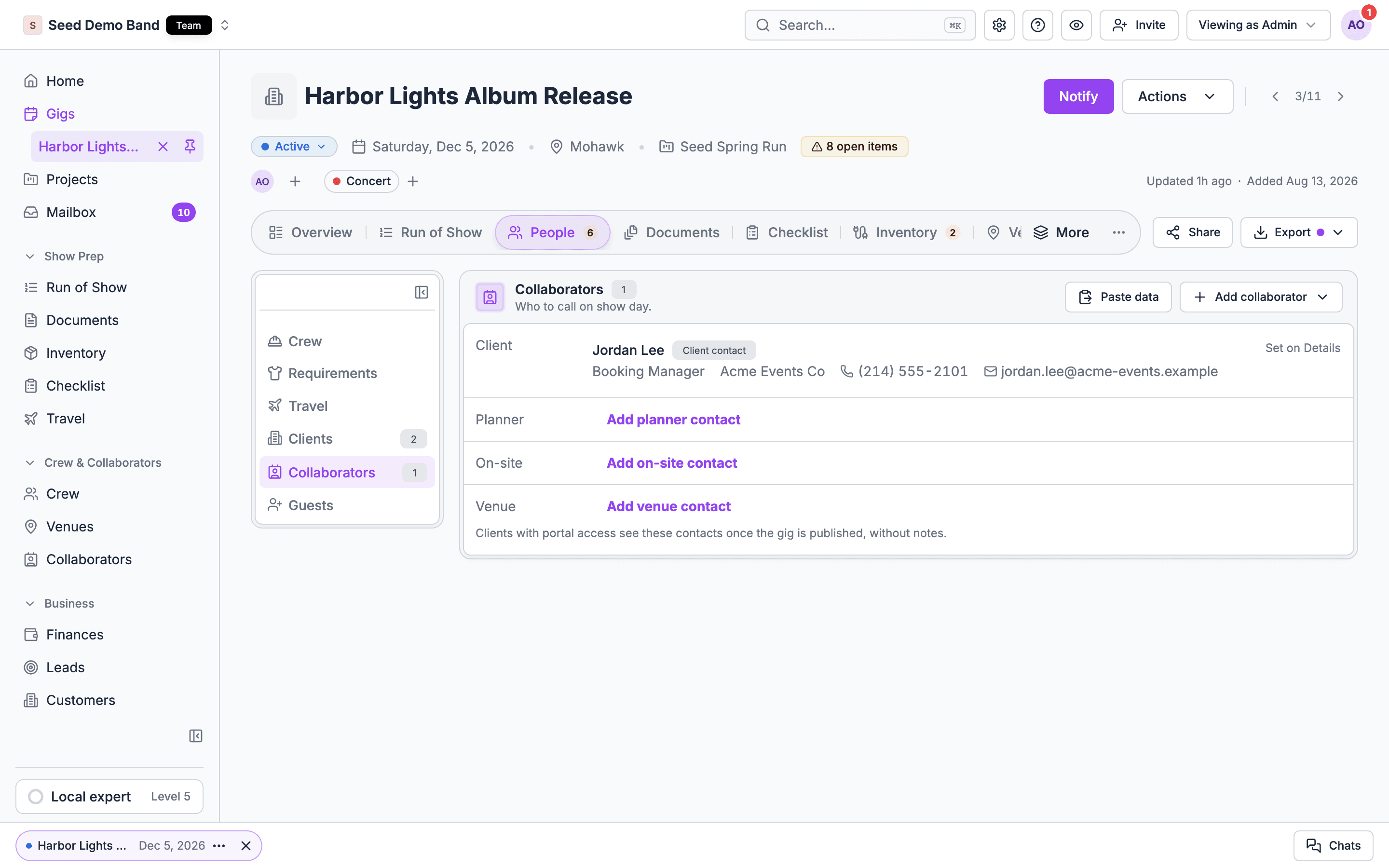
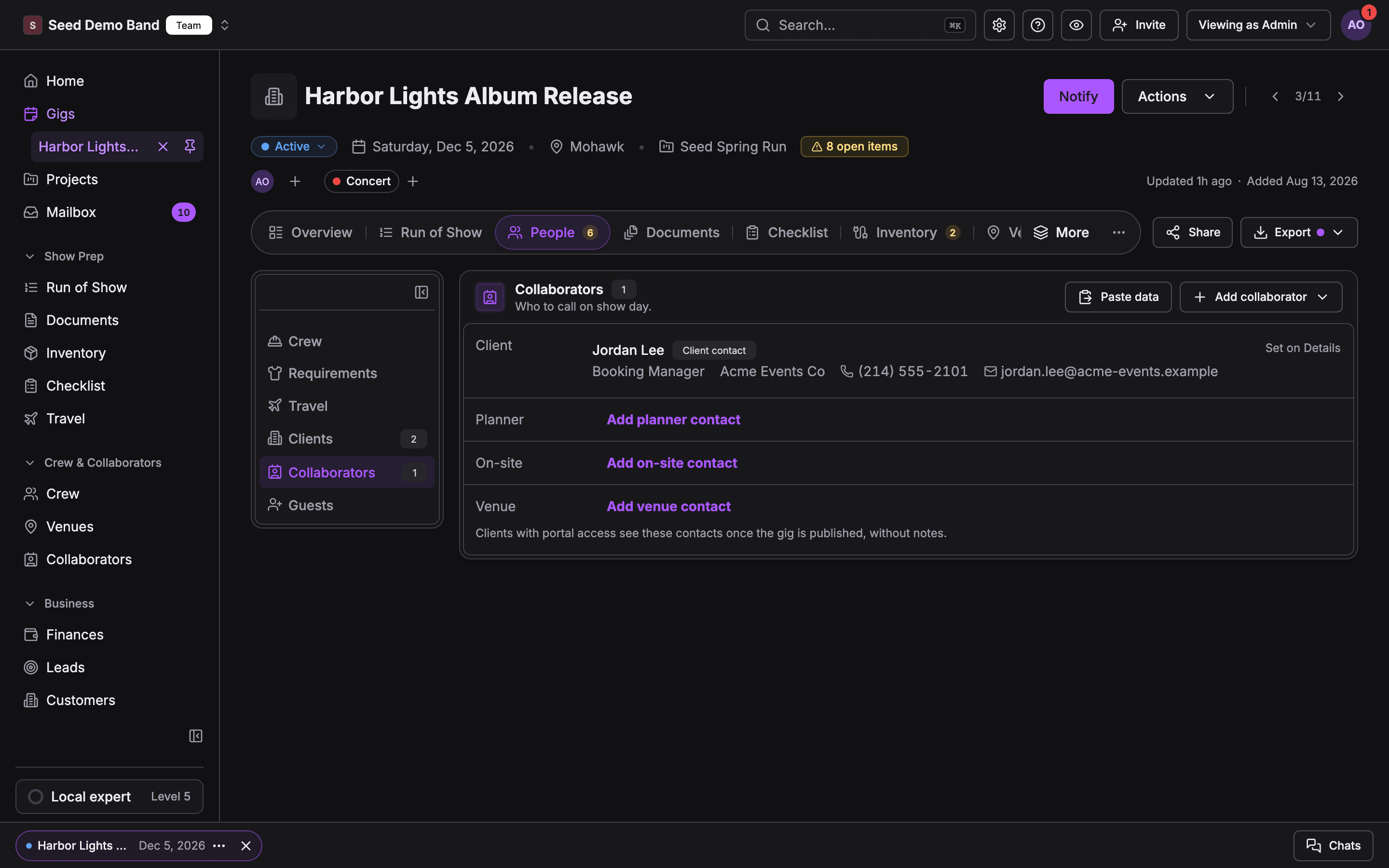
Open the gig, choose the People tab, and pick Collaborators. The card’s description reads Who to call on show day. Everyone who can open the gig sees this group. The group’s name in the list shows how many people it holds. Contacts are grouped by role type:
The gig’s Contact (who to reach about this gig) also shows here when you can see it, marked Set on Details. Choose the Contact title on the Overview tab to land on this group.
An empty role type you can edit shows Add planner contact, Add on-site contact and so on, which open the form with that role type already picked.
Add a collaborator
1
Start
Choose Add collaborator, then New contact.
2
Fill in the form
Pick a Role type (or leave it Not set), and fill in what you know: Role (for example Venue production manager), Name, Company, Cell phone, Work phone, Email and Notes.
3
Save
Choose Add collaborator.
Link someone you already know
Choose Add collaborator → Link from directory, pick the person under Select collaborator, and choose Link collaborator. They join the gig with the details from your Collaborators list.Paste a contact sheet
If the contacts are already in an email or a spreadsheet, choose Paste data on the card, paste them, and map them into the gig. You review what Soundcheck found before anything is saved.Edit or remove
Each row has an edit button and a remove button. For someone linked from your Collaborators list, the remove button reads Unlink: they come off this gig and stay in your list. Client contacts belong to their customer, so you edit them on the customer record, not here.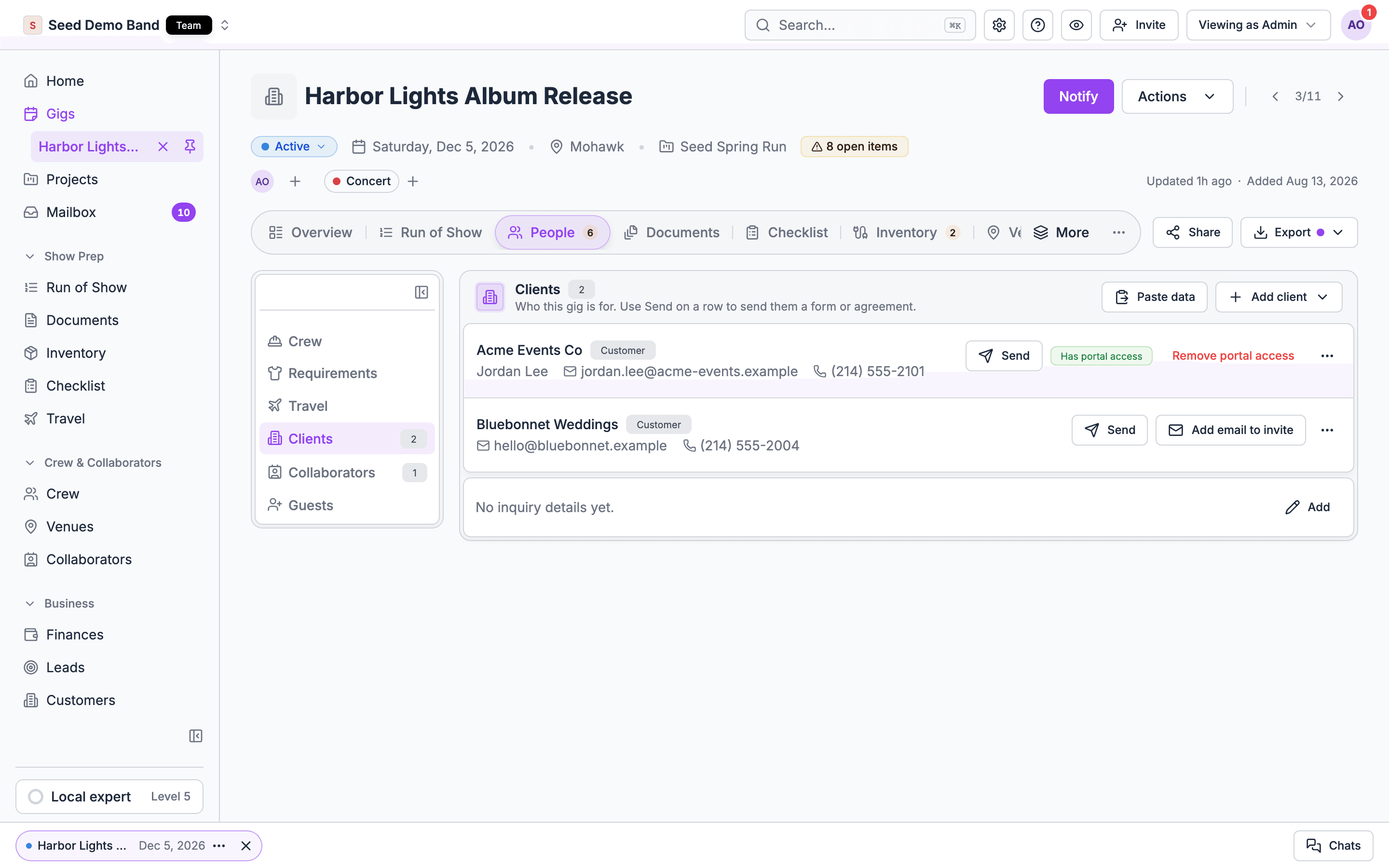
The Clients group
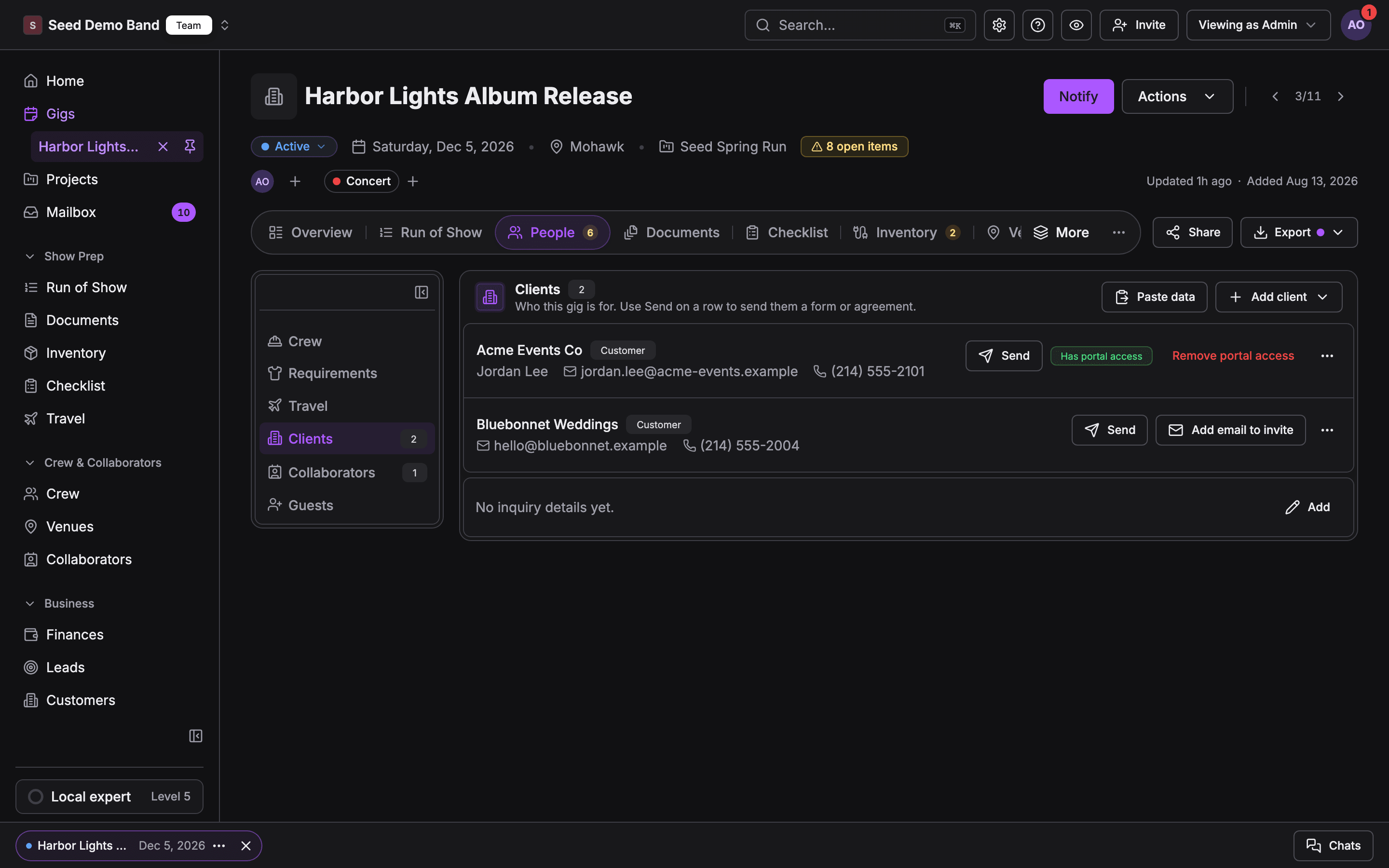
Clients answers who is this gig for? It appears when the CRM is on for your organization, to admins and on demo gigs. The group’s name shows how many clients are linked.1
Open Clients
Open the gig, choose the People tab, and pick Clients.
2
Link the client
Choose Add client → Link existing client, and pick the customer. Or choose Add planner and invite to add a planner and invite them in one step.
3
Or mark it as your own show
When nobody hired you, for example your own ticketed show, choose This is our own show while no client is linked. The card then reads Our own show: your organization is the client, so client agreements and forms don’t apply. Choose It has a client to undo it. Linking a client clears it too.
Send a form or an agreement
Rows in Clients and Collaborators have a Send button when you can send something to that person:- Form: assigns one of your forms to them for this gig. Shown when you can assign forms, and the collaborator is in your Collaborators list or has an email Soundcheck can deliver to.
- Agreement: starts a new agreement for that client. Shown on client rows when you can send agreements.
Clients and the client portal
A linked client’s contact can use the client portal, in early access. You can invite them three ways: Invite to portal on the customer’s detail page, Add planner and invite in the gig’s Clients group, or the invite button in the Clients section of Share, which also shows Invitation sent or Has portal access. See Inviting clients. What a client sees in the portal today, on the web:
The portal has a Messages page, but Soundcheck doesn’t post messages to it today, so it stays empty. There is no task list for clients and no notes field you can share with them. Keep messaging the client by email or phone, and send what they need as a gig document, an agreement or a form. The portal isn’t in the mobile app.
To see the portal as a client would, use the preview link on the customer’s detail page. Approving and uploading are switched off in preview.
Show-day contacts in the app
In the mobile app, a gig’s Details section shows the contacts in a read-only Point of contact card (Your contact for crew), with call, text and email buttons. Add and edit contacts on the web. Clients can’t be linked in the app. See People in the mobile app.Who can see and edit
- Collaborators: everyone who can open the gig sees the group. Owners, Admins and Gig Coordinators add, edit and remove contacts and link them from the directory. A Lead assignee can’t. When you preview a gig as a member, private details are hidden. Archived gigs are read-only.
- Clients: the group is shown to Owners and Admins, and on demo gigs, when the CRM is on. Linking and unlinking a client takes customer access: Owners, Admins, Gig Coordinators, the Finance role, and members given Customers, venues and leads. Gig Coordinators and Finance members don’t see the group on the gig, so an Owner or Admin links the client there. Gig managers can paste clients in.
For AI assistants
AI assistants connected through the MCP server can list, add, change and remove a gig’s show contacts, link and unlink clients, and invite a client contact to the portal.Related
Sharing a gig
Who’s who, the guest link, and sharing items with outside teams.
Customers and collaborators
Your organization’s customer records and Collaborators list.
Client portal
What clients see when they sign in.
People overview
Every part of People and how it fits together.