

The four categories
A request can be about a Song, an Artist or a Genre. A request can also name a moment: First dance, Parent dance, Last dance, Grand entrance, Ceremony or Other. Do not play requests don’t take a moment.
Where requests come from
The client form
Send the client the Music requests form from the gig’s Forms (on the gig’s Documents tab). The client fills it in from the client portal: a song list with must-play, yes, off-list and do-not-play rows, plus the genre and era guidance. On the song list, each row has a category, an optional moment, and notes. The client can paste a title–artist list and check every row in a preview before it’s added. A list never holds the same song twice. When your team builds the form, Songs the client picks from sets where songs come from:
While Let the client add a song that isn’t on the list is on (the default), the client can also choose Something else… and type a song. See Portal forms.
Requests your team enters
Requests that come in by email or phone can be entered by your team. Owners, admins, finance members and gig coordinators choose Add request on the music requests panel, then set:- the Request category,
- whether it is About a song, artist or genre,
- the song, picked From your library, or typed in under Not in the library? Type it,
- who it was Asked by: Client, Planner, Talent or Our team,
- an optional Moment, such as First dance (not offered for Do not play),
- notes.
Show packets
Soundcheck doesn’t read music requests out of a planner’s show packet today. When a packet arrives as a document, enter its requests on the panel yourself, or use Edit answers to fill in the client’s form for them.The music requests panel
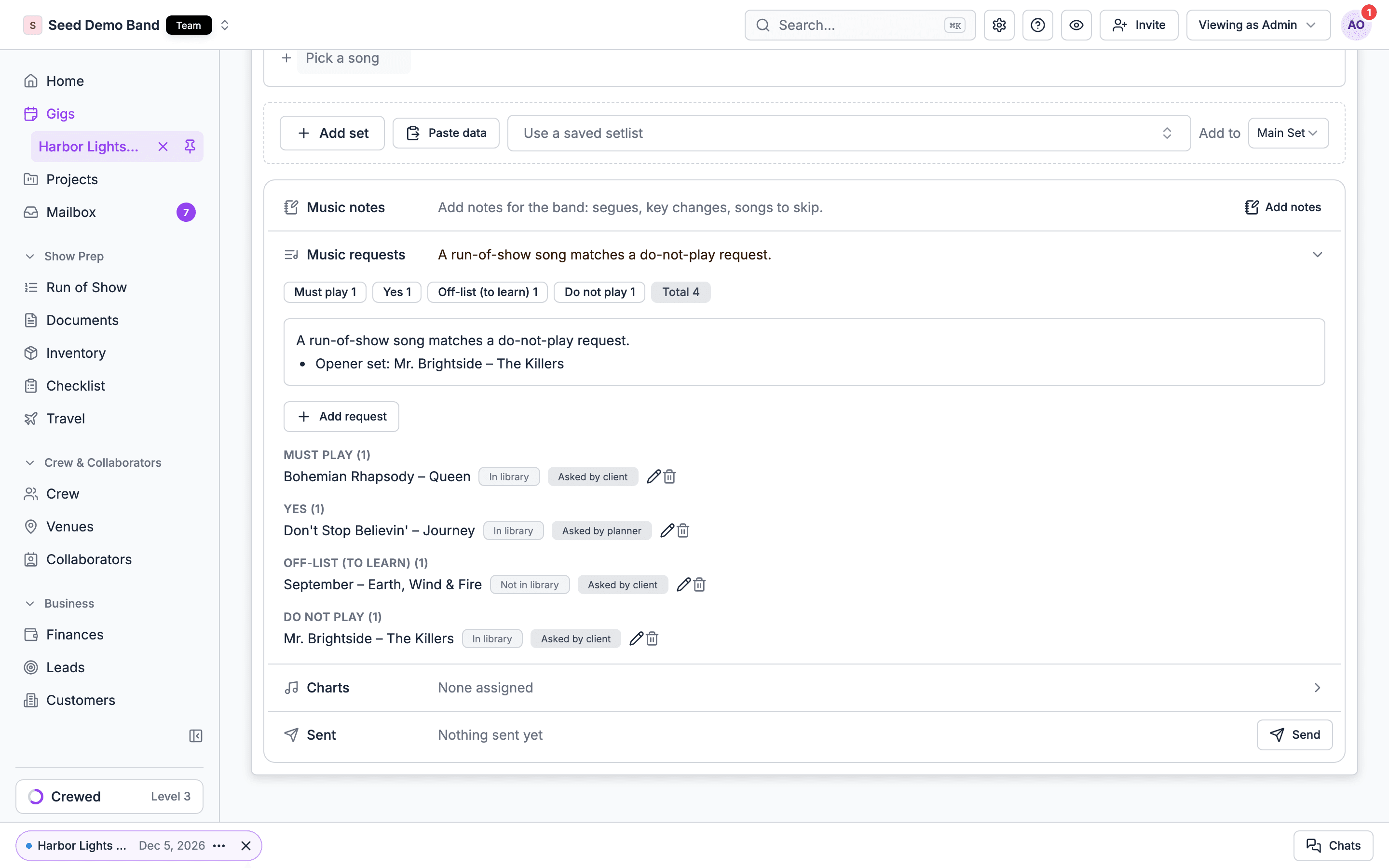
The panel sits below the sets on the gig’s run of show Setlist view, under Music notes. It shows:- counts per category, and the notes,
- each requested song’s library match: In library, Possible match or Not in library,
- who asked, such as Asked by planner,
- how long the client can still change the form: Client can edit until a date, Client can edit at any time, or Locked. Client can no longer edit.
Do-not-play warnings
When a run-of-show song matches a do-not-play request, the panel warns: “A run-of-show song matches a do-not-play request.” Warnings never block a save, so you can still keep a song on purpose. A do-not-play request about a genre can’t be checked against the library, and the panel counts how many of those there are.Library matching is unavailable when the song library holds over 5,000 songs. The panel says so.
Requested songs in the picker
When you add songs to a set in the run of show, requested songs are pinned in the song picker with their category, such as Must play or Do not play.On mobile
The mobile app shows the same panel, read-only. Add and edit requests on the web.Related
The Setlist view
Where the panel lives.
Client portal forms
How the client fills in forms.
Portal forms
Build and send forms.