

A gig’s sets
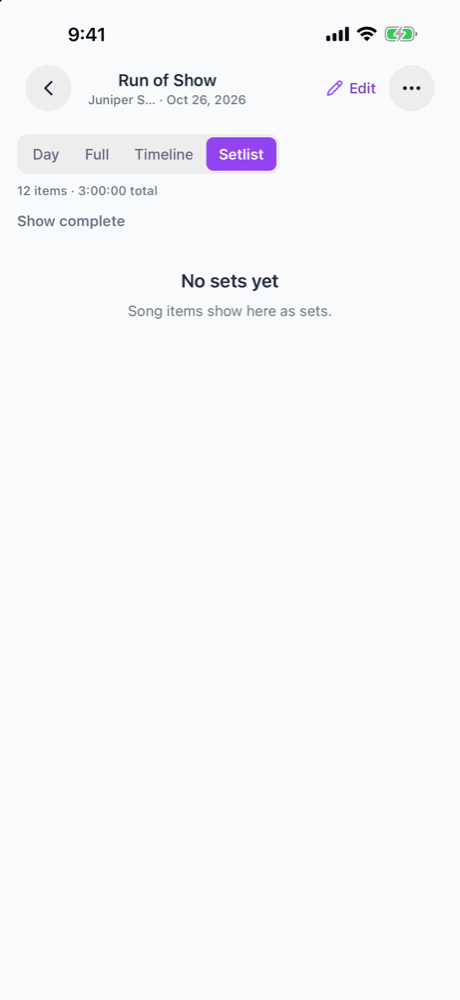
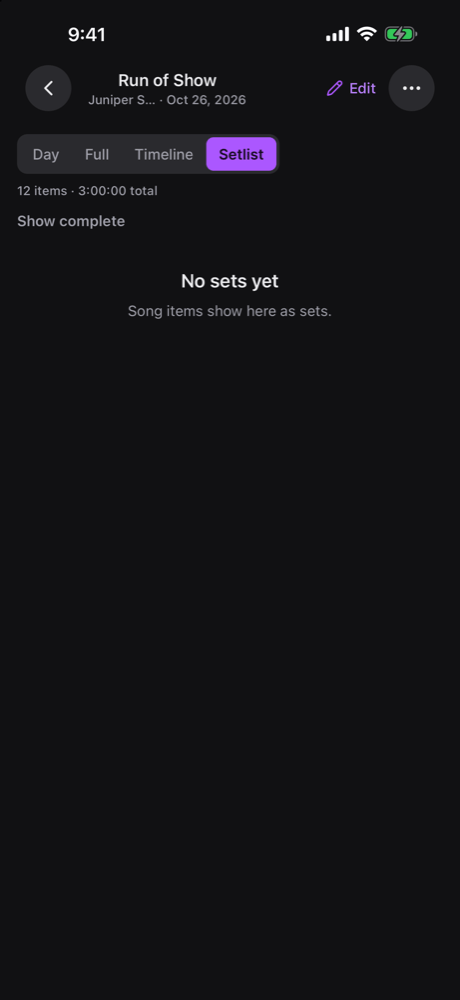
Open the gig, go to its run of show, and choose Setlist above the schedule. It sits next to Day and Timeline. Each set lists its songs with:- the song’s title, and its type colour,
- the artist, key and tempo,
- the song’s length,
- Do not play when the song matches a client’s do-not-play request.
Music requests
Above the sets, the Setlist view shows the gig’s music requests, read-only: the categories, moments, and each song’s library match, such as In library or Not in library. Add and edit requests on the web.Adding songs from a streaming service
Editors can add music to a song item from the run of show. Open the item and choose Import music. Search by song or artist, or paste a link to a song, album or playlist. Whole Spotify and Apple Music albums import on mobile. See Adding songs in bulk.Before your organization switches to Run of Show
Until your organization switches to Run of Show, a gig in the mobile app shows its own setlists, with each song’s details, notes and attachments. After the switch, that Setlist tab is hidden and the sets live in the run of show. Older versions of the app still show each gig’s sets, read from its run of show.What stays on the web
The organization-level Setlists and Songs screens aren’t in the mobile app. Opening one shows “Setlists is not available on mobile” (or “Songs is not available on mobile”), with buttons back to Organization and to your gigs. Use the web app to:- add, edit and delete songs in the song library,
- build and edit saved setlists,
- manage song types and acts,
- Save as setlist, Re-sync and Paste data on the Setlist view,
- add or edit music requests.
Related
Run of Show on mobile
Day and Timeline views, My items and running late.
Offline and sync
What the app keeps for offline use.
Setlists
Start here.