

Opening it
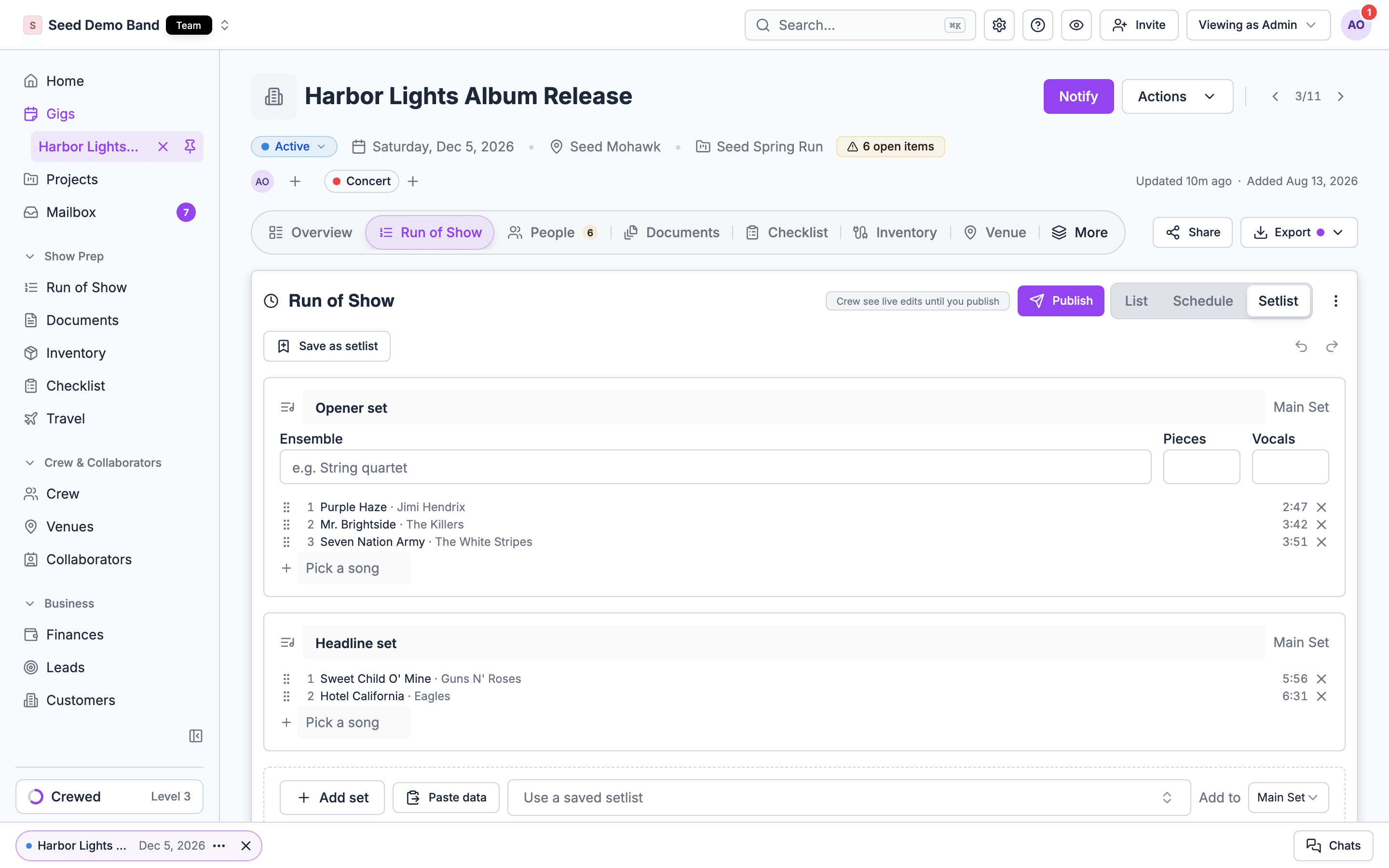
Open the gig, choose the Run of Show tab, and pick Setlist from the views. See Views and filters.Editing sets
Every set here is a song item in the run of show. A change here shows in List and Schedule too, and a set’s length still pushes the items after it.
Save as setlist and Re-sync
Choose Save as setlist to save the gig’s sets to the Setlists tab of the Run of Show page. Use it when a gig’s program is worth reusing, such as a couple’s reception you’ve refined. The gig’s sets stay linked to that setlist. Each shows From and the setlist’s name, with Re-sync. Sets you add with Use a saved setlist are linked the same way. Re-sync replaces the songs in each linked set with that set’s current songs from the setlist, and adds back any of its sets the gig no longer has. Nothing syncs on its own: the gig keeps its songs until you choose Re-sync.Pasting a set list
Paste data turns a set list someone emailed you into sets.- Sets are added in the order you pasted them.
- A title that matches a song in your library is added as that song.
- A title that isn’t in your library is marked New. Saving adds the song to the library and to the set.
Ensemble, Pieces and Vocals
For each set, the Setlist view holds its Ensemble, Pieces and Vocals. When a set has no Pieces or Vocals of its own, it shows the linked act’s counts as placeholders. Counts typed on the set win.Music notes
Below the sets, one card holds the gig’s Music notes: segues, key changes, songs to skip. Everyone who can see the run of show can read them. Editors change them in place. Duplicating the gig copies them. The same card lists music requests, chart assignments and the music schedule’s send history. Choose Send on the sent row to send the music schedule. See Works with Documents.Music requests below the sets
When the gig has music requests, they show below the sets, under Music notes: counts per category, the notes, each song’s library match, and a warning when a run-of-show song matches a do-not-play request.Printing and exporting
For a sheet with times, export the run of show as a PDF and pick who it’s for, such as Band leader. See Exporting. To export a saved setlist on its own, use Export Setlist on the setlist. See Building saved setlists.Related
Setlists
Start here.
Views and filters
The other views of the run of show.
Music requests
What the client asked for.