

Why key times live on items
When the doors time was a separate field, it drifted. Someone moved the Doors row to 7:30 PM in the run of show and forgot the field, and the gig still said 7 PM. Now the item is the key time. Move the item, by a drag, a link or a shift, and the key time moves with it.Marking an item as a key time
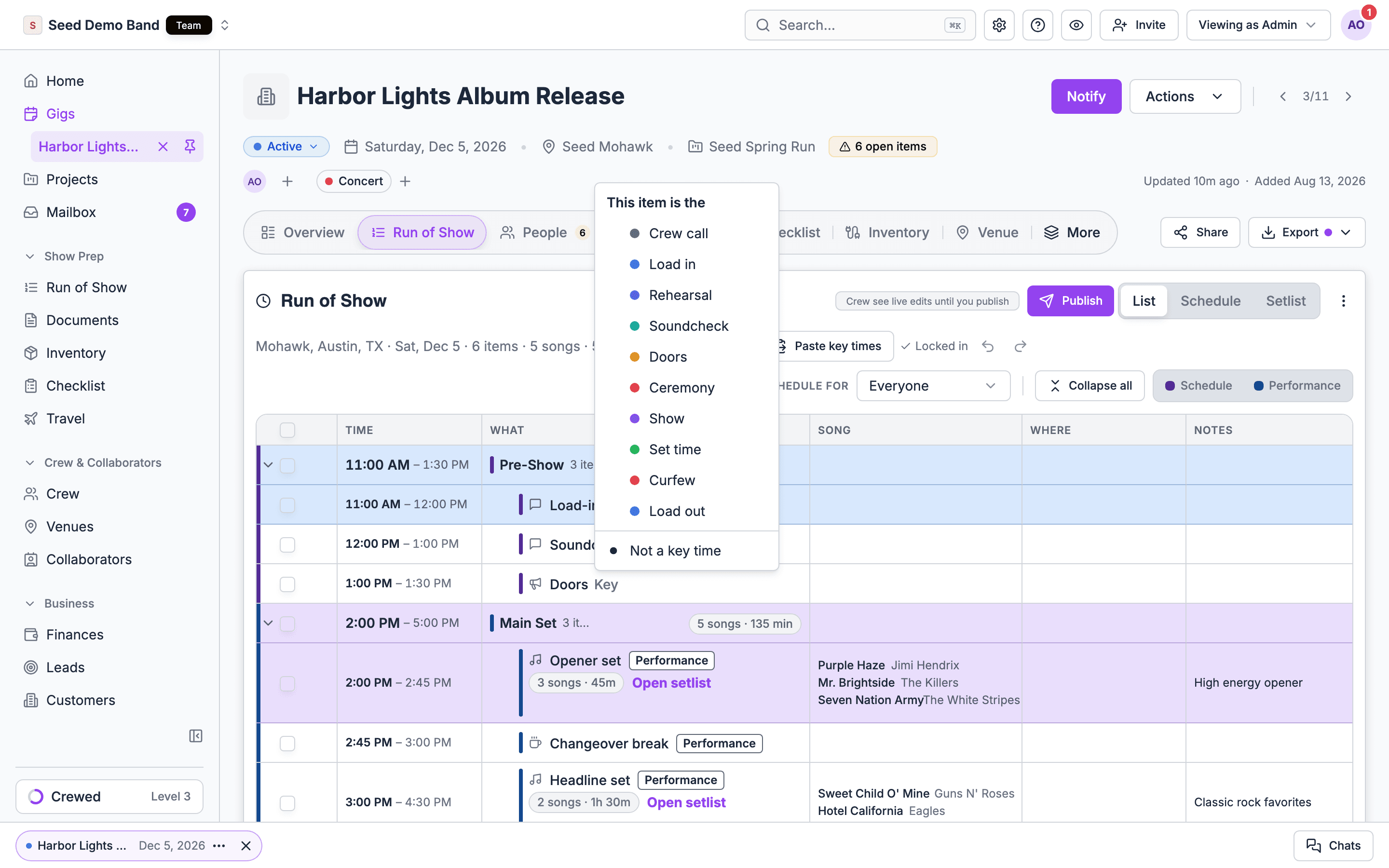
You can mark an item from several places. They all do the same thing.
To clear it, pick Not a key time, or tick the items and choose Remove key time in the bulk bar.
The pickers list your organization’s key times with their colors. An archived key time isn’t offered, but an item that already has one keeps it.
Key time in the bulk bar works on one item at a time. A key time names one moment, so marking an item removes that key time from any other item on the same day and track.
Which item counts
- Each key time is set once per day. When several items on the same day share a key time, the earliest one counts.
- Items in a section on a track, such as Production, set that track’s key time.
- The gig header and the key times editor show the main schedule’s key time. When the main schedule has no item with that key time on that day, they show the earliest track item with it instead.
Changing a key time from outside the run of show
The key times editor and the run of show stay in step:- Changing a time in the editor moves the earliest item with that key time to the new time.
- Removing a key time removes its named items.
- Adding a key time adds an item with that name to the latest main schedule section that has started by then. On a day with no section, the key time is saved on its own.
Gigs from before key times lived on items
Key times the gig already had were turned into named items in the section running at that time. A key time on a day with no section to hold it stays a plain key time.How each view shows key times
Key time rows stay in the list when you filter by person with Schedule for or hide tracks with the track cards, so the shape of the day is always visible. See Views and filters.
Times on key time rows are plain text, so they stay readable on every color. For how the tint is chosen, see Colors and sections.
Related
Key times
Start here.
Building and editing
The grid where you mark items.
Linking and timing
Moves that carry key times with them.