

The gig brief
Crew see the key times for the selected day at the top of the gig brief, under Key times. Each line shows the key time’s name, its time and any note. Your organization’s featured key times are in bold. On a multi-day gig, pick a day to see that day’s key times. A change to a key time shows in the crew’s gig updates.The run of show
- An item that is a key time shows a small chip with a dot in the key time’s color and the key time’s name, in the Timeline view, while you edit the run of show, and in the item’s sheet.
- My items keeps key times in view, so you never lose sight of doors or curfew. See Run of Show on mobile.
Marking an item on your phone
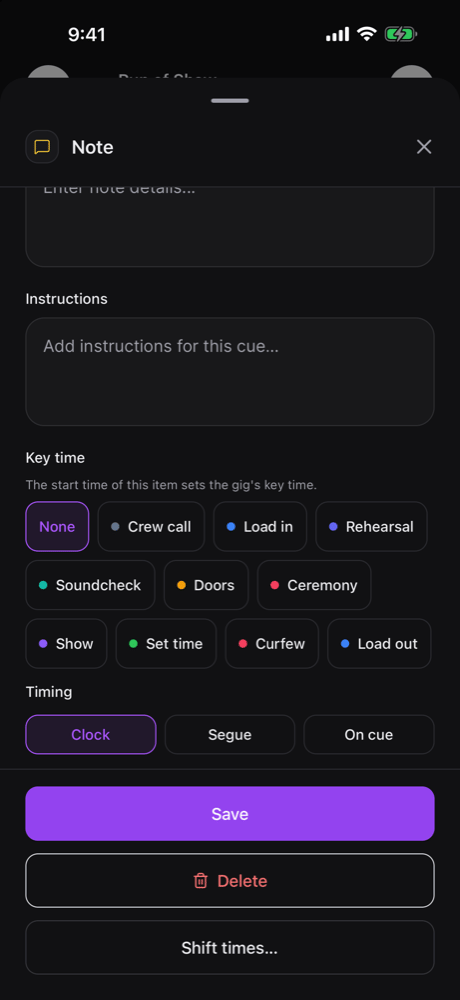
If you can edit the run of show, open an item and edit it. Under Key time, the sheet explains that the start time of this item sets the gig’s key time. Pick a key time, shown with its color, or None to clear it.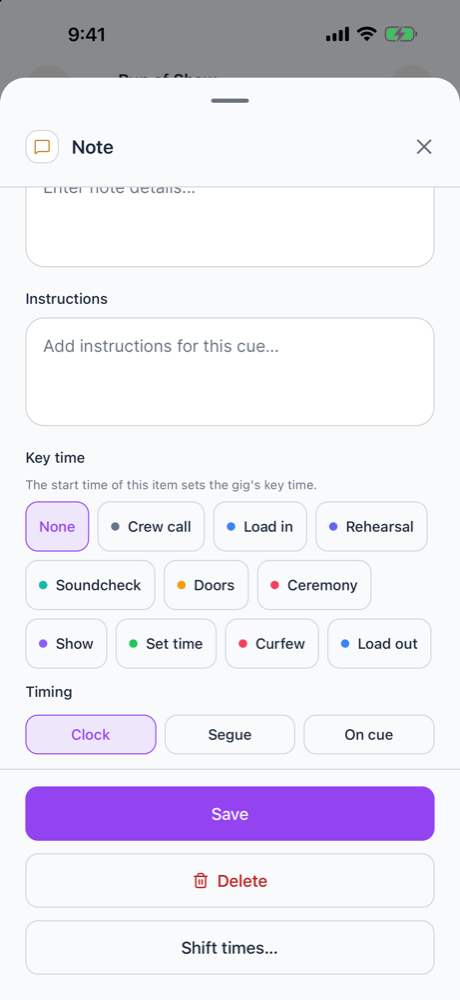
What stays on the web
- The key times editor, with every key time on the gig in one dialog.
- Your organization’s key time list and colors.
- Pasting key times from a call sheet.
Related
Key times
Start here.
Run of Show on mobile
The whole run of show on a phone.
Where key times show
Who sees which key times.