Each answer names the usual cause and the fix. If none of these match, contact support.
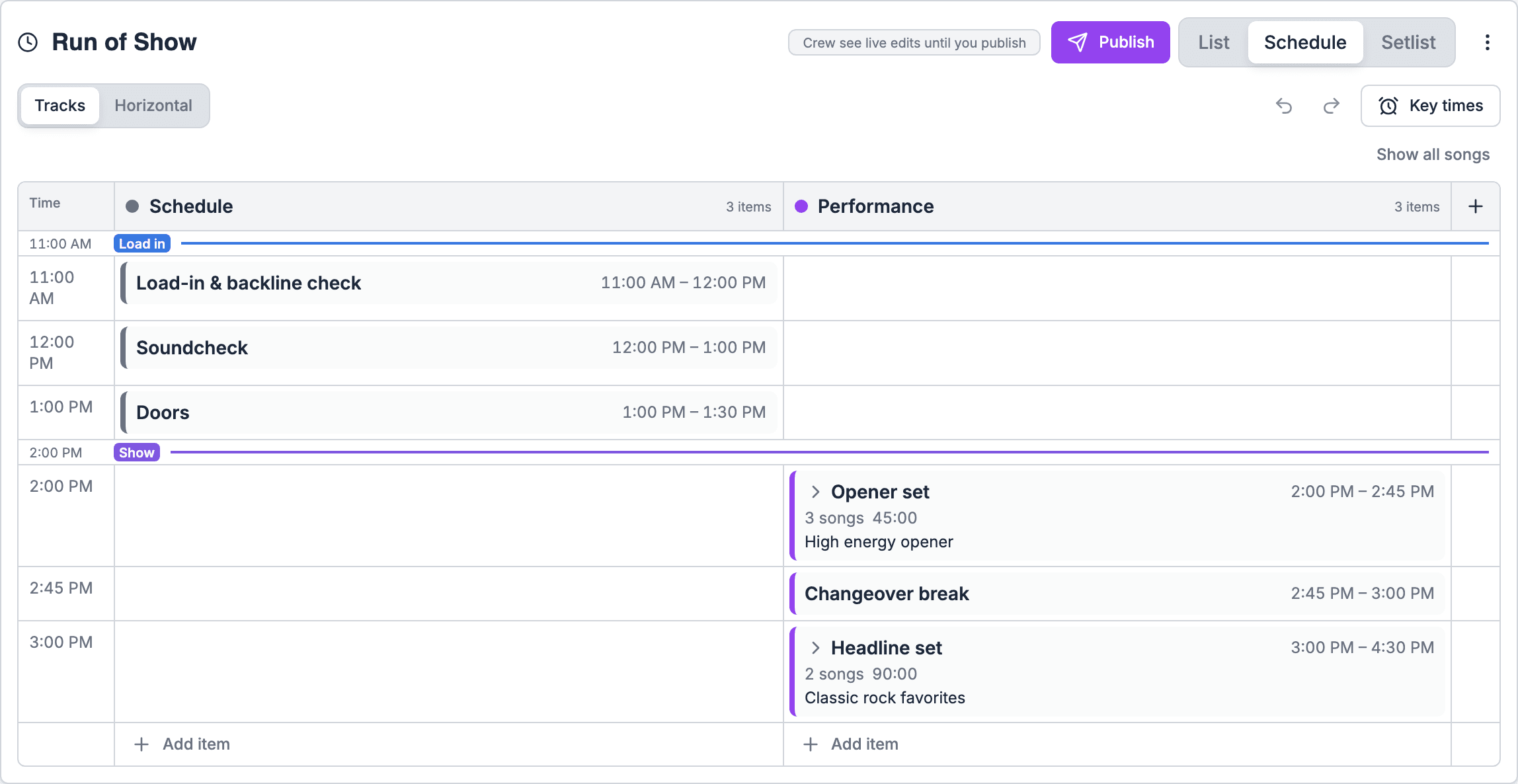
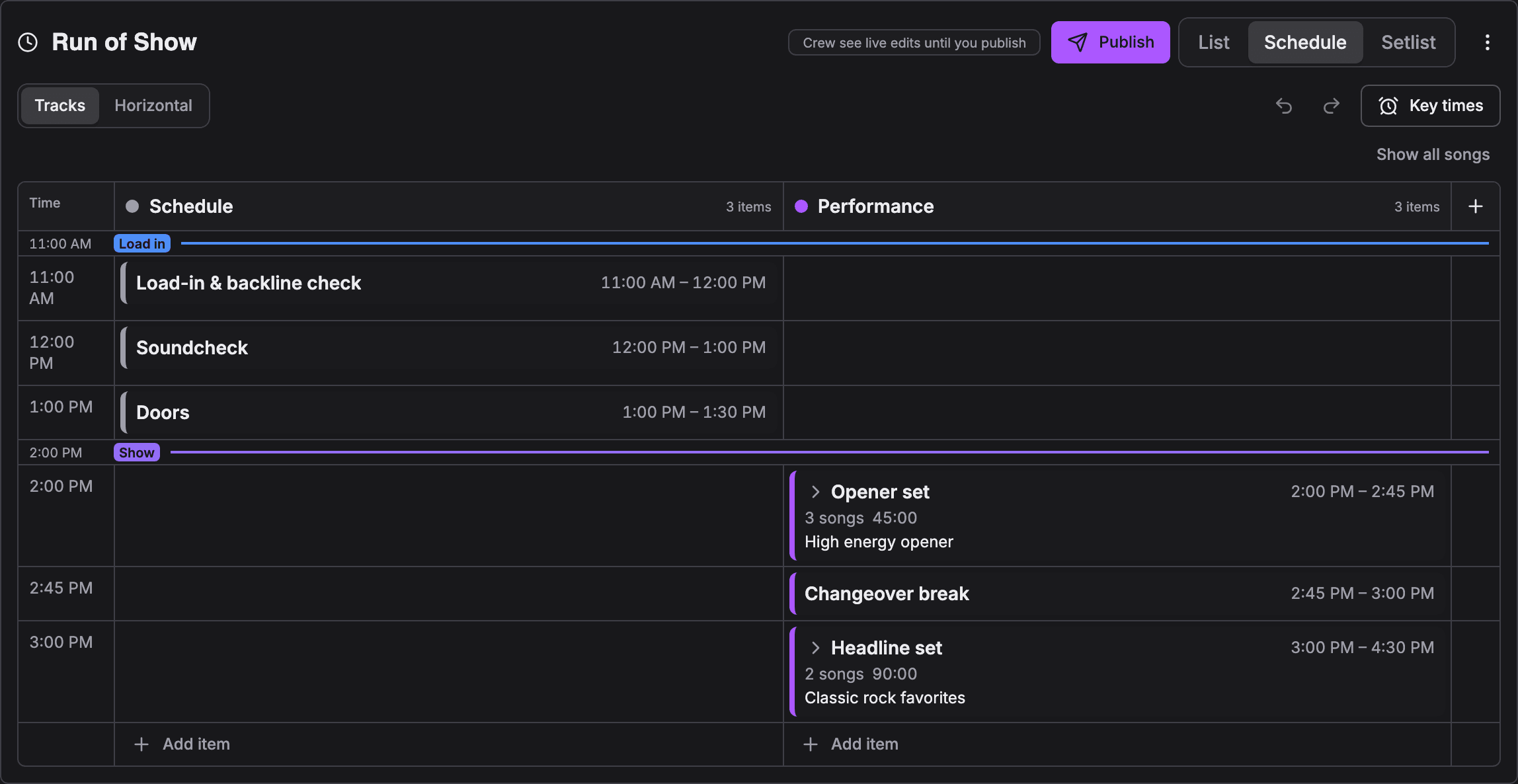
Schedule view in the Tracks layout with a Schedule lane and a Performance lane, key time lines and the setsSchedule view in the Tracks layout with a Schedule lane and a Performance lane, key time lines and the sets

Editing

Cause: the grid is narrowed. Editing pauses while a person is picked in Schedule for, or while a track is hidden with the track cards.Fix: pick Everyone in Schedule for, and choose Show all tracks beside the track cards. You can still tick cues and use the bulk actions while the grid is narrowed.If neither is set, check that you can edit this gig’s run of show. Editing needs the Owner, Admin or Gig Coordinator role, a Lead or Run of show assignment on this gig, or the Run of show on every gig access. See Roles and permissions.
Cause: the badge reads Can edit only when you can edit the run of show, every track is showing, and nobody is picked in Schedule for.Fix: show all tracks and pick Everyone.
The buttons under the grid are now Add row and Add subsection. Add row adds a row after the last one. Add subsection adds a new section, a group of rows. Pick its track in the section’s details afterwards. See Building and editing.
Cause: only a section with rows in it can collapse. An empty section has nothing to fold.Fix: use the chevron in the leftmost column of the section’s row, or the summary line under its name. Clicking the section’s name opens the What panel to rename it instead of collapsing. Collapse all above the grid folds every section at once.Collapsing is remembered per gig in your browser and doesn’t change what anyone else sees.
Cause: the grid couldn’t read the value.Fix: for times, type forms such as 6:42p, 642p or 18:42. For lengths, type 90, 90m or 1h30. Add +1 to an end time past midnight. Press Enter on an empty field to clear it.
Cause: the cue is linked into a chain, and a chain moves as one unit.Fix: hold Option (Alt) while you drag to move that cue on its own, or choose Unlink in its ⋯ menu.

Saving and publishing

Cause: a save didn’t complete, usually because the connection dropped.Fix: choose Retry. Your edit is still on the page. Soundcheck warns you before you leave the page while a save is missing.
Cause: someone else changed the run of show while you were editing. Soundcheck applied your edits on top of their version.Fix: scan the order and times. Nothing was lost, but two sensible edits can read oddly together. See Editing together.
Cause: your edits are a draft. Crew see the last published version, on the web and in the app.Fix: choose Publish, then Publish now. Leave Notify crew ticked to send them a notice. If Publish is greyed out, wait for your edits to save first.On a new gig, crew see an empty run of show until the first publish. See Publishing.
Cause: either publishing is turned off for your organization, or the gig had a run of show before publishing arrived. That gig shows Crew see live edits until you publish.Fix: publish once to start drafting on that gig. To turn publishing back on, an owner or admin goes to Settings → Organization → Gig workflow → Run of show publishing and switches on Publish before crew see changes.
Cause: you switched views with unsaved edits, the save failed, and someone else changed the run of show before you chose Retry.Fix: Replace with mine saves your version and overwrites their changes. To keep theirs, close the dialog and choose Discard changes. If you’re not sure what they changed, ask them first. See When a save fails while you switch views.
Cause: Soundcheck doesn’t sync edits live today. Your browser picks up saved changes when you come back to the tab or reconnect.Fix: reload the page. See Edits don’t appear live.
Cause: AI changes stay a draft like any other edit.Fix: review them, then publish.

Templates and imports

Cause: the gig has no date, so times can’t be placed on a day.Fix: set the gig’s date, then apply the template again. Applying replaces the run of show, so do it before you make other changes. See Templates.
Cause: times come across exactly as saved in the template. The gig’s start time doesn’t move them.Fix: after applying, tick the rows and use Shift in the bulk bar, or Shift this and later in a row’s menu.
Cause: the template has more days than the gig. Extra days move to the gig’s last day.Fix: add days to the gig first, or use Move to day on each section.
Cause: the template is empty. An empty template can’t be applied over an existing run of show.Fix: add sections or items to the template first.
Cause: either the name isn’t on your key time list (it shows New), or that key time is already set on that day.Fix: add the name under Settings → Labels → Gigs → Key times, or open the item and pick a key time for it. See Importing.
Cause: only the first sheet of an Excel file is read.Fix: move the schedule to the first sheet, or copy it and use paste instead.

Colors and key times

Cause: the row isn’t marked as a key time, or its key time’s color isn’t one of the run of show palette colors.Fix: hover the row and choose Key beside its title (or open Details… and pick a key time). A key time row takes its key time’s color. A key time whose color doesn’t match a palette color shows the standard tint instead. Change the key time’s color under Settings → Labels → Gigs → Key times. See Key times.
Key times now own color. A section linked to a key time takes that key time’s color, and other sections take a color by their position. To change a color, link the section to a key time, or change the key time’s color in your settings. A color picked on a section before this change no longer applies.
Visibility is handled through assignments. Put people on the items they work, either on the item itself or on the section’s track crew, and they see those items: crew under My items and Your times, clients in the client portal, guests on their guest page. Items can still be addressed to crew positions from the mobile app’s For field. See People and assignments.

Songs

Click the row’s What cell, choose Add setlist, and pick a setlist from the top of the list. Its songs fill the row, and extra sets become rows below it. Single songs are listed under the setlists. See Setlists.
Cause: empty sets are skipped. Soundcheck shows a warning naming them.Fix: add songs to those sets in the setlist, then add it again.

Mobile

The app doesn’t remember My items between visits. Choose it again when you open the gig.
Those are changed on the web. In the app you can add or remove crew on an item while editing. See Mobile.
Cause: with Publish before crew see changes on, a shift is a draft. The app can’t publish.Fix: publish on the web, with Notify crew on. See Running late on mobile and Show day.
Cause: you’re offline, or you can’t edit this gig’s run of show. The app shows Editing is unavailable offline. Reconnect to make changes. while offline.Fix: reconnect. You can still read the run of show offline for gigs from a few days ago to a week ahead.
More questions, such as cue numbers, calendar sync and version history, are answered in the Run of Show FAQ.

Run of Show overview

Start here.

Building and editing

The grid in detail.