Each answer names the usual cause and the fix. If none of these match, contact support.
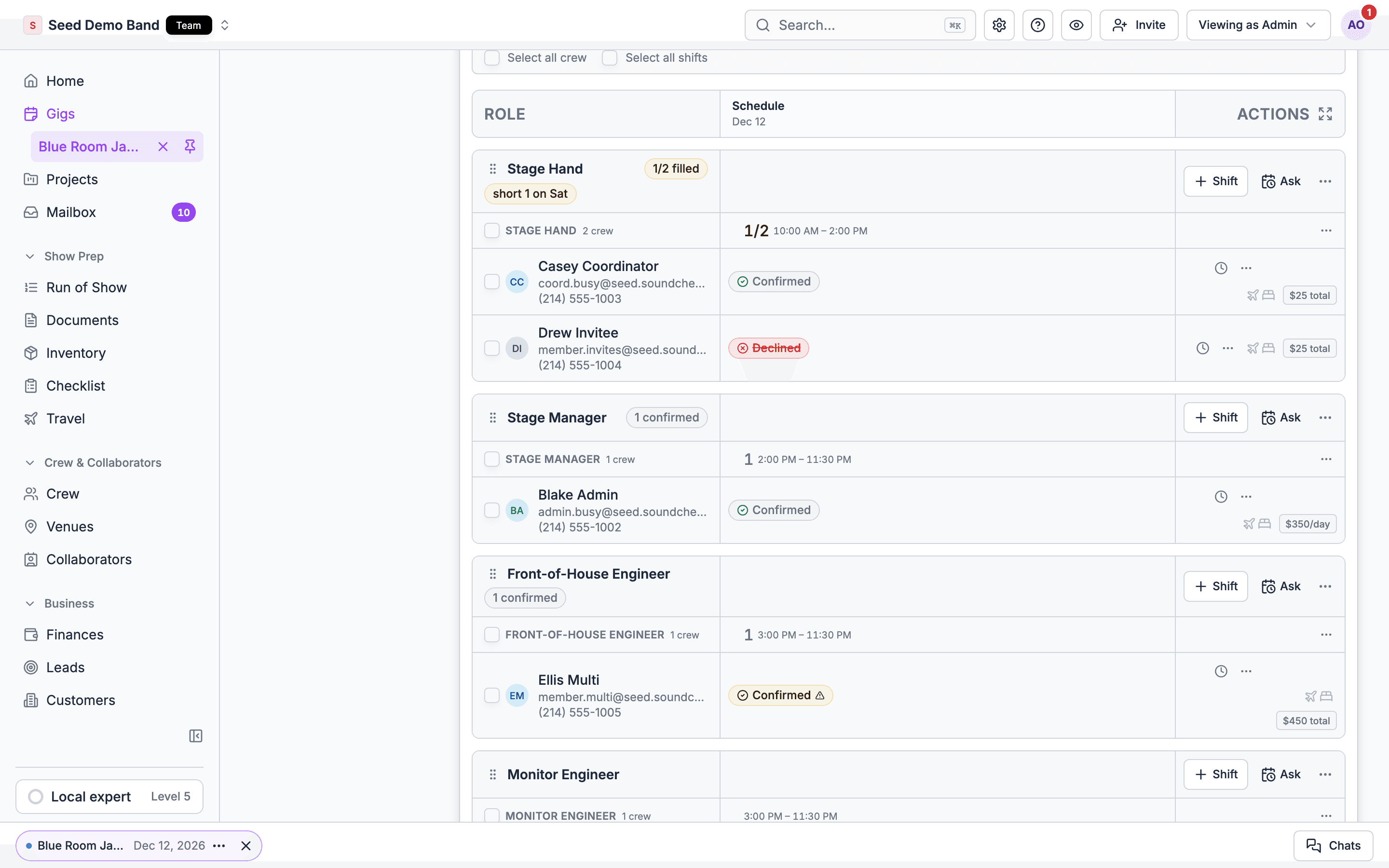
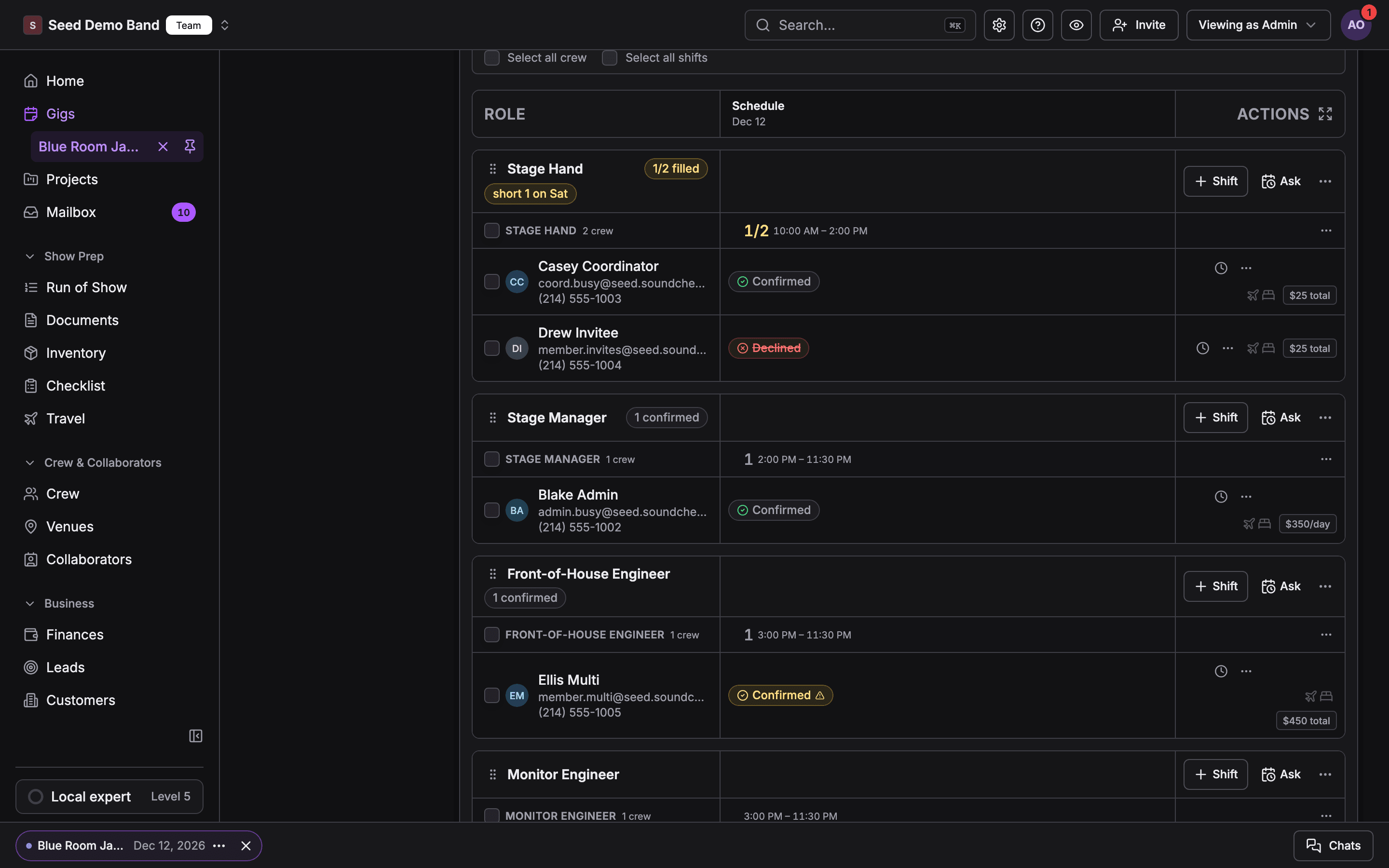
Crew board in the Grid view with a row per position, each shift time and fee, and confirmed, pending and declined crewCrew board in the Grid view with a row per position, each shift time and fee, and confirmed, pending and declined crew

Finding things

Cause: one of these.
  • The gig’s organization staffs with invitations, not crew shifts. Those gigs use the Team section instead. See Two ways to staff.
  • You can’t run or staff this gig. Crew shows to people who run the gig or hold Staffing on it.
  • Your plan doesn’t include the crew suite. Crew then shows the plan it needs and can’t be opened.
Fix: check the gig’s section heading (Team or Crew), ask a gig manager to assign you Staffing, or check your plan.
Cause: they appear on gigs staffed with crew shifts. On other gigs, and on plans without the crew suite, they stay on the Venue tab.Fix: open the gig’s Venue tab.
Cause: Clients appears when the CRM is on for your organization, and only to admins and on demo gigs.Fix: ask an Owner or Admin, or check the client from Share → Clients.
Cause: People → Collaborators is a contact list, not access. Adding someone there doesn’t let them sign in.Fix: share the gig with them from Share → Share with a collaborator. See Two meanings of “collaborator”.
Cause: shifts use your organization’s position catalog.Fix: add it under Settings → Labels → Departments → Positions first. See Managing positions.
Cause: the gig has no date yet. The board needs the gig’s days before it can hold shifts.Fix: set the gig’s date, then come back to the board.

Changing crew

Cause: only an org Owner, Admin or Gig Coordinator can cancel a sent shift or take crew off it.Fix: ask an Owner, Admin or Gig Coordinator. You can still discard a draft yourself.
Cause: the gig is Completed and Settled. Its crew is the record of who worked the show. You see This gig is completed and settled. Reopen it to change who was on it.Fix: someone who manages the gig sets its status back to Completed, makes the change, and settles it again. See After a gig is settled.
Cause: pay freezes when a shift is sent, in both directions. It’s the deal people accepted.Fix: cancel and re-issue the shift to reprice it. You can still set a rate for someone you add afterwards, until they accept. See Pay is the deal, not a field.
Cause: it’s an hourly shift (the hours are the pay), the shift is cancelled or expired, or you’re changing a day that has already passed.Fix: for an hourly shift, cancel and re-issue it.
Cause: a staged draft has no call times. The button says Set call times on each draft shift before sending (Edit shift).Fix: open each draft with Edit shift and set its times.
Cause: removing someone from a live shift rebuilds it, which notifies the people who remain.Fix: nothing to fix. Expect the rest of the crew to see an update.
Cause: the board didn’t refresh. Soundcheck says Shift duplicated — refresh the page to see the copy.Fix: refresh the page. The copy is a draft, so nobody was told.

Answers and notifications

Cause: a wrong address, spam filtering, notification settings, or a draft that was never sent.Fix: check their email address and spam folder, and that they haven’t turned notifications off. Check that the shift isn’t still a draft. A person without an account gets the shift by email with a link to their own shift. A text reaches them only when Text them at this number was ticked.
Cause: on a multiday shift, they accepted only some days. The roster shows the days they took.Fix: open their row to see which days they’re on.
Cause: a shift reopens by itself when an accepted person comes off. If it didn’t, Need may have been lowered to match the crew who remain.Fix: check Need in Edit shift.
Cause: notifications go out only when the time actually changes. Re-saving the same time sends nothing, and drafts never notify.Fix: check that the shift was sent and the time really changed.
Fix: open the have seen the latest panel at the top of the Crew board. Behind means something that applies to them changed since they last opened the gig. Not opened means they haven’t opened it since accepting. See Who has seen the latest.

Gig staff and money

Cause: Gig Coordinators see each person’s crew pay, but not the gig ledger, income, client billing or P&L. They also cannot settle a gig (the Settled option shows Needs finance access).Fix: assign them Finances on that gig. See Assigning people to run a gig.
Cause: sending payouts stays with the Owner and the Finance role, whoever is assigned.Fix: ask the Owner or a Finance member to send them.
Cause: the original’s gig staff aren’t copied. Whoever duplicated the gig becomes its Lead, and nobody else is assigned.Fix: add the rest of the gig staff on the new gig, from Manage staff in the gig header.

Sharing and guests

Cause: publishing a live page isn’t turned on for your organization.Fix: see Live page.
Cause: the gig is a draft. The invite is held and the row shows Sends when active.Fix: publish the gig. See Draft and publish.
Cause: they signed in with a different email from the one you invited.Fix: ask them to sign in, or create an account, with the invited email. If they want to use another address, choose Remove access on their row and invite that address instead.
Cause: a re-import with Replace this source’s list removes guests the new file no longer lists, unless someone added or edited them by hand, they count against a crew member’s guest spots, another source still lists them, or they have already checked in.Fix: add them back by hand, or check the source’s export. See Where guests come from.
Cause: crew with guest spots see and add only their own guests.Fix: that’s by design. Owners, Admins, Gig Coordinators, and the gig’s Lead and Staffing assignees see the whole list.

Requirements

Cause: someone else saved the card while you were editing.Fix: choose Load their version, then make your change again.
Cause: your organization has no dress presets yet.Fix: add them under Settings → Labels → Departments → Positions, in the Crew requirements card. See Crew requirements.

Mobile

Cause: you’re offline. The roster shows Offline: showing last saved.Fix: reconnect, then try again.
Cause: the app shows gig staff but doesn’t change them. Manage staff opens the Staffing section.Fix: assign gig staff on the web, from Add staff or Manage staff in the gig header.
Cause: Share appears once the gig’s live page is published, or when sharing is on for your organization.Fix: publish the live page from the web, or ask about sharing at info@soundchecklive.io.

People overview

Every part of People and how it fits together.

How shifts work

The full reference for shifts.