Each answer names the usual cause and the fix. If none of these match, contact support.
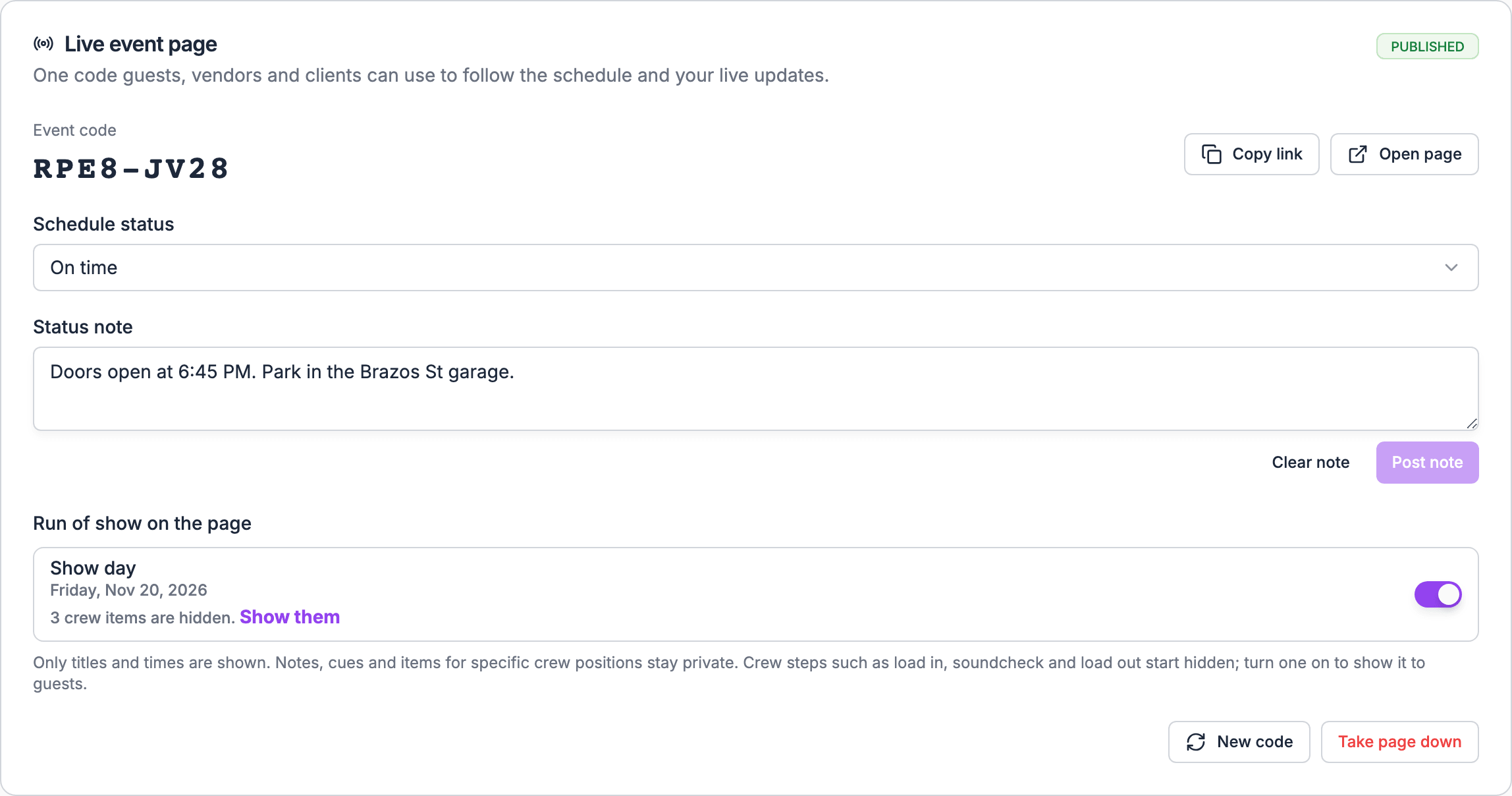
Live page card with the Schedule status and Status note controlsLive page card with the Schedule status and Status note controls
Asking what the live page can do, rather than why it isn’t working? See the Live page FAQ. For terms such as viewer link or QR code, see the Live page glossary.

Publishing

Cause: one of these:
  • Publishing a new live page isn’t on for your organization yet. It’s in early access.
  • You don’t manage gigs. Only gig managers (Owner, Admin and Gig Coordinator) publish.
  • It’s a sample gig, which shows a preview marked Sample instead.
  • You’re previewing the gig as a member. Leave the preview.
Without early access, the Share dialog also shows only Who’s who, with no General access section.Fix: to join early access, contact support. Otherwise ask a gig manager to publish. See Publishing and managing.
Cause: the gig is a draft. A draft gig cannot have a live page.Fix: publish the gig, then publish the live page. See Draft and publish.
Cause: without early access, you can’t publish a page again after taking it down.Fix: contact support to turn on live pages for your organization.
The tab shows only to gig managers, once the page is published. On a sample gig it also shows, as a read-only preview marked Sample. Look under More at the end of the gig’s tab bar. Taking the page down removes it.
Taking the page down clears Schedule status and the Status note. Your section choices under Run of show on the page are kept. Set the status and post the note again.
Publishing, a new code, a delay and a status note send no push, email or text. Share the code or link yourself. See Status updates.

Codes

Cause: the code isn’t 8 letters and numbers.Fix: check the code. Case and dashes don’t matter, and codes never use 0, O, 1, I or L, so a guest who typed one of those misread a character.
Cause: the page was taken down, a new code was issued, General access was set back to Restricted, the gig went back to draft or became a template, or the gig was deleted.Fix: share the current code from the gig’s Live page tab, or publish the page again. Publishing again gives a new code. See When a code stops working.
Cause: too many wrong codes came from their network.Fix: wait a few minutes, then choose Try again. Correct codes never count toward the limit.

What’s on the page

Cause: it’s turned off under Run of show on the page, or it’s a Crew step, which starts hidden.Fix: turn it on in the gig’s Live page tab. See The schedule on the page.
Cause: one of these:
  • They’re crew items, such as a line check or a crew meal, which start hidden.
  • They’re aimed at specific crew positions.
  • They’re marked Surprise.
  • They’re unpublished edits, and your organization uses run of show publishing.
Fix: choose Show them under the section in Run of show on the page to show the crew items. Publish the run of show for new edits. Items aimed at positions or marked Surprise never appear.
Cause: one of these:
  • The gig has no run of show.
  • Every section is hidden.
  • Your organization uses run of show publishing, and nobody has published this gig’s run of show yet.
Fix: build the run of show, turn a section on, or publish the run of show to crew. See Which version guests see.
Cause: your organization uses run of show publishing. The live page shows the last version published to crew, not your draft.Fix: publish the run of show. See Publishing to crew.
Cause: the live page isn’t published. Guest pages and the client portal show the run of show only while the live page is published. Without it, they list the guest-facing key times, and your status and note don’t show. Each guest’s Your schedule card still lists the items they’re on.Fix: publish the live page. See Publishing and managing.
Crew call, load in, rehearsal, soundcheck and load out are crew-only key times and never appear. Neither do key times your organization added. Guests see doors, ceremony, show, set time and curfew.
That’s by design. Notes, cues and instructions on run of show items never appear on the live page.

Status and updates

The page refreshes itself every minute, and when a guest comes back to the tab. Give it a minute.
Cause: the status follows the run of show items on the page, shifted by Schedule status. A hidden section doesn’t count, and a delay moves everything later.Fix: check the times of the first and last items guests can see, and the Schedule status. See What guests see.
Schedule status only changes what guests see. To move the run of show itself, shift its items. See Linking cues.
The app offers up to 60 minutes. Set a longer delay on the web, where the choices go up to 120 minutes.

Live page

Start here.

Publishing and managing

Every control on the Live page tab.

Codes and privacy

How codes work.

Live page FAQ

What the live page can and can’t do.

Live page glossary

Industry terms mapped to Soundcheck.