

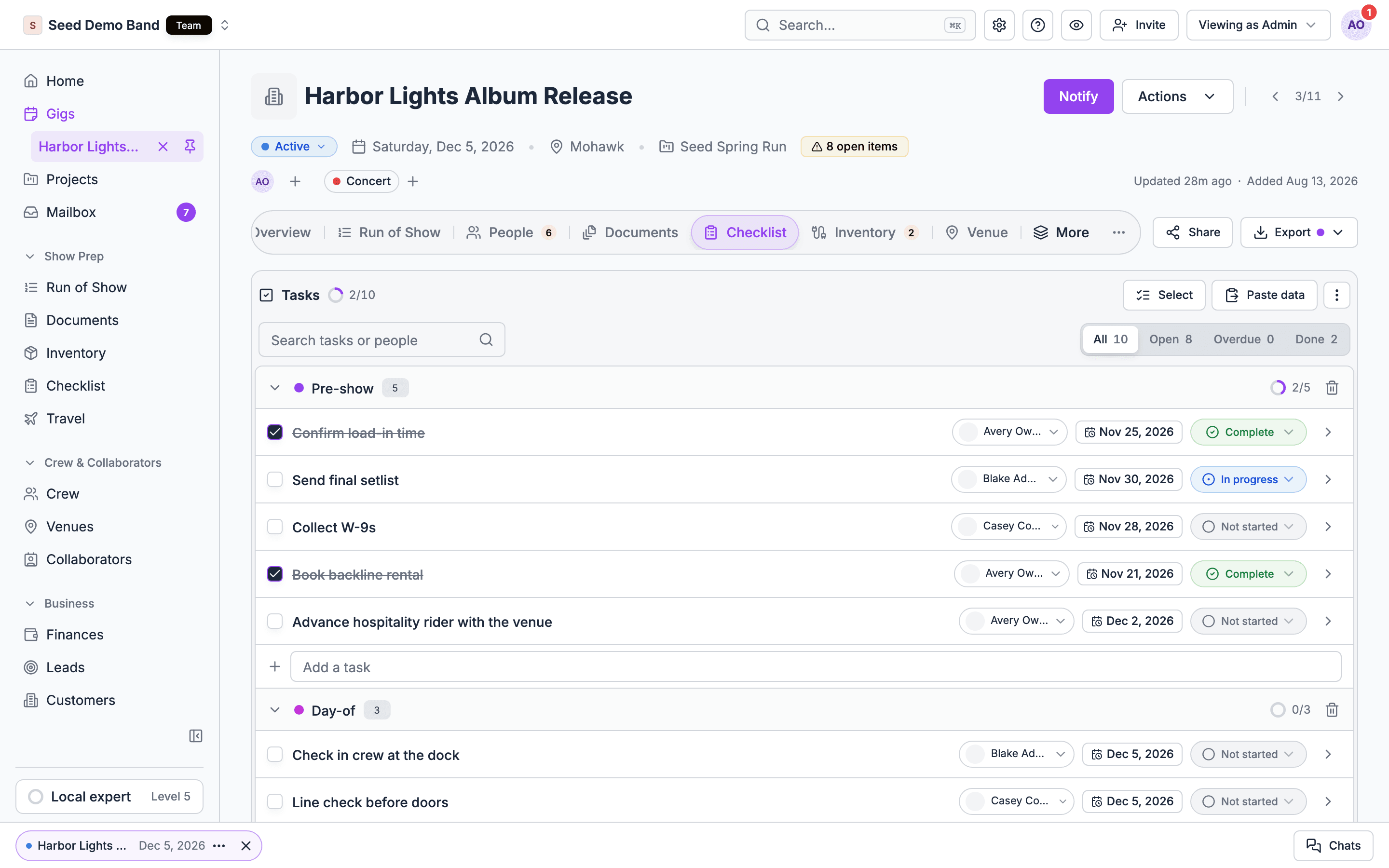
Questions this page answers
- Building a checklist (11 questions)
- Templates and reuse (9 questions)
- Due dates and timing (11 questions)
- Assigning and ownership (8 questions)
- Reminders and notifications (7 questions)
- Advancing a show (10 questions)
- Production checklists (9 questions)
- Client and vendor tasks (6 questions)
- Crew on mobile and show day (6 questions)
- Status, progress and reporting (7 questions)
- Dependencies and automation (7 questions)
- Safety and compliance checklists (7 questions)
- Tours, festivals and many events (6 questions)
- Collaboration (6 questions)
- Importing and integrations (5 questions)
- Permissions, data and pricing (13 questions)
Deal-breakers at a glance
These 19 questions decide most evaluations. Soundcheck answers Yes to 5, Partly to 9 and No to 5.Worked example: a corporate conference that gets postponed
A production company runs a two-day corporate conference: advance with the hotel ballroom, load-in the night before, two show days and a strike. Halfway through planning, the client moves the conference back two weeks. Here’s how the deal-breakers play out.Set up the template once
Create the gig
Work the advance
Handle the postponement
Show days
Building a checklist
1. Can I build a checklist for each event as fast as I could in a spreadsheet or notes app?
1. Can I build a checklist for each event as fast as I could in a spreadsheet or notes app?
2. Can I group tasks into sections, such as Booking, Planning, Vendors, Advance, Load-in, Show and Load-out?
2. Can I group tasks into sections, such as Booking, Planning, Vendors, Advance, Load-in, Show and Load-out?
3. Can a task have sub-tasks or its own mini-checklist?
3. Can a task have sub-tasks or its own mini-checklist?
4. Can a task hold notes, links, files and a description of how to do it?
4. Can a task hold notes, links, files and a description of how to do it?
5. Can I mark a task as not applicable for this event without deleting it?
5. Can I mark a task as not applicable for this event without deleting it?
6. Can I reorder tasks by dragging?
6. Can I reorder tasks by dragging?
7. Can I add a task straight from my phone, including by voice?
7. Can I add a task straight from my phone, including by voice?
8. Can a task be tied to a specific time on show day, not just a date (for example “check wireless frequencies at 2:30 PM”)?
8. Can a task be tied to a specific time on show day, not just a date (for example “check wireless frequencies at 2:30 PM”)?
9. Is there one list per event, or can an event have several lists (planning, production, client, venue)?
9. Is there one list per event, or can an event have several lists (planning, production, client, venue)?
10. Can a checklist item point to the thing it is about, such as a vendor, a crew position, an invoice, a form or a run-of-show item?
10. Can a checklist item point to the thing it is about, such as a vendor, a crew position, an invoice, a form or a run-of-show item?
11. Can a task be marked complete automatically when the thing it tracks happens, such as “contract signed” or “deposit paid”?
11. Can a task be marked complete automatically when the thing it tracks happens, such as “contract signed” or “deposit paid”?
Templates and reuse
12. Can I save my standard checklist as a template and apply it to every new event?
12. Can I save my standard checklist as a template and apply it to every new event?
13. Can I keep different templates per event type: wedding, corporate conference, festival stage, club show, venue rental?
13. Can I keep different templates per event type: wedding, corporate conference, festival stage, club show, venue rental?
14. Can I add tasks from a template to an event that already has a checklist, without duplicates?
14. Can I add tasks from a template to an event that already has a checklist, without duplicates?
15. When I improve a template, can I push the change to upcoming events that already use it?
15. When I improve a template, can I push the change to upcoming events that already use it?
16. Can I turn a finished event's checklist into a new template?
16. Can I turn a finished event's checklist into a new template?
17. Does the tool come with starter checklists for my kind of business?
17. Does the tool come with starter checklists for my kind of business?
18. Can a template include who each task goes to by role (for example “Lead Planner” or “Production Manager”), so it is assigned automatically?
18. Can a template include who each task goes to by role (for example “Lead Planner” or “Production Manager”), so it is assigned automatically?
19. Can a template apply automatically when an event is created or a booking is confirmed?
19. Can a template apply automatically when an event is created or a booking is confirmed?
20. Can different departments keep their own templates (audio, lighting, video, catering)?
20. Can different departments keep their own templates (audio, lighting, video, catering)?
Due dates and timing
21. Can I set due dates relative to the event date, such as “60 days before” or “3 days after”?
21. Can I set due dates relative to the event date, such as “60 days before” or “3 days after”?
22. If the event date moves, do all due dates move with it?
22. If the event date moves, do all due dates move with it?
23. Can a due date be relative to something other than the event date, such as the booking date, the contract date, or load-in?
23. Can a due date be relative to something other than the event date, such as the booking date, the contract date, or load-in?
24. Can a due date be before, on or after the event?
24. Can a due date be before, on or after the event?
25. Can I use business days, so a task never lands on a weekend?
25. Can I use business days, so a task never lands on a weekend?
26. Can I set a time as well as a date?
26. Can I set a time as well as a date?
27. Can I see all tasks on a calendar, across every event?
27. Can I see all tasks on a calendar, across every event?
28. Can tasks sync to my Google or Outlook calendar?
28. Can tasks sync to my Google or Outlook calendar?
29. Can I see what is overdue, due today, and due this week across all my events in one view?
29. Can I see what is overdue, due today, and due this week across all my events in one view?
30. For multi-day events, can tasks attach to a specific day (load-in day, show day 2, strike day)?
30. For multi-day events, can tasks attach to a specific day (load-in day, show day 2, strike day)?
31. Which time zone are due times in, when the event is in another time zone?
31. Which time zone are due times in, when the event is in another time zone?
Assigning and ownership
32. Can I assign a task to a person on my team?
32. Can I assign a task to a person on my team?
33. Can I assign a task to a role on the event, so whoever fills that role gets it, even if the person changes?
33. Can I assign a task to a role on the event, so whoever fills that role gets it, even if the person changes?
34. Can I assign a task to more than one person, or to a department?
34. Can I assign a task to more than one person, or to a department?
35. Can I assign a task to someone outside my company, such as the client, a venue coordinator, a vendor or a freelancer?
35. Can I assign a task to someone outside my company, such as the client, a venue coordinator, a vendor or a freelancer?
36. Can someone outside my company complete a task without a paid seat or a full account?
36. Can someone outside my company complete a task without a paid seat or a full account?
37. Can I see everything one person has on their plate across all events?
37. Can I see everything one person has on their plate across all events?
38. Can I reassign tasks in bulk when someone is sick or leaves?
38. Can I reassign tasks in bulk when someone is sick or leaves?
39. Can a task require approval or sign-off from a manager before it counts as done?
39. Can a task require approval or sign-off from a manager before it counts as done?
Reminders and notifications
40. Does the person assigned get a reminder before a task is due?
40. Does the person assigned get a reminder before a task is due?
41. Can I choose how reminders arrive: email, push notification, text message?
41. Can I choose how reminders arrive: email, push notification, text message?
42. Can I set reminders a number of days before due, and again when overdue?
42. Can I set reminders a number of days before due, and again when overdue?
43. Do I get a daily or weekly summary of what's due?
43. Do I get a daily or weekly summary of what's due?
44. Does the client get reminded about their tasks (forms, payments, final headcount) without me chasing them?
44. Does the client get reminded about their tasks (forms, payments, final headcount) without me chasing them?
45. Can I stop reminders for people who don't want them, without missing anything urgent?
45. Can I stop reminders for people who don't want them, without missing anything urgent?
46. Am I notified when someone completes a task or adds a comment?
46. Am I notified when someone completes a task or adds a comment?
Advancing a show
47. Is there an advance checklist for each show covering schedule, production, hospitality, travel, parking, guest list and settlement contacts?
47. Is there an advance checklist for each show covering schedule, production, hospitality, travel, parking, guest list and settlement contacts?
48. Can I send the advance to the venue or promoter and have them answer in the tool, instead of a long email chain?
48. Can I send the advance to the venue or promoter and have them answer in the tool, instead of a long email chain?
49. Can the venue's answers (stage size, power, load-in access, curfew, house gear) be saved to the venue so the next show there starts pre-filled?
49. Can the venue's answers (stage size, power, load-in access, curfew, house gear) be saved to the venue so the next show there starts pre-filled?
50. Can I split the advance between the tour manager (hospitality, travel, money) and the production manager (technical)?
50. Can I split the advance between the tour manager (hospitality, travel, money) and the production manager (technical)?
51. Can I track each advance item as asked, answered, confirmed or problem?
51. Can I track each advance item as asked, answered, confirmed or problem?
52. Can I compare the venue's answers against the artist's rider and flag mismatches?
52. Can I compare the venue's answers against the artist's rider and flag mismatches?
53. Can I see which shows on a tour are fully advanced and which aren't?
53. Can I see which shows on a tour are fully advanced and which aren't?
54. Can advance answers flow into the day sheet and run of show?
54. Can advance answers flow into the day sheet and run of show?
55. When should advancing start (weeks before), and can the tool start it automatically?
55. When should advancing start (weeks before), and can the tool start it automatically?
Production checklists
57. Can I have a load-in checklist with gear, rigging, power and line checks that crew tick off on site?
57. Can I have a load-in checklist with gear, rigging, power and line checks that crew tick off on site?
58. Can I have a pre-show checklist (line check, playback test, comms check, house clear) with a time for each item?
58. Can I have a pre-show checklist (line check, playback test, comms check, house clear) with a time for each item?
59. Can I have a load-out or strike checklist, including gear count and venue damage check?
59. Can I have a load-out or strike checklist, including gear count and venue damage check?
60. Can a production checklist be tied to the equipment list, so I can check items out and back in?
60. Can a production checklist be tied to the equipment list, so I can check items out and back in?
61. Can a crew member attach a photo to a checked item, for example the stage condition at load-out?
61. Can a crew member attach a photo to a checked item, for example the stage condition at load-out?
62. Can a check item hold a reading or value, such as a measured SPL, a voltage or a frequency?
62. Can a check item hold a reading or value, such as a measured SPL, a voltage or a frequency?
63. Can checklists for each department (audio, lighting, video, rigging, staging) live under one event?
63. Can checklists for each department (audio, lighting, video, rigging, staging) live under one event?
64. Can the stage manager see the whole checklist status at a glance on show day?
64. Can the stage manager see the whole checklist status at a glance on show day?
65. Can I record a problem against a checklist item and turn it into a follow-up task?
65. Can I record a problem against a checklist item and turn it into a follow-up task?
Client and vendor tasks
66. Can I give the client their own checklist (final guest count, song list, payment, seating chart) that they see in their portal?
66. Can I give the client their own checklist (final guest count, song list, payment, seating chart) that they see in their portal?
67. Can the client tick off their tasks, and do I see it?
67. Can the client tick off their tasks, and do I see it?
68. Can I keep some tasks internal so the client never sees them?
68. Can I keep some tasks internal so the client never sees them?
69. Can I assign tasks to vendors (florist, caterer, AV) and see their progress?
69. Can I assign tasks to vendors (florist, caterer, AV) and see their progress?
70. Can a client task link to the form or payment they need to complete?
70. Can a client task link to the form or payment they need to complete?
71. Can I set the client's tasks to appear only after a certain point, such as after booking?
71. Can I set the client's tasks to appear only after a certain point, such as after booking?
Crew on mobile and show day
72. Can crew see and complete their tasks on a phone app?
72. Can crew see and complete their tasks on a phone app?
73. Does the checklist work without signal, and sync when the phone reconnects?
73. Does the checklist work without signal, and sync when the phone reconnects?
74. Can crew see only their own tasks, not the whole company's?
74. Can crew see only their own tasks, not the whole company's?
75. Can I see on my phone who has finished their tasks and who hasn't?
75. Can I see on my phone who has finished their tasks and who hasn't?
76. Can crew check in on arrival as a task, so I know they're on site?
76. Can crew check in on arrival as a task, so I know they're on site?
77. Can a show-day task fire a push notification at its time (for example “doors in 15 minutes”)?
77. Can a show-day task fire a push notification at its time (for example “doors in 15 minutes”)?
Status, progress and reporting
78. Can I see a percentage complete per event?
78. Can I see a percentage complete per event?
79. Can I see which events are at risk because of overdue tasks?
79. Can I see which events are at risk because of overdue tasks?
80. Is there a dashboard across all events for the week?
80. Is there a dashboard across all events for the week?
81. Can I filter tasks by person, event, section, status or due date?
81. Can I filter tasks by person, event, section, status or due date?
82. Can I see who completed a task and when?
82. Can I see who completed a task and when?
83. Can I print or export a checklist, for example to hand to a venue or to file after the event?
83. Can I print or export a checklist, for example to hand to a venue or to file after the event?
84. After the event, can I see which tasks were late, to improve the template?
84. After the event, can I see which tasks were late, to improve the template?
Dependencies and automation
85. Can one task wait on another, for example “send final timeline” only after “receive final headcount”?
85. Can one task wait on another, for example “send final timeline” only after “receive final headcount”?
86. If an earlier task slips, do the tasks that depend on it move or get flagged?
86. If an earlier task slips, do the tasks that depend on it move or get flagged?
87. Can a task be created automatically when something happens, such as a lead booking, a contract being signed or a payment being late?
87. Can a task be created automatically when something happens, such as a lead booking, a contract being signed or a payment being late?
88. Can I set milestones, such as “contract signed”, “final payment”, “advance complete” and “show day”?
88. Can I set milestones, such as “contract signed”, “final payment”, “advance complete” and “show day”?
89. Can a task repeat, such as a weekly production meeting or a monthly venue inspection?
89. Can a task repeat, such as a weekly production meeting or a monthly venue inspection?
90. Can a task automatically send an email or a form when it is due?
90. Can a task automatically send an email or a form when it is due?
91. Can automation fill a whole checklist from the event's details, for example adding a “pyro permit” task only when pyrotechnics are booked?
91. Can automation fill a whole checklist from the event's details, for example adding a “pyro permit” task only when pyrotechnics are booked?
Safety and compliance checklists
92. Can I keep a pre-event safety inspection checklist (exits, fire equipment, first aid, barriers, cable runs) with a named inspector and sign-off?
92. Can I keep a pre-event safety inspection checklist (exits, fire equipment, first aid, barriers, cable runs) with a named inspector and sign-off?
93. Can I record inspections before, during and after the event?
93. Can I record inspections before, during and after the event?
94. Can I track permits and licences as tasks with deadlines (noise, fire, alcohol, street closure)?
94. Can I track permits and licences as tasks with deadlines (noise, fire, alcohol, street closure)?
95. Can I record crowd management checks, such as the pre-event briefing for crowd managers?
95. Can I record crowd management checks, such as the pre-event briefing for crowd managers?
96. Can I attach a risk assessment and update it when conditions change (weather, crowd size)?
96. Can I attach a risk assessment and update it when conditions change (weather, crowd size)?
97. Can a safety check require a photo or a signature before it can be completed?
97. Can a safety check require a photo or a signature before it can be completed?
98. Can I prove later that a safety task was done, when, and by whom?
98. Can I prove later that a safety task was done, when, and by whom?
Tours, festivals and many events
99. Can I apply one checklist to every date on a tour, with each date tracked separately?
99. Can I apply one checklist to every date on a tour, with each date tracked separately?
100. Can I see one task across all tour dates (for example “advance sent”) in a grid?
100. Can I see one task across all tour dates (for example “advance sent”) in a grid?
101. For a festival, can each stage or each artist have its own checklist under one festival?
101. For a festival, can each stage or each artist have its own checklist under one festival?
102. For venues, can I run a standard checklist for every booking in the room?
102. For venues, can I run a standard checklist for every booking in the room?
104. Can I bulk-complete or bulk-update tasks across many events?
104. Can I bulk-complete or bulk-update tasks across many events?
Collaboration
105. Can people comment on a task and @mention someone?
105. Can people comment on a task and @mention someone?
106. Can I attach files and photos to a task?
106. Can I attach files and photos to a task?
107. Can several people work on the same checklist at once without overwriting each other?
107. Can several people work on the same checklist at once without overwriting each other?
108. Can I see a history of changes to a task?
108. Can I see a history of changes to a task?
109. Can a task discussion be private to my team even when the client can see the task?
109. Can a task discussion be private to my team even when the client can see the task?
110. Can I message the person assigned from inside the task?
110. Can I message the person assigned from inside the task?
Importing and integrations
111. Can I import my existing checklist from a spreadsheet, Asana, Trello or monday.com?
111. Can I import my existing checklist from a spreadsheet, Asana, Trello or monday.com?
112. Does it connect to Google Calendar, Outlook, Slack or Microsoft Teams?
112. Does it connect to Google Calendar, Outlook, Slack or Microsoft Teams?
113. Can tasks be created through Zapier or an API?
113. Can tasks be created through Zapier or an API?
114. Can an AI assistant create or update my checklist from an email or a call summary?
114. Can an AI assistant create or update my checklist from an email or a call summary?
115. Can I keep using Asana or monday.com for internal projects and still have event tasks here?
115. Can I keep using Asana or monday.com for internal projects and still have event tasks here?
Permissions, data and pricing
116. Can I control who can edit templates versus who can only tick off tasks?
116. Can I control who can edit templates versus who can only tick off tasks?
117. Can I hide sensitive tasks (fees, contract negotiation) from crew and clients?
117. Can I hide sensitive tasks (fees, contract negotiation) from crew and clients?
118. Can freelancers see only the events they're booked on?
118. Can freelancers see only the events they're booked on?
119. Do clients, vendors and freelancers count as paid users?
119. Do clients, vendors and freelancers count as paid users?
120. Are there limits on tasks, templates or events on my plan?
120. Are there limits on tasks, templates or events on my plan?
121. Is the checklist included in every plan, or is it an add-on?
121. Is the checklist included in every plan, or is it an add-on?
122. Can a venue let outside promoters see and complete their part of the checklist?
122. Can a venue let outside promoters see and complete their part of the checklist?
123. Can I archive old events' checklists without losing them?
123. Can I archive old events' checklists without losing them?
124. Can I lock a checklist after the event so the record can't change?
124. Can I lock a checklist after the event so the record can't change?
125. Can I export all tasks and their history if I leave?
125. Can I export all tasks and their history if I leave?
126. Is task data backed up?
126. Is task data backed up?
127. Can I restore a task someone deleted by mistake?
127. Can I restore a task someone deleted by mistake?
128. Can I set who is notified when a high-risk task (safety, permits, payments) is overdue?
128. Can I set who is notified when a high-risk task (safety, permits, payments) is overdue?