

Crew fields
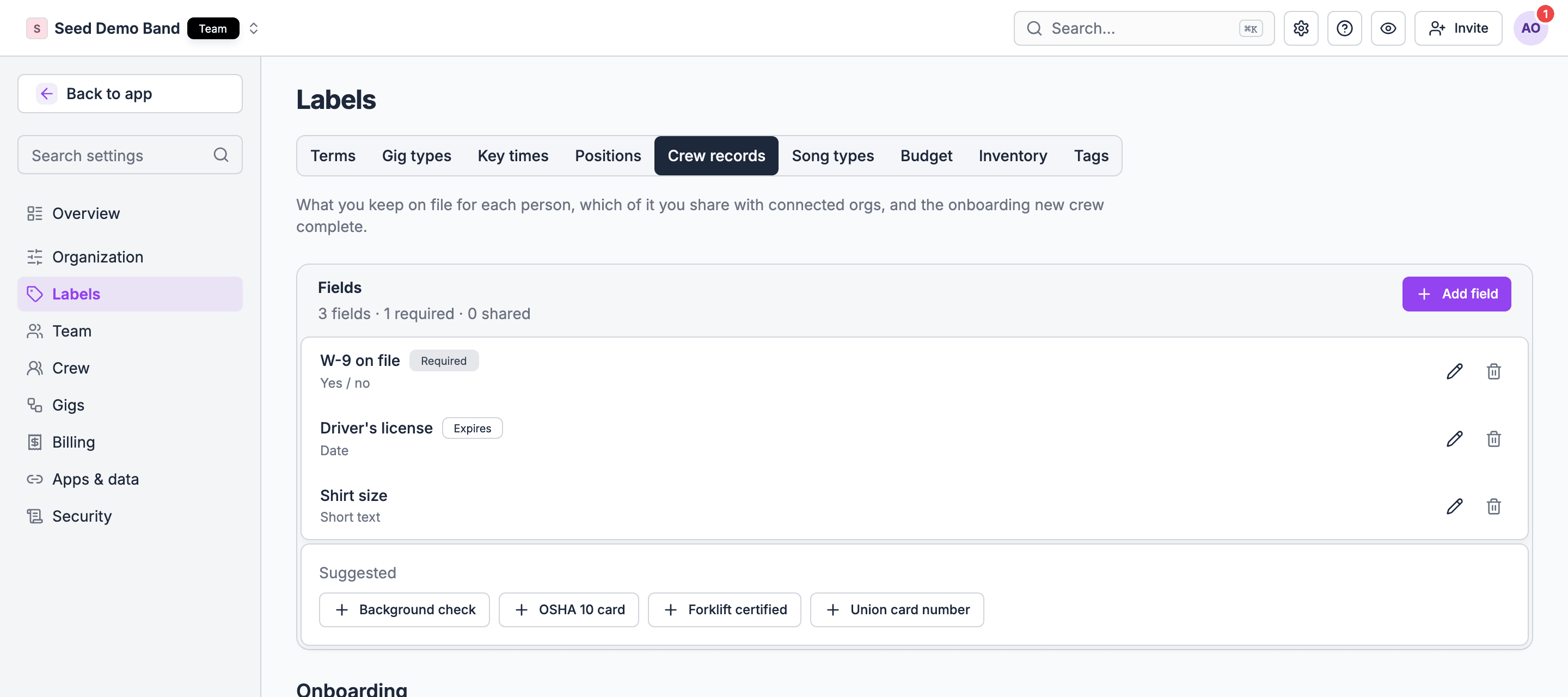
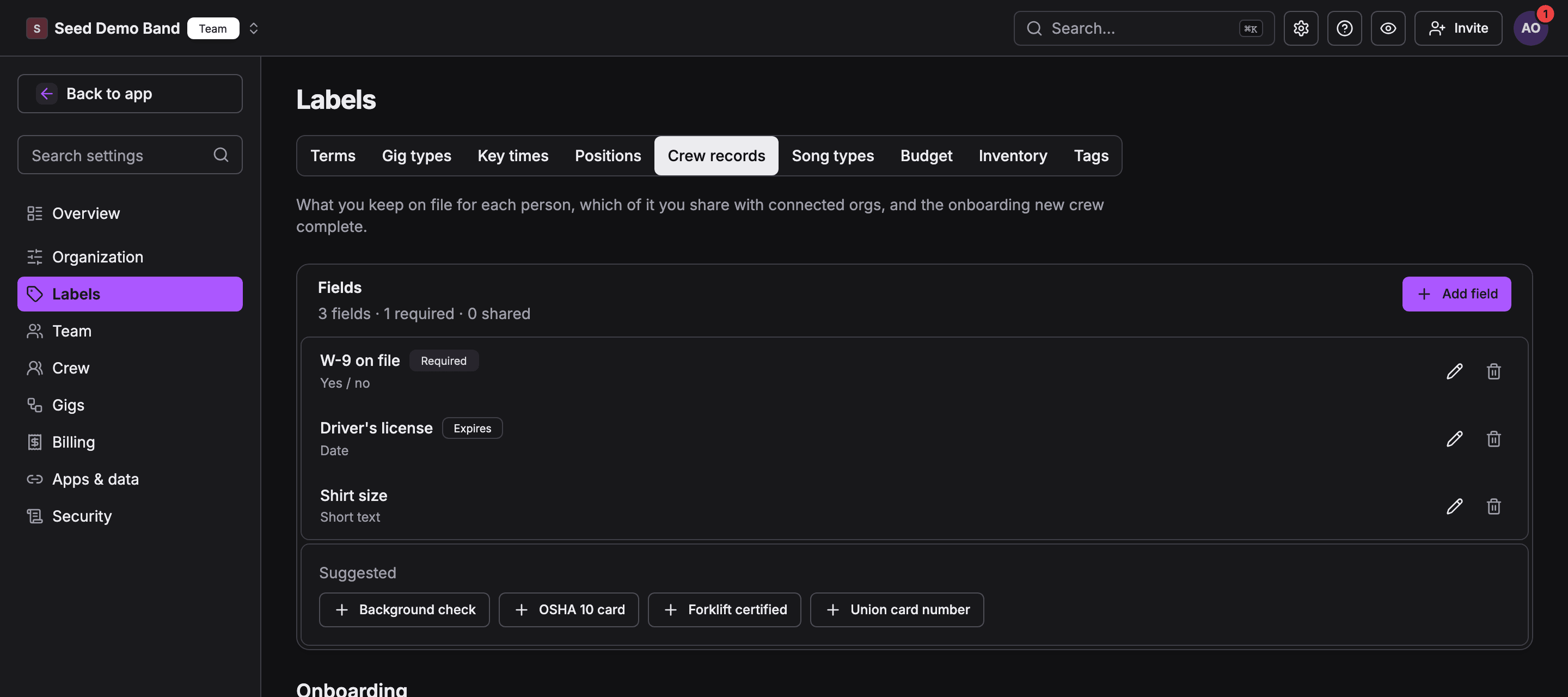
Go to Settings → Crew → Records. The Fields section lists every field your organization tracks, with a count of how many are required and how many are shared. With no fields yet, the page suggests common ones to add in one click, such as W-9 on file, Background check, Driver’s license, OSHA 10 card, Forklift certified, Shirt size and Union card number. Choose Add your own field (or Add field once you have some) to create one from scratch. Each field has:
Fields tagged Required, Expires and Shared show those badges in the list. Removing a field takes it off every record; saved values stay in history.
A person’s crew record
Open a person’s profile from the Staff page and choose the Personal tab to see their Crew record card. It lists each field with its value, and shows how many required fields are on file. A missing badge counts required fields with no value, and an expired badge counts values past their expiry date. Values close to their expiry date show Expires soon. Owners and admins can edit values and attach files, either to a specific field or as other files on the record.Share your people with another organization
Go to Settings → Crew → Sharing. Any organization can share its people with another one: an agency with the companies it staffs, a union with a venue, or a production company with a partner.1
Send the share
Under Share your people, enter the other organization’s Public page address and choose Share. The share shows as Waiting to accept.
2
The other organization accepts
An owner or admin of the other organization opens Settings → Crew → Sharing and chooses Accept. The share becomes Active.
3
Shared people join their crew
Your people are added to the other organization’s crew with your organization’s name on them, and each takes a seat there. When the other organization has no free seat, the share shows how many people are waiting for one. Shared people only see the gigs they accept.
What the other organization sees
In the receiving organization, a shared person’s row on the roster carries a badge with the sharing organization’s name. Their crew record shows a Shared by section with only the fields the sharing organization marked Share with connected orgs, and the files attached to those fields. This section is read-only. Files that aren’t attached to a shared field never leave the sharing organization. The receiving organization can also keep its own values and files on a shared person’s record. Those stay in the receiving organization and the sharing organization never sees them. Shared values stop showing when the share ends or the person leaves the sharing organization.Onboarding
Early access: Custom onboarding flows is rolling out gradually. Contact info@soundchecklive.io if you’d like it turned on for your organization.
Related guides
Managing organization staff
The roster where each person’s crew record lives
Custom onboarding flows
The steps new people complete when they join
Import format reference
How crew fields and record values move through workspace export and import
Roles and permissions
Who can change organization settings