

Soundcheck Live’s team has not yet run a Rentman migration with a customer. The steps below use Rentman’s documented export and Soundcheck Live’s standard import. On the Team plan and above, Soundcheck Live’s team helps with onboarding and migration: contact info@soundchecklive.io.
Steps at a glance
- In Rentman, export Crew members, Contacts and Equipment to Excel.
- Build a gig list for your upcoming projects as a spreadsheet.
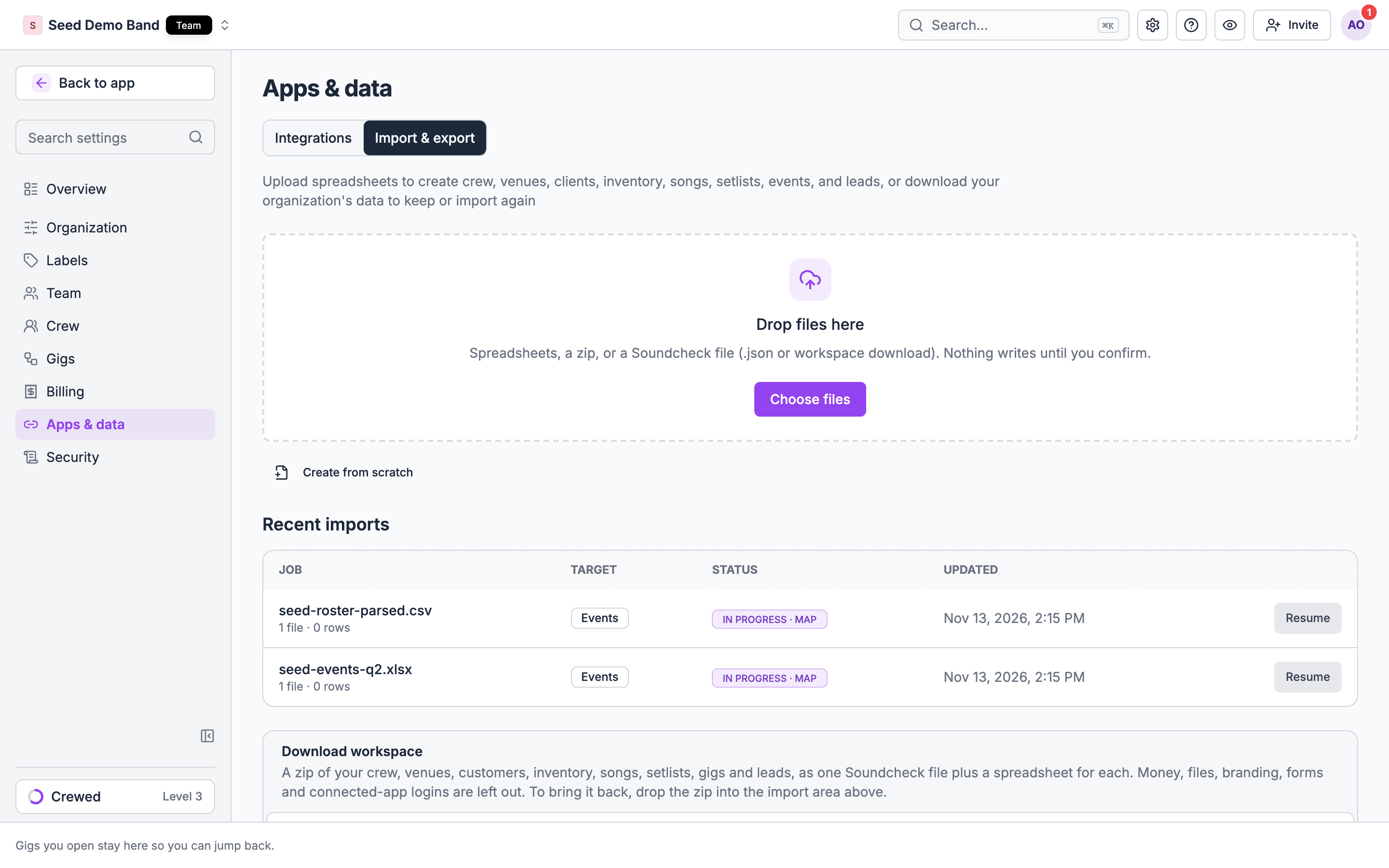
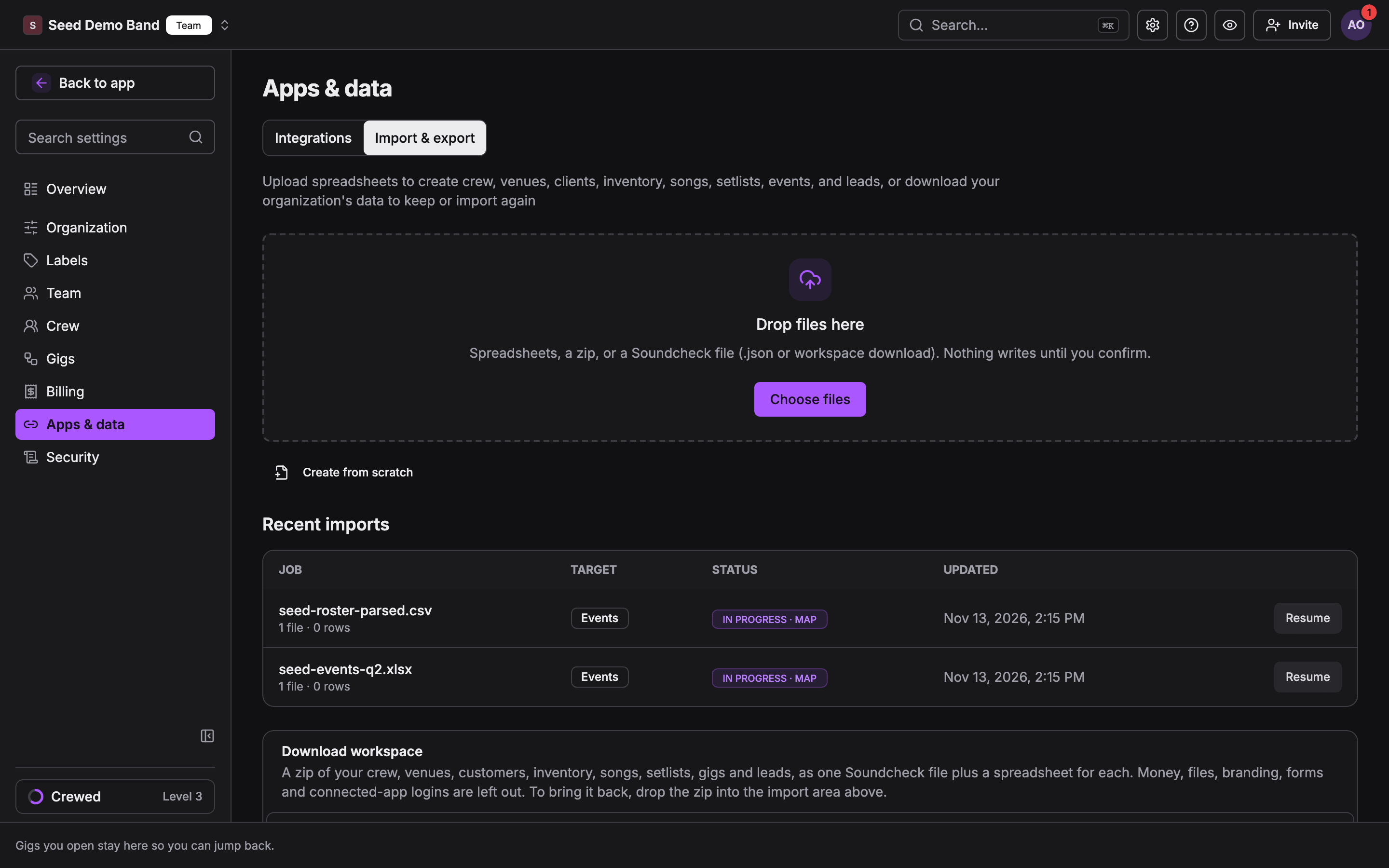
- In Soundcheck Live, open Settings → Apps & data → Import & export and drop the files in this order: Crew → Venues → Clients → Inventory → Events.
- Check what landed, then invite your crew. An import never emails anyone.
What you can bring over
Export from Rentman
Rentman exports a module’s list to a single Excel (.xlsx) file. Its export article lists the modules that support it: Subrent, Invoices, Equipment, Contacts, Crew members, Vehicles, Tasks, Time registration, Maintenance and Statistics.
Crew members
Export the Crew members module. Rentman lets you add rate columns to this export. Include them for reference. In Soundcheck Live, map first name, last name and email. A row without an email fails. Map the role or function column to the crew position. The Crew import has no rate column, so set each person’s day rate or hourly rate on their profile after the import. See Switching staffing tools for how positions, rates and ratings land.Contacts
Export the Contacts module with the contact person columns added. Rentman marks those columns with the suffix “(Contact person)”. Rentman keeps customers, suppliers and locations together as contacts. Soundcheck Live keeps Clients and Venues apart, so split the file into two sheets before importing. Import venues first so gigs can match them by name.Equipment
Export the Equipment module with the category column added. Bring the file in from Settings → Apps & data → Import & export. It maps name, external ID, category and quantity. Other columns are not applied, because a Soundcheck Live item holds only a name, a quantity and a category. See Bring in a spreadsheet. Build kits in Soundcheck Live after the import. Soundcheck Live’s inventory has items, kits, and availability and shortages over each gig’s dates, on plans that include inventory. It has no barcode scanning and no prices or rates, and each item has one quantity for the whole organization. If your warehouse depends on more, read Rentman alternative before you move equipment.Projects
Rentman’s export list has no projects module. For upcoming work, build a sheet with one row per project: name, date, start time, end time, venue and client. Import it as Events. Each row becomes a gig, and you add shifts and crew in Soundcheck Live. Past projects with their crew are a larger job. Ask Soundcheck Live’s team about Migrate from another system, which reads several linked files together.Import order
- Crew
- Venues, then Clients
- Inventory
- Events
Run both while you switch
Most teams keep the old system for work already quoted and start new gigs in Soundcheck Live. Pick a date, import the lists above, and enter gigs from that date forward. See Running both tools while you switch.What does not carry over
- Scanning and price lists. Soundcheck Live has no barcode scanning, and inventory items have no prices or rates.
- Quotes and invoices. They are not imported.
- Time registration history. Past time entries are not imported from an Excel export.
- A live link. Nothing syncs between Rentman and Soundcheck Live after the import.
Related
Rentman alternative
Where Soundcheck Live fits, and where Rentman is the better choice.
Coming from another system
Guides for LASSO, Flex, HubSpot, Stagera and others.
Operator data imports
The import page, targets and permissions.
Switching staffing tools
Moving your roster, positions and rates.