

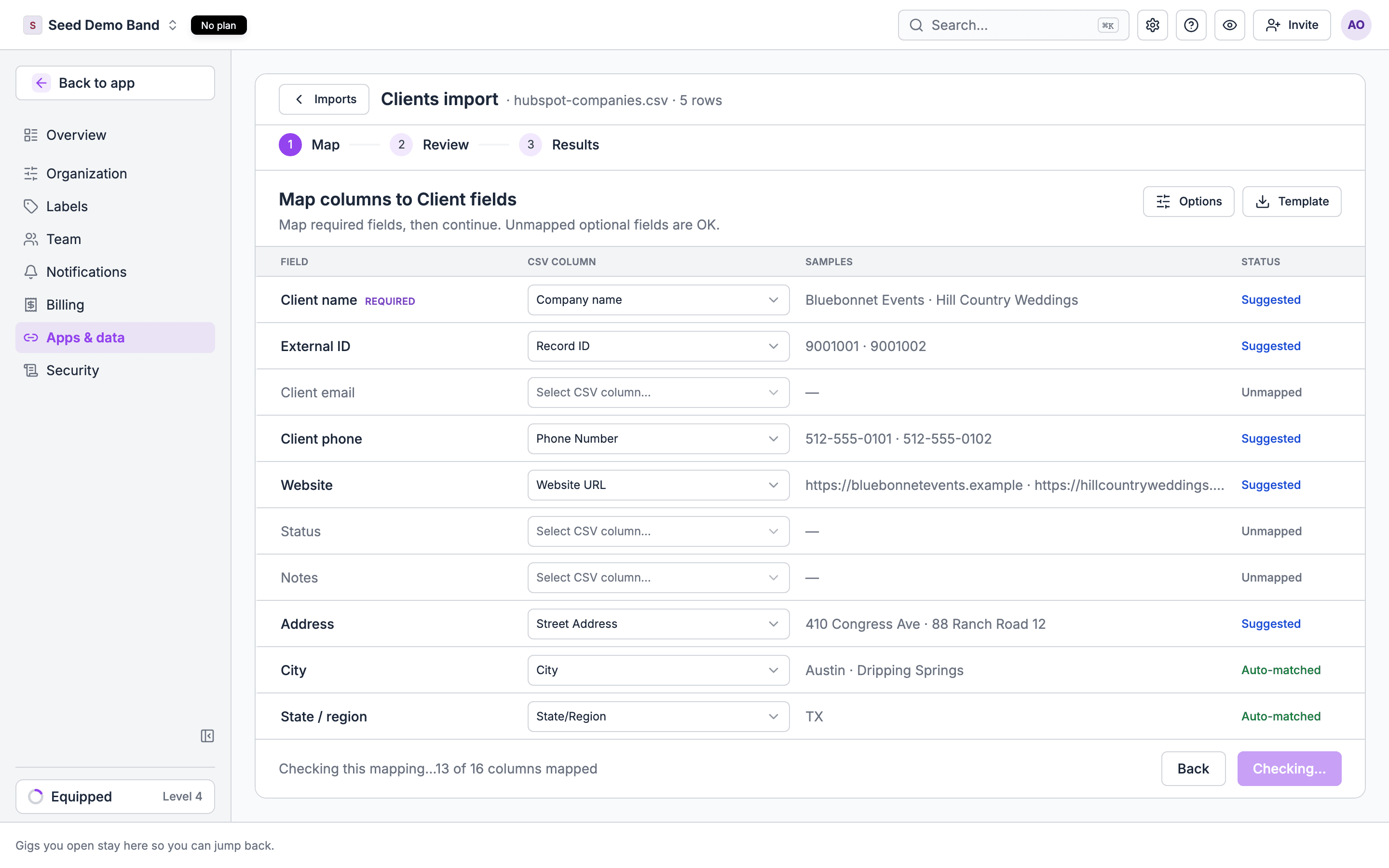
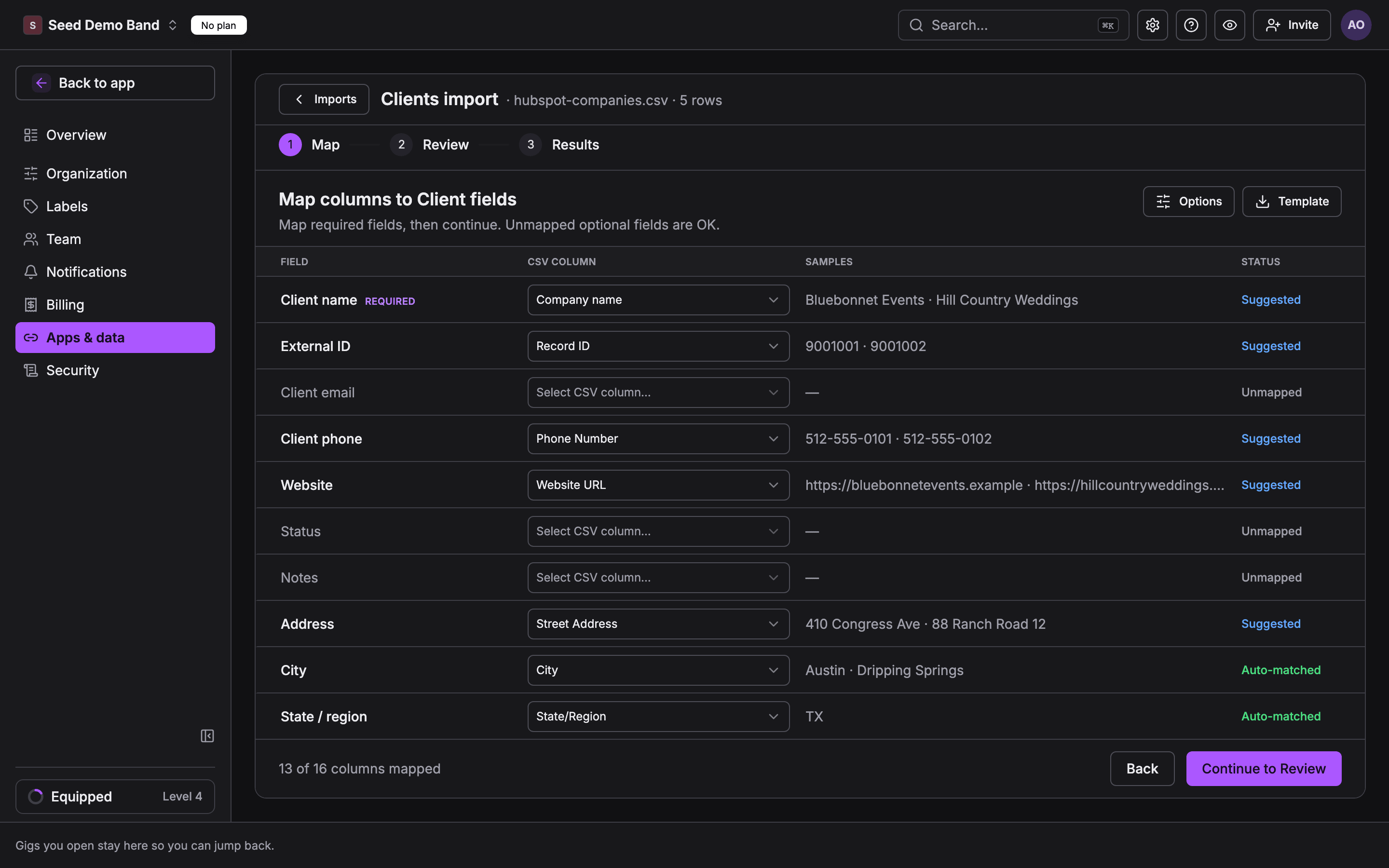
A HubSpot companies export on the mapping step. Soundcheck suggests the field for each HubSpot column. Sample data, not a customer.
imports.manage): Owner, Admin and Gig Coordinator.
Steps at a glance
- In HubSpot, export Companies, Contacts and Deals as CSV or XLSX.
- Add the columns Soundcheck needs to the Deals file: client email, event date, event type and location.
- In Soundcheck, import Clients first, then Leads, then Events for deals that are booked shows.
- Check the pipeline and a few gigs, then import the same files once more and expect 0 new rows.
What moves and what doesn’t
Export from HubSpot
HubSpot exports each object from its own list page. Official help: Export records.- Open CRM → Companies. Choose the view you want (for example, all companies), click Export, pick CSV or XLSX, and include all properties.
- Repeat on CRM → Contacts. Include the associated company so each contact row names its company.
- Repeat on CRM → Deals. Include the associated company and contact, and every custom property that holds an event date, event type or location.
- HubSpot emails a download link or downloads the file. Save the three files in one folder.
Prepare the files
Clients (Companies and Contacts)
The Clients target holds one client with one contact per row. The simplest file is the Companies export with the main contact’s columns added.
Columns you leave unmapped on Clients are saved with each record as extra data, so HubSpot properties such as industry or owner are not lost.
A HubSpot header with
ID in it maps only to an ID field. Record ID will not be mistaken for a name.
Leads (open deals)
A deals export on its own is not enough for the Leads target. Every row needs:
Optional: Amount → Budget, deal description → Message / details, Record ID → HubSpot deal ID.
If every row should share one value, set a default for that field on the mapping step and skip the column. To start from a known-good layout, download the lead template from the wizard and paste your deals into it.
Events (booked work)
For deals that are confirmed shows, build an Events file with one row per deal. Import it after Clients so each gig links to a real client record.
Add a Status column and set it to draft when you want to review the gigs before crew can see them. A draft gig is hidden from crew and holds its invitations until you publish it.
Import into Soundcheck
- Open Settings → Apps & data → Import & export and drop the Clients file on the page.
- Soundcheck does not recognize a HubSpot companies export from its file name or headers. Under Review before import, choose Clients as the target, then confirm.
- Check the suggested mapping (Company name → Client name, Record ID → External ID), fix anything left unmapped, check the preview and commit.
- Repeat for Leads, then Events.
- Open Leads to check the pipeline, and open a few gigs to check the client and date.
- Import each file once more. A clean move shows 0 new rows.
Traps
- Close Date is not the show date. Map your own event date property to Event date.
- Deal stage names are yours. Soundcheck keeps the stage text you import. Rename stages in HubSpot before export if you want cleaner names.
- Duplicate companies. Clients match by name, so
Acme EventsandAcme Events LLCbecome two clients. Merge duplicates in HubSpot first. - Contacts without a company. A contact row with no company has no client to attach to. Give it a company name or leave it out.
- Leads match by email and event date. Importing the same email and event date again updates the matching lead instead of adding one.
Keep HubSpot running
Some teams keep HubSpot for sales and use Soundcheck from the booking onward.- Read HubSpot from your AI. When your organization has HubSpot connected under Settings → Apps & data → Integrations, member MCP can list HubSpot contacts, companies and deals (
list_hubspot_contacts,list_hubspot_companies,list_hubspot_deals). These tools read only. - Sync deal stages with gigs. The HubSpot ↔ Flex pipeline keeps a HubSpot deal, a Flex quote and a Soundcheck gig in step. It is not generally available yet.
Get help with the move
Soundcheck’s team has brought a customer’s HubSpot deals into Soundcheck, including a season of deals pulled by date range and stage. That customer still sells in HubSpot. If your export is large or your deal properties are unusual, contact support before you start. Practice files with HubSpot’s own column names are in the repo underdocs/sample-imports/migrations/hubspot/.
Related
Coming from another system
Hub for every migration guide, the shared import path and mapping traps
Coming from Flex
Move inventory, contacts, venues and quotes from Flex Rental Solutions
Lead tracking
How the pipeline works once your deals are in
Customers
Client records and their contacts