

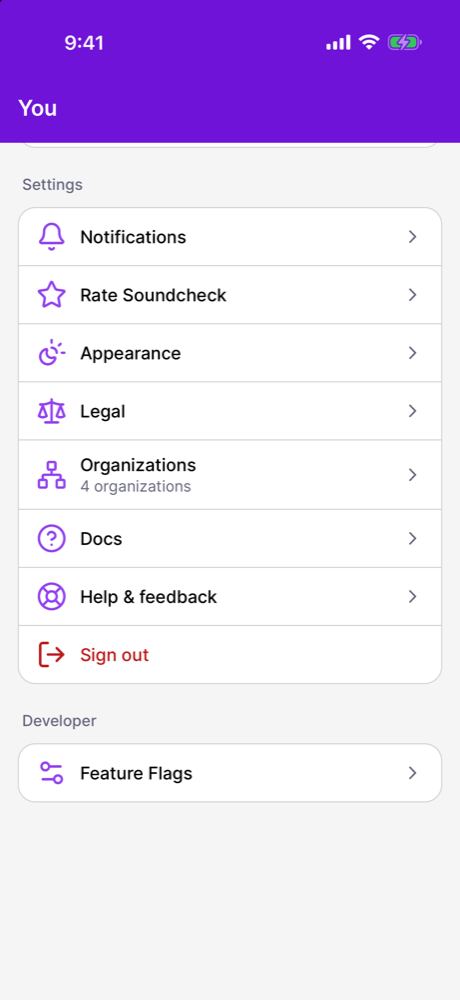
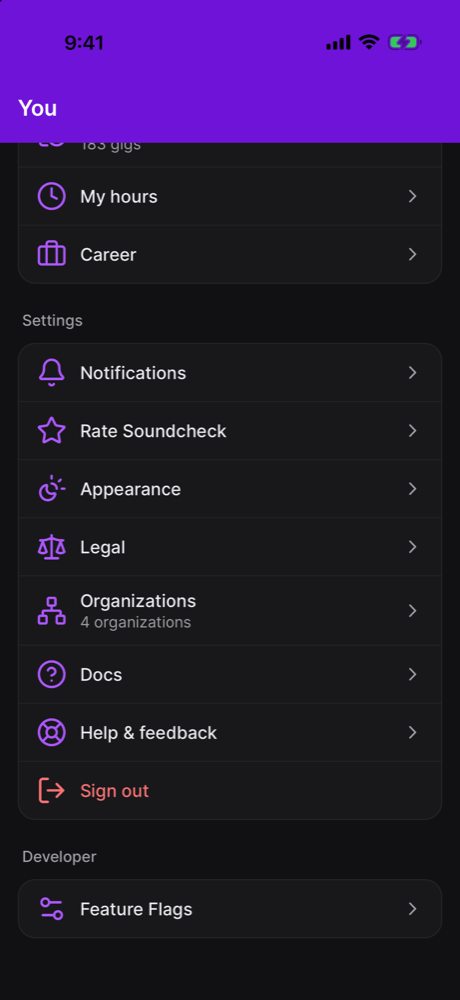
Docs in the app is rolling out gradually. If you don’t see Docs under You → Settings, it isn’t on for your organization yet. Contact info@soundchecklive.io to ask about it. You can always read the same pages at docs.soundchecklive.io.
Opening the docs
- Tap You in the bottom bar.
- Under Settings, tap Docs.
Where you start
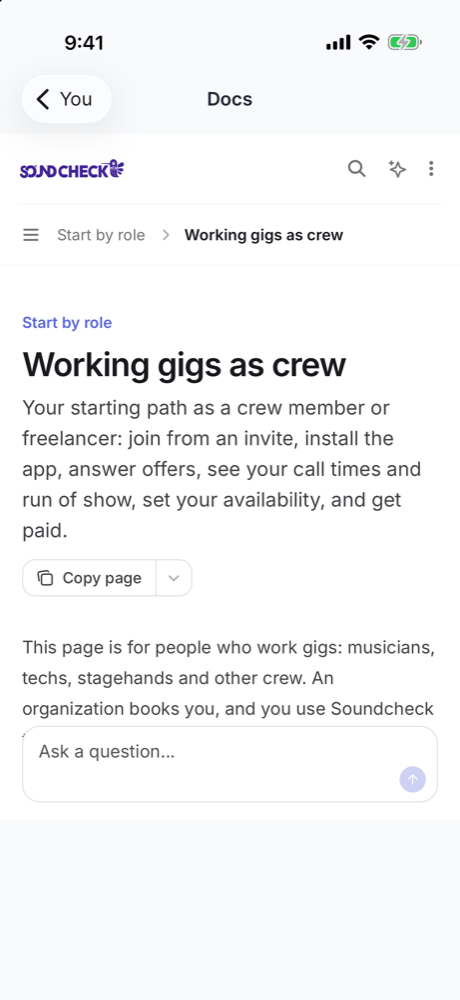
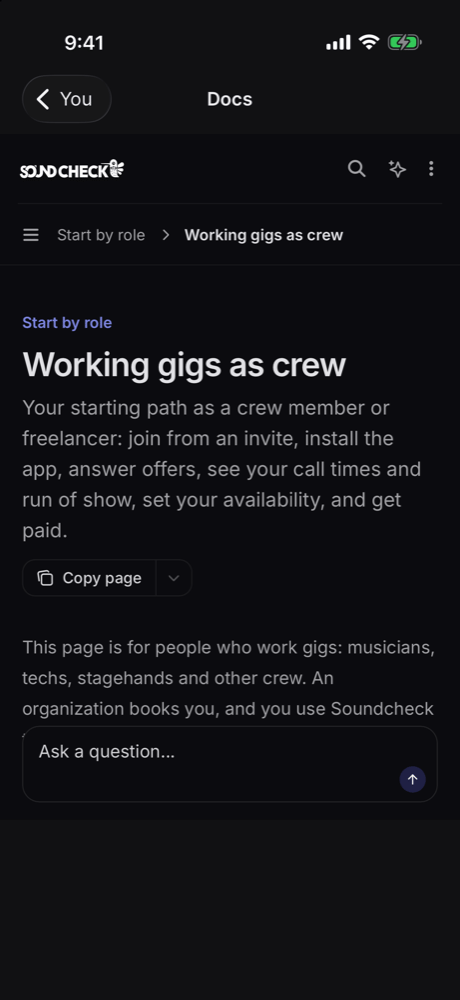
The docs open on the guide for your role in the organization you have selected:
From there you can move anywhere in the docs. To start from a different guide, switch organizations first (You → Organizations) and open Docs again.
Finding a page
- Search: tap the magnifying glass at the top of the docs and type what you’re looking for, such as availability or call time. Tap a result to open it.
- Browse: tap the menu button next to the page path to see every section.
- Ask a question: type a question in the box at the bottom of a page to get an answer drawn from the docs.
Links
- Links to other docs pages open in the same screen.
- Links to a gig on the Soundcheck web app open that gig in the mobile app.
- Links to other Soundcheck web pages open in the in-app browser. Close it to come back to the docs.
- Links to other websites, email addresses, and phone numbers open in your phone’s browser, mail app, or dialer.
Going back
- Back to the app: tap You at the top left.
- Back to the previous docs page on Android: press the Back button. Once you’re on the first page you opened, Back returns you to You.