

1. Join from your invite
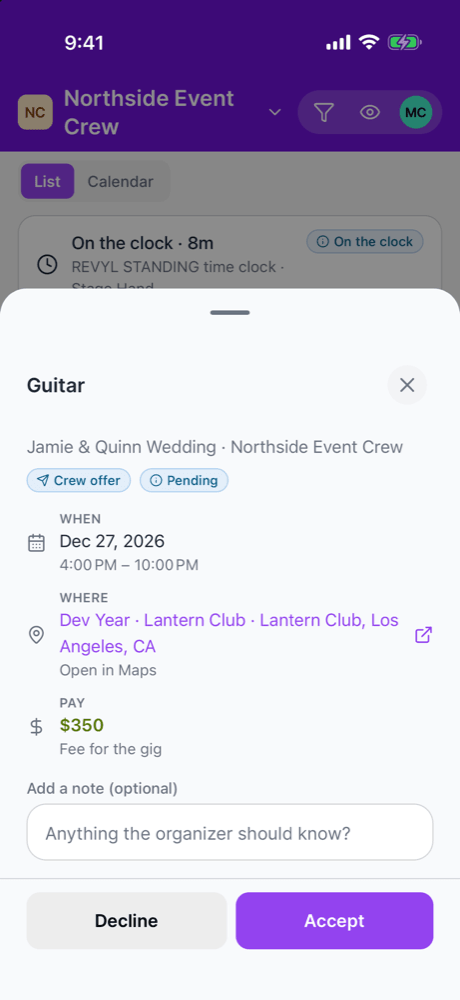
You hear from an organization in one of two ways:- An invitation to the organization. It comes by email or text with a link. Open it, create an account or sign in, and you join their roster. See Invitations.
- An offer for a shift. It comes by email, text or push. You can accept or decline from the link without an account. Create an account with the same email later and the shift moves into it. See What crew receive.
2. Install the app and sign in
1
Install
Get Soundcheck from the App Store or Google Play. See Install the mobile app.
2
Sign in
Use the same account as the web: email and password, a code texted to your phone, Google, or Apple on iPhone.
3
Turn on notifications
Allow push notifications so offers, time changes and messages from your lead reach your lock screen. See Push notifications.
4
Fill in your profile
Tap your name at the top of You to add a photo and an emergency contact. See Profile.
3. Find your way around the app
Owners and admins may also see an Organization tab. Crew usually don’t. If you work for several organizations, the app shows gigs from all of them. Switch from the organization name at the top of Gigs or Inbox, or from You → Organizations. See Mobile app overview.
4. Answer offers
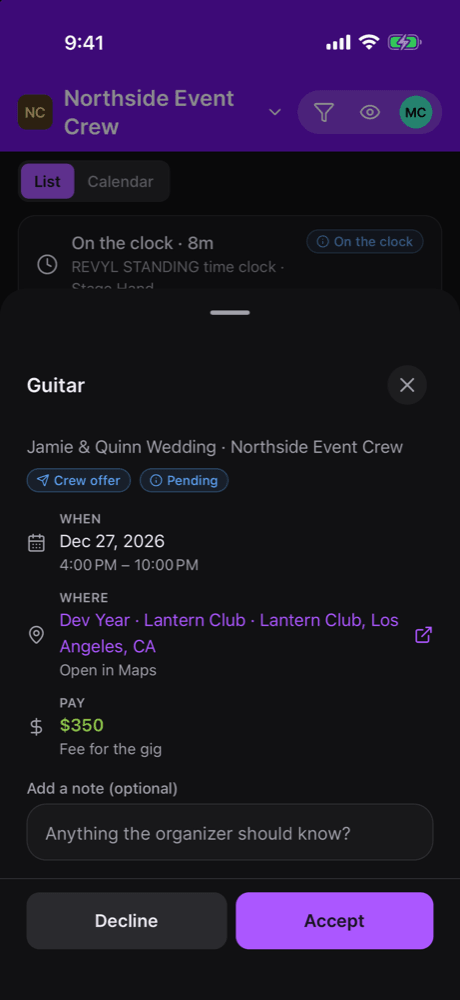
Offers land in your Inbox under Needs you. Each one shows when, where and your pay.- One day: tap Accept or Decline.
- Several days: pick Available to work or Can’t for each day, or use Accept all days or Decline all days. You can submit once every day has an answer.
- Add a note for the organizer if you need to.
5. See your call times and the run of show
Open a gig from Gigs. Its Details start with your shift: your call, key facts, logistics such as parking and load-in, and your pay. Below that are the run of show, the people on the gig, travel, documents, Messages from your lead and recent Changes.- In the run of show, filter to My items to see only what you’re on.
- Tap Follow live to keep the current and next item on screen. On iPhone it also shows on your lock screen.
- Open the gig on good signal before you head into the venue. The app saves your upcoming gigs so you can read them offline.
6. Clock in and out
If your organization uses the time clock, tap Clock in on the gig when you arrive and Clock out when you’re done. Your organization reviews and approves your hours. The time clock is in early access, so not every organization has it. See Time clock and timesheets.7. Set your availability
Go to You → Availability and mark when you’re available or unavailable. Schedulers see it when they pick crew. Shifts you accept show as booked. Holds your organization sets show Set by an admin and you can’t change them. When someone asks “are you free on the 14th?”, it arrives in your Inbox. Your answer updates your availability too. See Personal availability.8. Sign documents
Some organizations send you an agreement or a form for a gig. Open it from the Inbox or the gig’s Details and tap Review & sign (or Complete & sign when the agreement includes a form to fill in). If the app can’t open a document, it offers Open on the web. See Documents on mobile.9. Get paid
You see your own pay and nobody else’s.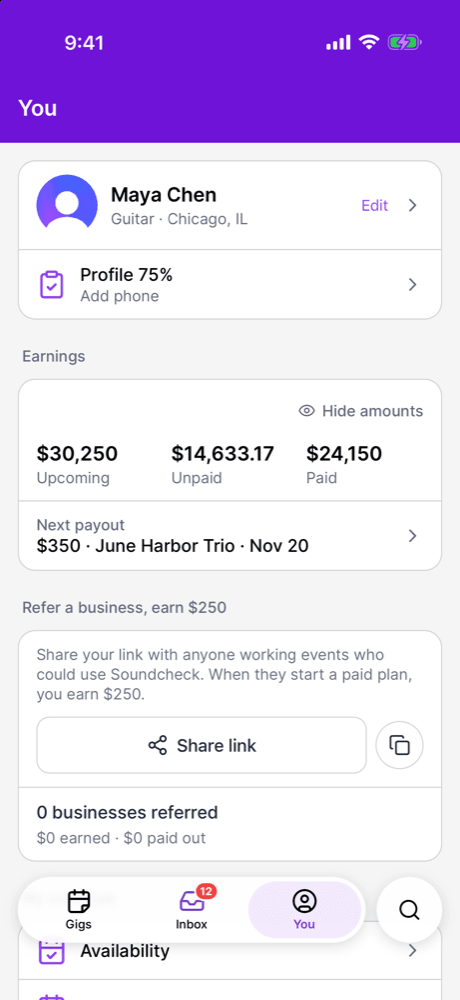
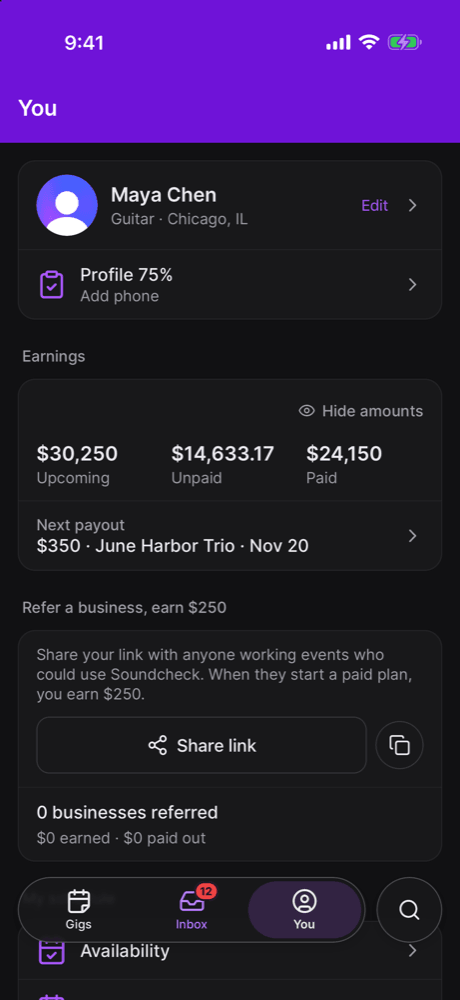
- Earnings on the You tab shows Upcoming, Unpaid and Paid, and your next payout.
- On each gig, tap your pay for the breakdown. If you were paid outside Soundcheck, tap Mark as received.
- Submit expense adds a receipt as its own line.
- Submit invoice turns your unpaid pay and expenses on a gig into an invoice PDF.
- If your organization pays through Soundcheck, set up Payout setup on your profile to connect your own Stripe account.
What you can and can’t see
- You see your own gigs, your call and schedule, the run of show as last published, the other people on the gig, your own travel and your own pay.
- You don’t see other crew members’ pay, travel costs or the organization’s finances.
- You choose your own notification channels in Notifications under Settings on the You tab.
- Your organization sets your rates per position. You can’t change them or counter an offer with a different rate.
Who to ask
Questions about a gig, your pay or your role go to the organization that booked you. Messages from your lead appear on the gig, and their contact details are on the gig too. For problems with the app itself, use You → Help & feedback.Related
The crew experience
Every step from the first offer to getting paid.
Mobile app overview
Everything in the app, tab by tab.
Career record
Your gigs and positions across every organization.
Staffing FAQ
Answers to common crew questions.