> ## Documentation Index
> Fetch the complete documentation index at: https://docs.soundchecklive.io/llms.txt
> Use this file to discover all available pages before exploring further.
# Mailbox
> One inbox for invitations, crew offers, and availability requests
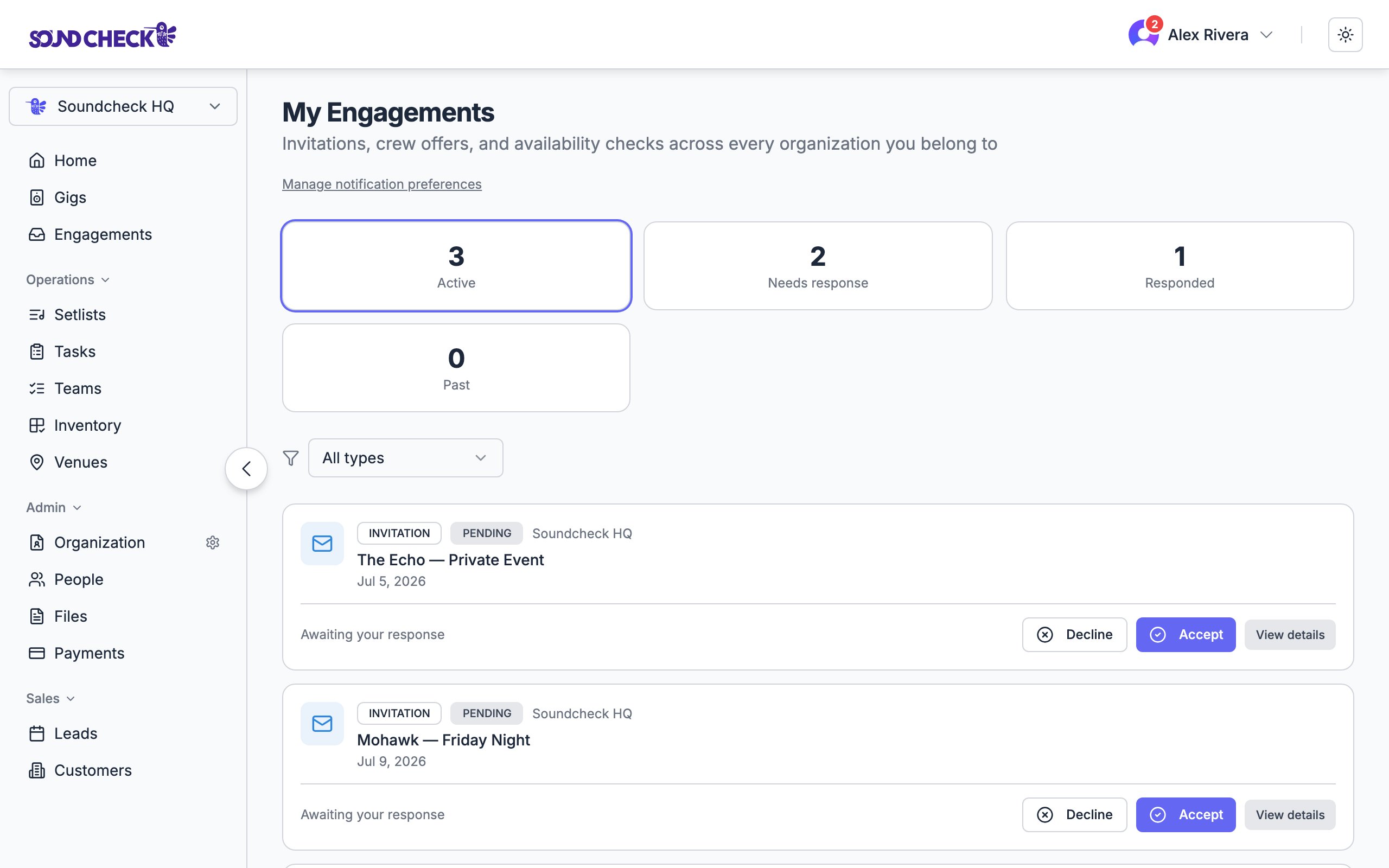
**Mailbox** is where anything in Soundcheck that's waiting on someone's response shows up — an event invitation, a crew offer, an availability check, or an onboarding prompt. They all behave the same way: a recipient gets notified, the recipient responds, and the requester sees the result. One inbox means members don't hunt across separate lists.
 ***
## Item kinds
A request to perform on a specific event. Recipients **Accept** or **Decline**.
A standalone shift or job offer (sometimes tied to an event, sometimes not). Recipients **Accept** or **Decline**.
A scheduler asking whether you're free for a date or time window. Recipients reply **Available** or **Not available**.
A prompt for a new member to finish setting up. There's no accept/decline — the card's **Continue setup** action routes you into your org's onboarding flow.
The response kinds roll up into the same statuses on the back end: pending, accepted, declined, standby, expired, or withdrawn. Onboarding is a synthetic, org-scoped reminder rather than a request/response, so it carries no accept/decline actions and no email one-click links.
Each card is titled by its **event title** when there's an event behind it (an invitation or an event-linked crew offer). Standalone offers, availability checks, and onboarding fall back to a label for the kind, so every row reads clearly at a glance.
***
## My Mailbox
Every member has a personal inbox at `/engagements`. Pending items rise to the top, with separate tabs to filter:
* **All** — everything you've ever been sent.
* **Needs response** — items still waiting on you.
* **Responded** — items where you've already replied.
Each row shows the item kind, the title, the event date (when available), and the relevant action buttons. For past events, the buttons are replaced with **"Event has passed"** so you can't accidentally respond to a gig that already happened.
Bookmark `/engagements` — every notification email links back here.
***
## Mailbox (admin)
Owners, admins, and gig coordinators get a separate view at `/org-engagements` that aggregates requests across the whole organization. Instead of per-recipient actions, each row shows a stat strip:
* Total recipients
* Pending
* Accepted / Available
* Declined / Unavailable
* Standby
* Withdrawn / Expired
Use it to spot stalled requests — for example, an invitation that's been pending for three days with no responses, or a crew offer where every recipient has declined.
Mailbox is read-only at the row level — accepting or declining still happens from the recipient's `/engagements` inbox (or from the original email or push notification).
***
## Calendar handoff on accept
When you **Accept** an invitation or crew offer on Soundcheck, the matching Google Calendar invite is automatically marked as **accepted** for you — no need to confirm twice.
This works through the same Google Calendar sync that powers the event-to-calendar pipeline:
1. The event is already published to the organization's Google Calendar.
2. When you accept on Soundcheck, the API calls Google Calendar's attendee API with `responseStatus=accepted`.
3. Your calendar updates within seconds.
If the calendar sync isn't configured for the organization, the accept still succeeds on Soundcheck — only the calendar side is skipped.
***
## Notification deep links
Mailbox notifications (email, SMS, push) all link back to the unified inbox using `?highlight={id}`. When you open the link, the inbox scrolls to the matching row and pulses a ring around it for about three seconds.
This replaces a previous behavior where notification links pointed at per-kind URLs (like `/engagements/invitations/xyz`) that no longer exist. If you have older notifications cached, they'll now redirect into the inbox.
***
## Notification preferences
You can control how — and whether — you're notified for each item kind.
### Per-user preferences
Open your profile and look for **Notification preferences**. For invitations, crew offers, and availability checks, you can toggle:
* **Email**
* **SMS**
* **Push**
Toggles default to on. Turning every channel off for a kind effectively mutes that kind for you.
### Org-wide defaults
Owners and admins can set the **defaults** that new members start with, under organization settings. Defaults only apply where a member hasn't set their own preference — your explicit choices always win.
***
## Related
How schedulers ask for availability
Sending invitations and crew offers from a gig
Subscribe to your gigs from Apple, Google, or Outlook
***
## Item kinds
A request to perform on a specific event. Recipients **Accept** or **Decline**.
A standalone shift or job offer (sometimes tied to an event, sometimes not). Recipients **Accept** or **Decline**.
A scheduler asking whether you're free for a date or time window. Recipients reply **Available** or **Not available**.
A prompt for a new member to finish setting up. There's no accept/decline — the card's **Continue setup** action routes you into your org's onboarding flow.
The response kinds roll up into the same statuses on the back end: pending, accepted, declined, standby, expired, or withdrawn. Onboarding is a synthetic, org-scoped reminder rather than a request/response, so it carries no accept/decline actions and no email one-click links.
Each card is titled by its **event title** when there's an event behind it (an invitation or an event-linked crew offer). Standalone offers, availability checks, and onboarding fall back to a label for the kind, so every row reads clearly at a glance.
***
## My Mailbox
Every member has a personal inbox at `/engagements`. Pending items rise to the top, with separate tabs to filter:
* **All** — everything you've ever been sent.
* **Needs response** — items still waiting on you.
* **Responded** — items where you've already replied.
Each row shows the item kind, the title, the event date (when available), and the relevant action buttons. For past events, the buttons are replaced with **"Event has passed"** so you can't accidentally respond to a gig that already happened.
Bookmark `/engagements` — every notification email links back here.
***
## Mailbox (admin)
Owners, admins, and gig coordinators get a separate view at `/org-engagements` that aggregates requests across the whole organization. Instead of per-recipient actions, each row shows a stat strip:
* Total recipients
* Pending
* Accepted / Available
* Declined / Unavailable
* Standby
* Withdrawn / Expired
Use it to spot stalled requests — for example, an invitation that's been pending for three days with no responses, or a crew offer where every recipient has declined.
Mailbox is read-only at the row level — accepting or declining still happens from the recipient's `/engagements` inbox (or from the original email or push notification).
***
## Calendar handoff on accept
When you **Accept** an invitation or crew offer on Soundcheck, the matching Google Calendar invite is automatically marked as **accepted** for you — no need to confirm twice.
This works through the same Google Calendar sync that powers the event-to-calendar pipeline:
1. The event is already published to the organization's Google Calendar.
2. When you accept on Soundcheck, the API calls Google Calendar's attendee API with `responseStatus=accepted`.
3. Your calendar updates within seconds.
If the calendar sync isn't configured for the organization, the accept still succeeds on Soundcheck — only the calendar side is skipped.
***
## Notification deep links
Mailbox notifications (email, SMS, push) all link back to the unified inbox using `?highlight={id}`. When you open the link, the inbox scrolls to the matching row and pulses a ring around it for about three seconds.
This replaces a previous behavior where notification links pointed at per-kind URLs (like `/engagements/invitations/xyz`) that no longer exist. If you have older notifications cached, they'll now redirect into the inbox.
***
## Notification preferences
You can control how — and whether — you're notified for each item kind.
### Per-user preferences
Open your profile and look for **Notification preferences**. For invitations, crew offers, and availability checks, you can toggle:
* **Email**
* **SMS**
* **Push**
Toggles default to on. Turning every channel off for a kind effectively mutes that kind for you.
### Org-wide defaults
Owners and admins can set the **defaults** that new members start with, under organization settings. Defaults only apply where a member hasn't set their own preference — your explicit choices always win.
***
## Related
How schedulers ask for availability
Sending invitations and crew offers from a gig
Subscribe to your gigs from Apple, Google, or Outlook