> ## Documentation Index
> Fetch the complete documentation index at: https://docs.soundchecklive.io/llms.txt
> Use this file to discover all available pages before exploring further.
# The Home page
> Your personalized, org-scoped landing page — greeting, quick actions, at-a-glance stats, recent activity, and finance roll-ups.
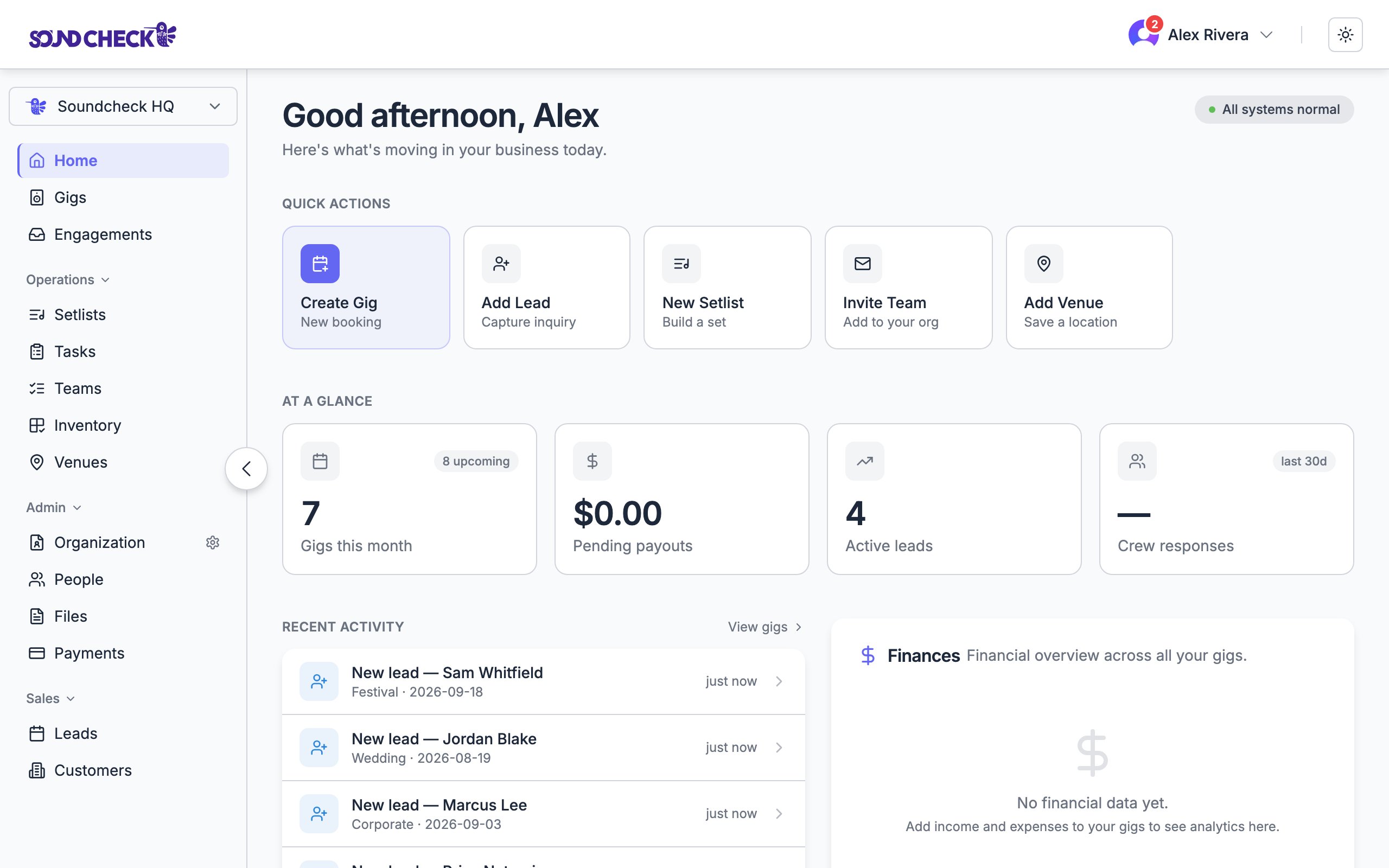
**Home** is where you land after signing in — a personalized, org-scoped starting point that surfaces what needs your attention without digging through every list. Home replaced the older Dashboard, and unlike the old admin-only Dashboard, **every role gets a Home** tuned to what they can see and do.
 Home is personalized. What you see depends on your **role** (Owner, Admin, Gig Coordinator, Member), your **plan**, and which features are enabled for your org. Finances and leads only appear for the people entitled to them.
***
## First run: Get started
On a brand-new workspace — no gigs, no activity, no leads yet — Home shows a **Get started** checklist instead of the full layout. It's a short, guided path with a running `done` count:
Opens the new-gig flow right from Home.
Capture an inquiry (on plans with CRM).
Bring crew into your org.
Logo, contact, and details (admins).
Your name, photo, and contact.
Each step checks off automatically as you complete it — from data already on the page, so there's nothing extra to click. Home graduates to the full layout the moment real gigs, leads, or activity exist.
***
## The full layout
Once your org has activity, Home shows four sections.
### Quick actions
A row of one-tap shortcuts, filtered to what you can do — for example **Create Gig**, **Add Lead**, **New Setlist**, **Invite Team**, **Add Venue**, and **Payments**. Actions you don't have access to simply don't appear.
### At a glance
Four stat tiles that adapt to your role and plan. Common tiles:
| Tile | Shows |
| ------------------------------- | -------------------------------------------------------------------------------------------------- |
| **Gigs this month** | Count of this month's gigs, with an "upcoming" delta |
| **Pending payouts** *(finance)* | Total and count of payouts awaiting action; falls back to **Upcoming gigs** without finance access |
| **Active leads** *(CRM)* | Open leads; falls back to **Pending invites** without CRM |
| **Crew responses** *(offers)* | Response rate over the last 30 days; falls back to **Completed gigs** |
### Recent activity
A single feed that merges the sources you're entitled to see — new gigs, leads, crew offers, and payments — each linking straight to the record.
### Finances
For roles with **financial access** on plans that include finance, a Finances card rolls up expected payouts and per-gig breakdowns, drawing on the same figures as the [Payments](/features/payments) page so the two always agree.
The Finances card and finance stat tiles are hidden for roles without financial access — for example the **Gig Coordinator** role — even when the feature is enabled.
***
## When to use it
* **Every morning** — scan quick actions, stats, and recent activity to see what's moving.
* **After a busy week** — reconcile completed counts and finances.
* **Before a batch of invitations** — spot under-staffed gigs and pending responses.
For hands-on editing of a gig (positions, attachments, setlist), jump into **Gigs** instead.
***
## Related
Where every gig lives
Org-level payout history and requests
One inbox for invitations, crew offers, and availability
Home is personalized. What you see depends on your **role** (Owner, Admin, Gig Coordinator, Member), your **plan**, and which features are enabled for your org. Finances and leads only appear for the people entitled to them.
***
## First run: Get started
On a brand-new workspace — no gigs, no activity, no leads yet — Home shows a **Get started** checklist instead of the full layout. It's a short, guided path with a running `done` count:
Opens the new-gig flow right from Home.
Capture an inquiry (on plans with CRM).
Bring crew into your org.
Logo, contact, and details (admins).
Your name, photo, and contact.
Each step checks off automatically as you complete it — from data already on the page, so there's nothing extra to click. Home graduates to the full layout the moment real gigs, leads, or activity exist.
***
## The full layout
Once your org has activity, Home shows four sections.
### Quick actions
A row of one-tap shortcuts, filtered to what you can do — for example **Create Gig**, **Add Lead**, **New Setlist**, **Invite Team**, **Add Venue**, and **Payments**. Actions you don't have access to simply don't appear.
### At a glance
Four stat tiles that adapt to your role and plan. Common tiles:
| Tile | Shows |
| ------------------------------- | -------------------------------------------------------------------------------------------------- |
| **Gigs this month** | Count of this month's gigs, with an "upcoming" delta |
| **Pending payouts** *(finance)* | Total and count of payouts awaiting action; falls back to **Upcoming gigs** without finance access |
| **Active leads** *(CRM)* | Open leads; falls back to **Pending invites** without CRM |
| **Crew responses** *(offers)* | Response rate over the last 30 days; falls back to **Completed gigs** |
### Recent activity
A single feed that merges the sources you're entitled to see — new gigs, leads, crew offers, and payments — each linking straight to the record.
### Finances
For roles with **financial access** on plans that include finance, a Finances card rolls up expected payouts and per-gig breakdowns, drawing on the same figures as the [Payments](/features/payments) page so the two always agree.
The Finances card and finance stat tiles are hidden for roles without financial access — for example the **Gig Coordinator** role — even when the feature is enabled.
***
## When to use it
* **Every morning** — scan quick actions, stats, and recent activity to see what's moving.
* **After a busy week** — reconcile completed counts and finances.
* **Before a batch of invitations** — spot under-staffed gigs and pending responses.
For hands-on editing of a gig (positions, attachments, setlist), jump into **Gigs** instead.
***
## Related
Where every gig lives
Org-level payout history and requests
One inbox for invitations, crew offers, and availability